
Configure Ticketing for ServiceNow
Pre-Requisites
- Please ensure the required ServiceNow Connector has been created with the necessary permissions to support ticket actions. Please refer the ServiceNow Access Requirements Doc for details.
- Please ensure the Service Account being used for connecting to ServiceNow has access to the Ticket Tables users want to interact with.
Configuration
Start by navigating to Ticketing > Ticketing Setting > Ticket Mapping where you can create a new mapping for your ITSM system. If you are adding a new ticket type to an existing configuration, click edit to open the existing configuration. If you are configuring ticketing for the first time or adding a new ticketing system create a new ticket mapping configuration by clicking on Create.
Step 1: Select Source
Skip this step if you are editing an existing configuration
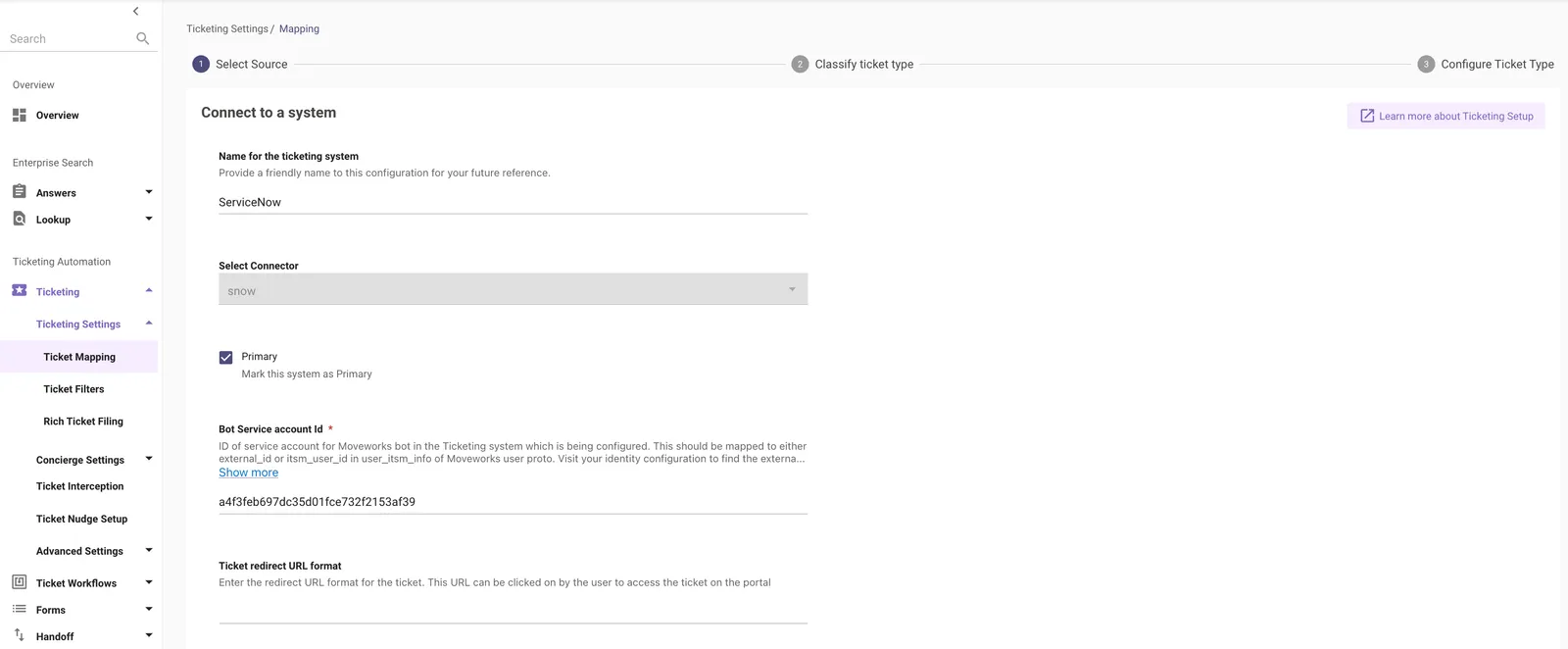
Name for the ticketing system - Please name your ticketing system configuration
Select Connector - Select the connector which was configured by following the steps in the Guide here.
Bot Service account Id - ID of service account for Moveworks bot in the Ticketing system which is being configured. In the case of ServiceNow this is going to be the User name of the service account
Ticket redirect URL format - This is the redirect URL Format for your ticket. Leave this empty in the case of ServiceNow as the Moveworks Default will be picked up.
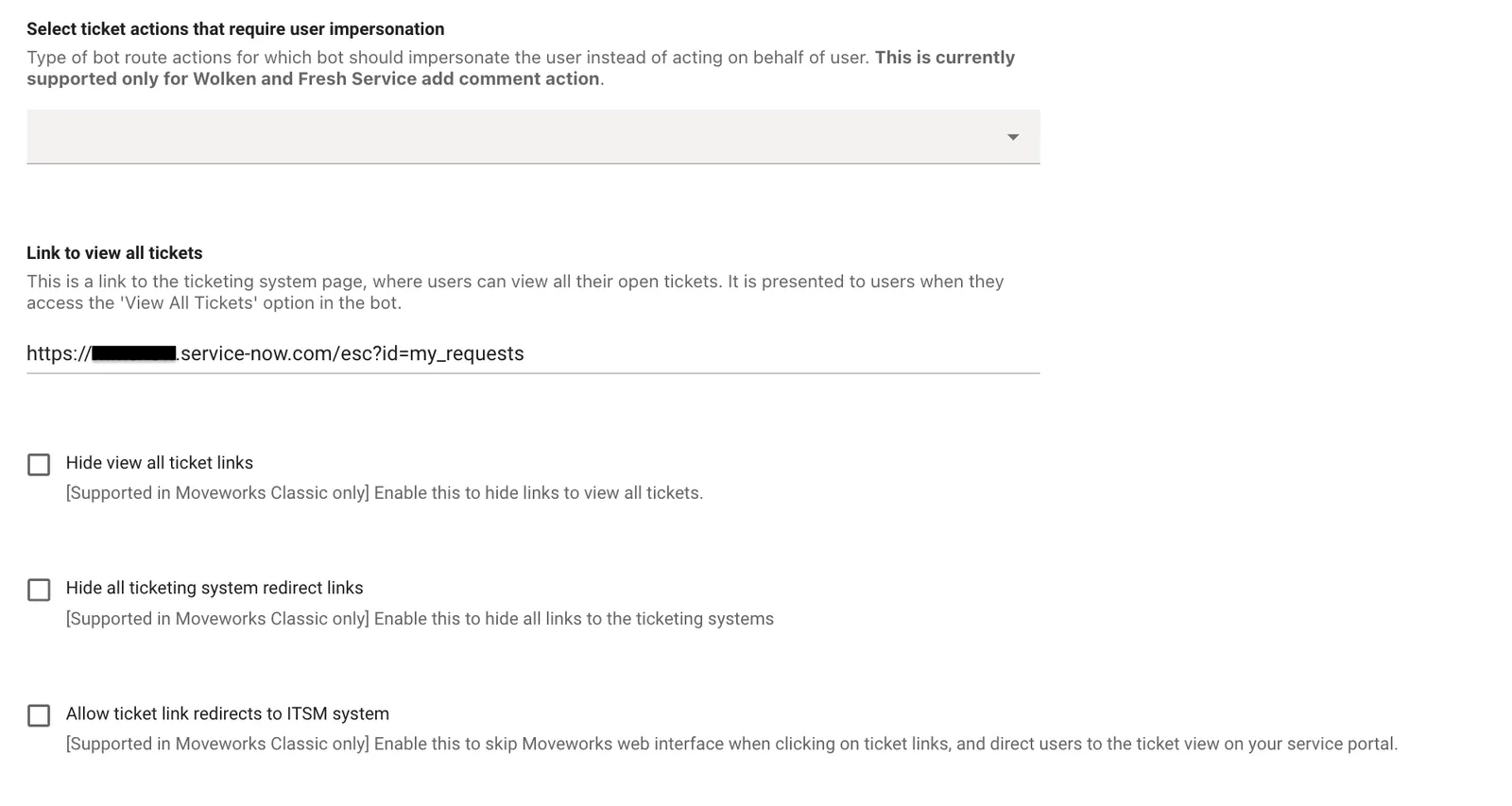
Link to view all tickets - This is a link to the ServiceNow Portal, where users can view all their open tickets. It is presented to users when they access the ‘View All Tickets’ option in the Assistant.
Step 2: Classify Ticket Type
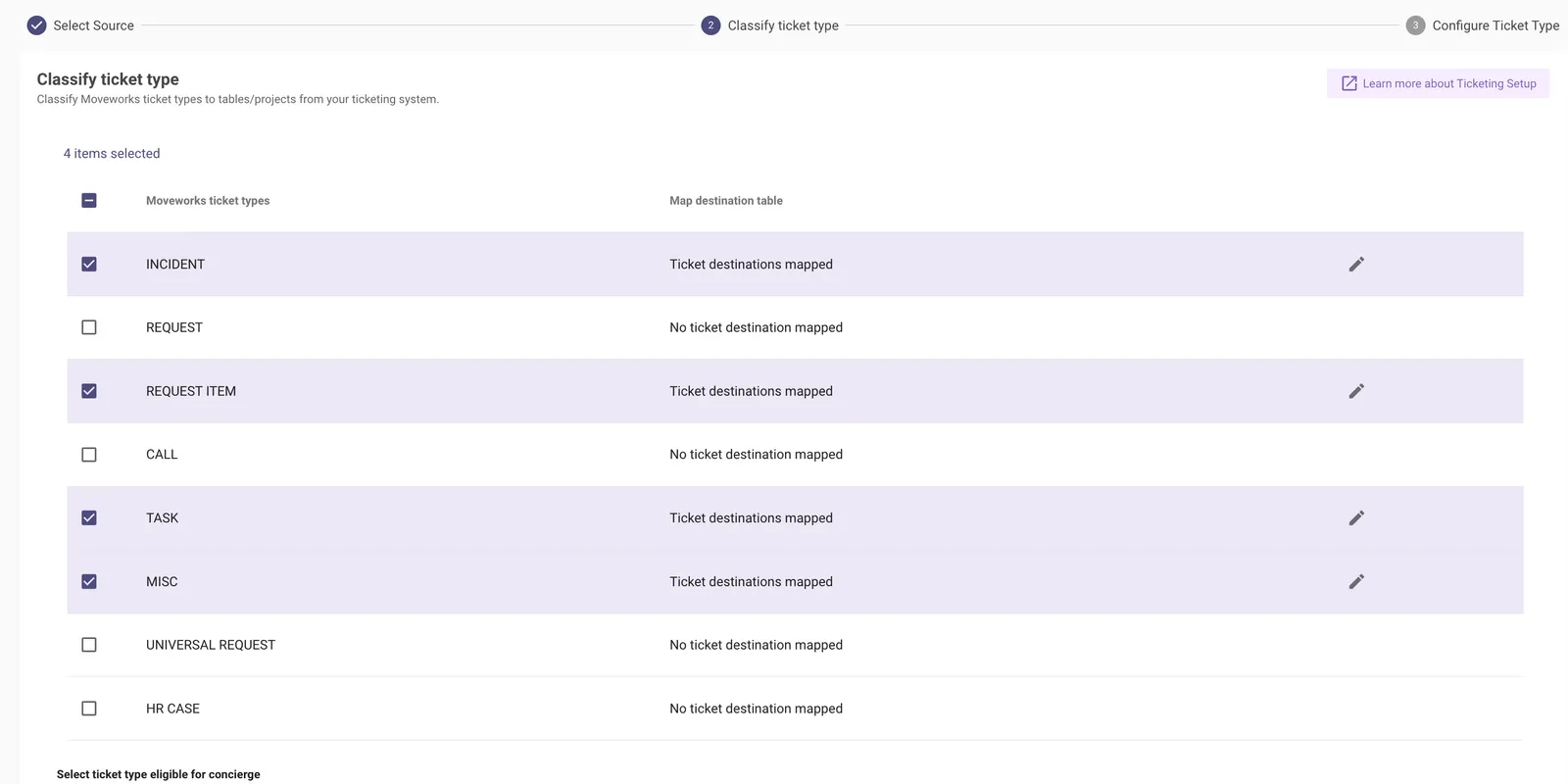
Define what Ticket Types you want Moveworks to support and the tables which are categorised into the predefined types which are provided by Moveworks.
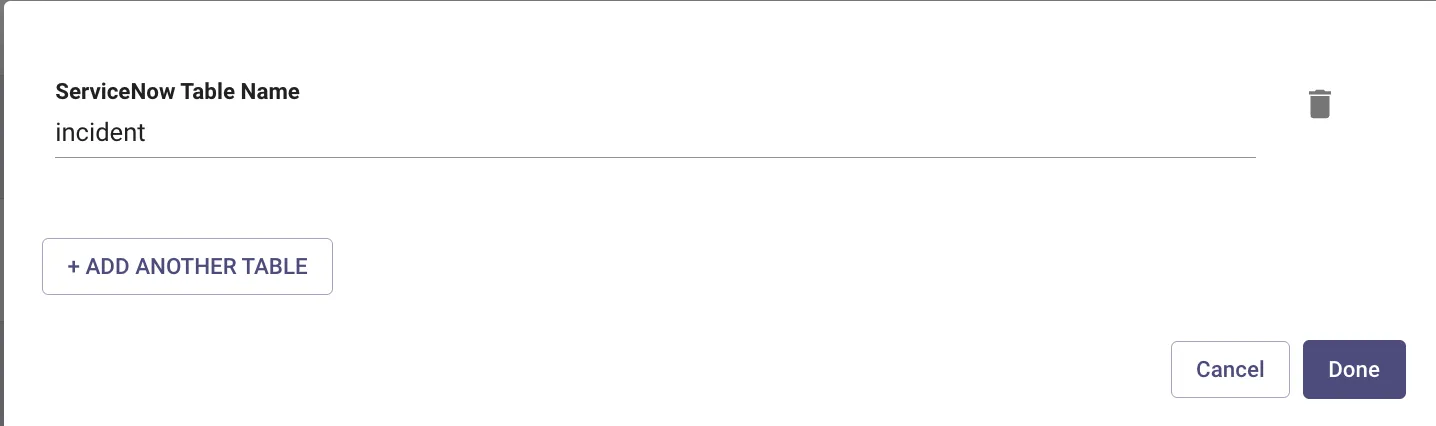
- In this scenario we are defining an Incident type ticket where we need to define the below fields.
- ServiceNow Table Name - Define the name of the table on the ServiceNow end which is the destination where tickets will be polled and interacted with.
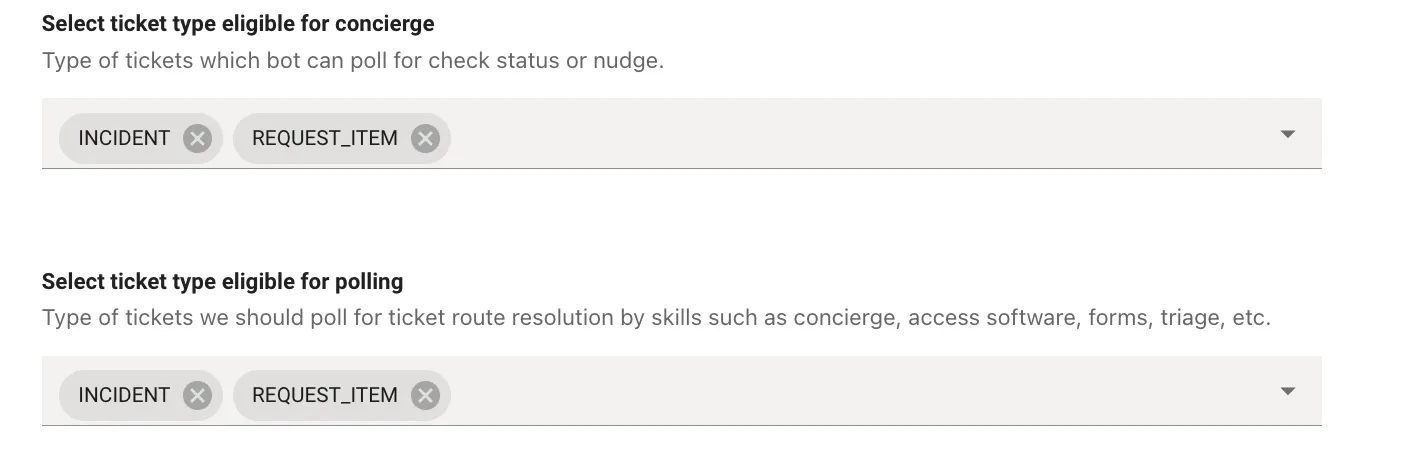
Once we have classified the Ticket types, we need to select that in the below polling configurations in order for Moveworks to interact with the Tickets.
- Select ticket type eligible for concierge - Select the Type of ticket which should be polled for updates and status checks which fall under the Concierge skill.
- Select ticket type eligible for polling - Select the type of ticket which should be considered for polling in order to support the Ticket operations for it.
Step 3: Configure Ticket Type
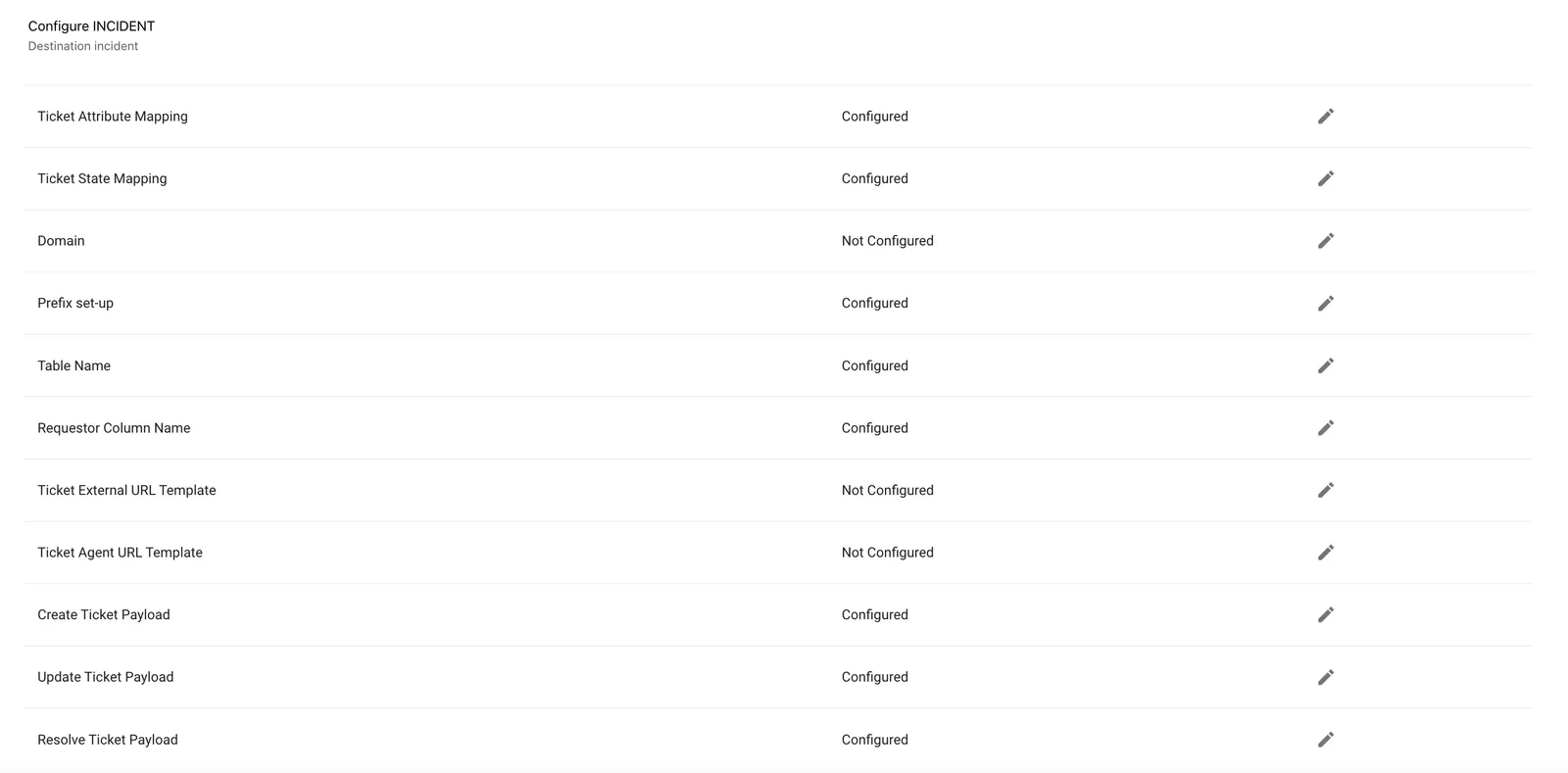
Now that we have defined what types of tickets Moveworks should support, We can now configure the Payloads for the Ticket Actions which can be performed by the AI Assistant. We will also define the below configurations to support Ticketing in Moveworks.
Step 4: Map Ticket Structure
In order for Moveworks to poll/query your tickets from the external ITSM system we need to map the structure of the ITSM Ticket payload to the internal Moveworks Attribute Structure which is defined under Ticket Attribute Mapping. Mapping ticket structure allows Moveworks to understand what the ticket data contains.
For example :
- Understanding who the requestor of the ticket is.
- Understanding what the state ticket is currently under.
- Understanding what is the Ticket number.
The below fields need to be defined in order for the Ticketing Mapping to be created.
Query Ticket Field Map
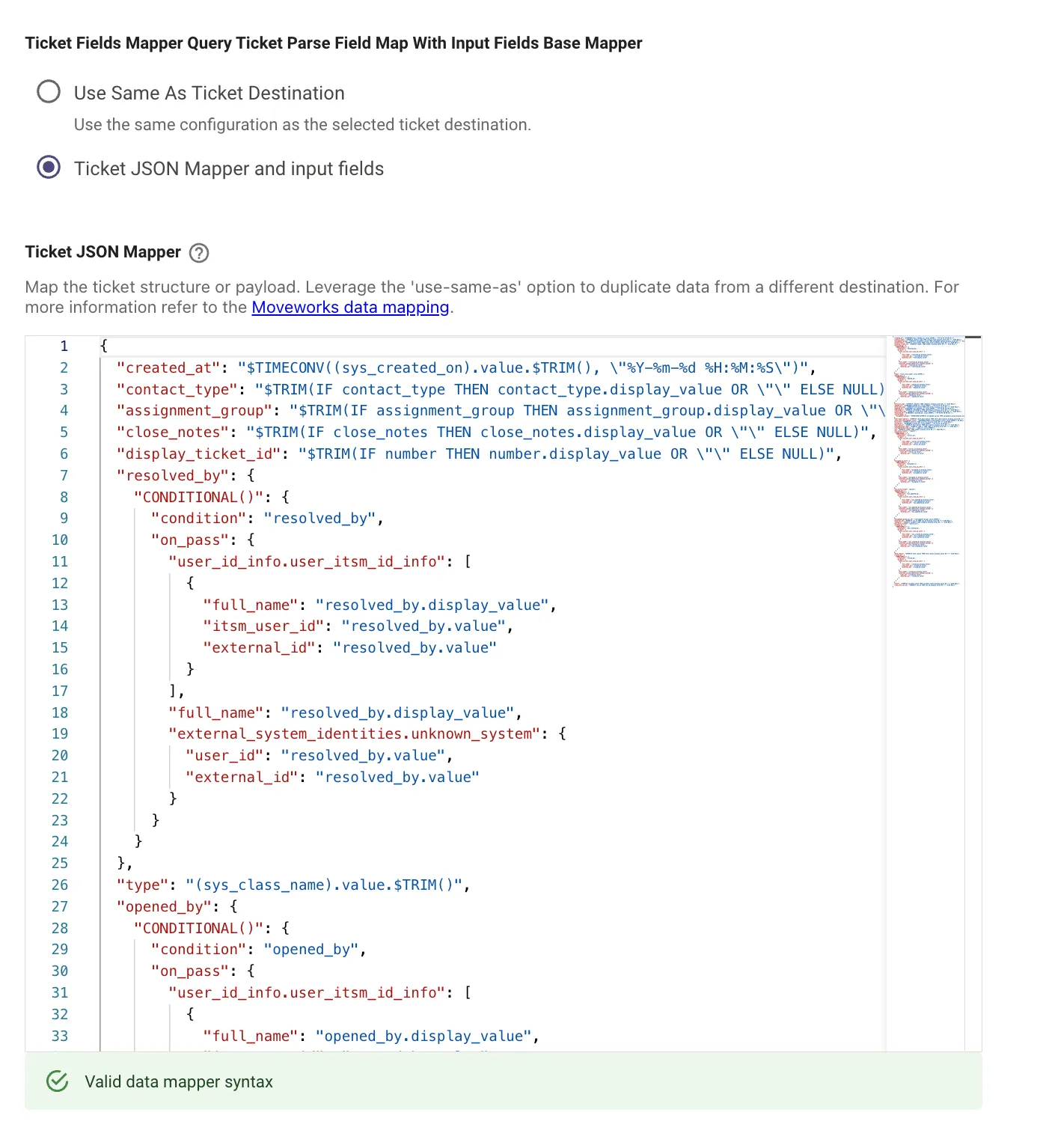
- Use Same as Ticket Destination - This option is selected when there is already a pre-existing ticket type mapper which can be reused.
- Ticket JSON Mapper and input fields - Map the ticket structure or payload. Leverage the ‘use-same-as’ option to duplicate data from a different destination. For more information refer to the Moveworks Data Mapping.
- Ticket JSON Mapper - The attributes in red are the Moveworks attributes which are mapped to the External ITSM attributes marked in blue.
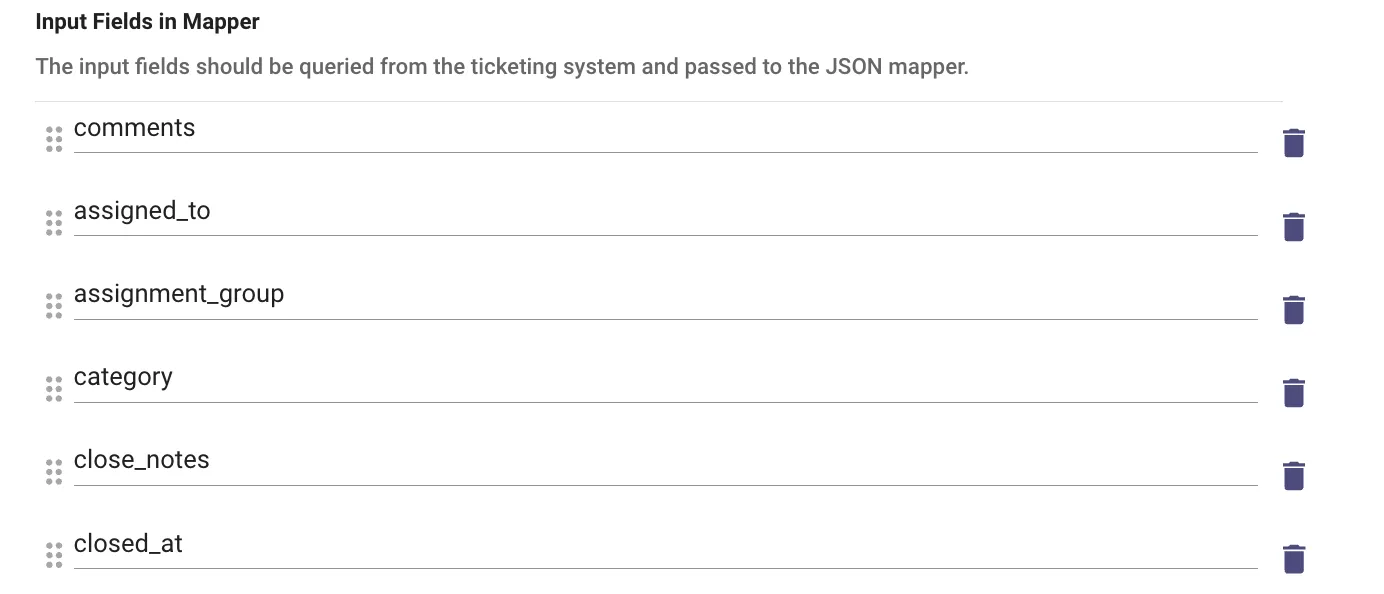
- Input Fields in Mapper - This is where we need to provide the attribute names in a list format in order to moveworks to query those fields which will then be used in the mapper above.
- Ticket ID Key - The field in the raw ticket that represents the ticket ID. This is used for querying a single ticket in external ITSM system.

Step 5: Configure Ticket State Mapping
This configuration is used for Mapping state transition, which allows Moveworks to understand the ticket workflow in your system. This can be simply done in two states.
- From states - Choose the states from your current system and link them with Moveworks’ system. This will help Moveworks identify and understand your system’s states
- To states - Choose the state in your current system that you want to match with a state in the new system. This match is important when you’re performing actions in your current (external) system.
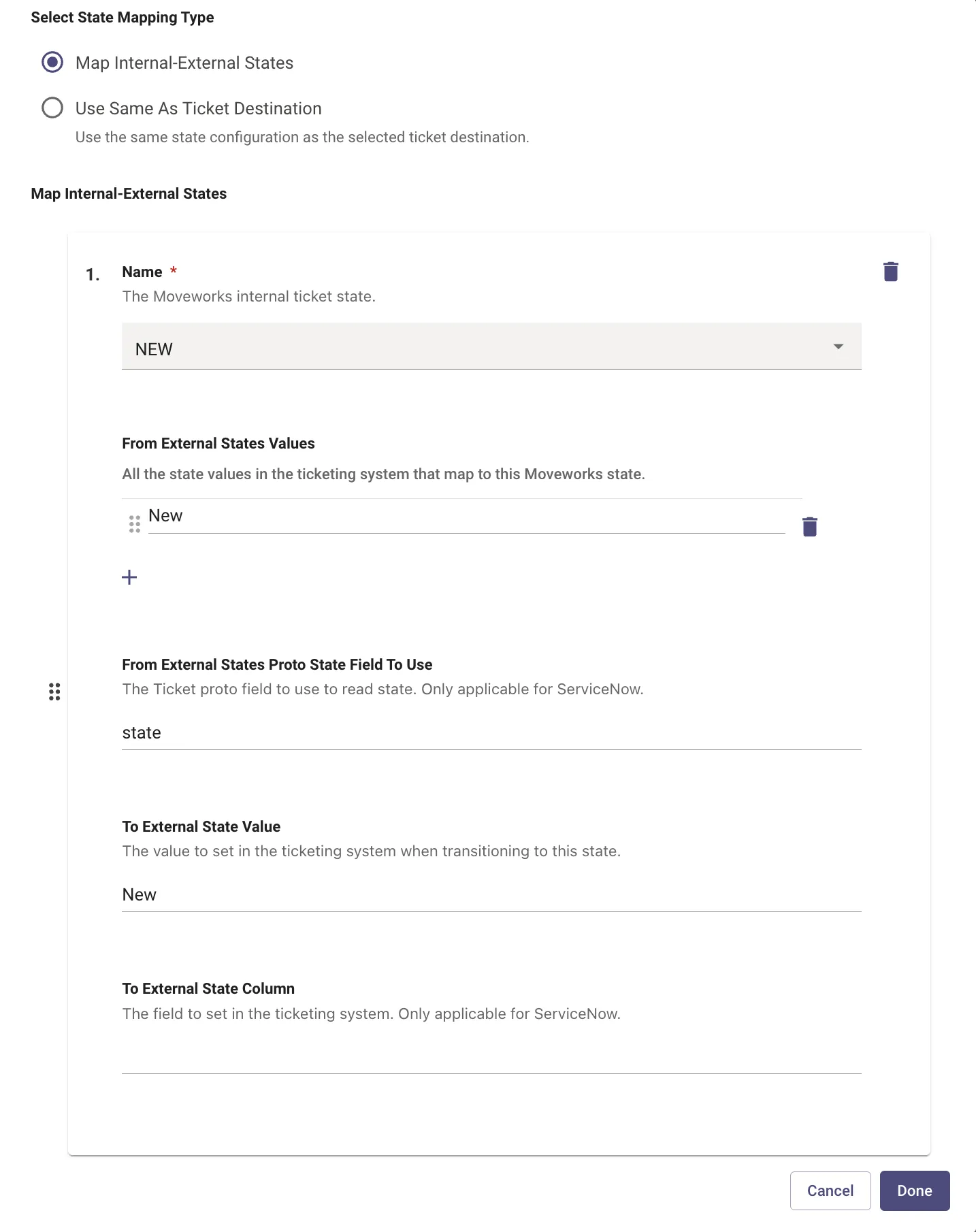
- Name - Pick from a list of internal ticket states which are present on the Moveworks end so these can be mapped back to the Ticket states on the ITSM end.
- From External States Values - These are all the states on the ITSM end which map to the Internal Moveworks State. There could be multiple states on the ITSM end which map to a single Internal Moveworks State.
- From External States Proto State Field To Use - The Ticket attribute field which should be used to read the current ticket state. Only applicable for ServiceNow.
- To External State Value - This is the state value on the ITSM end which will be set when Transitioning to the next state from the current one.
- To External State Column - The attribute field on the ticket which will used to set the State value.
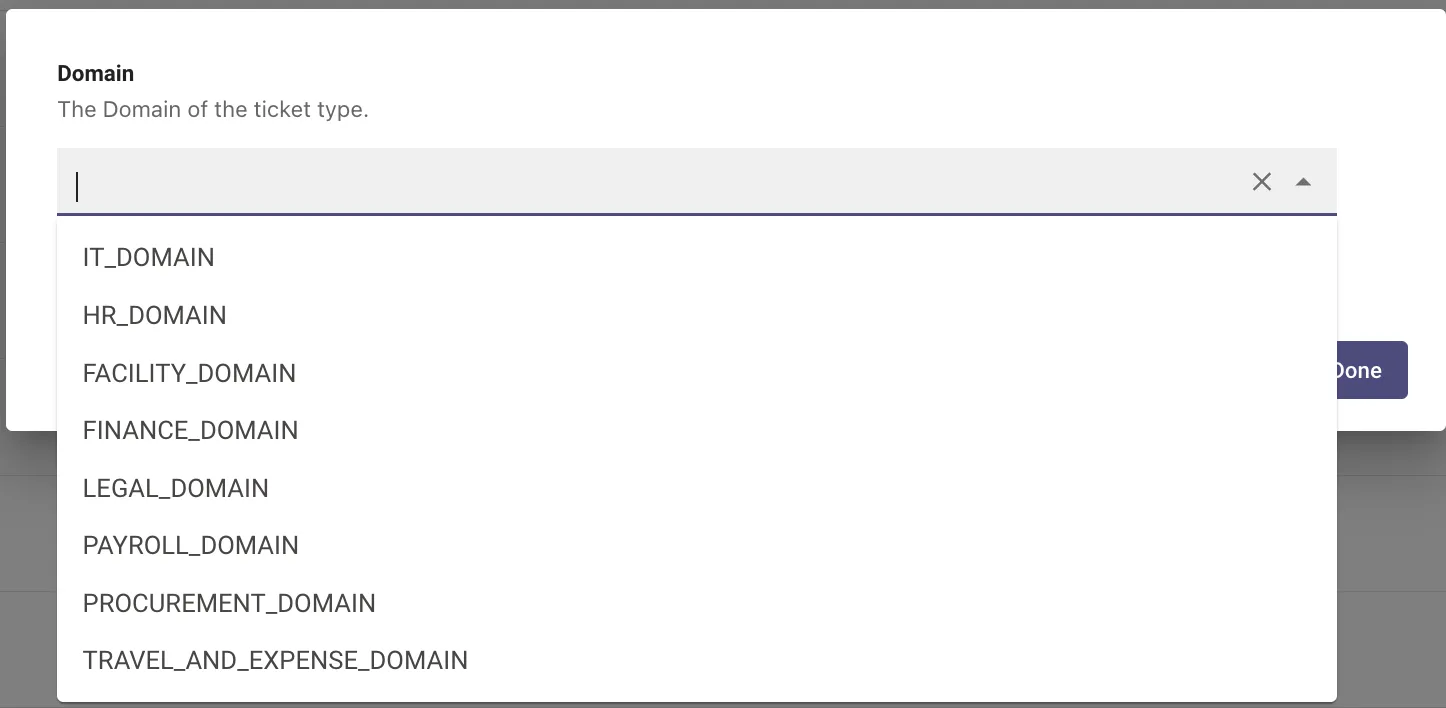
Step 6: Configure the Ticket Domain
The Domain the ticket type falls under, for instance break/fix issues are part of IT_DOMAIN. While payroll issues are part of FINANCE_DOMAIN
Step 7: Prefix Set-Up
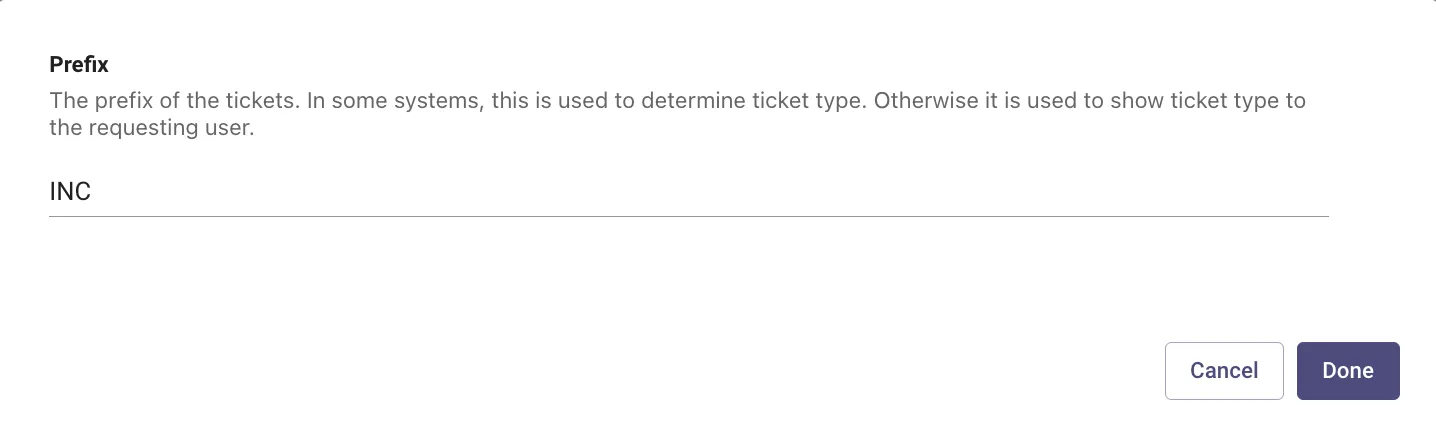
Prefix adds a prefix to a ticket type. This will help identify unique ticket types within AI Assistant and define how the ticket numbers are represented in the Notifications. In ServiceNow, this should correspond with the ticket prefix. For example, incident tickets would be INC, but request item tickets may be RITM.
Step 8: Configure the Ticket Table Name
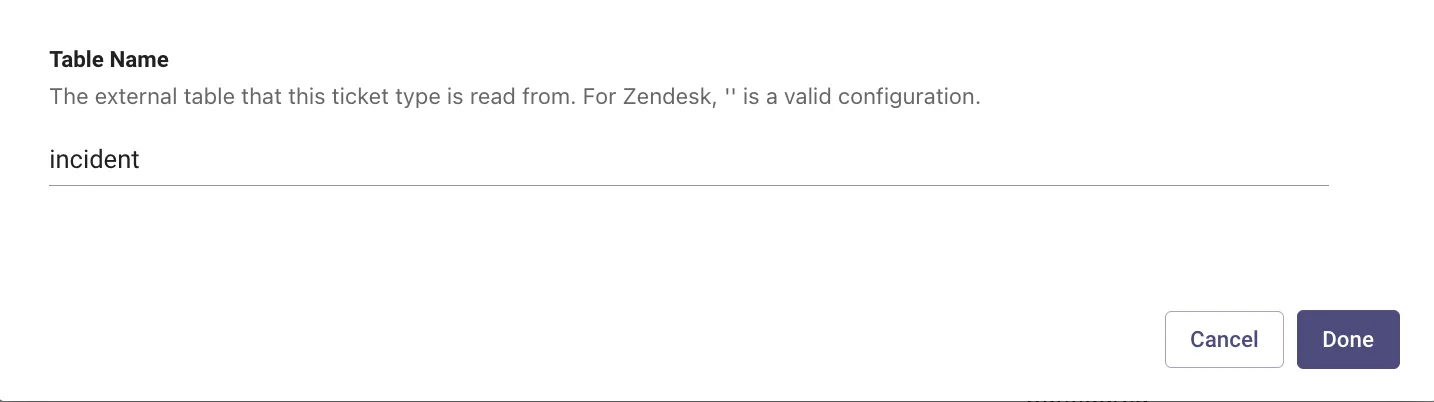
The External Table on the ITSM end where the tickets are polled and created by the AI Assistant.
For example incident would be incident, but request item would be sc_req_item
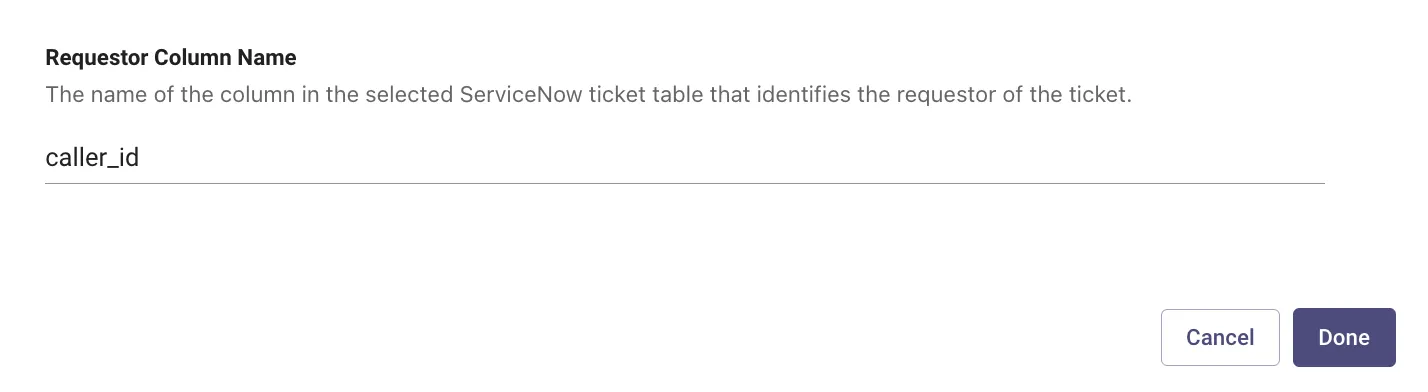
Requestor Column Name
The backend field name of the attribute (not the display name) in the ServiceNow ticket table that identifies who the requestor of the ticket is. This must be a user reference field. By default for incident, this field is called_id
Step 9: Configure Ticket Action Payloads
Each of these payloads are defined to support a specific ticket action.
Create Ticket Payload
These are the ticket attributes which need to be defined in the JSON payload in order to submit the API call which will create the ticket. The Attributes which the ITSM system is expecting is on the left.
While the Moveworks variables which will slot and populate the data are defined on the right. Some of these values can be static as well and can be explicitly defined as strings.
Update Ticket Payload
This mapper defines which attributes need to be submitted in order to update a ticket on Jira via API calls. Here we will be updating the comments and labels which are provided by the user.
Resolve Ticket Payload
This is the ticket payload which needs to be submitted in order for the user to resolve the ticket, The fields to resolve a ticket can differ for customer workflows, so please ensure you are using the right attribute.
Reopen Ticket Payload
This ticket payload is leveraged to reopen a Resolved ticket on the ITSM, Reopen flows are specific and require the user to provide comments when reopening, or some flows do not support reopening tickets once closed.
In order to support Reopening please define the attributed below in the same format as Resolve Ticket Payload
Submit the config to Complete the Ticket Mapping for Moveworks.
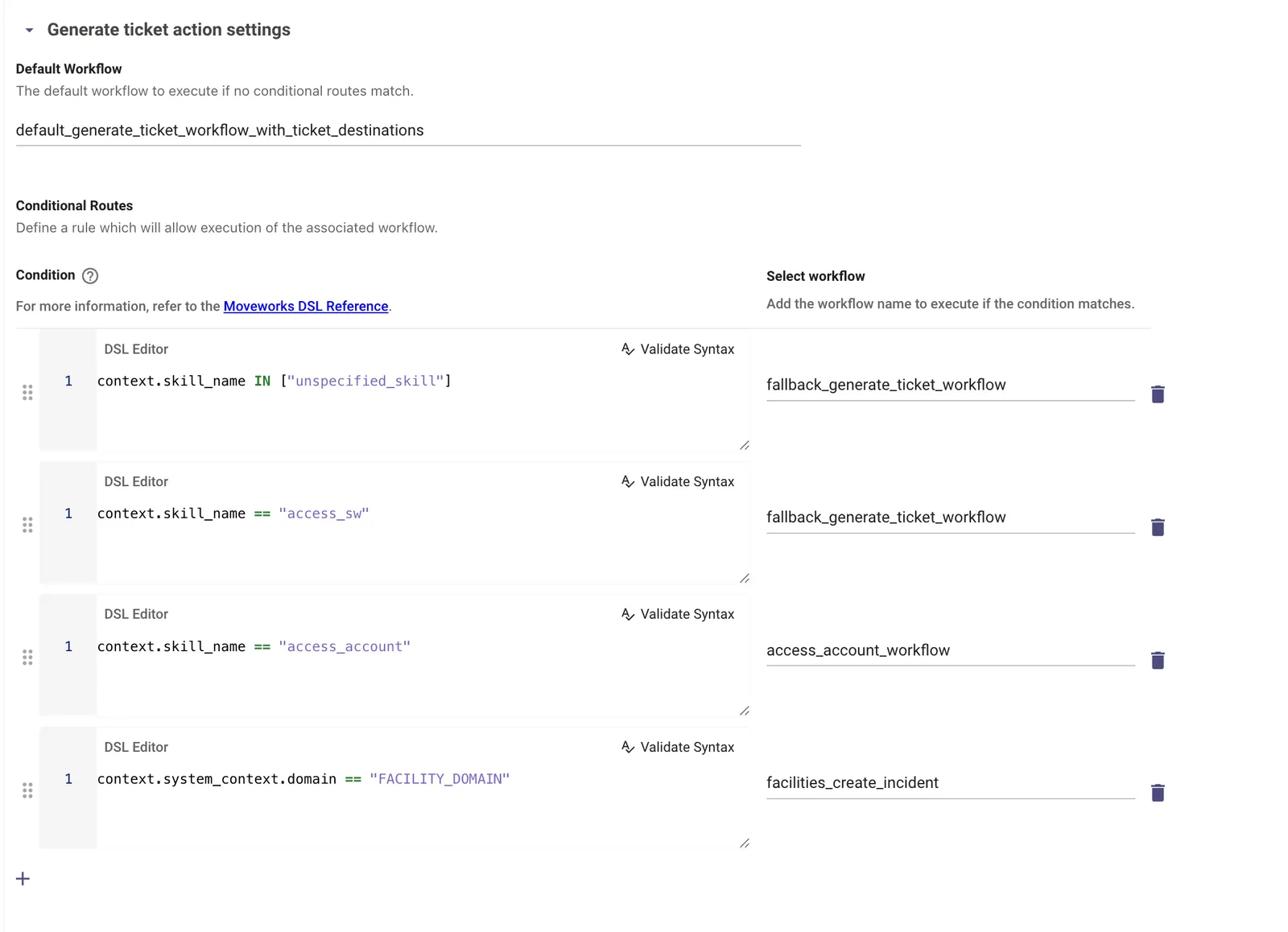
Step 10: Configure Ticket Routing
After your Ticket mapping has been completed we need to write the default routing rules in the Assistant context in order to allow the ticket actions to take place. Ticket routes are separated into action specific which can house both default and Conditional routes.
Step 11: Configure Ticket Workflows
This is where the workflows referenced in Ticket Routing are configured. Please ensure the Workflow names match what has been defined in the routing configuration.
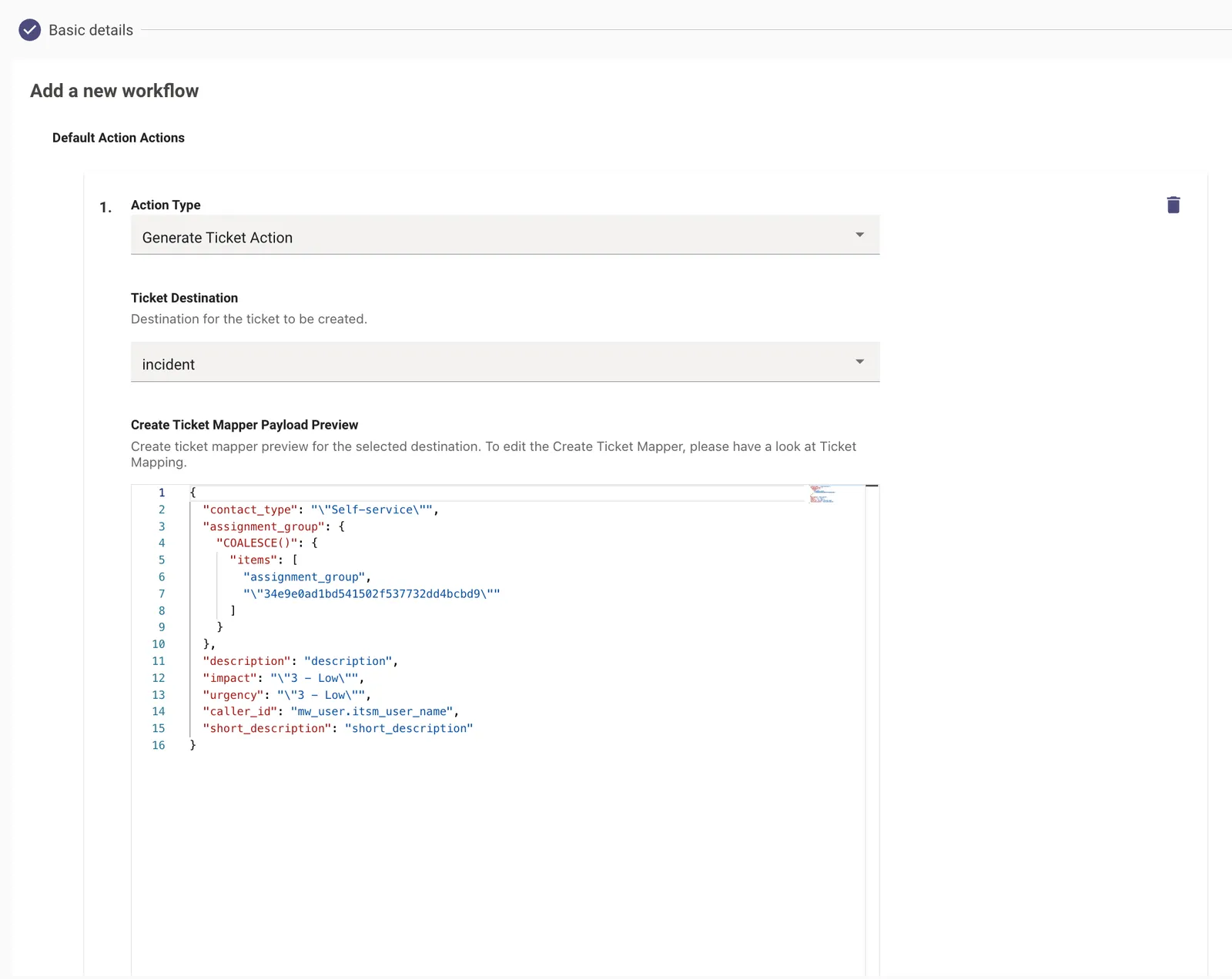
- You need to start by defining the Workflow name and the Connector of the ITSM system where the ticket action will be carried out.
- Next we need to define the Default Action of the Workflow where we can select the Action type.
- Depending on the workflow you are trying to create, select the appropriate Action which in this case is the Generate Ticket Action
- It allows you to select the Ticket Destination and Payloads we defined earlier in ticket mapping which will be used to perform the action.
Step 12: Configure Integration Permissions
In order to allow Moveworks to query the tickets from your external ITSM system, we need to enable the permissions on the Moveworks end. You can set this up by Navigating to Resource Permissions > Permission rules where you can create a new configuration for permission access to this ticket plugin.
Here is a Guide to learn more about Resource Permissions and how they work.
There are 2 types of Permission Strategies which are supported ABAC and REBAC. In the case of Ticketing since this is going to be an Integration level Permission rule, we can only use ABAC as the Permission strategy.
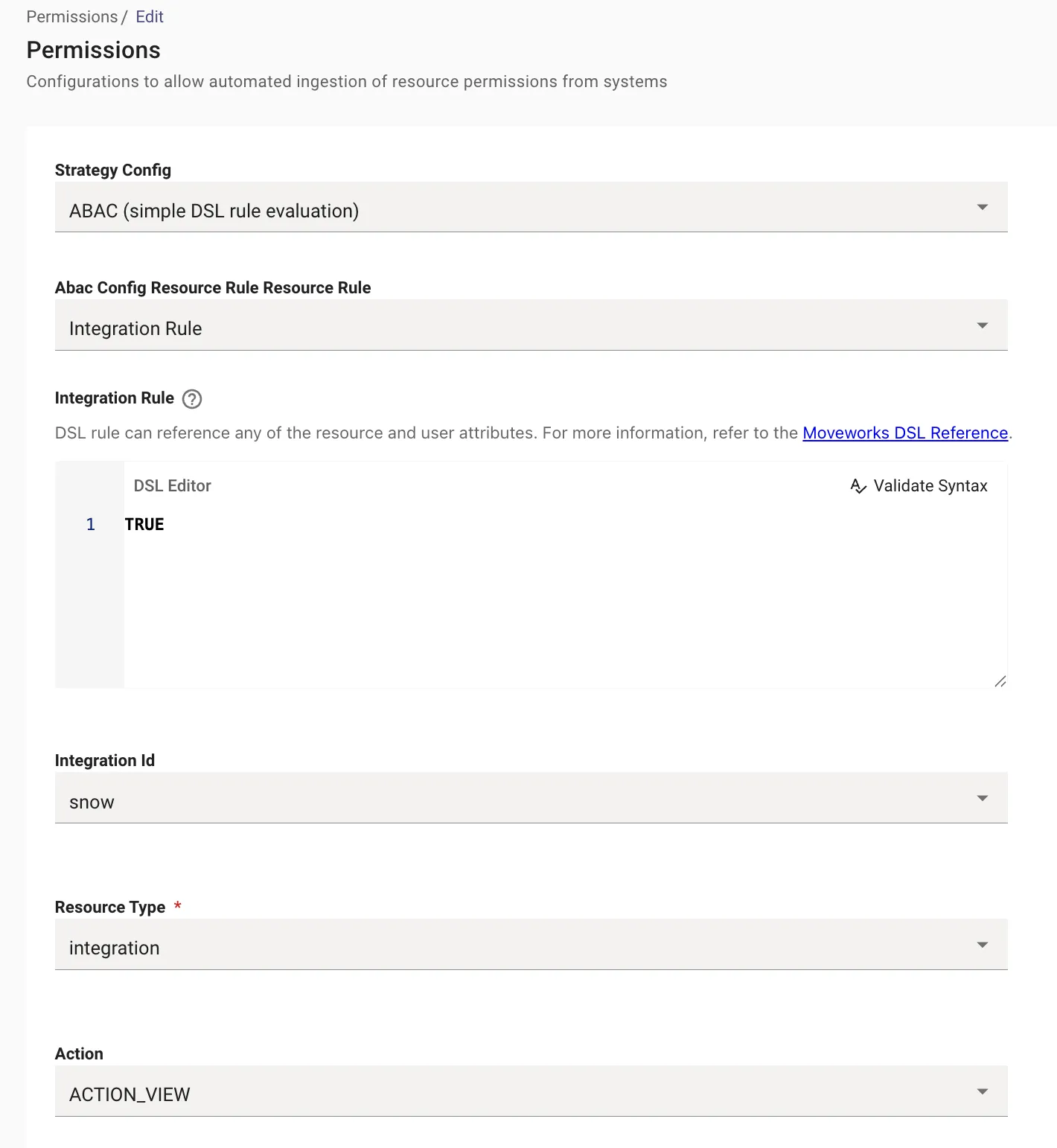
- The resource selected here is going to be Integration as this is what allows Moveworks to poll tickets and then present them back to the user in the Assistant.
- Set any Resource Permission DSL value to TRUE to FALSE to globally enable or disable it.
You have completed the configuration ✅
Validation
We can now try performing the ticket action (for each Ticket type) such as create or query depending on the Workflow which was created. Try to validate each ticketing action independently to ensure it is working as expected.
- Query Ticket
- Create Ticket
- Update Ticket (Add Comment)
- Resolve Ticket
If you still continue to see issues please reach out to Moveworks Support