
For AI agents: a documentation index is available at the root level at /llms.txt and /llms-full.txt. Append /llms.txt to any URL for a page-level index, or .md for the markdown version of any page.
Logo
DeveloperAcademyCommunityStatus
  • Service Management
    • Overview
    • Concierge & Ticketing Capabilities Overview
    • Forms
    • Forms - Integration Specific Guides
    • Live Agent Chat / Handoff
    • Triage
    • Approval Mirroring
    • Ticket Interception
    • Generic Ticketing Integration: Ticket Gateway
  • Administration
    • MyMoveworks
    • Organization Information
    • Roles and Permissions
    • MyMoveworks SSO
  • Moveworks Setup
    • Accessing Moveworks Setup
    • First-Time Login via Magic Link
    • Moveworks Setup Modules
    • Moveworks Setup: Module How To Guides
    • Plugin Management
    • Monitor Alerts
    • Audit Logs
    • DSL Fields Defaults
    • Data Crawling View
    • API Playground
    • Setup Homepage
    • Troubleshooting Hub
    • Security and Privacy Settings
    • Configuration Delete
    • Advanced Config Editor
    • Identity configuration
    • Onboarding Stage
  • Security
    • Security
    • Hyperlink & Button Expiry
    • Attachment Handling
    • Moveworks Subprocessors
  • Provision Management
    • Overview
    • Access Software
    • Access Groups
    • Access Account
  • Access Requirements
    • Overview
    • Update Set Modules
    • Ticketing Systems & ITSMs Access
    • Identity and Access Management Systems Access
    • Multi-Factor Authentication (MFA) Systems Access
    • Knowledge Access Requirements
    • Email Distribution List Systems Access
    • Facilities Management Access
    • Live Agent Chat Access
    • HR Information System Access
    • Expense Management Access
    • Calendar Management Access
  • Core Platform
    • User Identity
    • Moveworks On-Prem Agent
    • Approvals Engine
    • Entity Catalog
    • Configuration Languages
    • Moveworks Data Objects
    • SIEM
  • Employee Experience Insights
    • Overview
    • Breaking Down the Dashboard
    • Understanding Industry Benchmarks
    • Apps & Services
    • Impact Module
    • EXI Common Use Cases
    • Configure EXI
    • Ticket Backpolling
  • Knowledge Studio
    • Overview
    • Knowledge Studio Configuration
    • AI Powered Recommendations
    • Inspecting & Verifying Sources
    • Publishing Articles
    • Creating Knowledge Articles
    • Resolving IT Tickets Guidance
DeveloperAcademyCommunityStatus
On this page
  • How to publish an article to your knowledge base system
Knowledge Studio

Publishing your Articles

||View as Markdown|
Was this page helpful?
Edit this page
Previous

Creating Knowledge Articles

Next
Built with

Knowledge Studio is a content creation tool. It doesn’t currently support publishing of articles directly to your knowledge base system. To publish an article created within Knowledge Studio you must manually copy the article and publish it to your knowledge platform.

How to publish an article to your knowledge base system

  1. Copy over your article by clicking on the copy button.

    • Once your knowledge article is ready within Knowledge Studio, click on the Copy button.
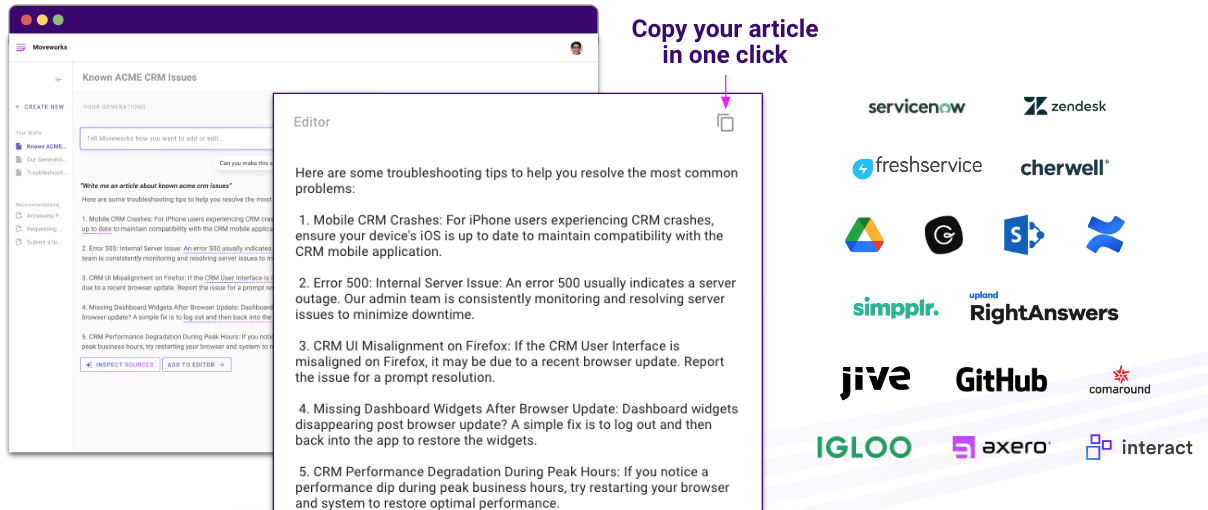
  2. Navigate over to your knowledge base system.

    • Before proceeding, ensure you have the necessary permissions to publish articles within your knowledge base system. Collaborate with your knowledge manager for approval if required.
    • If you’re appending an existing article, locate the appropriate knowledge article by searching within your system.
    • For new articles, create a new entry in your knowledge base system and categorize it appropriately.
  3. Paste your knowledge article

    • Paste the generated article from Knowledge Studio into the body of your article within the knowledge base system.
    • Make any additional formatting adjustments as needed to align with your companies requirements, and then save your article.
  4. Get the right approvals

    • Send the article to the relevant subject matter expert or designated approver for a thorough review and approval process.
    • Address any feedback or edits as necessary to meet approval requirements.
  5. Publish it

    • Once the article receives the necessary approvals and is in its final form, proceed to publish it within your knowledge base system.

By following these steps, you can seamlessly transition your well-crafted knowledge articles from Knowledge Studio into your knowledge base system, ensuring that your valuable knowledge is readily accessible to your organization.