
How to Configure Ticket Interception
Step 1: Navigate to Ticketing > Ticket Interception
This page will contain configurations for each Plugin that is supported for ticket interception
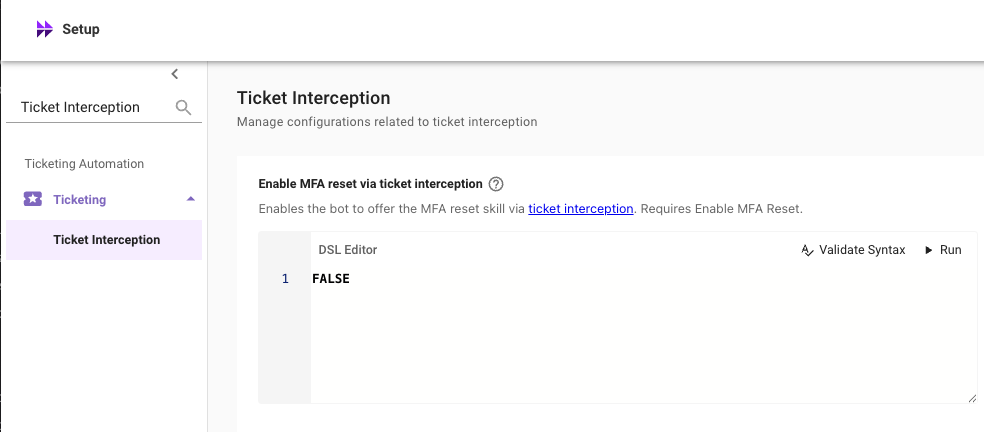
Step 2: Configure the DSL Rule for Each Plugin
Input a DSL rule for each functionality you would like to enable ticket interception for. Enter True to enable ticket interception for all users for that feature.
Note: To enable ticket interception for a few select users you can leverage a DSL rule. For example, the following rule enables the features for only 2 users: (1) email1@example.com and (2) email2@example.com
Note: DSL Rules are case sensitive, so ensure the email addresses are lowercase.
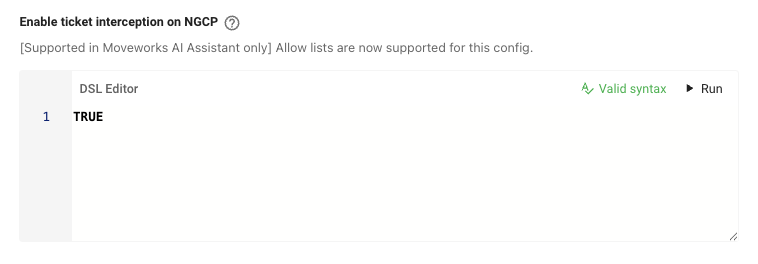
Step 3: Set “Enable ticket interception on NGCP” to True
This configuration is the top level on/off switch for Ticket Interception. Users must pass both this rule, and the plugin specific rule for a ticket interception to trigger.
Step 4: Lastly, navigate to ticket filters and configure a filter to ensure only the desired ticket types are eligible for ticket interception.
All tickets that meet the criteria of the Filter for actionable tickets will be eligible for ticket interception.
When testing ticket interception, be sure to:
- File the ticket from your ITSM portal
- Set the requestor to a user different from the assignee of the ticket
- Ensure the state of the ticket corresponds to New status on Moveworks to ensure it is eligible for ticket interception.