
How To Guides for Forms Plugin
How to Configure the Forms Plugin for ServiceNow
Pre-Requisites
- Please ensure the required ServiceNow Connector has been created with the necessary permissions. Please refer the ServiceNow Access Requirements Doc for details.
Configuration
Start by creating a new Ingestion under Forms > Import > Import Settings
- Click on New Ingestion in the upper right to create a new ingestion. If an ingestion already exist, then click Edit to edit an existing ingestion.
- From the Select Connector dropdown, choose the ServiceNow connector which was created for the ingestion. Click Next when completed.
- Provide the Name of the ingestion to give a name to this ingestion. Click Next when completed.
There are two ways to configure what forms are ingested. Either through the Wizard Mode or the Advanced Mode. Either mode is sufficient and it is up to the user to choose which mode works best from them.
Select Form Catalogs
-
Option 1: Wizard Mode
- Moveworks will now make a live API call to ServiceNow and provide you with a list of catalogs which your connector has access to. Use the left hand toggle boxes to choose which Catalogs to ingest. For each chosen catalog, assign a domain to the catalog using the Select Domain dropdown on the right hand side. Then click Next.

- Once the Catalogs have been selected, you will be required to provide the URL of an existing form, this configuration will be used to generate links for all forms served by the AI Assistant. Then click Next.

- Based off of the previous configurations, you will now be shown a sample set of forms that will be ingested and a total count that is expected to be ingested. You can validate the form redirect URL here with the given samples. Click Confirm Ingestion to finish the Wizard Mode form ingestion

-
Option 2: Advanced Mode
-
To enter into Advanced Mode, click on the Advanced mode toggle in the upper right. Click Continue when prompted to confirm your entry into Advance Mode.
-
In the Advanced mode, users will need to define the following fields and click Submit:
-
Name of the Ingestion - the name you wish to give this ingestion
-
Select Connector - the ServiceNow connector name
-
Select your system - ServiceNow
-
ServiceNow related configurations
- Filter Method - Default filter
- Catalog IDs to ingest - the catalog IDs to ingest forms from
- Domain - the domain of your ingested forms (IT, HR, etc.)
- Additional form ID’s to ingest (optional) - additional form IDs to include, outside of the chosen catalogs to ingest
- Form URL template (optional)
- Disallowed form IDs (optional) - form IDs within the chosen catalogs to not ingest

-
-
Validation
Once you have submitted the Forms Import Settings configuration, it automatically be picked up by the ingestion pipeline in the background. The details of the ingestion pipeline run times can be found within the Moveworks Ingestion Schedule. It is recommended to wait a day before testing this out. If successful, you will see your forms populated within the Forms > Imported Forms module.
How to Configure the Forms Plugin for Jira
Pre-Requisites
- Please ensure the required Jira Connector has been created with the necessary permissions. Please refer to the Jira Service Desk (Cloud) Access Requirements Doc or Jira Service Desk (On-Prem) Access Requirements Doc for details.
Configuration
Start by creating a new Ingestion under Forms > Import > Import Settings
- Click on New Ingestion in the upper right to create a new ingestion. If an ingestion already exist, then click Edit to edit an existing ingestion.
- From the Select Connector dropdown, choose the Jira connector which was created for the ingestion. Click Next when completed.
- Provide the Name of the ingestion to give a name to this ingestion. Click Next when completed.
There are two ways to configure what forms are imported. Either through the Wizard Mode or the Advanced Mode. Either mode is sufficient and it is up to the user to choose which mode works best from them.
Select Form Catalogs
-
Option 1: Wizard Mode
- Moveworks will now make a live API call to Jira and provide you with a list of forms which your connector has access to. Use the left hand toggle boxes to choose which Service Desks to ingest. For each chosen service desk, assign a domain to the service desk using the Select Domain dropdown on the right hand side. Then click Next.

- Once the Service Desks have been selected, you will be required to provide the URL of an existing article, Moveworks will leverage this URL to create the redirect links for all forms served in the AI Assistant. Then click Next.

- Based off of the previous configurations, you will now be shown a sample set of forms that will be ingested and a total count that is expected to be ingested. You can validate the form redirect URL here with the given samples. Click Confirm Ingestion to finish the Wizard Mode form ingestion

-
Option 2: Advanced Mode
-
To enter into Advanced Mode, click on the Advanced mode toggle in the upper right. Click Continue when prompted to confirm your entry into Advance Mode.
-
In the Advanced mode, users will need to define the following fields and click Submit:
-
Name of the Ingestion - the name you wish to give this ingestion
-
Select Connector - the Jira connector name
-
Select your system - JiraServiceDesk
-
Jira related configurations
- Domain
- Service Desk IDs to ingest
- Extra form IDs to ingest (optional)
- Disallowed Form Ids (optional)

-
Validation
Once you have submitted the Forms Import Settings configuration, it automatically be picked up by the ingestion pipeline in the background. The details of the ingestion pipeline run times can be found within the Moveworks Ingestion Schedule. It is recommended to wait a day before testing this out. If successful, you will see your forms populated within the Forms > Imported Forms module.
-
How To Mirror Permissions for Forms from ServiceNow
Pre-Requisites
To mirror permissions (User Criteria), Moveworks needs to ingest the User Criteria linked to the Catalog Items. This is currently only supported for ServiceNow
- To ingest the user criteria for forms, Moveworks need to install some update sets on the ServiceNow side which are defined in the Guide here.
- Ensure the BASE and ACL update steps have been installed for the appropriate permissions to be set.
- If you want to learn more about how this is setup, the steps are covered in the ServiceNow User Criteria Guide.
Configuration
Start by creating the User Criteria Ingestion Config which is under Core Platform > Resource Permissions > Mirror Permissions
- Select Connector - Choose the ServiceNow Connector for ingesting User Criteria from.
- Fetch Form Access Controls - Enabling this ingests user criteria associated with Catalog Items or Forms in ServiceNow.
- Evaluate User Criteria - Enabling this ensures, that once the user criteria has been ingested, it can then be evaluated on the Moveworks end before serving to the user.

Finally, navigate to Resource Permissions > Permissions Rules. Here you will create a new Permission Rule for allowing the serving of forms.

The permissions configuration requires the below details in order to serve up the respective Resource, the Rule associates with.
Always create the initial Permission Strategy to use ABAC with the Rule set to TRUE so the serving can be tested first.
You can also write a DSL Rule here utilizing user attributes to enable it for subset of users. Example here.
ABAC - Simple DSL Rule Evaluation
This strategy evaluates the permission rules written in Moveworks DSL Language. You can learn more about the DSL Syntax in the Guide here .
-
Resource Rule
- In this drop down the user is required to select the Resource Type, on which the rule will apply.
Ex. Form Rule
- In this drop down the user is required to select the Resource Type, on which the rule will apply.
-
Form Rule - This is where Moveworks DSL rules are defined.
-
Boolean Rule
- Ex. TRUE or FALSE
- ⚠️ This acts as the master control here where it enables or disables the serving of content for this integration completely

-
Attribute Rule
- Allowing Forms to be served for a subset of users. Ex.
user.email_addr IN ["rgeroulo@moveworks.ai"]

- Allowing only certain Forms to be served within the AI Assistant. Ex.
resource.article_id IN ["12345","5678"]

- Allowing users who have a specific user-tag associated with their Record, access to the Articles in the AI Assistant. Ex.
(("HAS_ACCESS_TO_BOT" IN user.user_tags) OR ("MOVEWORKS_INTERNAL_USER" IN user.user_tags))

- Allowing Forms to be served for a subset of users. Ex.
-
-
Integration ID - The connector which is being used to ingest the knowledge content.
-
Resource Type - Resource Type for which the Rule will apply. Ex. form.
-
Action - ACTION_VIEW
Confirm that you have clicked the Validate Syntax button in the upper right of the DSL box to confirm the syntax of your rule. Ignoring this can result in a syntactically wrong rule being saved which could cause issues in serving knowledge
Validation
Once you have submitted the Resource Permissions ingestion configuration, it will kick off the Ingestion pipeline in the background, the details of the Ingestion times are present in the Moveworks Ingestion Schedule. It is recommended to wait a day before testing this out.
To validate the Permissions, the Permission Rules which were previously set to ABAC now must be changed to ReBac,
This strategy mirrors the permission rules on the External Knowledge source by ingesting them into the Moveworks platform. This is currently only supported for ServiceNow
- Mirroring External System Permissions -
-
Additional Access
- In this drop down users are required to select the Resource Type, on which the rule will apply.
Ex. Form Rule - Form Rule - This is where users will write the DSL rules in the MWDSL Syntax. If the Rule is left empty it will default to TRUE.

- In this drop down users are required to select the Resource Type, on which the rule will apply.
-
Additional Restrictions
- In this drop down, you will need to select the Resource Type, on which the rule will apply.
Ex. Form Rule - Form Rule - This is where you can write the DSL rules in the MWDSL Syntax. If the Rule is left empty it will default to TRUE. You can also write rules utilising internal Attributes which allow knowledge from a specific knowledge base to be served and not others.

- Integration ID - The connector which is being used to ingest the knowledge content.
- Resource Type - Resource Type for which the Rule will apply. Ex. form
- Action - ACTION_VIEW
- In this drop down, you will need to select the Resource Type, on which the rule will apply.
You should now be good to start testing the serving of Knowledge which permissions are being mirrored from the external system.
2
How To Utilize Moveworks Permissions for Serving Forms
Pre-Requisites
- Please ensure there is an active and successful form ingestion configured within the Forms > Import Import Settings module before continuing.
Configuration
Navigate to Resource Permissions > Permissions Rules. Here you will create a new Permission Rule for allowing the serving of forms.
The permissions configuration requires the below details in order to serve up the respective Resource, the Rule associates with.
Always create the initial Permission Strategy to use ABAC with the Rule set to TRUE so the serving can be tested.
You can also write a DSL Rule here utilizing user attributes to enable it for subset of users. Example here.
ABAC - Simple DSL Rule Evaluation
This strategy evaluates the permission rules written in Moveworks DSL Language. You can learn more about the DSL Syntax in the Guide here .
-
Resource Rule
- In this drop down users are required to select the Resource Type, on which the rule will apply.
Ex. Form Rule
- In this drop down users are required to select the Resource Type, on which the rule will apply.
-
Form Rule - This is where users will write the DSL rules in the MW DSL Syntax
-
Option 1: Boolean Rule
- Ex. TRUE or FALSE
- ⚠️ This acts as the master control here where it enables or disables the serving of content for this integration completely
-
Option 2: Attribute Rule
- Allowing Forms to be served for a subset of users. Ex.
user.email_addr IN ["rgeroulo@moveworks.ai"]
- Allowing only certain Forms to be served within the AI Assistant. Ex.
resource.article_id IN ["12345","5678"]
- Allowing users who have a specific user-tag associated with their Record, access to the Articles in the AI Assistant. Ex.
(("HAS_ACCESS_TO_BOT" IN user.user_tags) OR ("MOVEWORKS_INTERNAL_USER" IN user.user_tags))
- Allowing Forms to be served for a subset of users. Ex.
-
-
Integration ID - The connector which is being used to ingest the knowledge content.
-
Resource Type - Resource Type for which the Rule will apply. Ex. form.
-
Action - ACTION_VIEW
Confirm that you have clicked the Validate Syntax button in the upper right of the DSL box to confirm the syntax of your rule. Ignoring this can result in a syntactically wrong rule being saved which could cause issues in serving knowledge
Validation
Since the forms have already been imported, this permission rule should take affect within a minute. You can begin testing the serving or non-serving of your new forms ABAC rule.
How to Filter Certain Forms from Form Ingestion
Pre-Requisites
- Please ensure there is an active and successful form ingestion configured within the Forms > Import Import Settings module before continuing.
Configuration
- Enter into your existing form ingestion by clicking Edit within Forms > Import > Import Settings.

- Navigate to the Advanced Mode by clicking the Next button in the bottom right corner until shown the toggle in the upper right.

- Use the Disallowed form IDs field to filter out specific forms by system id.

- Click Submit in the lower right
Validation
Once you have submitted the Forms Import Settings configuration, it automatically be picked up by the ingestion pipeline in the background. The details of the ingestion pipeline run times can be found within the Moveworks Ingestion Schedule. It is recommended to wait a day before testing this out. If successful, you will see your forms populated within the Forms > Imported Forms module.
How to Configure Forms Advanced Settings
Pre-Requisites
- Once you’ve completed ingesting your forms into Moveworks and checked the status of the forms ingestions, Moveworks Setup offers a variety of control options to modify and fine tune the performance of the Forms plugin in the Advanced Settings submodule.
- You can navigate to the Advanced Settings by going to Moveworks Setup and clicking on Forms > Advanced Settings > Plugin Settings this is found under the Ticketing Automation Module in the sidebar.
Configuration Options
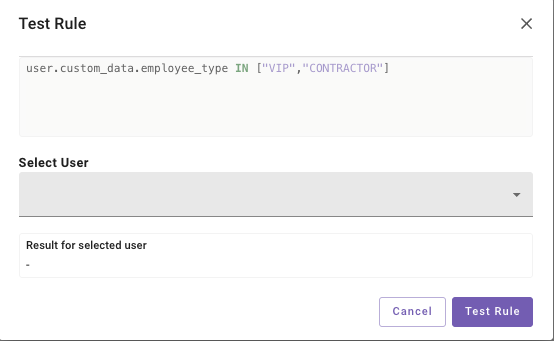
The DSL Rule fields in these sections can be validated using the Validate Syntax button. You can also test the rule evaluation against a User example by clicking the Run button.
Enable form finding via ticket interception
This control defines if Moveworks will intercept tickets which users have created via the ITSM portal that could be resolved by serving a form in the AI Assistant.
- If set to TRUE we will actively try to serve up relevant forms to the users based on their polled tickets which will help resolve the issue before an Agent needing to intervene.
- If set to FALSE the tickets being polled will not be considered for interception by the forms skill.
Enable form deflection to ITSM
This control defines when Forms ingested into Moveworks are served to users within the AI Assistant. The process of filling the form will always be deflected to the ITSM system and not be supported within the Chat interaction platform Moveworks is setup on.
- If set to TRUE all forms served by Moveworks will redirect the user to the ITSM system to be filled up.
- If set to FALSE forms served by Moveworks which are eligible to be filled in Bot will be respected.
Enable form filling for eligible forms
This control enables form filling of eligible forms via either inline, in-bot or Moveworks webpage. You can learn more about Form filling here.
- If set to TRUE any forms which are eligible to be filled in bot by Moveworks will open in a separate modal.
- If set to FALSE all forms served by Moveworks will be redirected to the ITSM system. This includes forms eligible to be filled in-Bot.
Override Un-fillable forms to be fillable
This control overrides the In bot form filling eligibility by forcing all forms to be fillable via either inline, in-bot or Moveworks webpage. You can learn more about Form filling here.
- If set to TRUE all forms irrespective of the eligibility criteria will be fillable in bot by Moveworks. Please note this is not suggested as some form fields might not work as expected due to the override.
- If set to FALSE we will follow the rules set on the other control flags for Form fillability.
Override Fillable forms to deflect to ITSM
This control overrides the Enable form filling for eligible forms flag by deflecting all forms to the ITSM system, even the ones which are passing the in bot fillability criteria.
- If set to TRUE all forms which are fillable in bot by Moveworks will be deflected to the ITSM system.
- If set to FALSE we will allow filling of forms if the Flag Enable form filling for eligible forms is set to true.
Poll Interval Seconds
This is the interval of time between which we poll for forms from the ITSM system. Leaving this empty is suggested as it uses the default value in this scenario.
Bidding
This section allows you to control the response precision of forms within the bot. You can make configurations for different scenarios, like when a ticket is created via the direct message route, the threshold and confidence level of the results can be set to be above a certain level before a Form is served.
Advanced Settings
This sections allows you to control the overall performance of the Forms plugin by controlling the number of concurrent API calls that are made to your systems. Increasing the number of threads will increase the number of concurrent API calls made to your system when ingesting forms which could reduce overall performance. The number of threads is set at two by default.
Note: We recommend leaving this field empty, making any changes here can effect the performance of your ITSM system.
You can also the ingestion of user fields in this section. You should only enable this when you want all user metadata fields to be ingested.
Warning: We recommend you do not enable this as it might reduce your bot performance significantly.
Web-Form Styling
This section allows you to configure the primary, secondary and highlight colors for Web-forms.