
Message Brokering Settings
Overview
These settings apply to every Message Brokering handoff. Most are on Ticketing Automation > Handoff > Message Brokering in Moveworks Setup; per-handoff settings are on Ticketing Automation > Handoff > Live Agent Handoff.
All Settings
Ticketing Automation > Handoff > Live Agent Handoff page:
- App Inbound ID (ServiceNow): the Virtual Agent API provider application to use. By default Moveworks uses VA Bot to Bot. Set this if you run ServiceNow Virtual Agent and Moveworks in parallel with separate provider applications.
- Live Agent Session Timeout: when a user can make a new live agent request while one is open. See Live Agent Session Timeout.

Ticketing Automation > Handoff > Message Brokering page (applies to every Message Brokering handoff):
- Agent Always Available: skip the availability check against ServiceNow.
- Enable Pre Chat Sys Msg Limit and Limit System message: maximum system messages shown to the user before an agent joins. Set both.
- Agent Language: the language your agents use. Defaults to English.
- On Demand Machine Translation: translate messages between the user’s language and the Agent Language. See Dynamic Translation.
- Live agent transcript date format: ISO (YYYY/MM/DD), US (MM/DD/YYYY, the default), or European (DD/MM/YYYY).
- Enable File Attachment Size Limit and File Attachment Size Limit: maximum size of one attachment, in MB. Set both.
- Enable Total File Attachment Allowed Per Session and Total File Attachment Allowed Per Session: maximum attachments per session. Set both.
- Don’t Pass Chat History: do not send the user’s recent conversation with the AI Assistant to the agent. The history options are under Additional Controls. See Chat History.
- Enable Live Agent Handoff Summary: send the agent a generated summary of the conversation instead of the raw history.
- Enable Agent Impersonation: show the agent’s name and photo on agent messages. See Step 7.
- Enable Post Session Feedback Card: ask the user whether their issue was resolved after the session.
- Enable Post Session Trigger Creator Studio Event and Creator Studio Event UUID: run a Tool Studio event when the session ends.
- CSAT Webhook Configuration: run an action after the session ends, for example to collect a satisfaction rating.
Details
Chat History
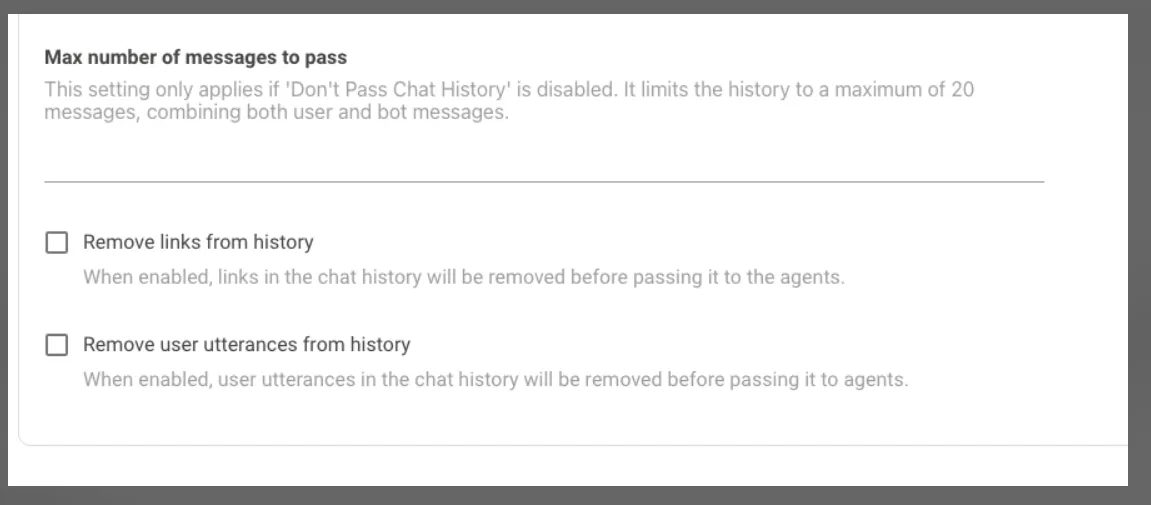
When history is passed, the agent receives the last 6 messages by default.
- Don’t Pass Chat History: Sends no chat history to the agent when the session starts.
- Max number of messages to pass: Overrides the default of 6 messages in the chat history, to include more or fewer. The limit is 20 messages, counting both user and AI Assistant messages.
- Remove links from history: Removes hyperlinks before the history is sent to the agent.
- For example, google.com is stored as
[https://google.com|google.com]in Moveworks. With this setting enabled, the string becomes google.com, so agents see only the label of the URL.
- For example, google.com is stored as
- Remove user utterances from history: For security, you can remove user messages from the history and pass only the AI Assistant’s messages.
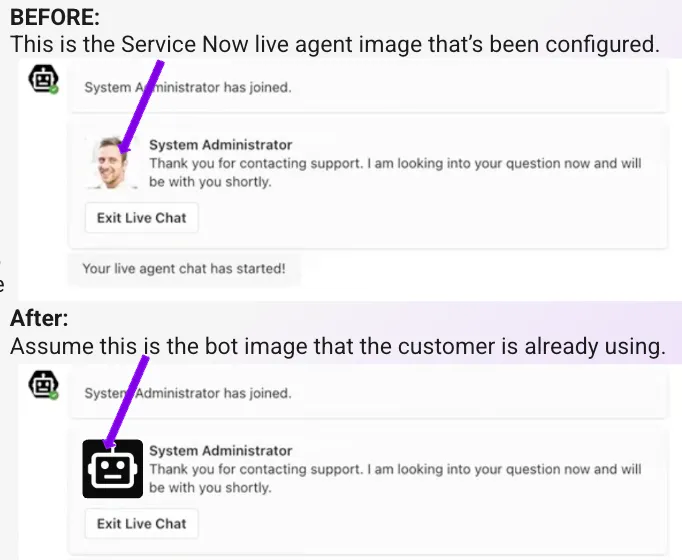
Agent Image (ServiceNow)
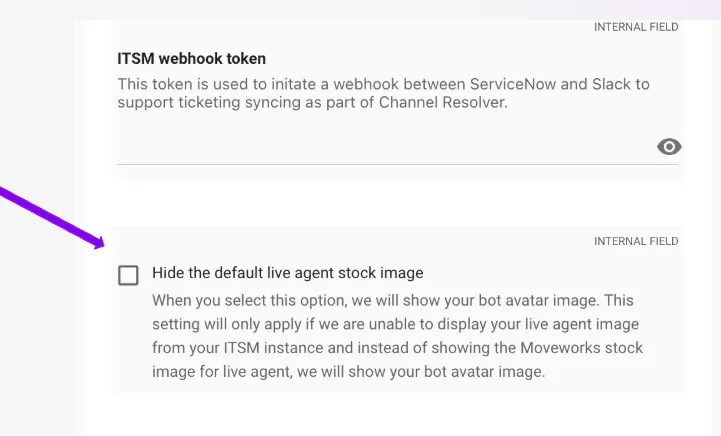
If an agent’s ServiceNow profile photo doesn’t display, you can show your AI Assistant’s image instead of the Moveworks stock agent image.
To configure this setting in Moveworks Setup:
- Go to Core Platform > Connectors > Built-in Connectors.
- Select your ServiceNow connector.
- Select Hide the default live agent stock image.
Dynamic Translation Service for Message Brokering
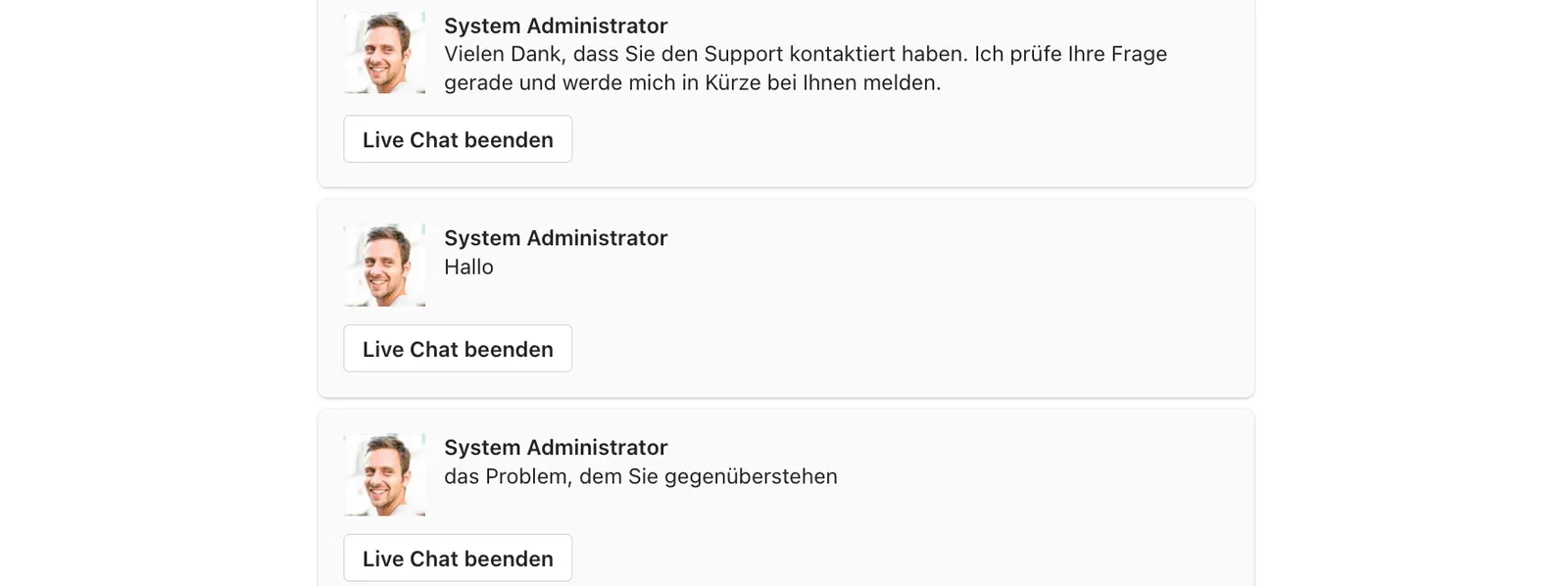
If your organization uses Multilingual Support (MLS), messages between users and agents can be translated as they are sent. In Ticketing Automation > Handoff > Message Brokering, set Agent Language to the language your agents use (English by default) and select On Demand Machine Translation.
- User messages, the initial request, and the chat history are translated from the user’s preferred language to the Agent Language. Agent replies are translated back to the user’s preferred language.
- Translation runs only when the user’s preferred language differs from the Agent Language.
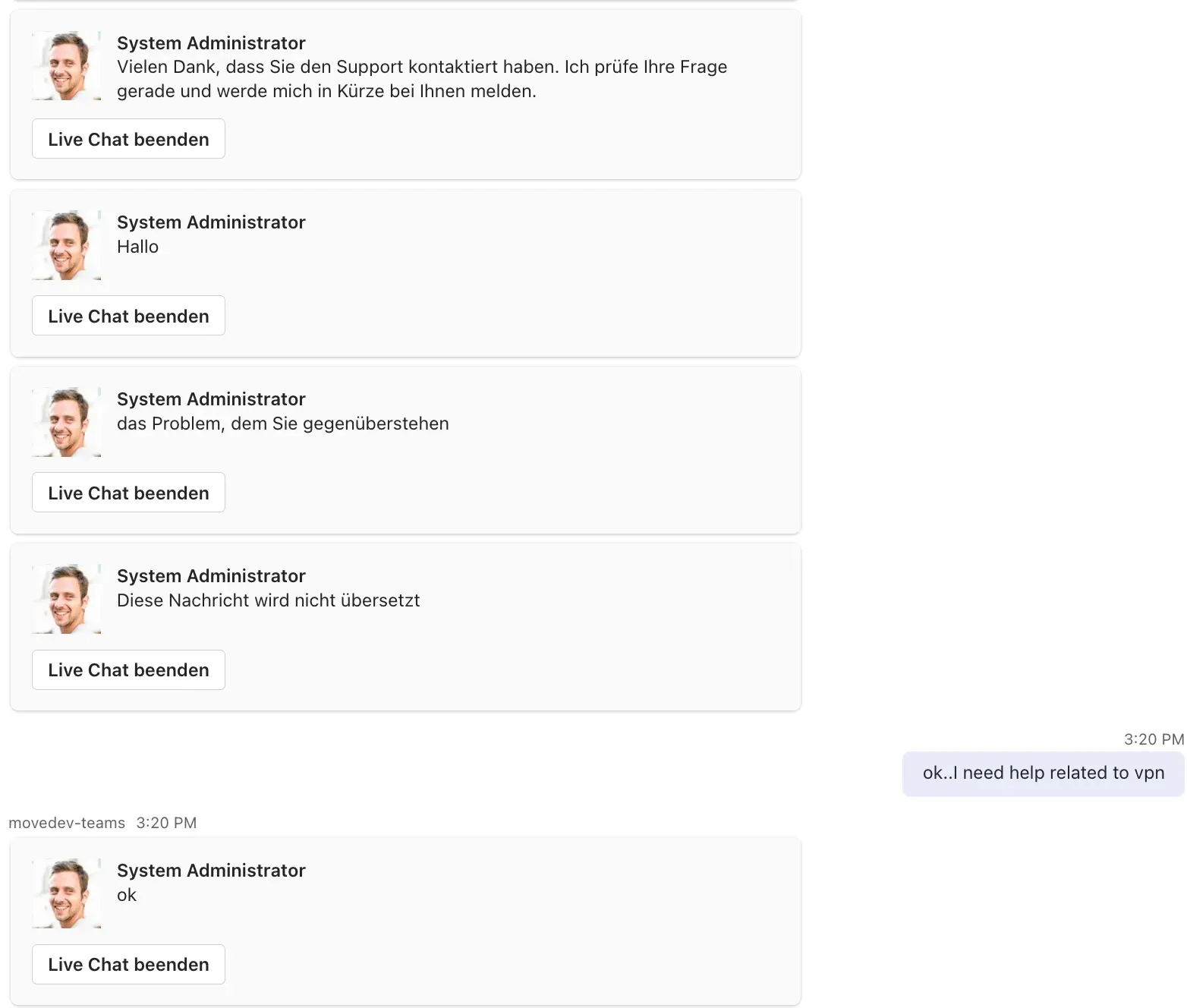
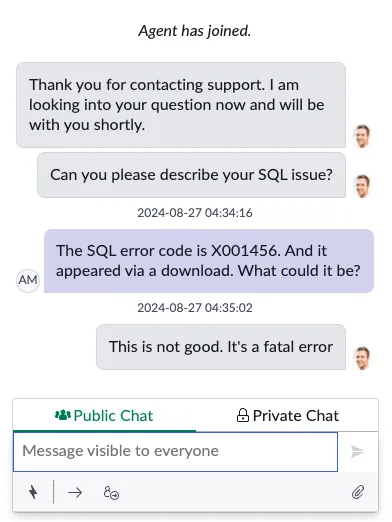
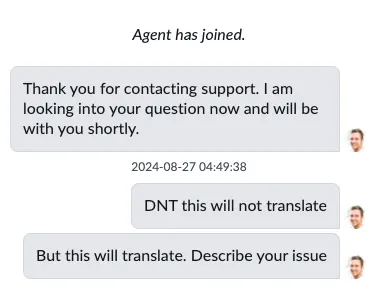
- To send text untranslated, set a Do not translate keyword in your Multilingual Support settings and add the Message Brokering sources under Sources. A message that starts with the keyword is sent as is, without the keyword. For example, an agent can type
DNT //path//folder//fileto send the path without translation.
Live Agent Session Timeout
The session timeout controls when a user can make a new live agent request while their current one is still open. It is measured from when the user submitted the request, including time spent waiting, and is checked only when the same user asks for an agent again:
- Within the timeout, the new request is refused because the user is already in the queue.
- After the timeout, the open session is closed and the new request starts.
The timeout does not end an idle chat. A live agent session lasts at most 12 hours. With the default of 2 minutes:
- 9:30 AM: The user selects Submit to start the live agent experience.
- 9:31 AM: The user tries to start another live agent session and can’t.
- 9:33 AM: The user tries again. The first session is closed and a new request starts.
You can change the timeout in Moveworks Setup:
- Go to Ticketing Automation > Handoff > Live Agent Handoff and open your handoff.
- Find the Live Agent Session Timeout setting.
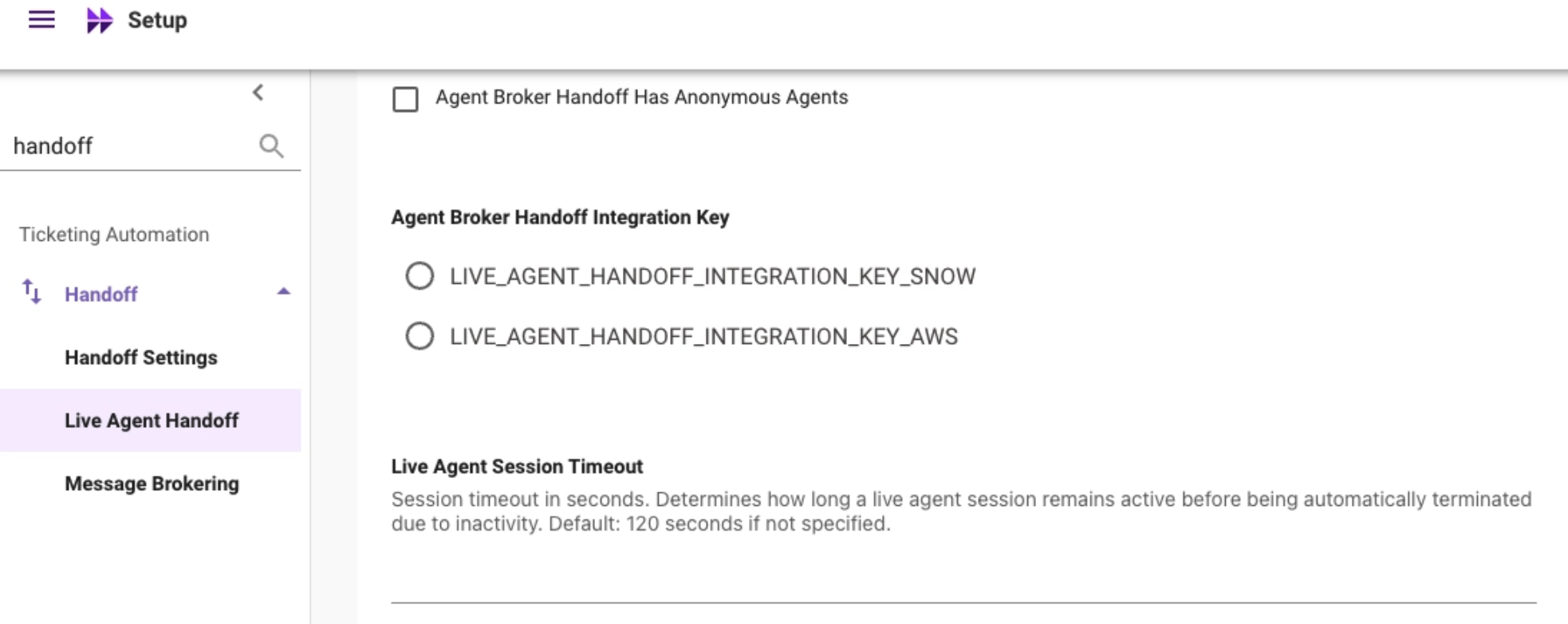
- Enter the new value in seconds, for example
300for 5 minutes. Leave it blank or enter 0 to use the default of 120 seconds. - Select Save.

The value must be a whole number, 0 or higher.