
OIDC Setup (General)
Prerequisites
Before you edit your SSO configuration, make sure you are logged into MyMoveworks. Otherwise, you will not be able to log in and update your SSO configuration details.
SSO Prerequisites
- Have sufficient privileges to create & configure an OIDC application.
Moveworks SSO Prerequisites
- Your Moveworks Environment should be initialized in order to continue. (Verify with your Account Team if this has been completed)
- Note the following values.
data_center_domain- the data center where your organization is hosted (see table below).subdomain- your organization’s login subdomain. This should match yourcustomer_id, which can beverified from the General Information Page.🚧 Warning
Make sure to use the unique subdomain. For example, if you’re organization’s login subdomain is acme.moveworks.com, then your
subdomainis acme and yourdata_center_domainis moveworks.com which is part of the US Data center.customer_id- The unique identifier for your organization . This is stored as Org Name under Organization Details > General Information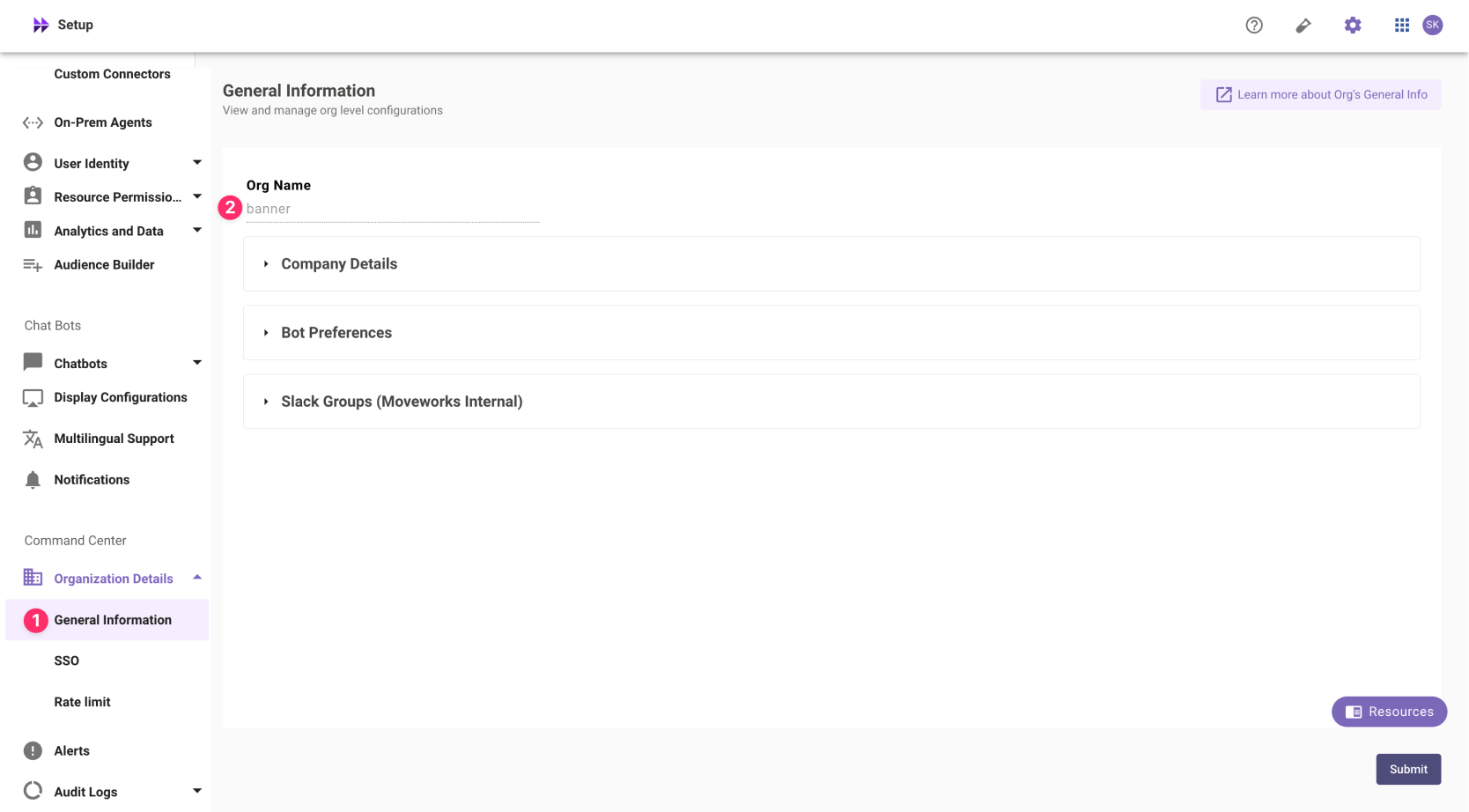
❗️ The Org name cannot be changed. Once set, the same value should be used in all cases.
In exceptional cases where you would like Moveworks to support your organisation with a different subdomain value. Please reach out to Moveworks Support.
Configuration Steps
Create OIDC Application
Go to your SSO Admin Portal & create a new OpenID Connect (OIDC) application. Please configure your redirect and login urls based on your Moveworks SSO properties.
-
App Name:
Moveworks. -
Sign-in Method:
OpenID Connectas the sign in method. -
Login URL (aka Home Page URL):
https://{{subdomain}}.{{data_center_domain}} -
Redirect URL:
https://{{subdomain}}.{{data_center_domain}}/login/sso/oidc -
Application Icon:

Add OIDC Configuration in MyMoveworks
- Note your OIDC Configuration variables from your SSO platform
- Issuer URL: (called
idp_issuer) - Client ID: (called
idp_client_id) - Client Secret (called
idp_client_secret)
- Issuer URL: (called
- Navigate to SSO Settings in MyMoveworks
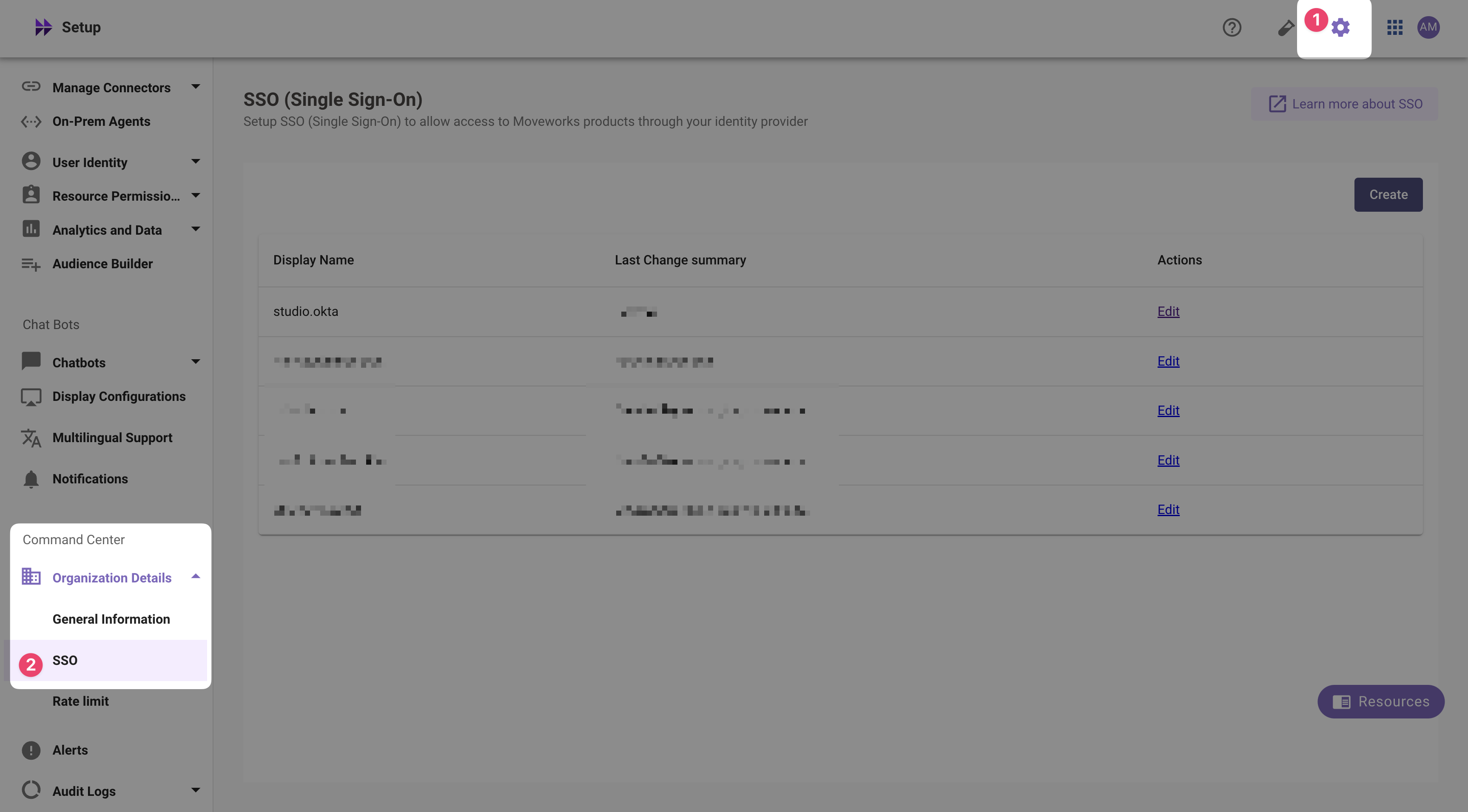
- If you already see a
studioconfig, edit it. Otherwise, choose Create. - Add your configuration using the values you’ve noted above
- Moveworks Product:
studio - Select Connector:
moveworksor{{your_idp}} - Authentication Protocol:
OIDC - IDP Redirect URL:
https://{{subdomain}}.{{data_center_domain}}/login/sso/oidc - IDP Issuer:
idp_issuer(from Step 1) - IDP Client Id:
idp_client_id(from Step 1) - IDP Client Secret:
idp_client_secret(from Step 1)
- Moveworks Product:
- Click Submit.
- Wait a few minutes, then attempt to log into your instance at
https://{{subdomain}}.{{data_center_domain}}