
For AI agents: a documentation index is available at the root level at /llms.txt and /llms-full.txt. Append /llms.txt to any URL for a page-level index, or .md for the markdown version of any page.
Logo
DeveloperAcademyCommunityStatus
  • Service Management
    • Overview
    • Concierge & Ticketing Capabilities Overview
    • Forms
    • Forms - Integration Specific Guides
    • Live Agent Chat / Handoff
    • Triage
    • Approval Mirroring
    • Ticket Interception
    • Generic Ticketing Integration: Ticket Gateway
  • Administration
    • MyMoveworks
    • Organization Information
    • Roles and Permissions
    • MyMoveworks SSO
  • Moveworks Setup
    • Accessing Moveworks Setup
    • First-Time Login via Magic Link
    • Moveworks Setup Modules
    • Moveworks Setup: Module How To Guides
    • Plugin Management
    • Monitor Alerts
    • Audit Logs
      • Config Change Logs
      • Permissions Change Logs
      • Built-in Plugin Logs
    • DSL Fields Defaults
    • Data Crawling View
    • API Playground
    • Setup Homepage
    • Troubleshooting Hub
    • Security and Privacy Settings
    • Configuration Delete
    • Advanced Config Editor
    • Identity configuration
    • Onboarding Stage
  • Security
    • Security
    • Hyperlink & Button Expiry
    • Attachment Handling
    • Moveworks Subprocessors
  • Provision Management
    • Overview
    • Access Software
    • Access Groups
    • Access Account
  • Access Requirements
    • Overview
    • Update Set Modules
    • Ticketing Systems & ITSMs Access
    • Identity and Access Management Systems Access
    • Multi-Factor Authentication (MFA) Systems Access
    • Knowledge Access Requirements
    • Email Distribution List Systems Access
    • Facilities Management Access
    • Live Agent Chat Access
    • HR Information System Access
    • Expense Management Access
    • Calendar Management Access
  • Core Platform
    • User Identity
    • Moveworks On-Prem Agent
    • Approvals Engine
    • Entity Catalog
    • Configuration Languages
    • Moveworks Data Objects
    • SIEM
  • Employee Experience Insights
    • Overview
    • Breaking Down the Dashboard
    • Understanding Industry Benchmarks
    • Apps & Services
    • Impact Module
    • EXI Common Use Cases
    • Configure EXI
    • Ticket Backpolling
  • Knowledge Studio
    • Overview
    • Knowledge Studio Configuration
    • AI Powered Recommendations
    • Inspecting & Verifying Sources
    • Publishing Articles
    • Creating Knowledge Articles
    • Resolving IT Tickets Guidance
DeveloperAcademyCommunityStatus
On this page
  • Overview
  • How to access Audit Logs?
  • Audit Logs column details
  • FAQs
Moveworks SetupAudit Logs

Config Change Logs

||View as Markdown|
Was this page helpful?
Edit this page
Previous

Permissions Change Logs

Next
Built with

Overview

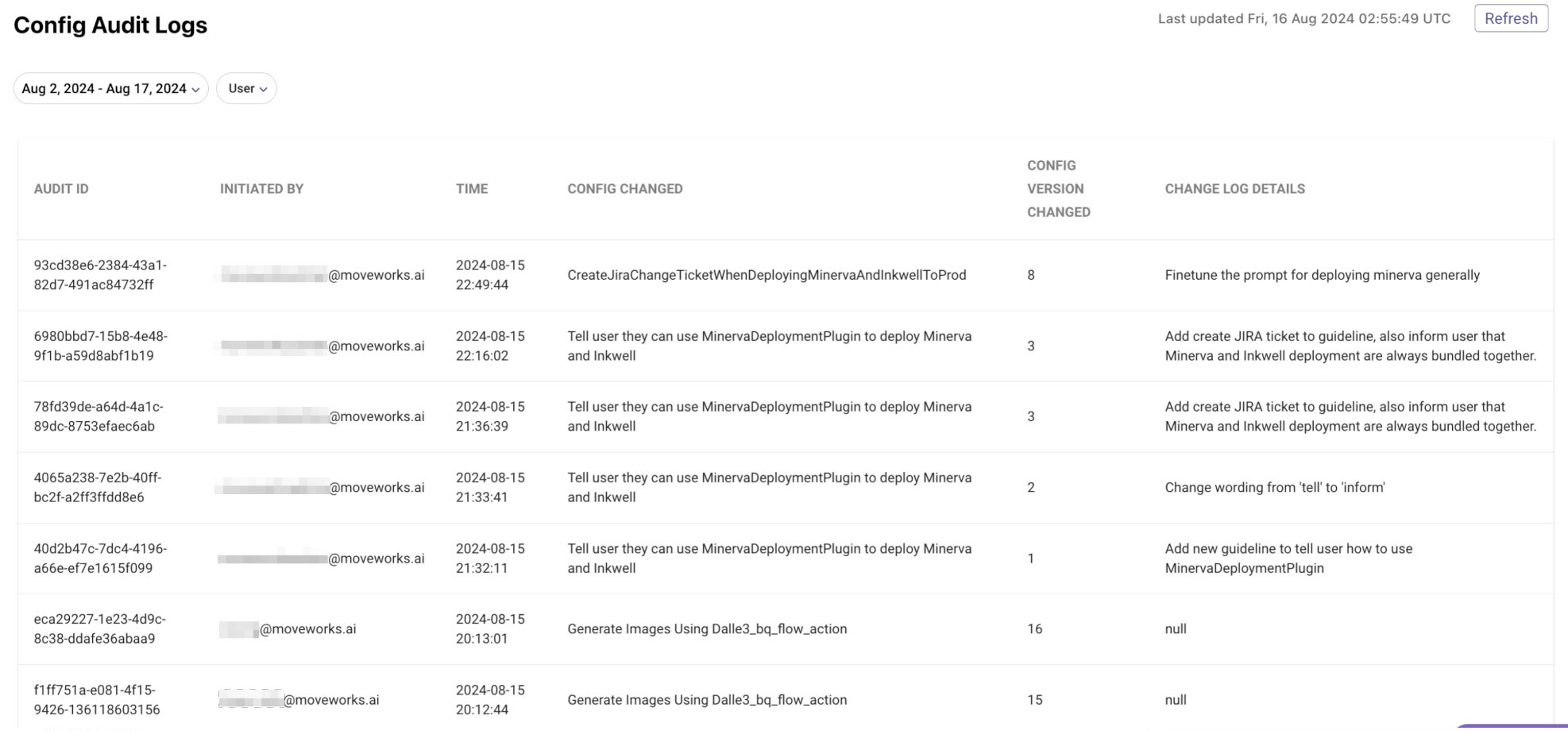
Change Audit Logs functionality within Moveworks Setup allows Admin to get a real-time view of config changes done within their org’s instance.

Change Audit Logs offers

  1. Greater governance: Get a real-time view into all the configuration changes done inside your organization. Understand which modules the config changes were made for - alongside change log details.*
  2. Accountability: Audit Logs record not only the changes made by your organization’s admins but also the modifications done by the Internal Moveworks team, ensuring full transparency.
  3. User tracking with timestamps: Understand who made each change and when, providing accountability and facilitating better communication and coordination within your team.

Note: *Change log details for Wizard flows currently not supported but is on our roadmap. This means for configurations that are powered via a wizard like connectors, knowledge ingestion, etc., log comments details would be NULL. However, Admins can still see the module where the config change was done.
How to access Audit Logs?

  1. Log in to Moveworks Setup
  2. Navigate to “Audit Logs” > “Configuration Logs” under “Organization Details” in the left navigation

Audit Logs column details

  1. Audit ID: Unique ID corresponding to the config change
  2. Initiated By: Email of the user who made the config change
  3. Time: Time at which config change was made
  4. Config Changed: This points to the specific Module where the config change was made
  5. Config Version Changed: This refers to the number of times the config change was made and saved. If a new config is created, config version changed will be equal to 1. Any subsequent change and submit will result in config version changed value to increase by +1.
  6. Change Log Details: This refers to the comments put up by the user who made the config change.
  7. Refresh (action button): Audit logs can be refreshed by clicking on this button.

Additionally, Admins can filter by date and users for narrowing down or auditing specific config changes.

FAQs

  1. How long are Audit Logs in MW Setup retained for?
  • Effective 12th Sep’ 2024, audit logs will be retained for 60 days in setup. Note: This change is effective 12th Sep onwards only and will not show backfilled historical 60 day logs.
  • The audit logs are retained for 14 days currently in setup so the changes made will be visible in logs for 2 weeks
  1. What does Null refer to in the audit log details column?
  • This means user didn’t fill the change log details while saving the config. This could also be NULL for cases, where a config change was done for a wizard based flow like connectors, ingesting knowledge ingestion, etc.