
DSL Configurations to Review
Overview
When you delete a connector, Moveworks blocks deletion if another configuration directly depends on it. However, many other configurations reference connectors indirectly — through DSL rules that Moveworks cannot automatically detect. If those references are not updated before deletion, dependent functionalities may fail silently.
Before confirming deletion, review each of the configurations below and update any that reference the connector.
Configurations to Review
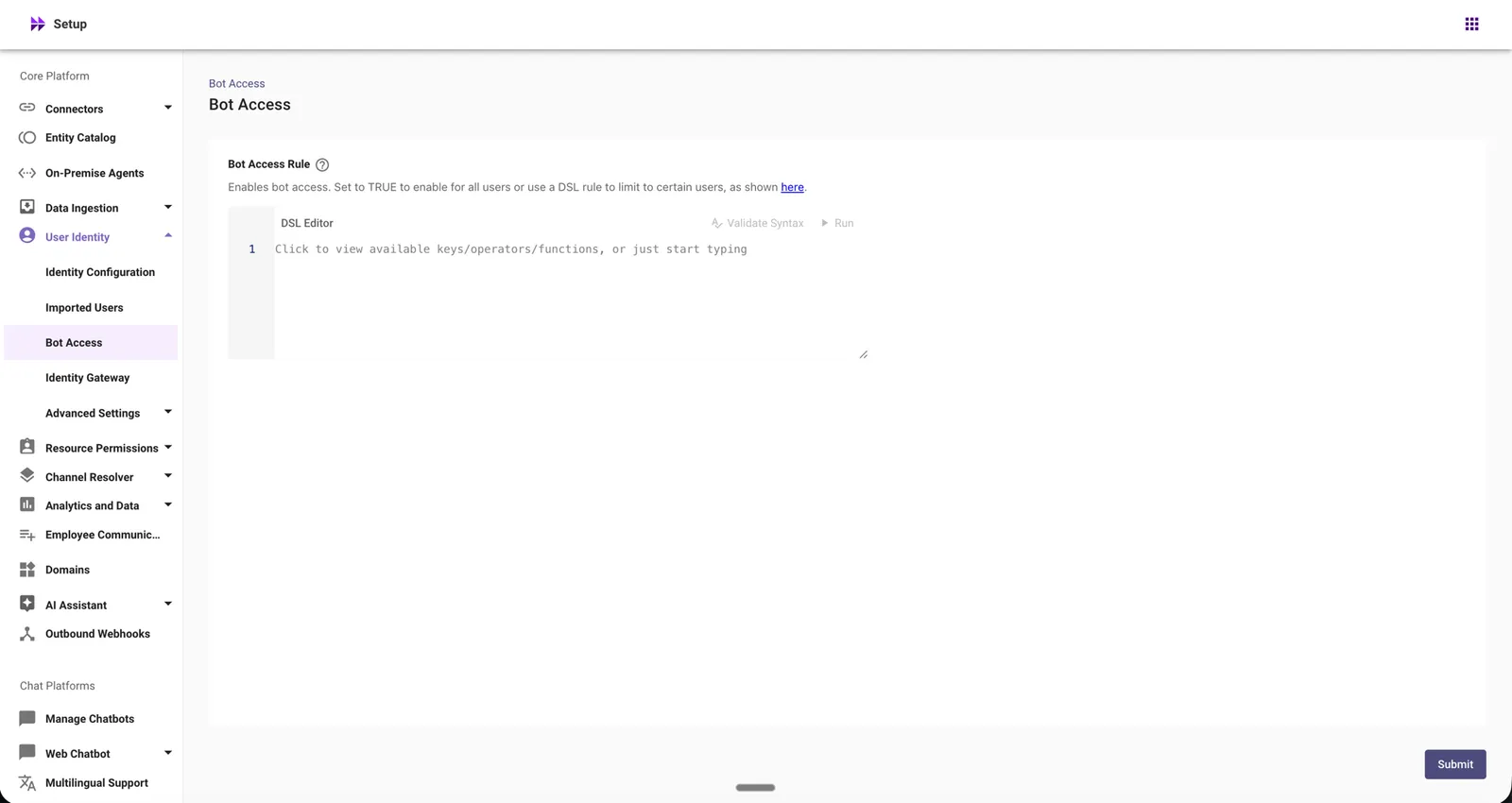
1. Bot Access Rule
Where to find it:
- Navigate to Moveworks Setup.
- Go to Core Platform.
- Under Core Platform, expand User Identity.
- Select Bot Access to open the Bot Access Rule editor.
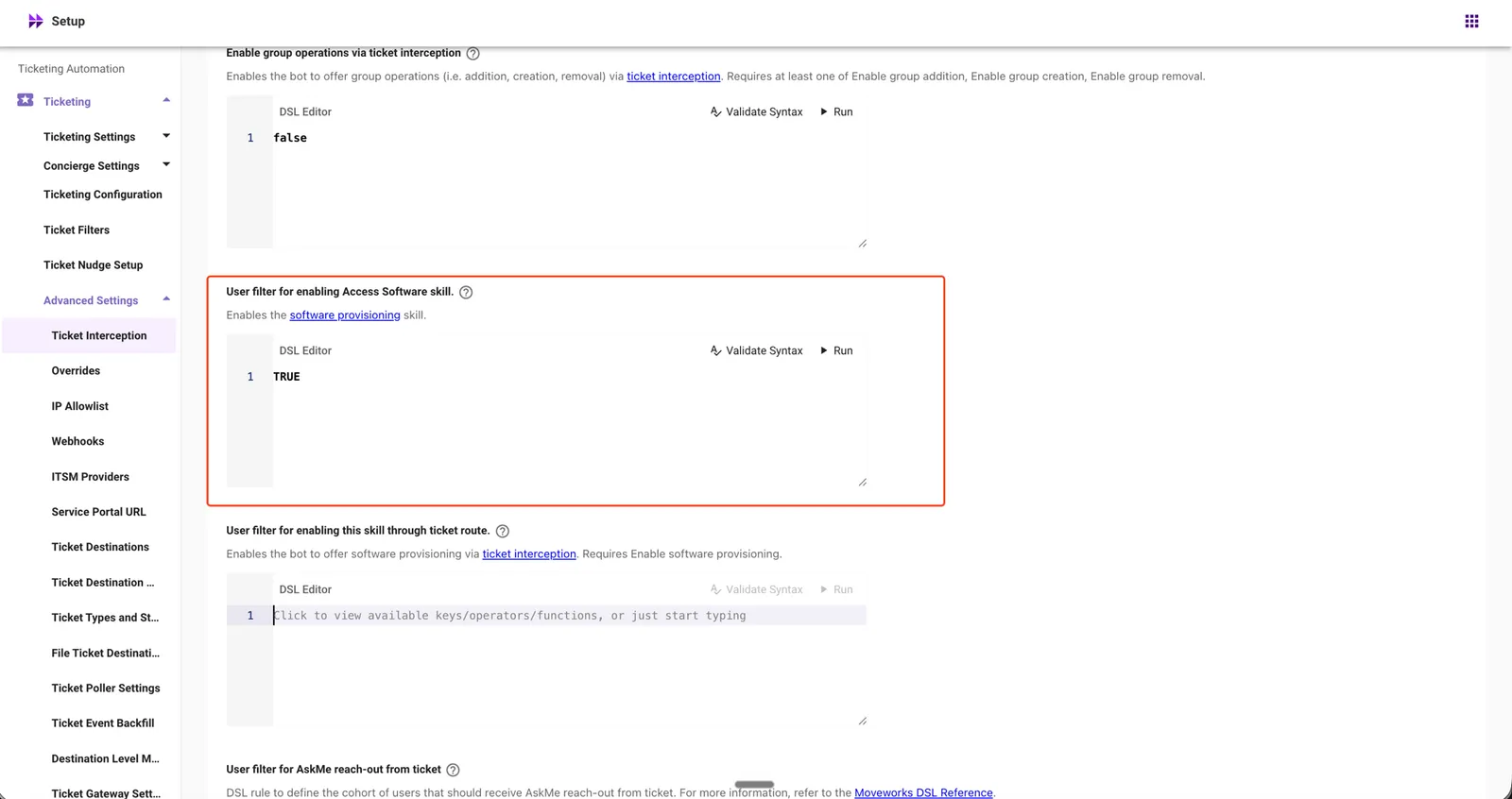
2. User filter for enabling Access Software skill
Where to find it:
- Navigate to Moveworks Setup.
- Go to Ticketing.
- Under Ticketing, expand Advanced Settings.
- Select Ticket Interception.
- Locate the User filter for enabling Access Software skill section.
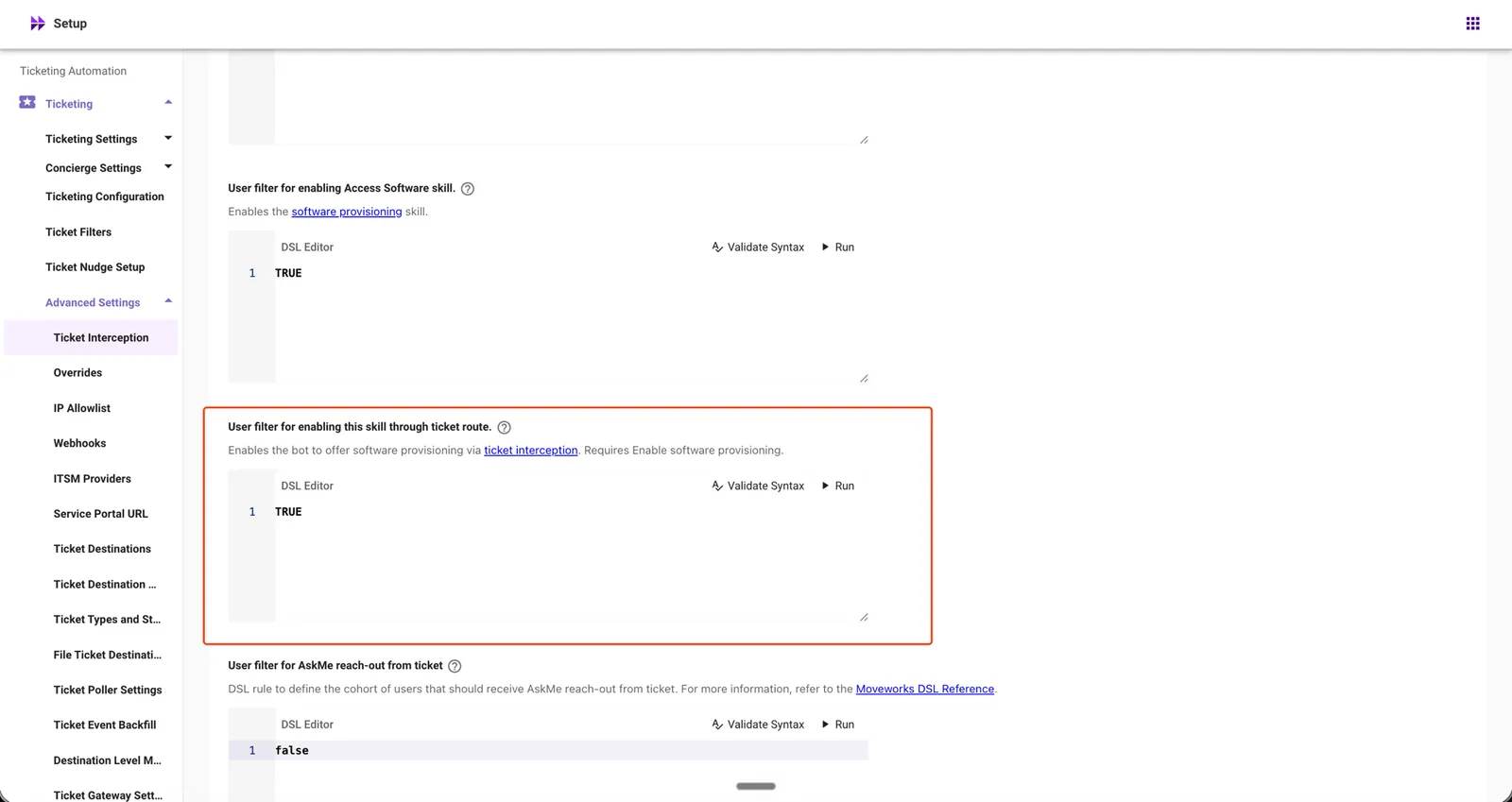
3. User filter for enabling this skill through ticket route
Where to find it:
- Navigate to Moveworks Setup.
- Go to Ticketing.
- Under Ticketing, expand Advanced Settings.
- Select Ticket Interception.
- Locate the User filter for enabling this skill through ticket route section.
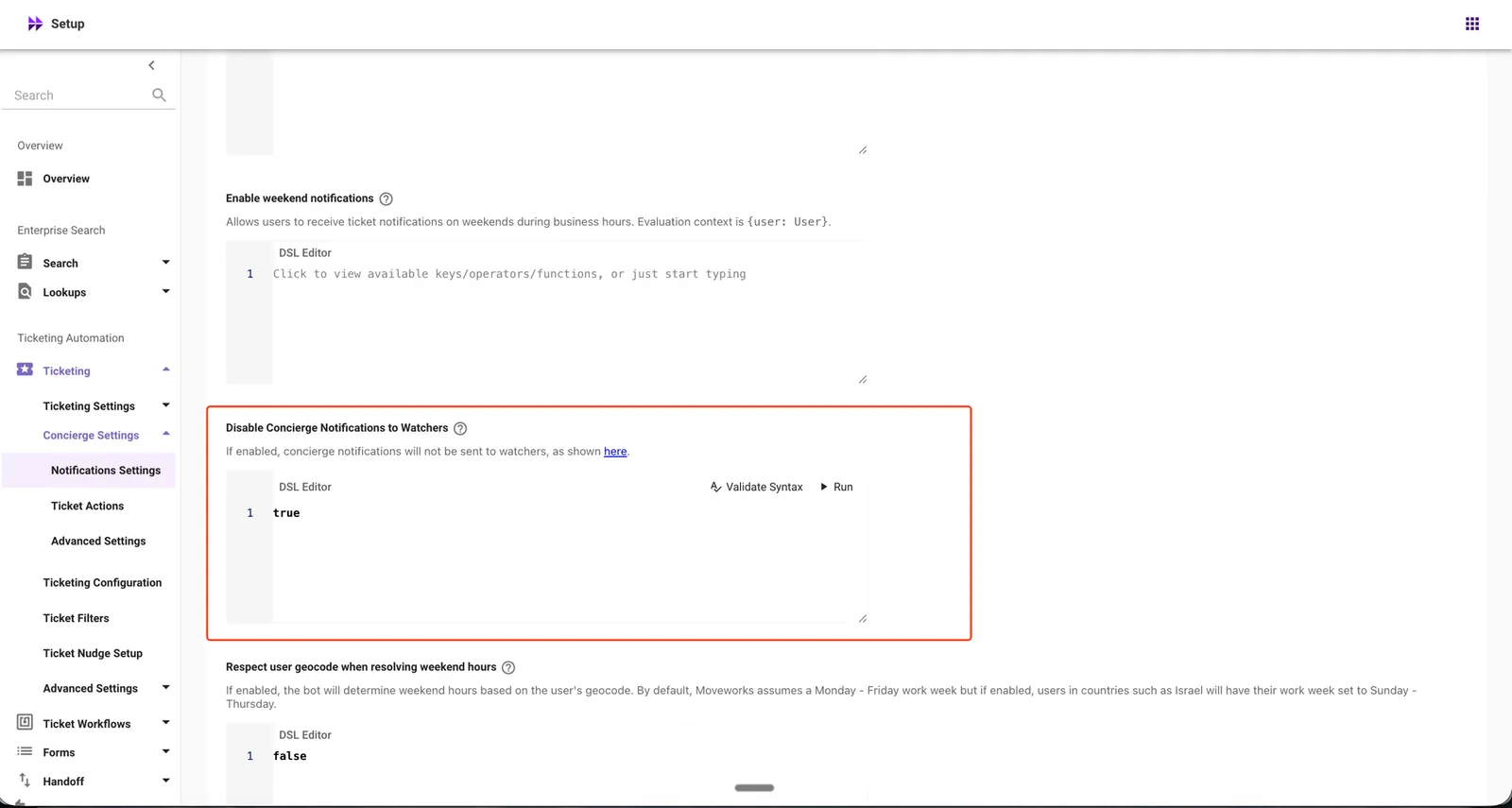
4. Disable Concierge Notifications to Watchers
Where to find it:
- Navigate to Moveworks Setup.
- Go to Ticketing.
- Under Ticketing, expand Concierge Settings.
- Select Notifications Settings.
- Locate the Disable Concierge Notifications to Watchers section.
5. [Deprecated] Disable concierge notifications
Where to find it:
- Navigate to Moveworks Setup.
- Go to Ticketing.
- Under Ticketing, expand Concierge Settings.
- Select Notifications Settings.
- Locate the [Deprecated] Disable concierge notifications section.
![[Deprecated] Disable concierge notifications in Notifications Settings](/_fern-img/565bc5963b95e2bbe18d9cf51f489ebde84da85e58d1bf05b64ed53d72b7d8a9.webp)
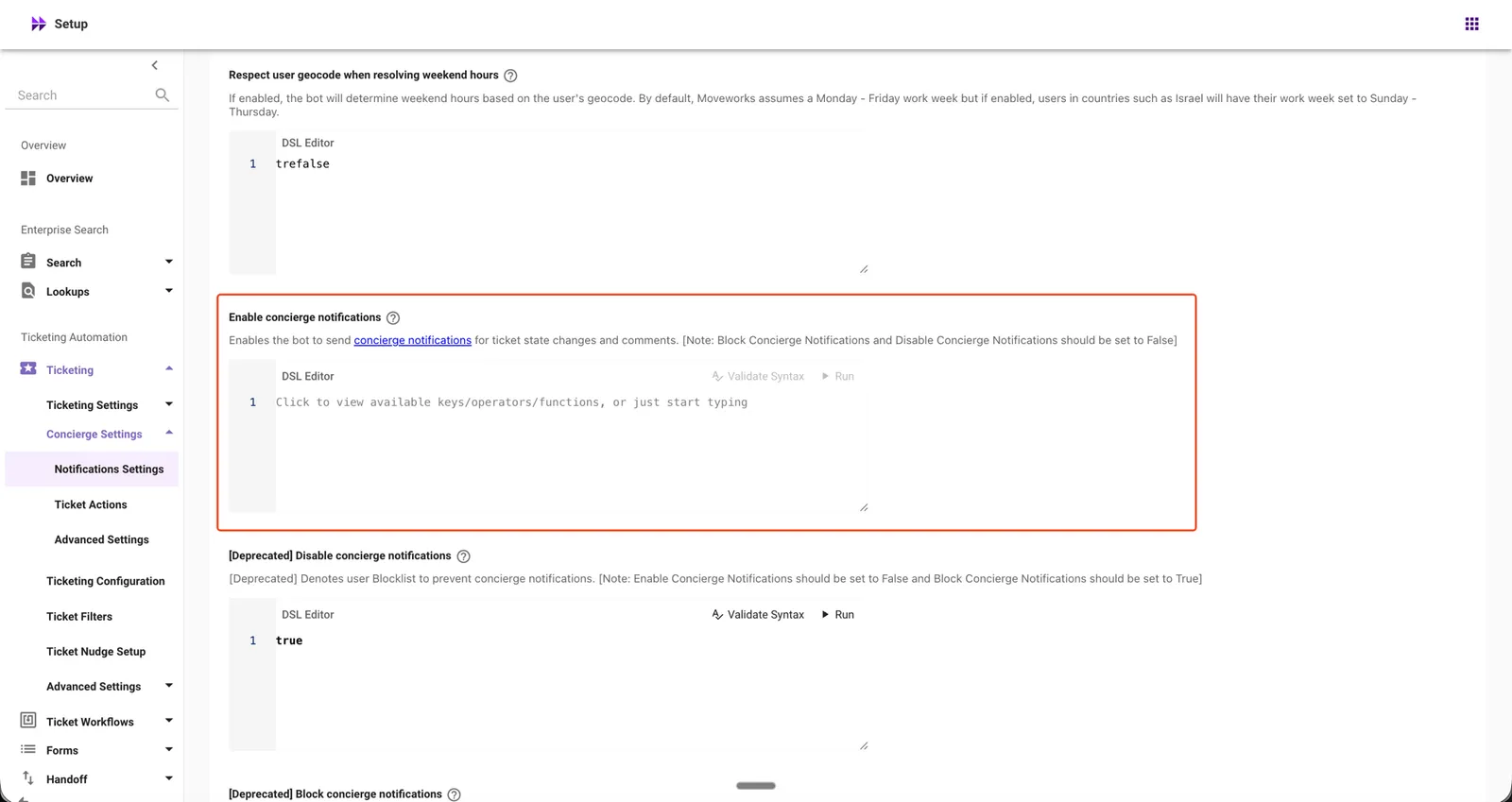
6. Enable concierge notifications
Where to find it:
- Navigate to Moveworks Setup.
- Go to Ticketing.
- Under Ticketing, expand Concierge Settings.
- Select Notifications Settings.
- Locate the Enable concierge notifications section.
7. [Deprecated] Block concierge notifications
Where to find it:
- Navigate to Moveworks Setup.
- Go to Ticketing.
- Under Ticketing, expand Concierge Settings.
- Select Notifications Settings.
- Locate the [Deprecated] Block concierge notifications section.
![[Deprecated] Block concierge notifications in Notifications Settings](/_fern-img/d23e844cc01609e5d1f8ce2fe28b3fa42b95c351eb80dd1191fa18b149893f9c.webp)
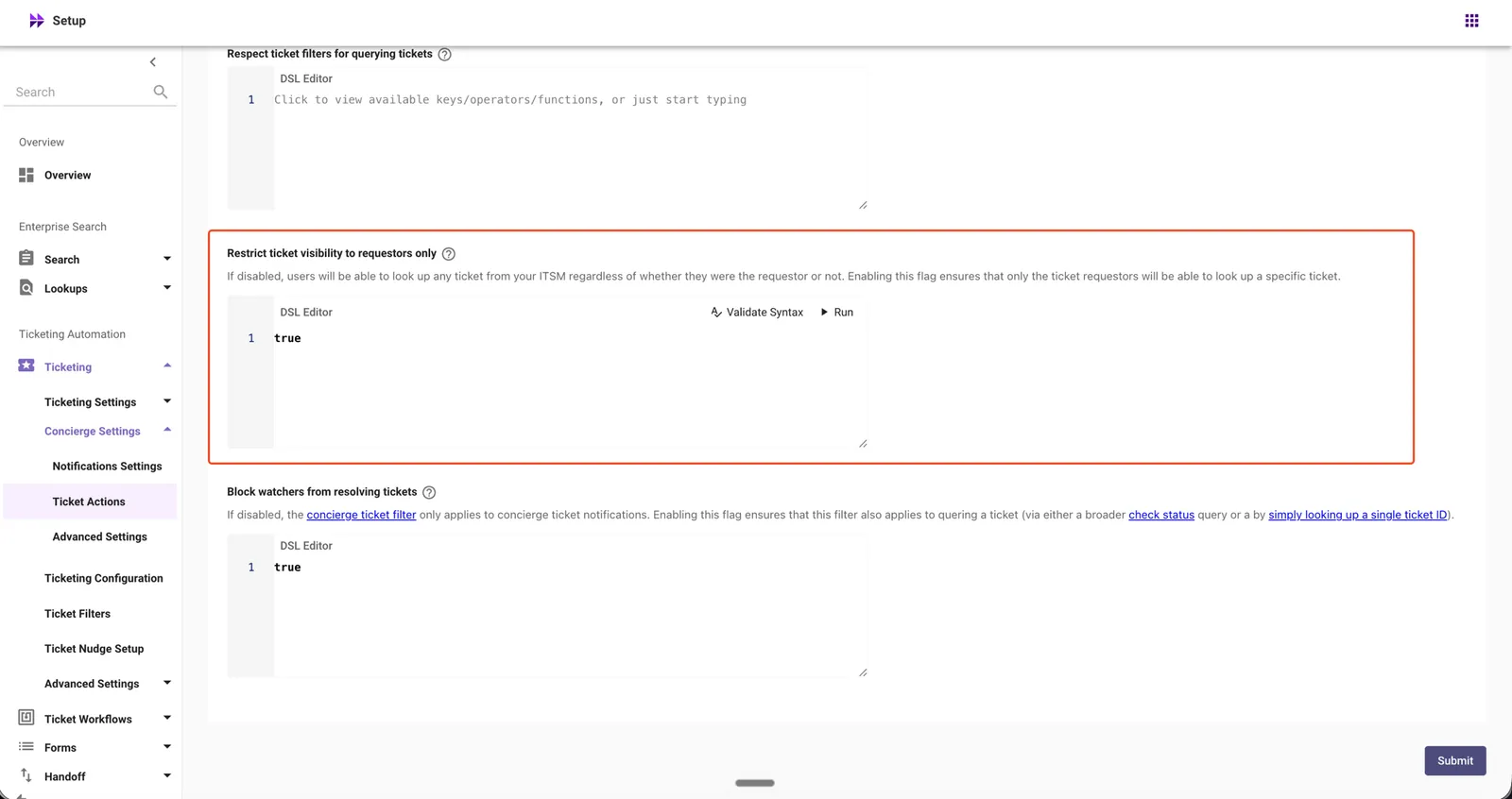
8. Restrict ticket visibility to requestors only
Where to find it:
- Navigate to Moveworks Setup.
- Go to Ticketing.
- Under Ticketing, expand Concierge Settings.
- Select Ticket Actions.
- Locate the Restrict ticket visibility to requestors only section.
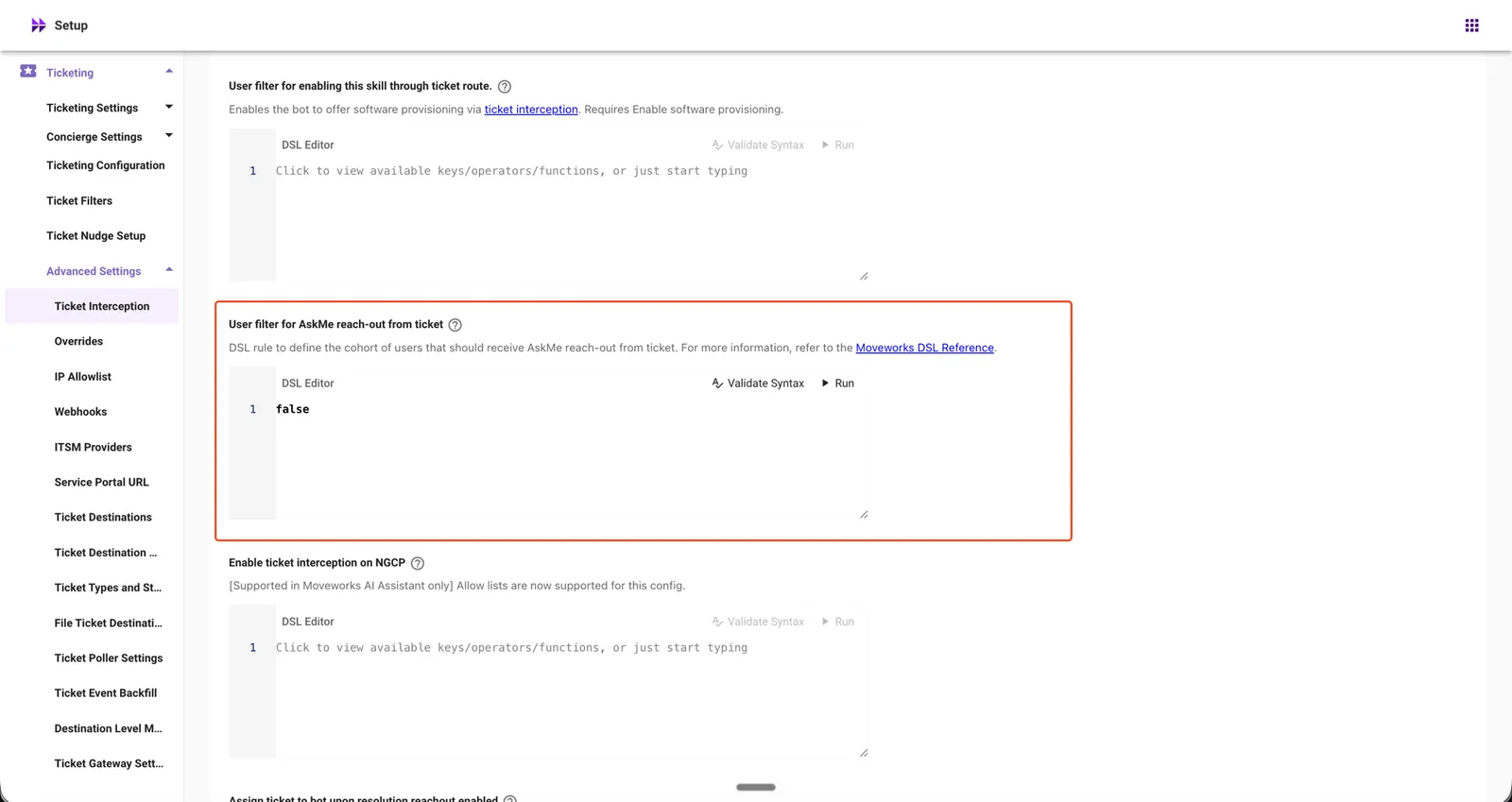
9. User filter for AskMe reach-out from ticket
Where to find it:
- Navigate to Moveworks Setup.
- Go to Ticketing.
- Under Ticketing, expand Advanced Settings.
- Select Ticket Interception.
- Locate the User filter for AskMe reach-out from ticket section.
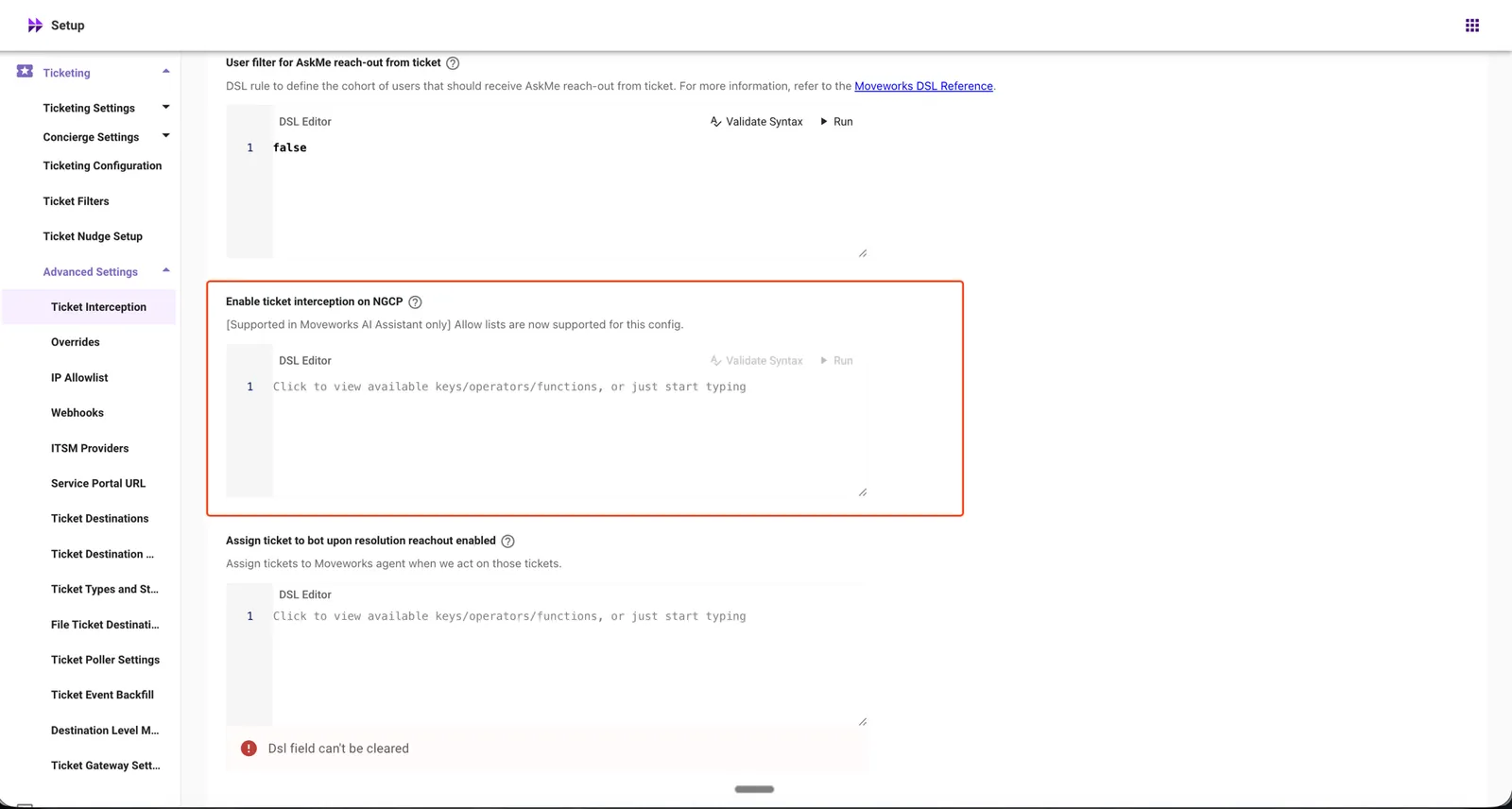
10. Enable ticket interception on NGCP
Where to find it:
- Navigate to Moveworks Setup.
- Go to Ticketing.
- Under Ticketing, expand Advanced Settings.
- Select Ticket Interception.
- Locate the Enable ticket interception on NGCP section.
11. Enable attachment upload
Where to find it:
- Navigate to Moveworks Setup.
- Go to Ticketing.
- Under Ticketing, expand Concierge Settings.
- Select Ticket Actions.
- Locate the Enable attachment upload section.
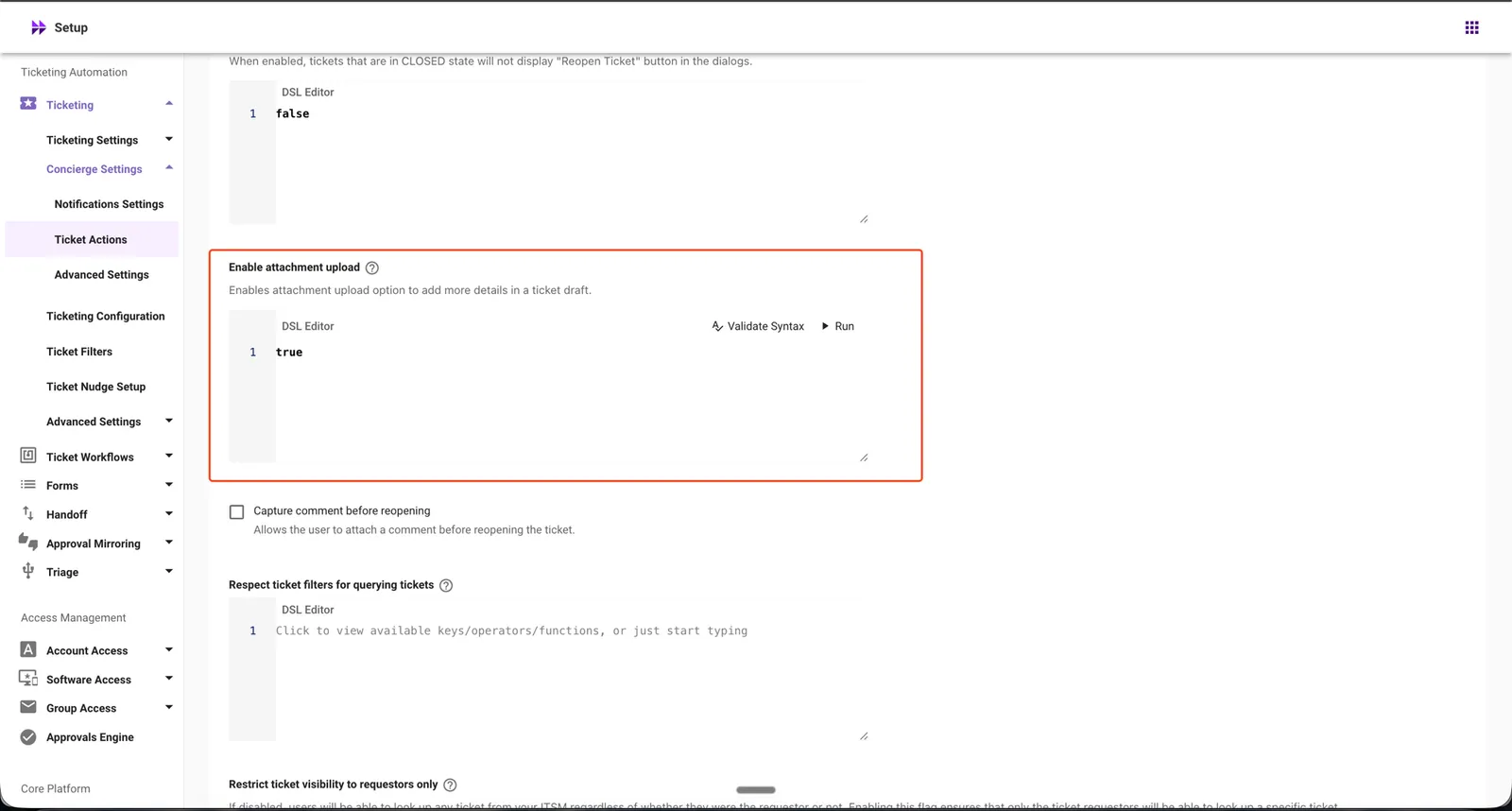
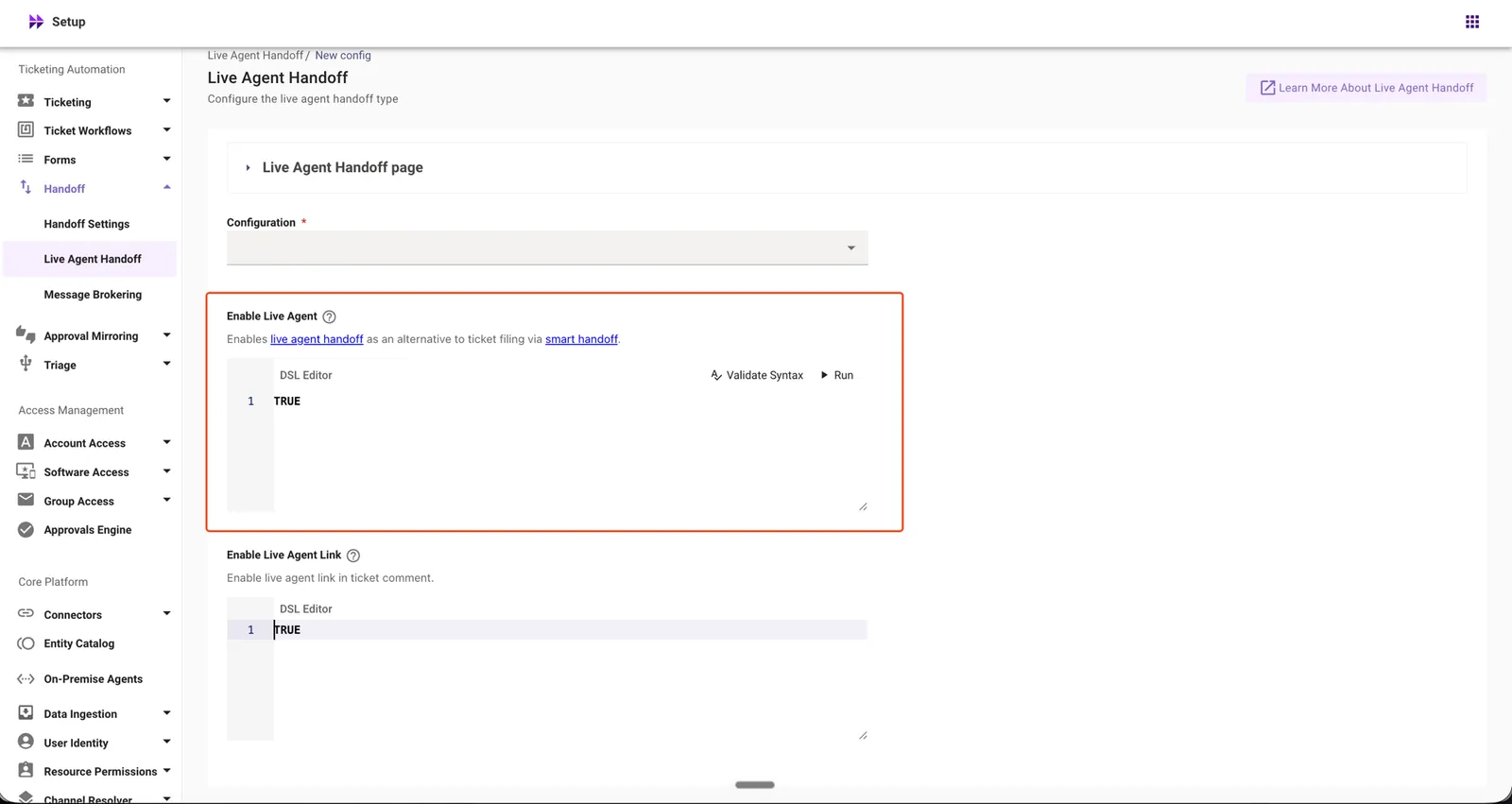
12. Enable Live Agent
Where to find it:
- Navigate to Moveworks Setup.
- Go to Handoff.
- Under Handoff, select Live Agent Handoff.
- Open the relevant Live Agent configuration.
- Locate the Enable Live Agent section.
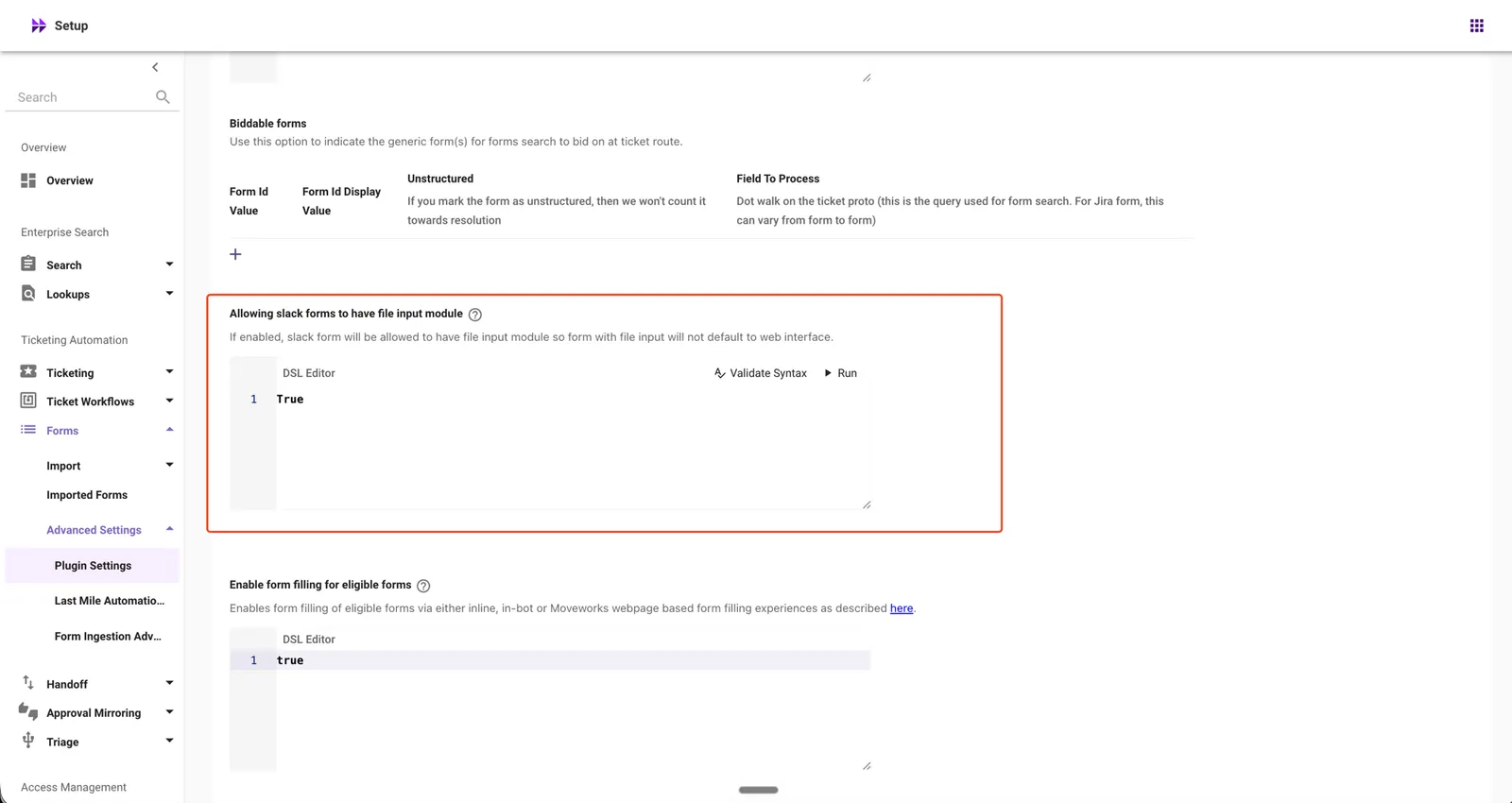
13. Allowing slack forms to have file input module
Where to find it:
- Navigate to Moveworks Setup.
- Go to Forms.
- Under Forms, expand Advanced Settings.
- Select Plugin Settings.
- Locate the Allowing slack forms to have file input module section.
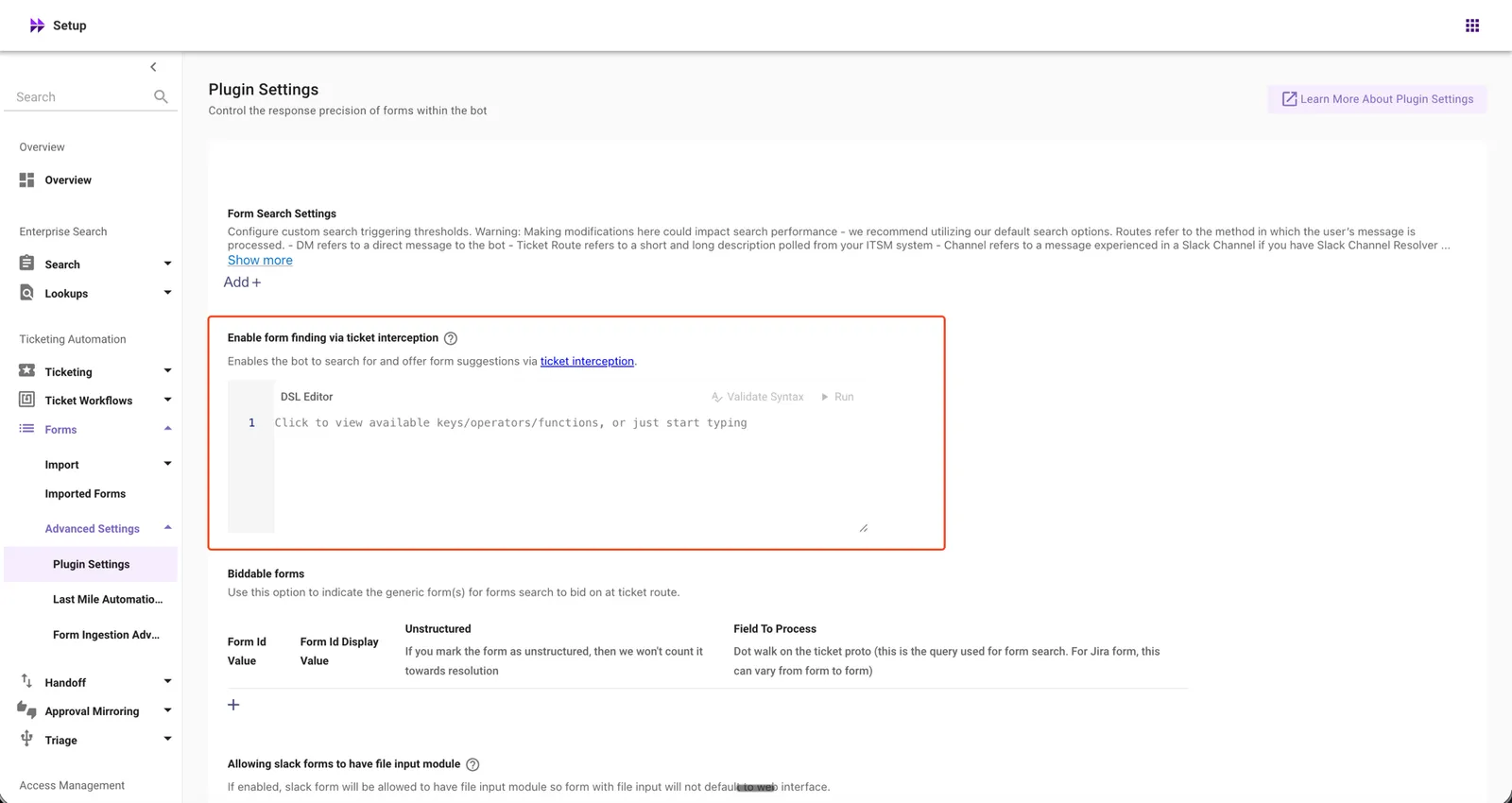
14. Enable form finding via ticket interception
Where to find it:
- Navigate to Moveworks Setup.
- Go to Forms.
- Under Forms, expand Advanced Settings.
- Select Plugin Settings.
- Locate the Enable form finding via ticket interception section.
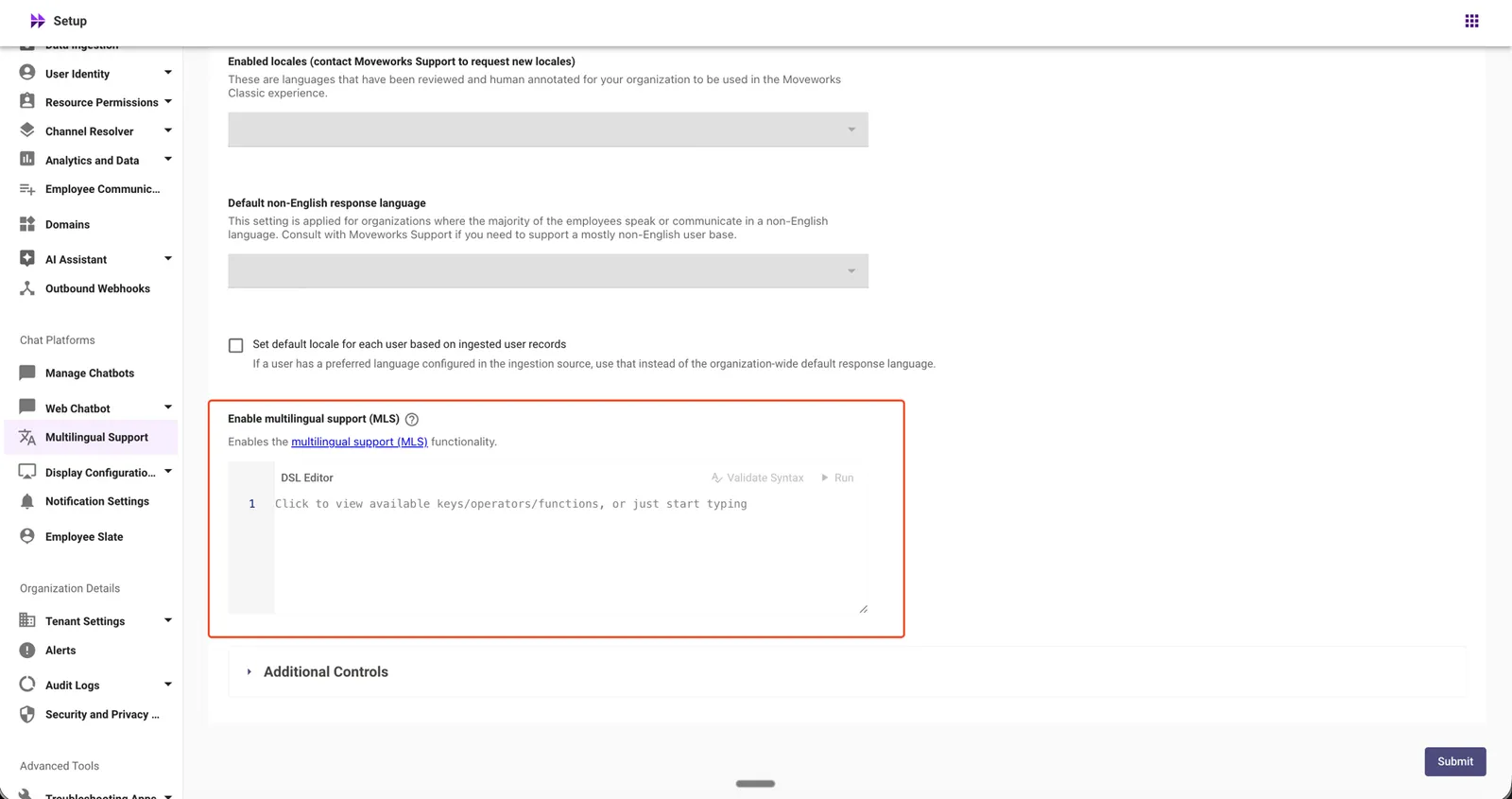
15. Enable multilingual support (MLS)
Where to find it:
- Navigate to Moveworks Setup.
- Go to Multilingual Support.
- Under Multilingual Support, select Language Preferences.
- Locate the Enable multilingual support (MLS) section.
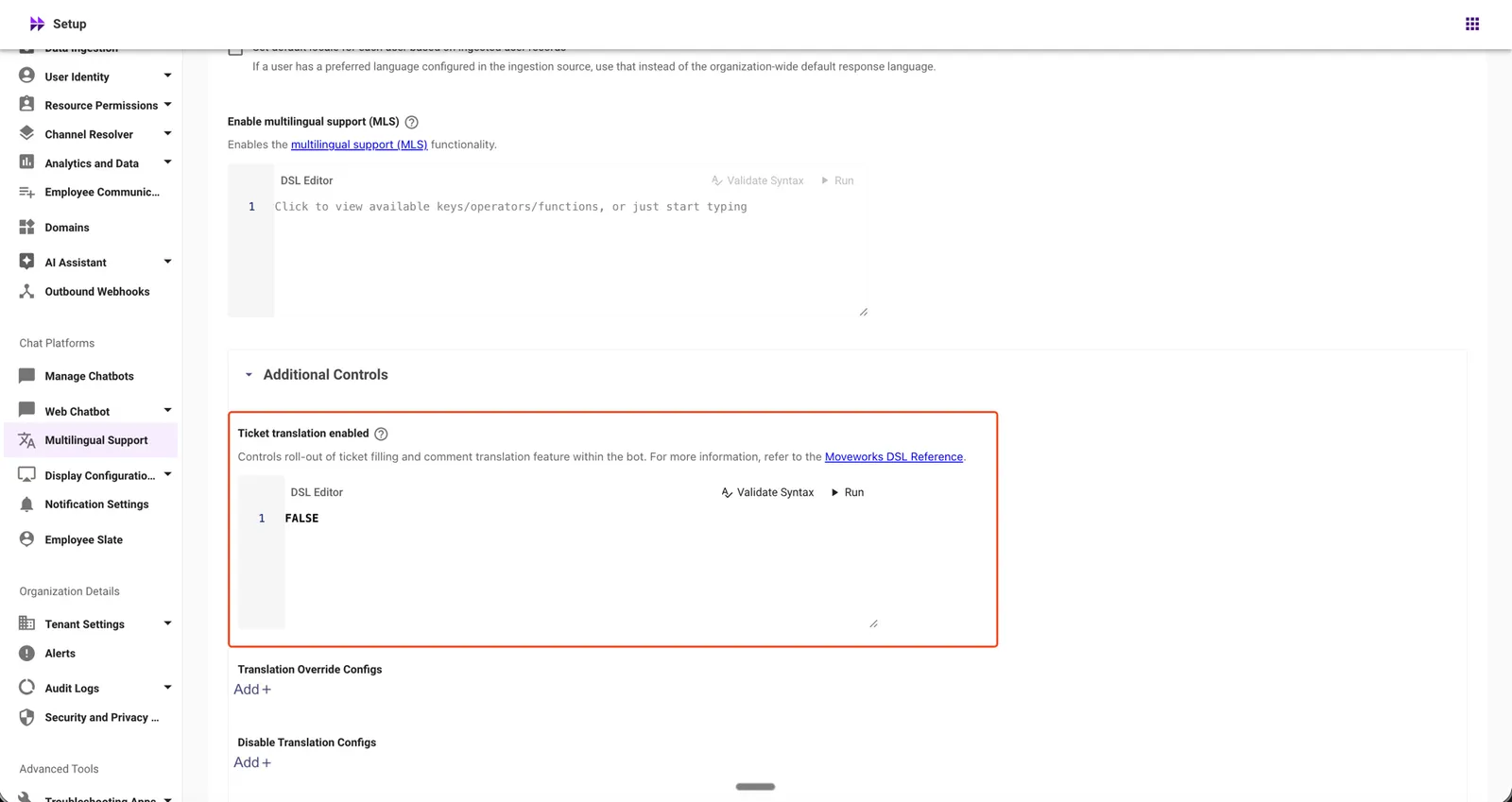
16. Ticket translation enabled
Where to find it:
- Navigate to Moveworks Setup.
- Go to Multilingual Support.
- Under Multilingual Support, select Language Preferences.
- Expand Advanced Settings.
- Locate the Ticket translation enabled section.
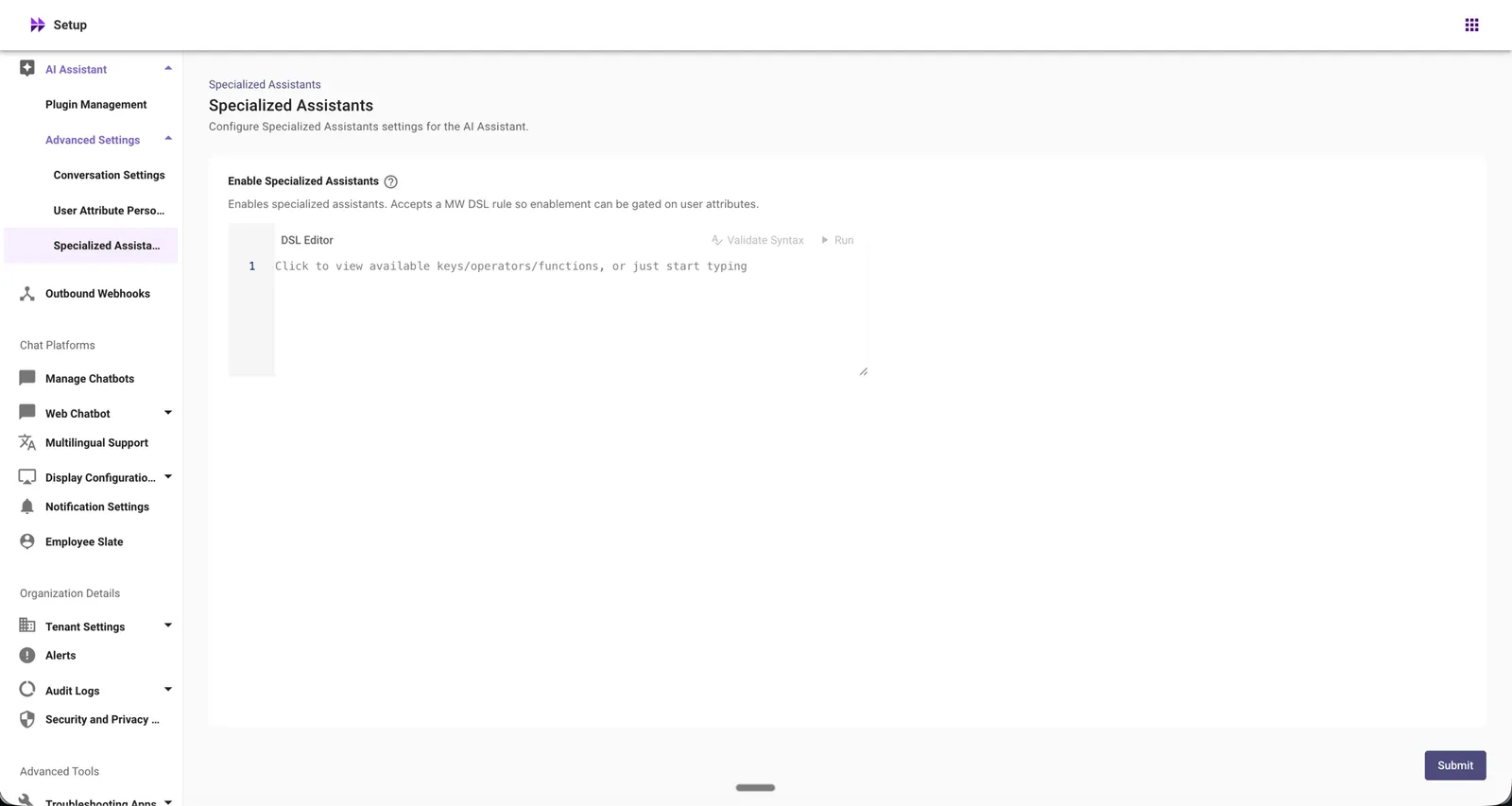
17. Enable Specialized Assistants
Where to find it:
- Navigate to Moveworks Setup.
- Go to AI Assistant.
- Under AI Assistant, expand Advanced Settings.
- Select Specialized Assistants.
- Locate the Enable Specialized Assistants section.
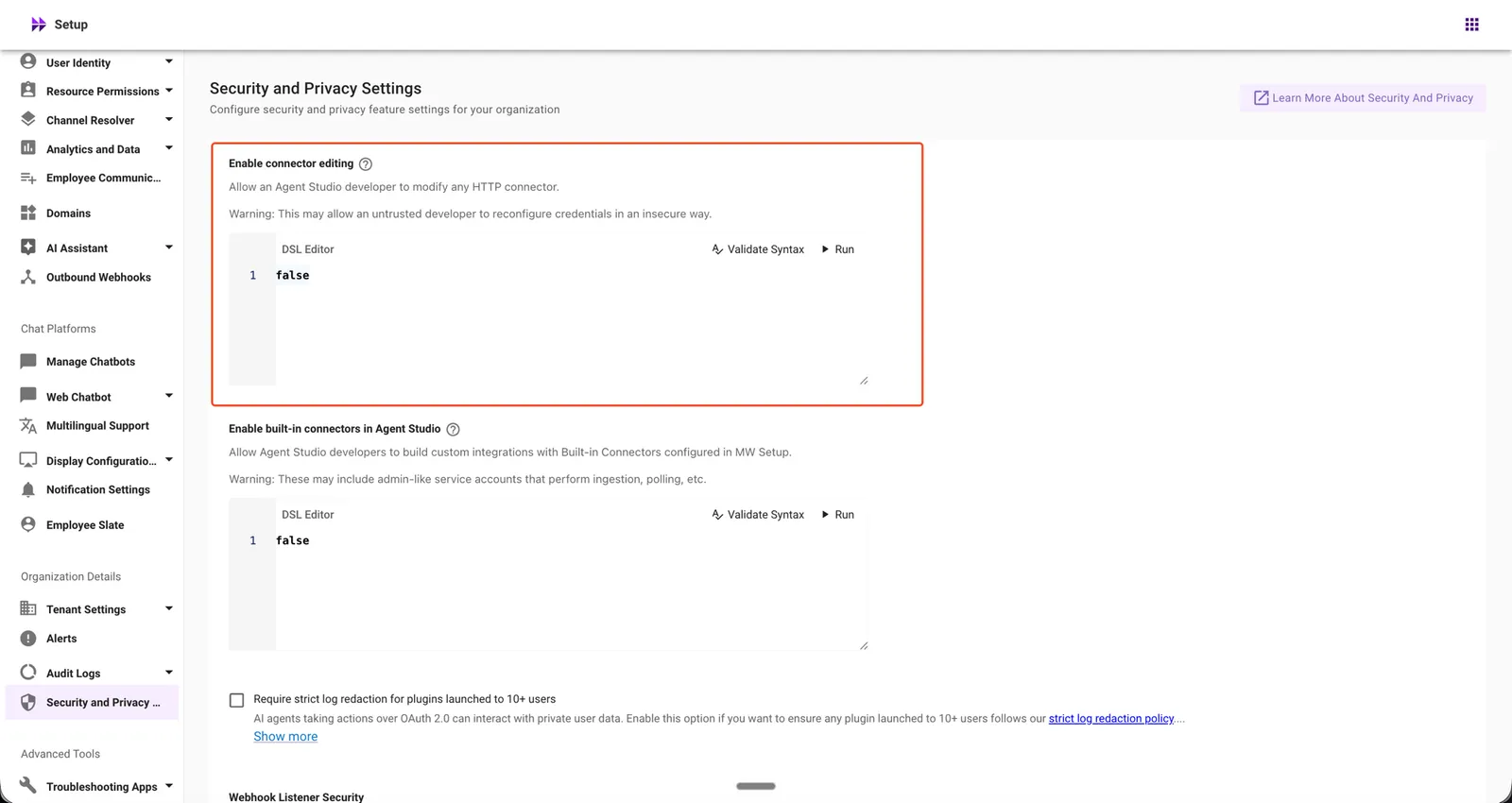
18. Enable connector editing
Where to find it:
- Navigate to Moveworks Setup.
- Under Organization Details, select Security and Privacy Settings.
- Locate the Enable connector editing section.
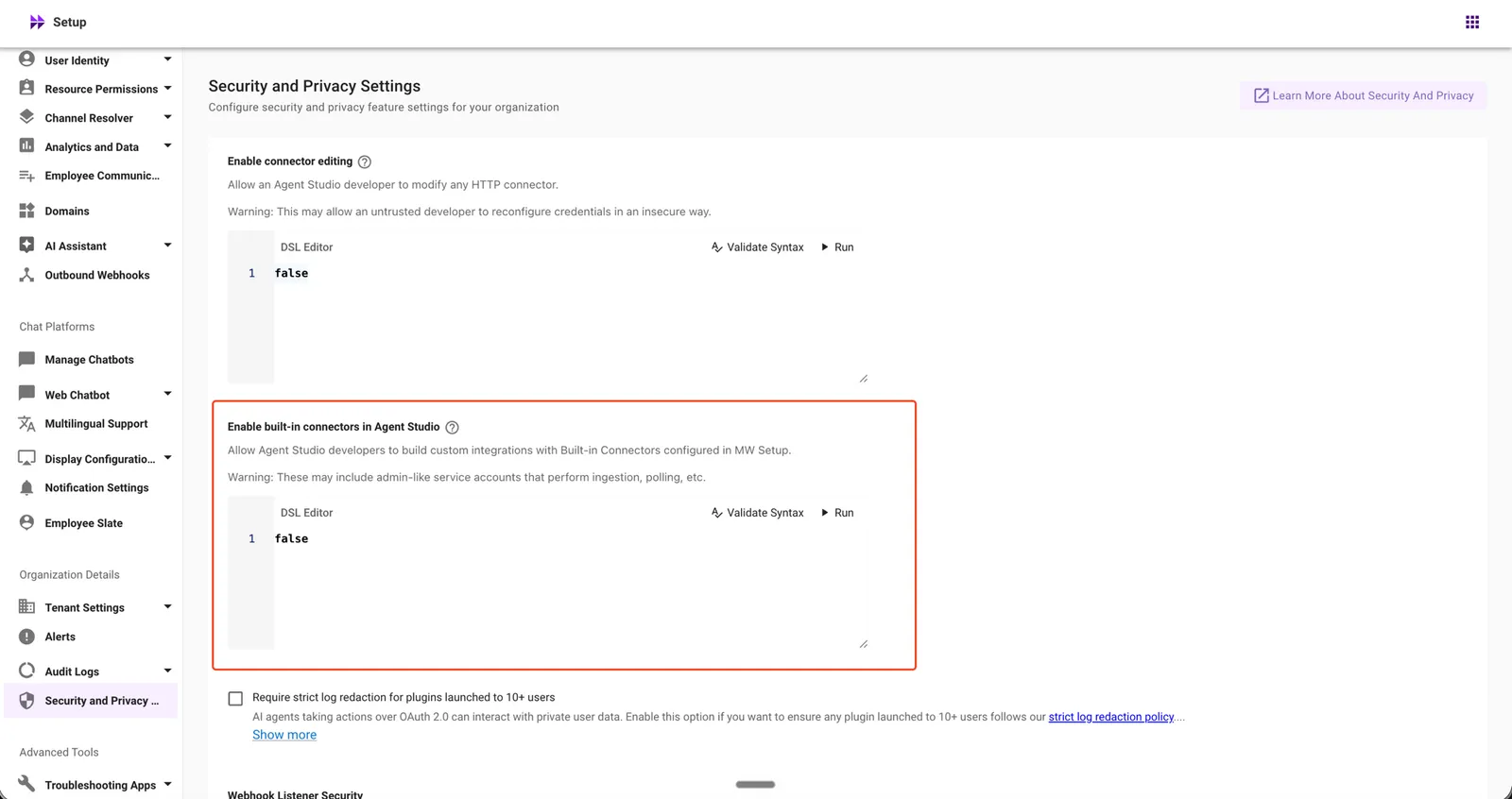
19. Enable built-in connectors in Agent Studio
Where to find it:
- Navigate to Moveworks Setup.
- Under Organization Details, select Security and Privacy Settings.
- Locate the Enable built-in connectors in Agent Studio section.
This list may not be exhaustive. If your organization uses connectors in other DSL configurations not covered above, please review those as well before proceeding with deletion.