
Google SSO Setup (SAML)
Before you edit your SSO configuration, make sure you are logged into MyMoveworks. Otherwise, you will not be able to log in and update your SSO configuration details.
Prerequisites
Google:
- Google Workspace and Admin access
- Sufficient privileges to create SAML application
Moveworks:
- Org is initialized and user ingestion is complete
Configuration
Google:
Step 1: Create custom SAML app
Navigate to https://admin.google.com/ and login with your admin account.
-
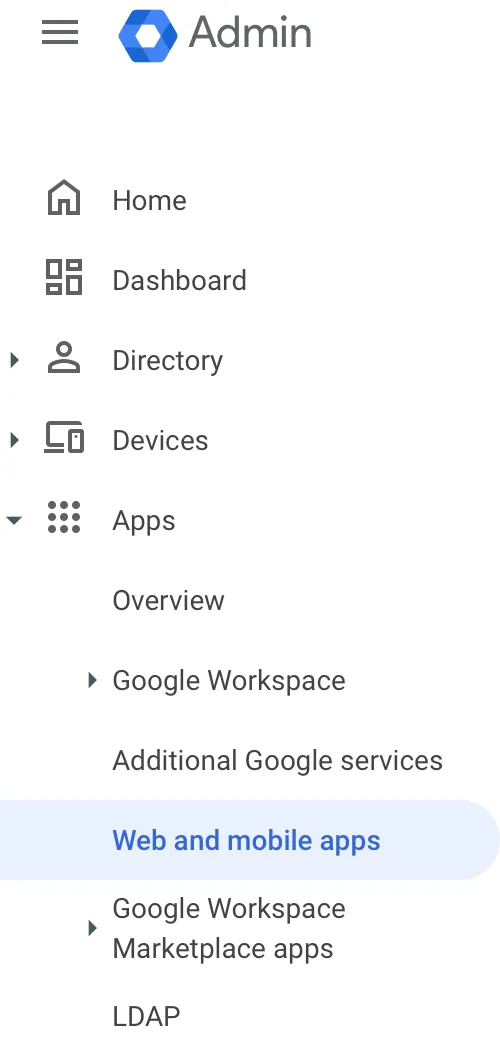
Go to “Home→Apps→Web and mobile apps”.
-
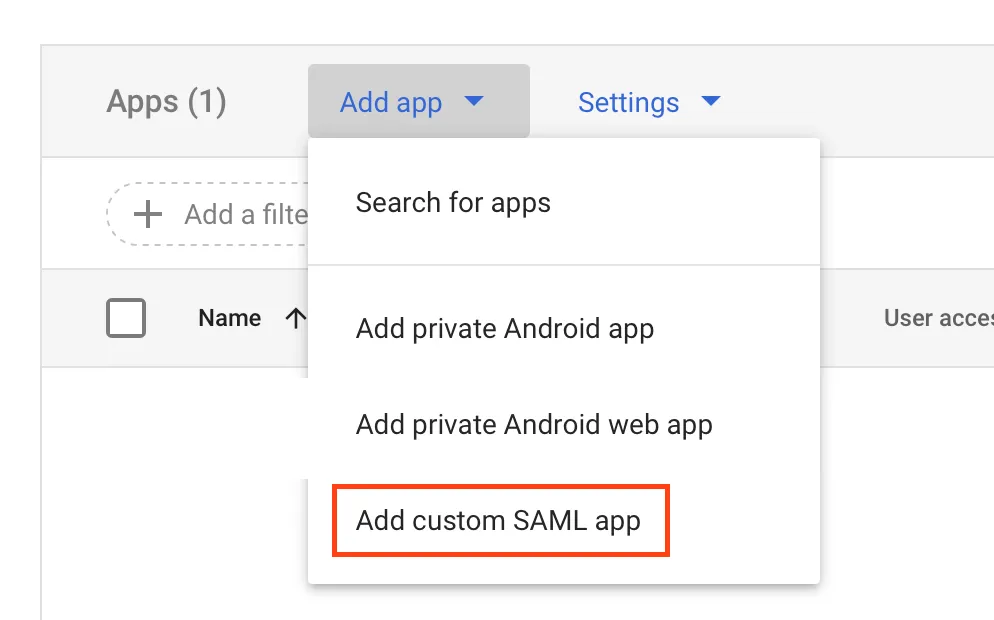
Click on “Add app” and from the drop down select “Add custom SAML app”.
-
On the “App Details” screen, please fill in the following information:
- App name: Moveworks
- Description: Moveworks Control Center
-
On the next page, click “Download Metadata” and also download the Certificate. These two data files will need to be provided to your CSE.
Step 2: Set up Service Provider
-
On the “Service provider details” page, please fill in the following information:
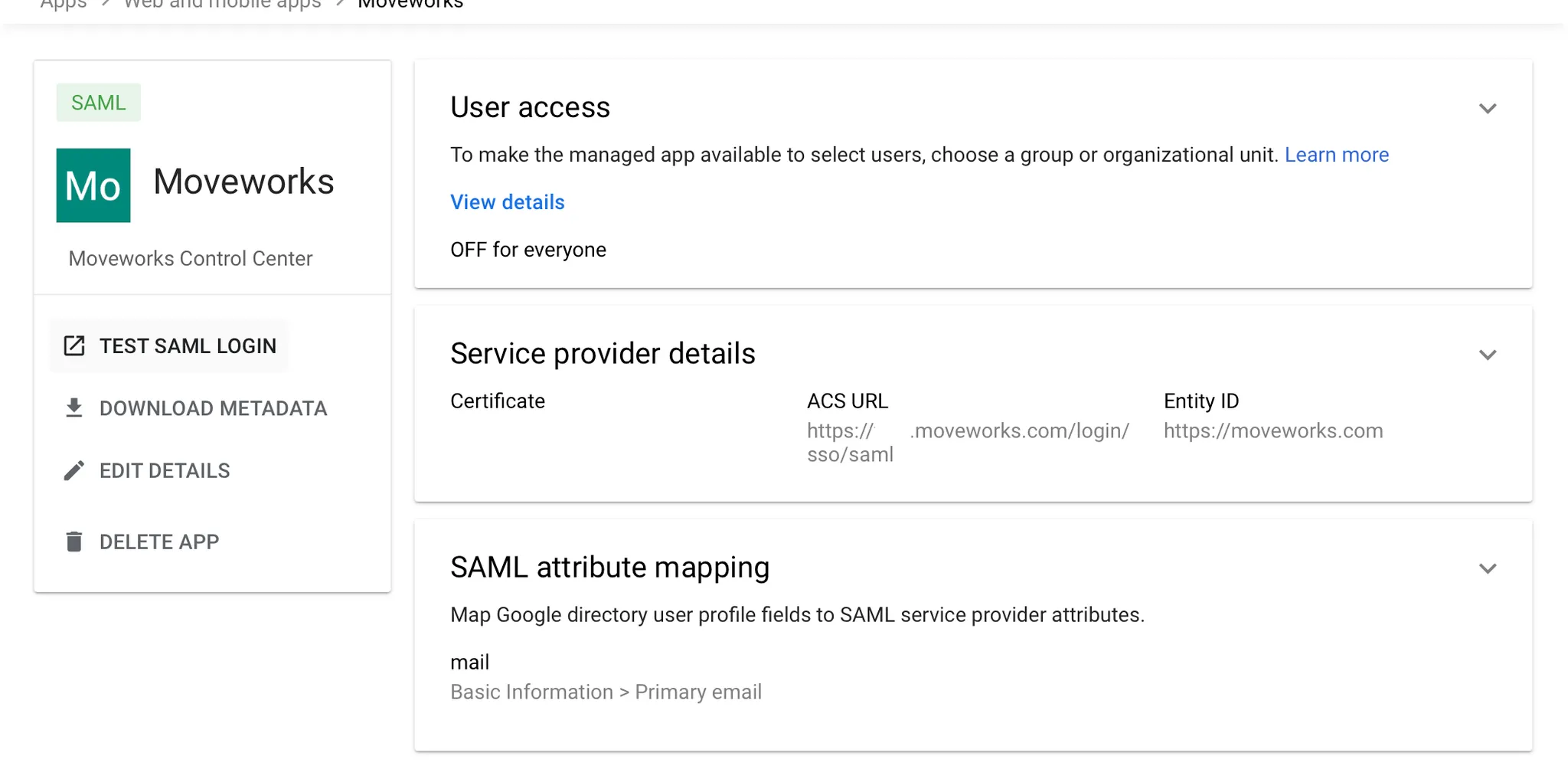
- ACS URL: https://org_name.moveworks.com/login/sso/saml
- Entity ID:https://www.moveworks.com
- Check “Signed response”
- Name ID format: EMAIL
- Name ID: Basic Information > Primary email
-
On the next page under “Attributes”, click “Add Mapping” and fill in the following:
- Google Directory attributes: Basic Information → Primary Email
- App attributes: mail
-
Click Finish.
-
Open the “Moveworks” app you just created if it’s not open already and it should look something like this:
Step 3: User access
Navigate to the “User access” page from your app page mentioned above to enable access for necessary users.
-
User access is “OFF for everyone” by default so based on needs of the organization, please set this up accordingly. If everyone can get access, this can be changed to “ON for everyone”. To turn this on for everyone:
-
Click on the down arrow on the top right of the “User access” box:

-
Select “ON for everyone” under “Service Status”
-
Click Save
-
-
Once your app setup is complete, download the metadata and certificate information, as you were need that in subsequent steps.
Moveworks:
Step 1: Google SSO Configuration
-
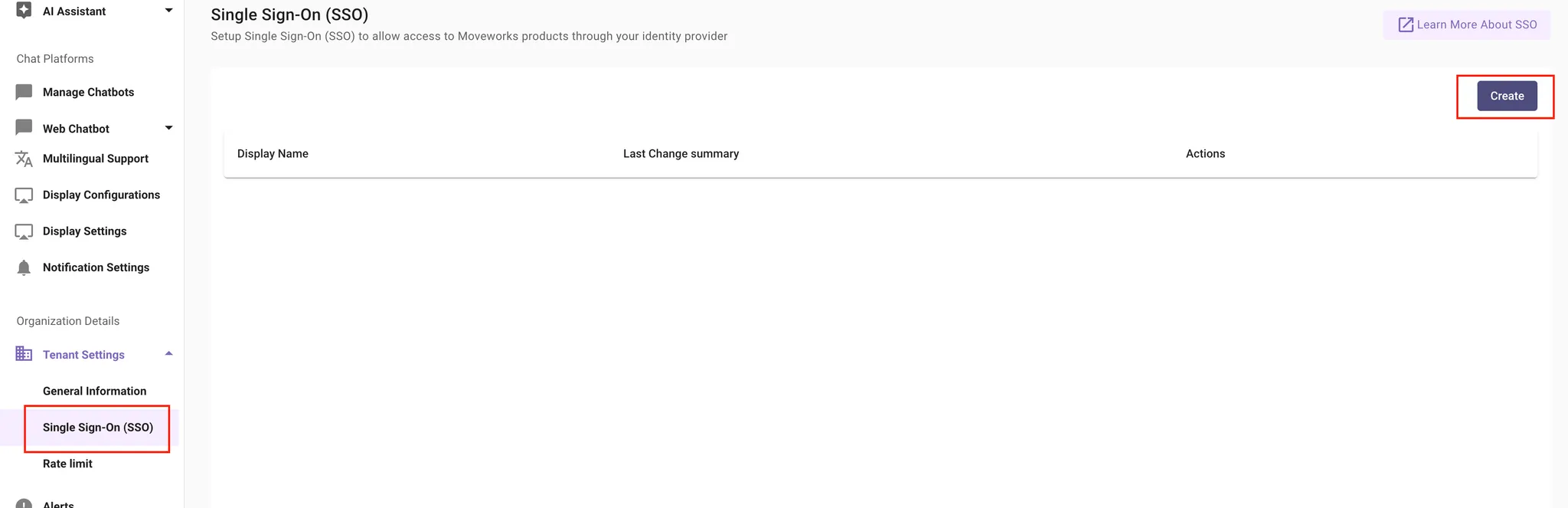
Under “Tenant Settings”, select “Single Sign-On (SSO)”.
-
Create a new SSO, by clicking the “Create” button.
-
Fill in the information as follows:
- Moveworks Product: studio
- Select Connector: Moveworks
- Authentication Protocol:
SAML - IDP Sign On / SSO URL:https://accounts.google.com/o/saml2/idp?idpid=XXXXXXX (this will be provided to you in the Metadata file from the customer, and can be found near the bottom of the file)
- IDP Issuer/Identifier ID:https://www.moveworks.com
- IDP Public Certificate: Upload the .pem file that is provided, this value should match the X509 value in the Metadata file as well. So if you only have the Metadata file, you can create your own .pem file by extracting the X509 value and wrapping it in:
- User attribute: mail
- Identifier Type: EMAIL_ADDR
-
Click Submit
Validation
Next following the steps below to verify access is working.
- Open an Incognito page from your browser (this is to prevent cached values from loading incorrectly).
- Go to https://org_name.moveworks.com (org_name being the value from the ACS URL).
- Log in with your Google account when prompted.
- On successful login, the Moveworks Control Center should appear.