For AI agents: a documentation index is available at the root level at /llms.txt and /llms-full.txt. Append /llms.txt to any URL for a page-level index, or .md for the markdown version of any page.
Logo
DeveloperAcademyCommunityStatus
  • Service Management
    • Overview
    • Concierge & Ticketing Capabilities Overview
    • Forms
    • Forms - Integration Specific Guides
    • Live Agent Chat / Handoff
    • Triage
    • Approval Mirroring
    • Ticket Interception
    • Generic Ticketing Integration: Ticket Gateway
  • Administration
    • MyMoveworks
    • Organization Information
    • Roles and Permissions
    • MyMoveworks SSO
  • Moveworks Setup
    • Accessing Moveworks Setup
    • First-Time Login via Magic Link
    • Moveworks Setup Modules
    • Moveworks Setup: Module How To Guides
    • Plugin Management
    • Monitor Alerts
    • Audit Logs
    • DSL Fields Defaults
    • Data Crawling View
    • API Playground
    • Setup Homepage
    • Troubleshooting Hub
    • Security and Privacy Settings
    • Configuration Delete
    • Advanced Config Editor
    • Identity configuration
    • Onboarding Stage
  • Security
    • Security
    • Hyperlink & Button Expiry
    • Attachment Handling
    • Moveworks Subprocessors
  • Provision Management
    • Overview
    • Access Software
    • Access Groups
    • Access Account
  • Access Requirements
    • Overview
    • Update Set Modules
    • Ticketing Systems & ITSMs Access
    • Identity and Access Management Systems Access
    • Multi-Factor Authentication (MFA) Systems Access
    • Knowledge Access Requirements
    • Email Distribution List Systems Access
    • Facilities Management Access
    • Live Agent Chat Access
    • HR Information System Access
    • Expense Management Access
    • Calendar Management Access
  • Core Platform
    • User Identity
    • Moveworks On-Prem Agent
    • Approvals Engine
    • Entity Catalog
      • Configuring Entities in Moveworks Setup
      • How To Guide for Entity Catalog
    • Configuration Languages
    • Moveworks Data Objects
    • SIEM
  • Employee Experience Insights
    • Overview
    • Breaking Down the Dashboard
    • Understanding Industry Benchmarks
    • Apps & Services
    • Impact Module
    • EXI Common Use Cases
    • Configure EXI
    • Ticket Backpolling
  • Knowledge Studio
    • Overview
    • Knowledge Studio Configuration
    • AI Powered Recommendations
    • Inspecting & Verifying Sources
    • Publishing Articles
    • Creating Knowledge Articles
    • Resolving IT Tickets Guidance
DeveloperAcademyCommunityStatus
On this page
  • Entity Configuration Guide
  • Understanding Key Configurations
  • Create or Override Software Entities
  • Step 1: Search for Existing Entities
  • Step 2A: Override an Existing Global Entity (If the Entity Already Exists)
  • Step 2B: Create a New Custom Entity (If the Entity Doesn’t Already Exists)
  • Modify Software Entities
  • Where to Utilize Software Entities?
Core PlatformEntity Catalog

Configuring Entities in Moveworks Setup

||View as Markdown|
Was this page helpful?
Edit this page
Previous

How To Guide for Entity Catalog

Next
Built with

Entity Configuration Guide

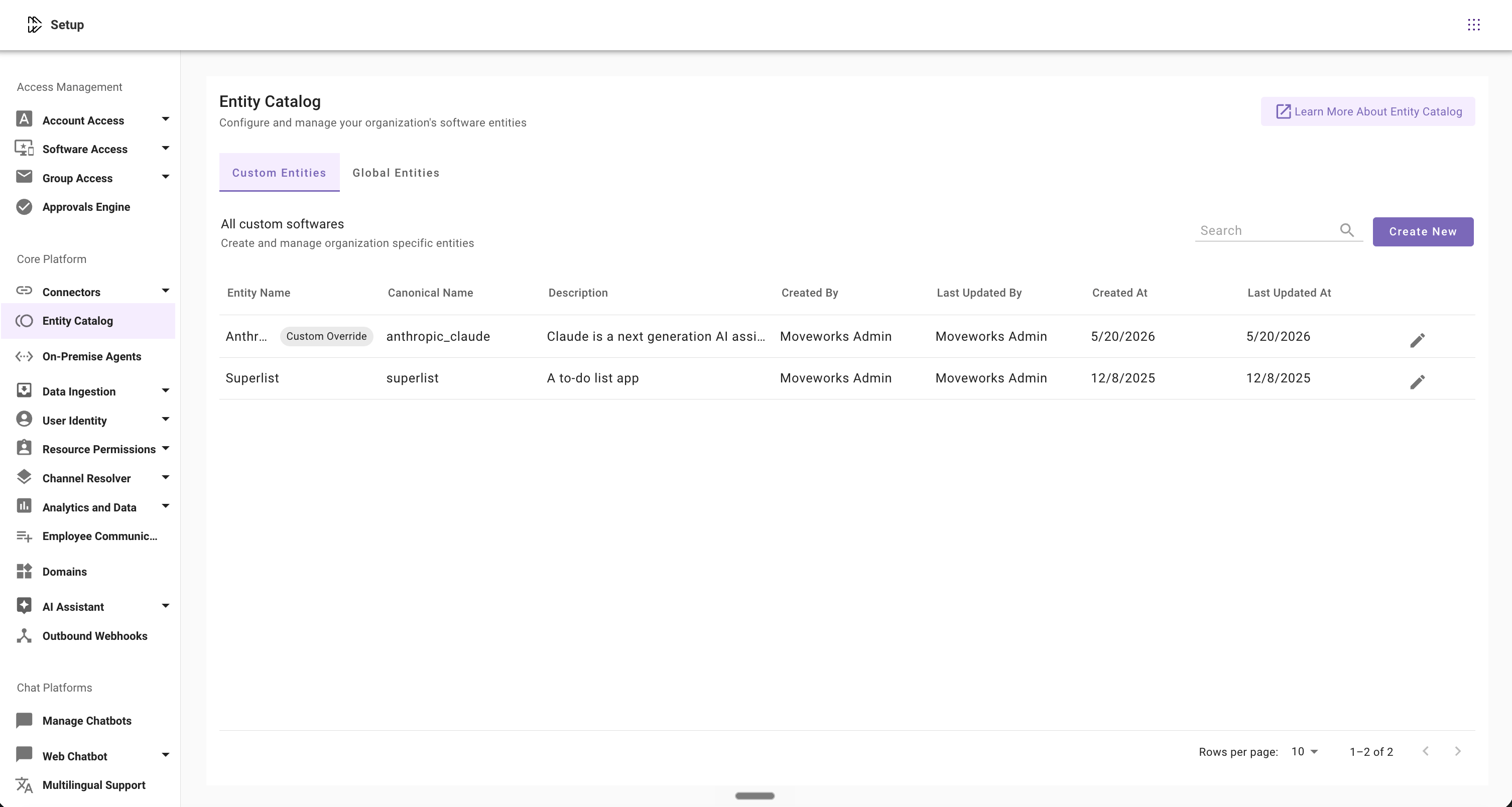
On the home screen of Entity Catalog, you can view two types of entities: Custom Entities and Global Entities.

Custom Entities: Organization-specific software entities created and managed by admins. These typically represent internal applications, tools, or systems unique to your enterprise. E.g. ExpenseIQ, TimeOff, and EmployeeConnect.

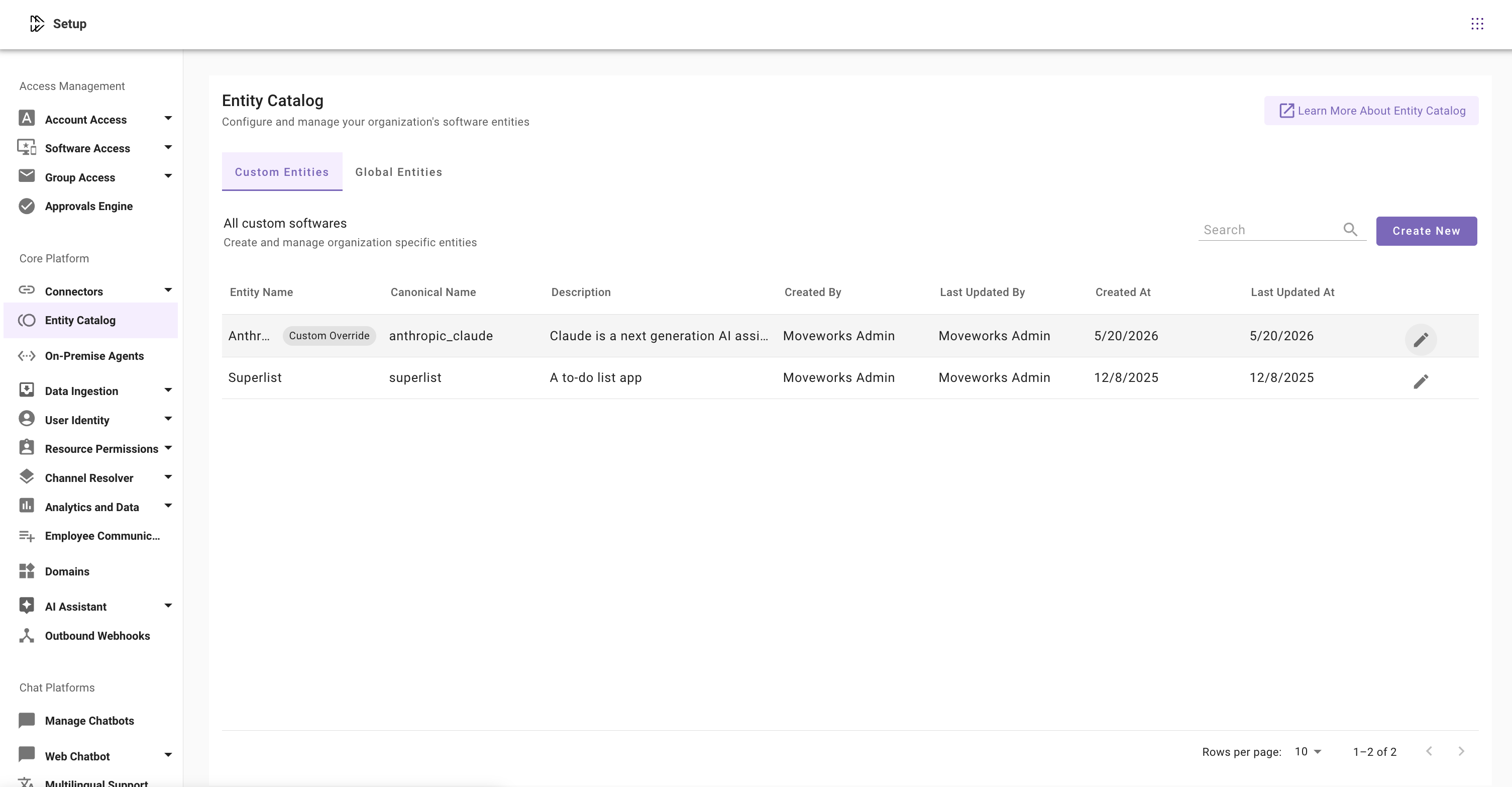
The Custom Entities tab provides the following information and actions:

  • Entity Name – Display name of the entity (not editable after creation)
  • Canonical Name – Unique system-generated identifier used internally
  • Description – Brief description of the software application
  • Created By – User who created the entity
  • Last Updated By – User who last modified the entity
  • Created At – Entity creation timestamp
  • Last Updated At – Most recent modification timestamp
  • Available Actions
    • Search – Search for existing entities
    • Create New – Create a new custom entity
    • Edit – Modify an existing custom entity
image

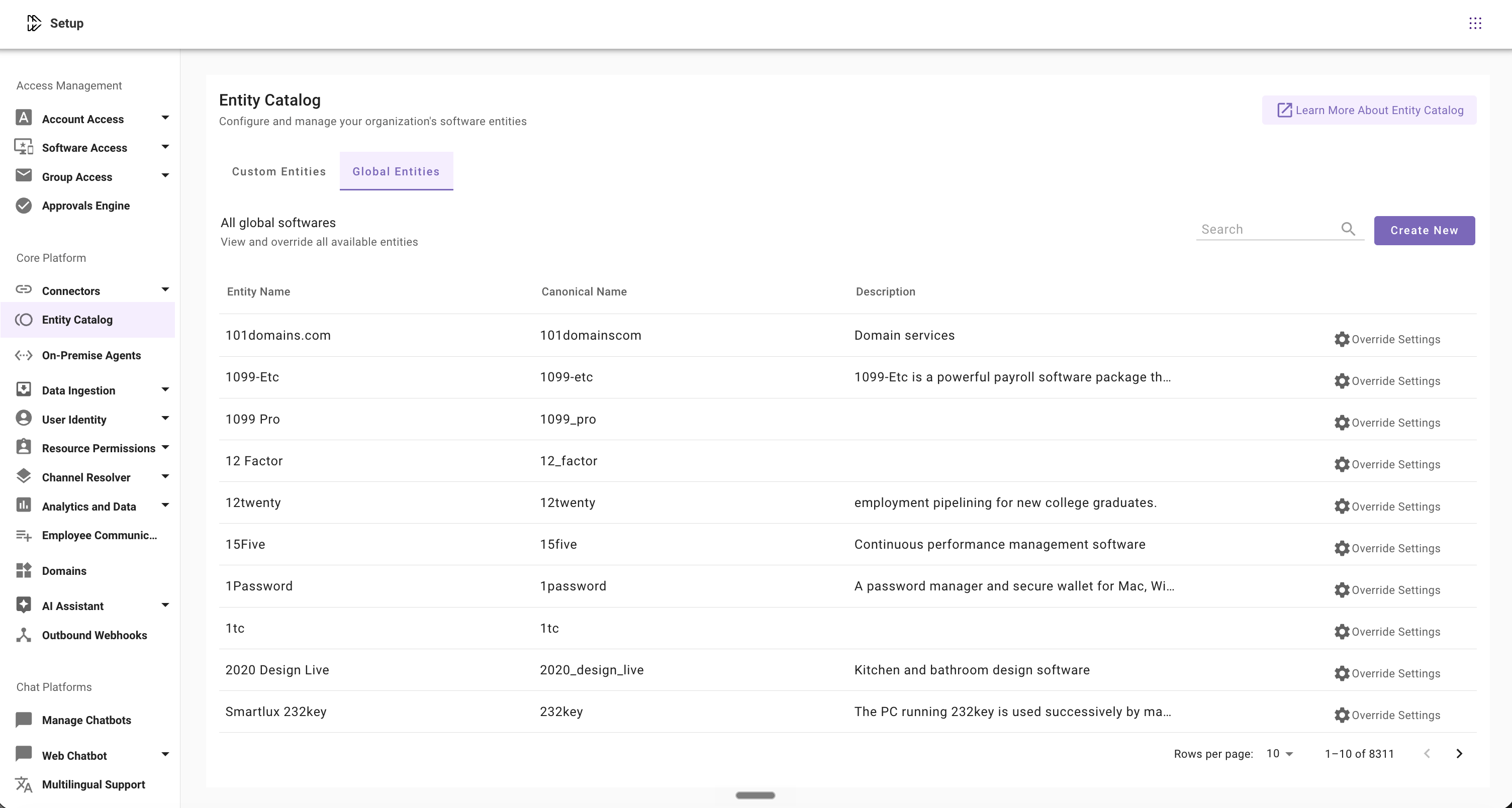
Global Entities: Predefined software entities managed by Moveworks and available across all customer environments. Admins can override existing global entities if needed, but cannot create new ones. E.g. Salesforce, Zoom, and Figma.

Note: Admins cannot create new global entities, but they can override existing ones to customize entity behavior for their organization.

  • Entity Name – Display name of the entity (not editable)
  • Canonical Name – Unique internal identifier
  • Description – Brief description of the software application
  • Available Actions
    • Search – Search across available global entities
    • Override Settings – Customize an existing global entity for your organization
image

Understanding Key Configurations

The Entity Configuration screen allows admins to define how entities are identified, matched, and displayed within Moveworks. Below is a breakdown of the key configuration fields and their purpose.
Term

Definition

Example

Title (Not editable)

Preferred entity name shown to users

Zoom, Figma, Loom, Notion, and more

Canonical Name

Moveworks ID

ServiceNow Service Catalog → servicenow_service_catalog

WebAssembly → webassembly

Dolby.com → dolby_com

Canonical name is snake case with spaces converted to ‘_’ underscores

Description

A brief description of the entity shown to users

“Zoom unifies cloud video conferencing, simple online meetings, and cross platform group chat into one easy-to-use platform.”

Entity Type (Not editable)

Classify entities according to different use cases

Software Applications

Aliases

Alternate names for an entity

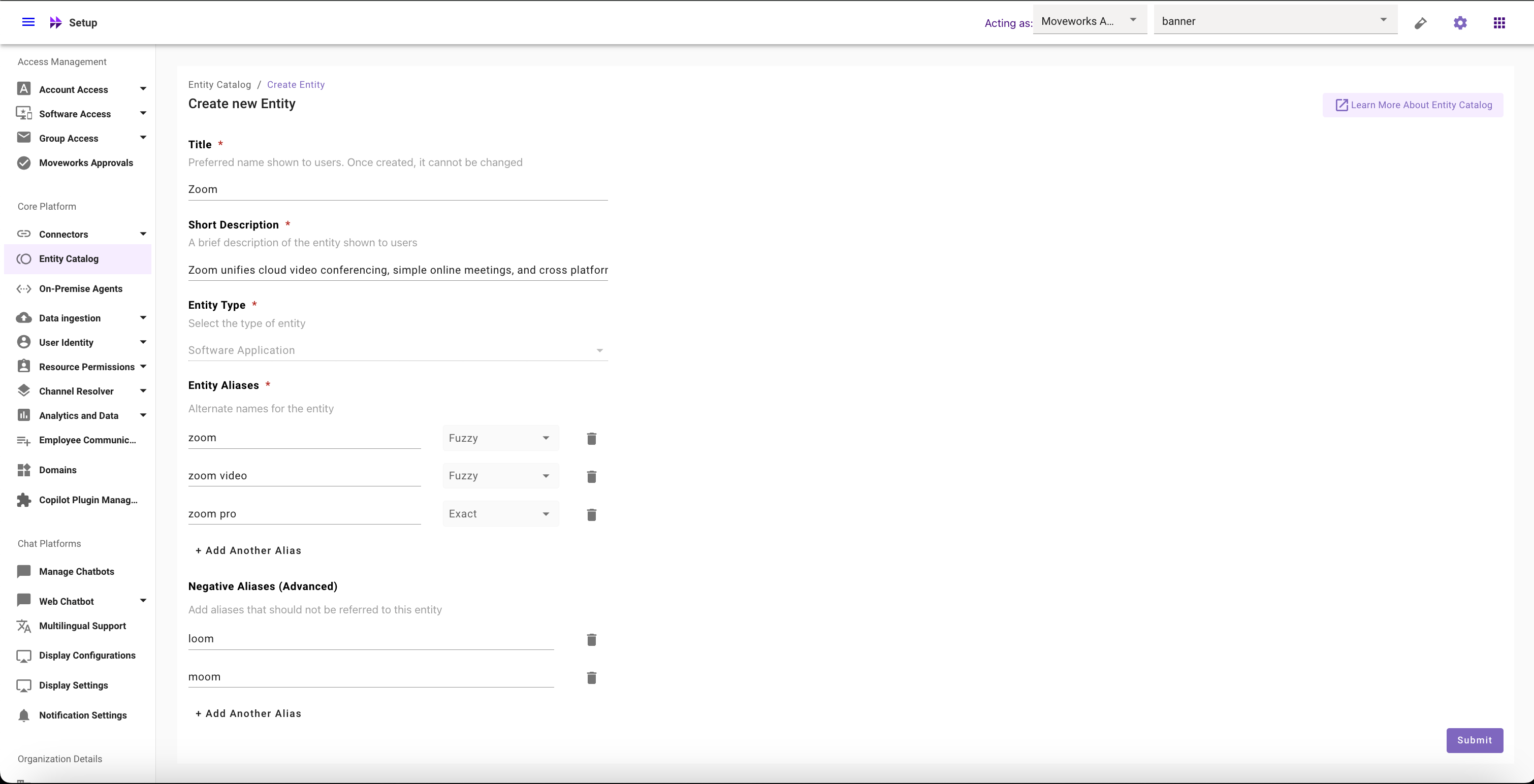
zoom, zoom video, & zoom pro would be the aliases for Zoom, the video conferencing software

Exact matching logic

Matches a word or phrase exactly

zoom pro would always match with zoom entity in EC

Fuzzy matching logic

Match a word or phrase to within a certain edit distance

zooom (intentional spelling mistake) would try to match with zoom entity in EC.

By default, this option will be selected for aliases

Negative aliases

Prevents matches against a word or phrase that would otherwise match

loom & moom entities would be negative aliases for Zoom video conferencing software since those two are different apps with very similar names

Important Notes
  1. 1. The Title also serves as the entity’s primary alias and cannot be modified after the entity is created.
  2. 2. Currently, Software Application is the default and only supported entity type in Entity Catalog.
  3. 3. Canonical names are automatically standardized using lowercase snake_case formatting.

Create or Override Software Entities

Before creating a new software entity, first check whether the entity already exists in Moveworks Setup.

Admins may want to override existing global entities when the entity already exists, but its behavior needs to be customized for organization-specific terminology, workflows, or naming conventions.

For example, an admin may want the Figma (a global entity) entity to also recognize related terms such as:

  • FigJam
  • Figma design tool
  • Figma workspace
  • Design collaboration platform

By overriding a global entity and configuring custom aliases or matching behavior, admins can improve entity recognition and ensure users are directed to the correct workflows and experiences.

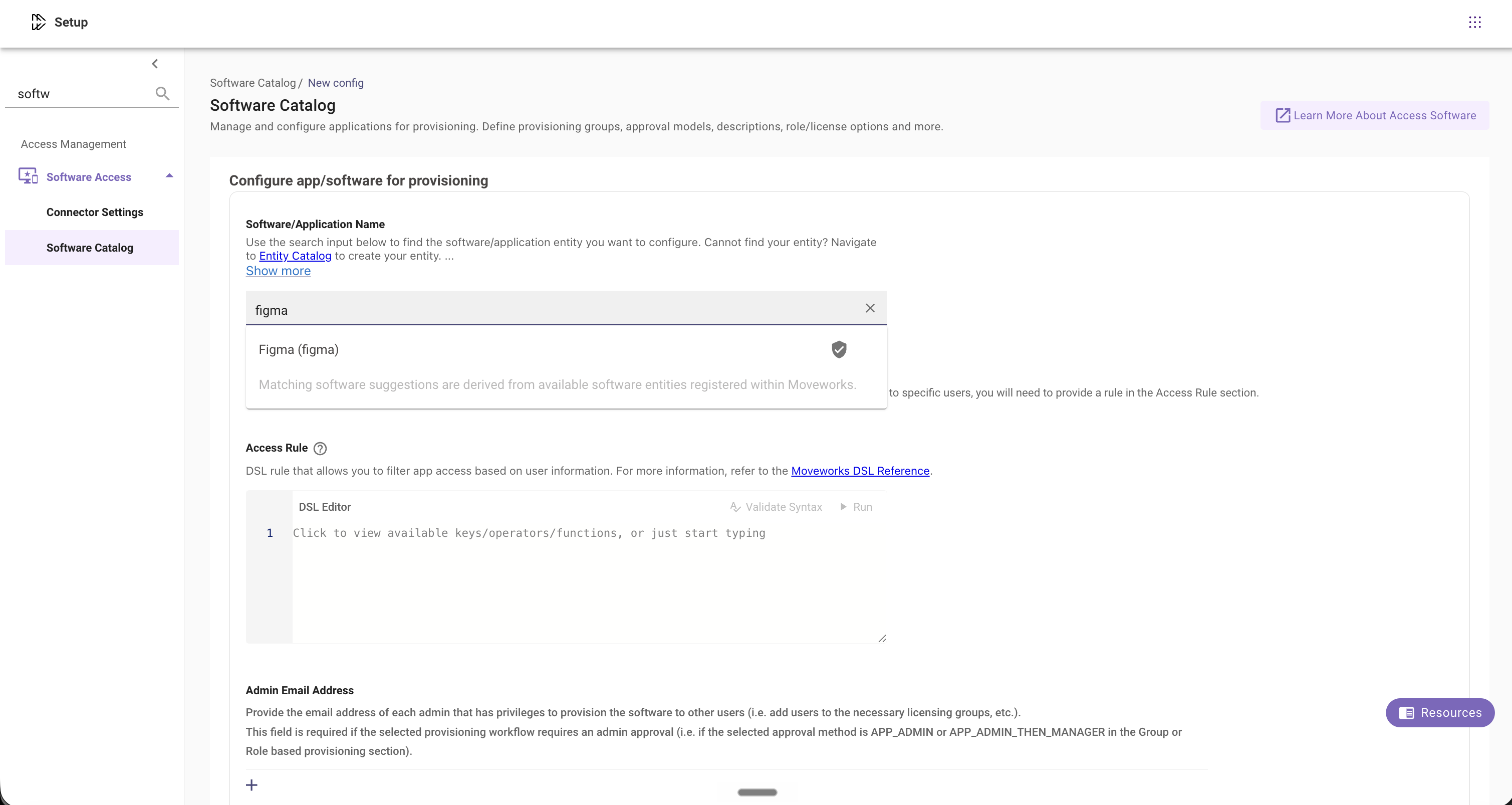
Step 1: Search for Existing Entities

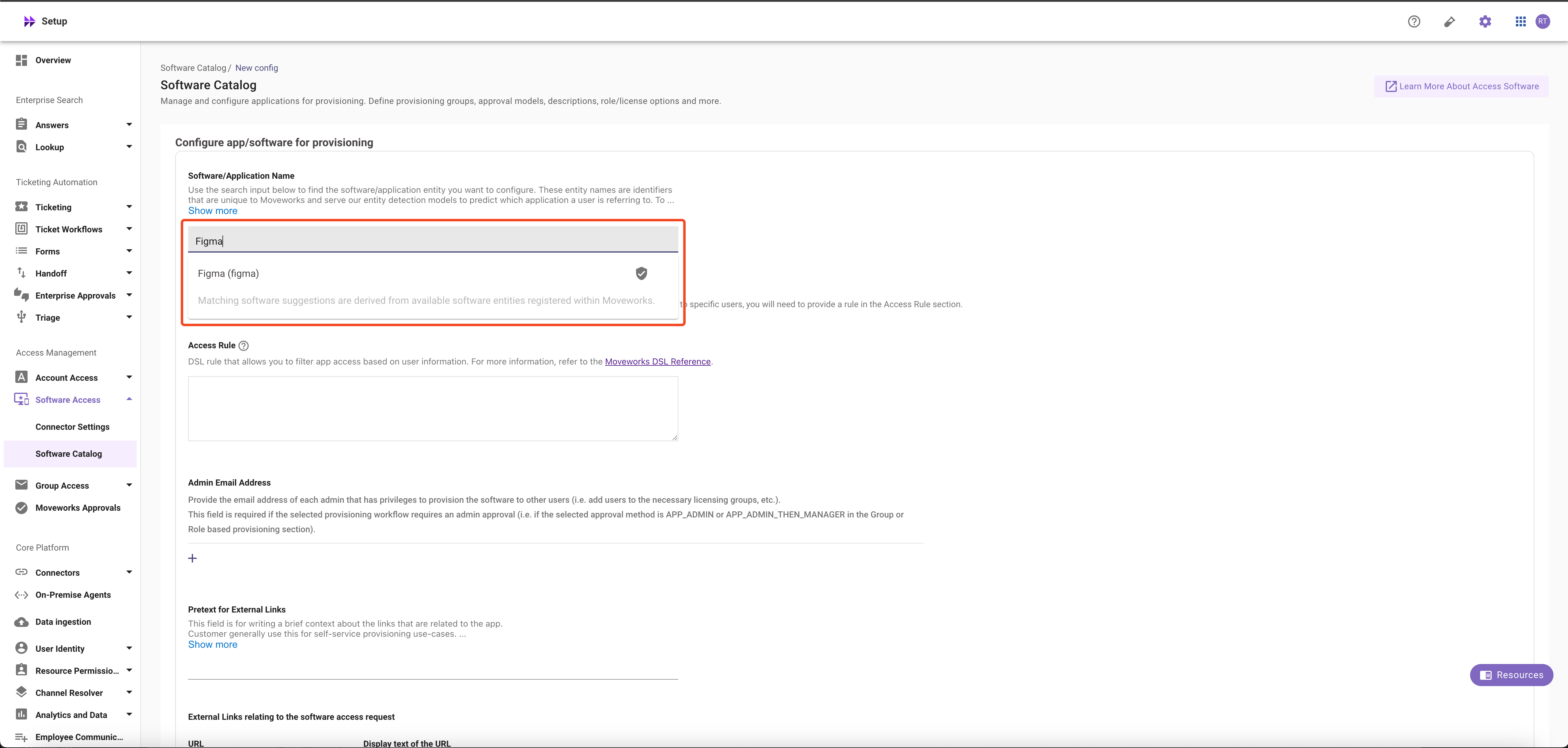
Search whether the software entity already exists via checking Moveworks Setup > Access Software > Software Catalog > Software/Application Name config.
image

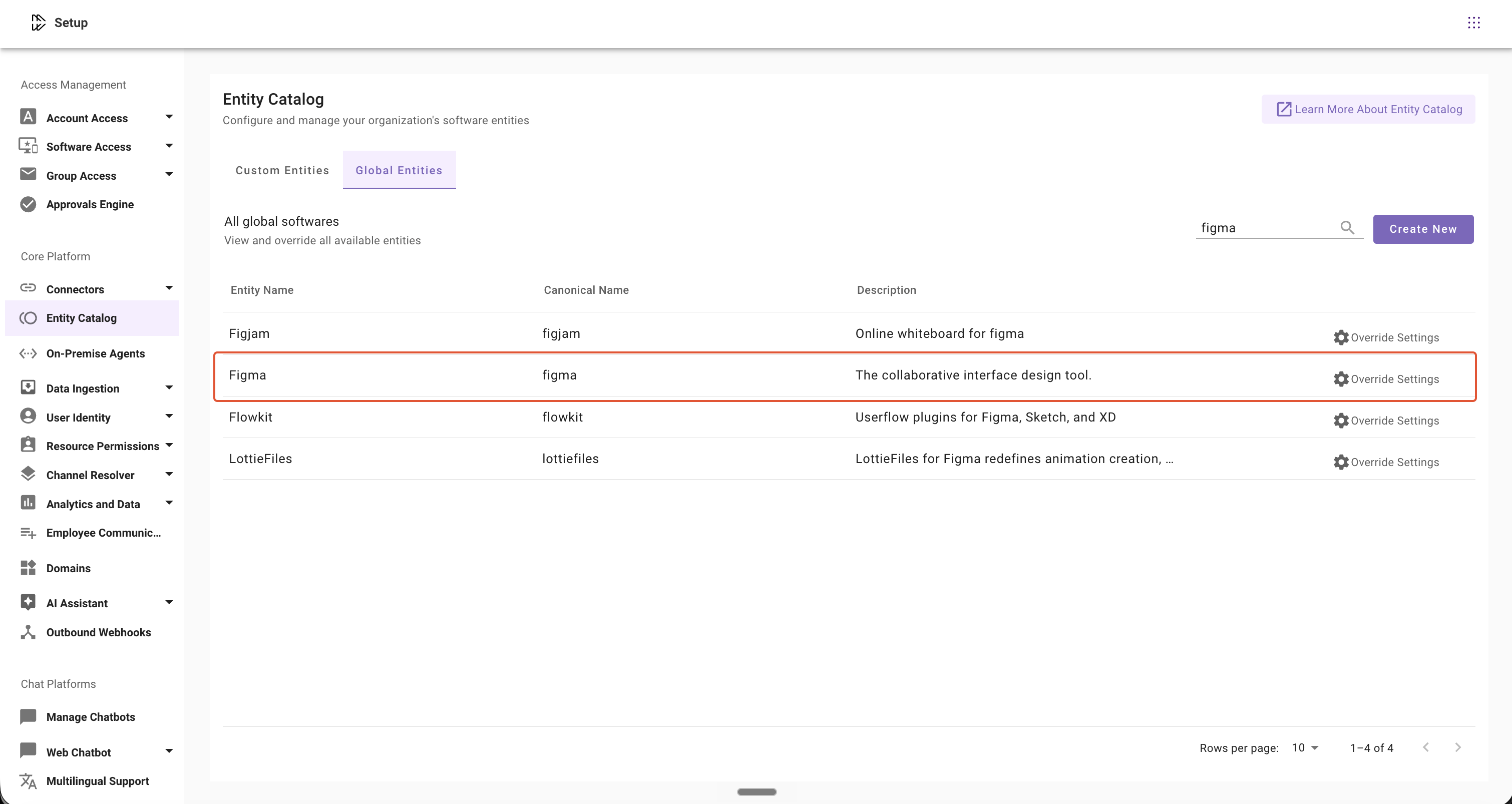
Step 2A: Override an Existing Global Entity (If the Entity Already Exists)

If the entity is available under Global Entities, use the Override Settings option to customize the entity for your organization.
image

Admins can override:

  • Descriptions
  • Positive Aliases
  • Matching behavior (Fuzzy/Exact)
  • Negative Aliases

Note: After a global entity is overridden, it will also appear in the Custom Entities section with a Custom Override tag, since the configuration is now customized for your organization.

Step 2B: Create a New Custom Entity (If the Entity Doesn’t Already Exists)

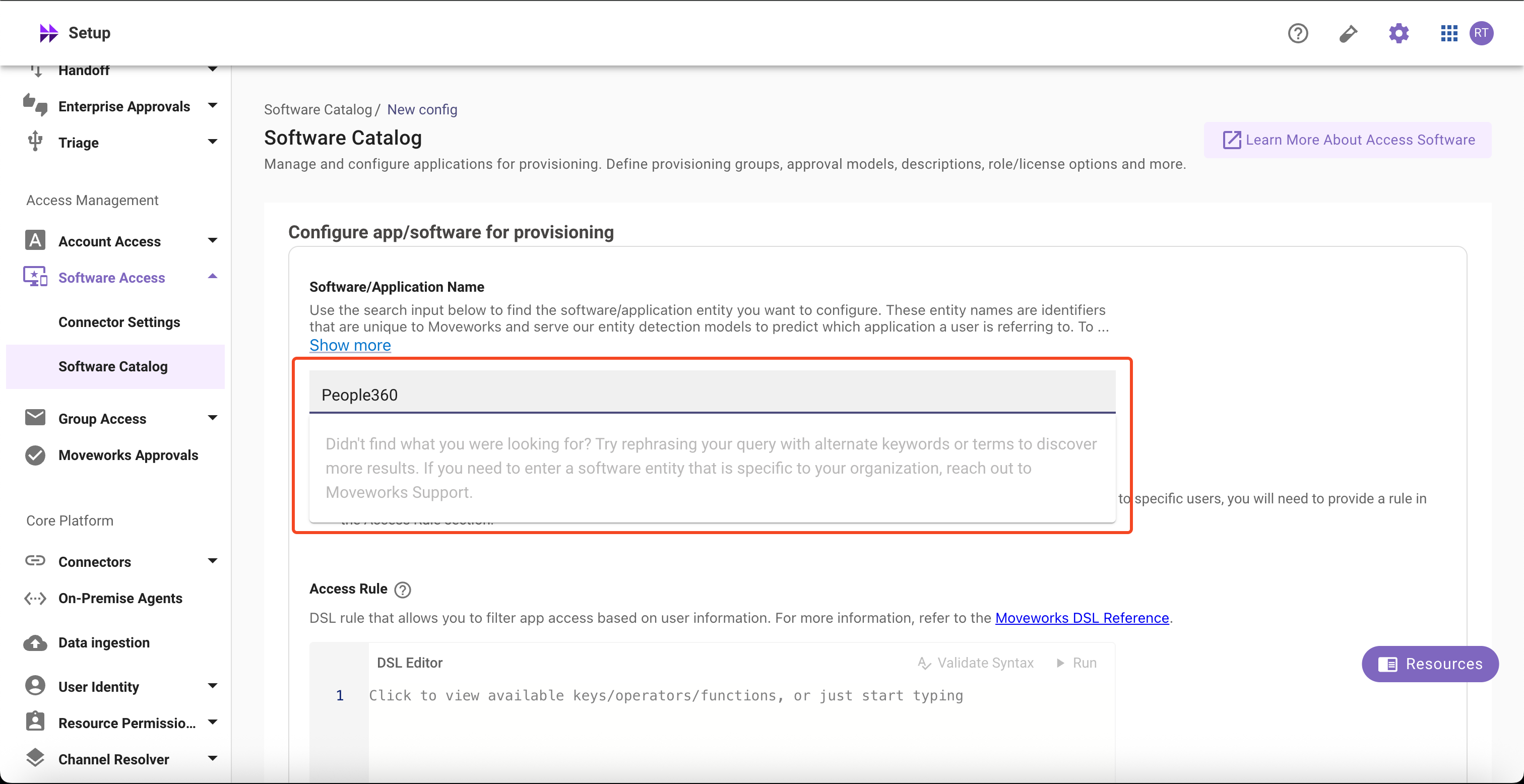
  1. Confirm that the software entity is not already available in the search results or dropdown list. If the desired application is not found, create a new custom entity.
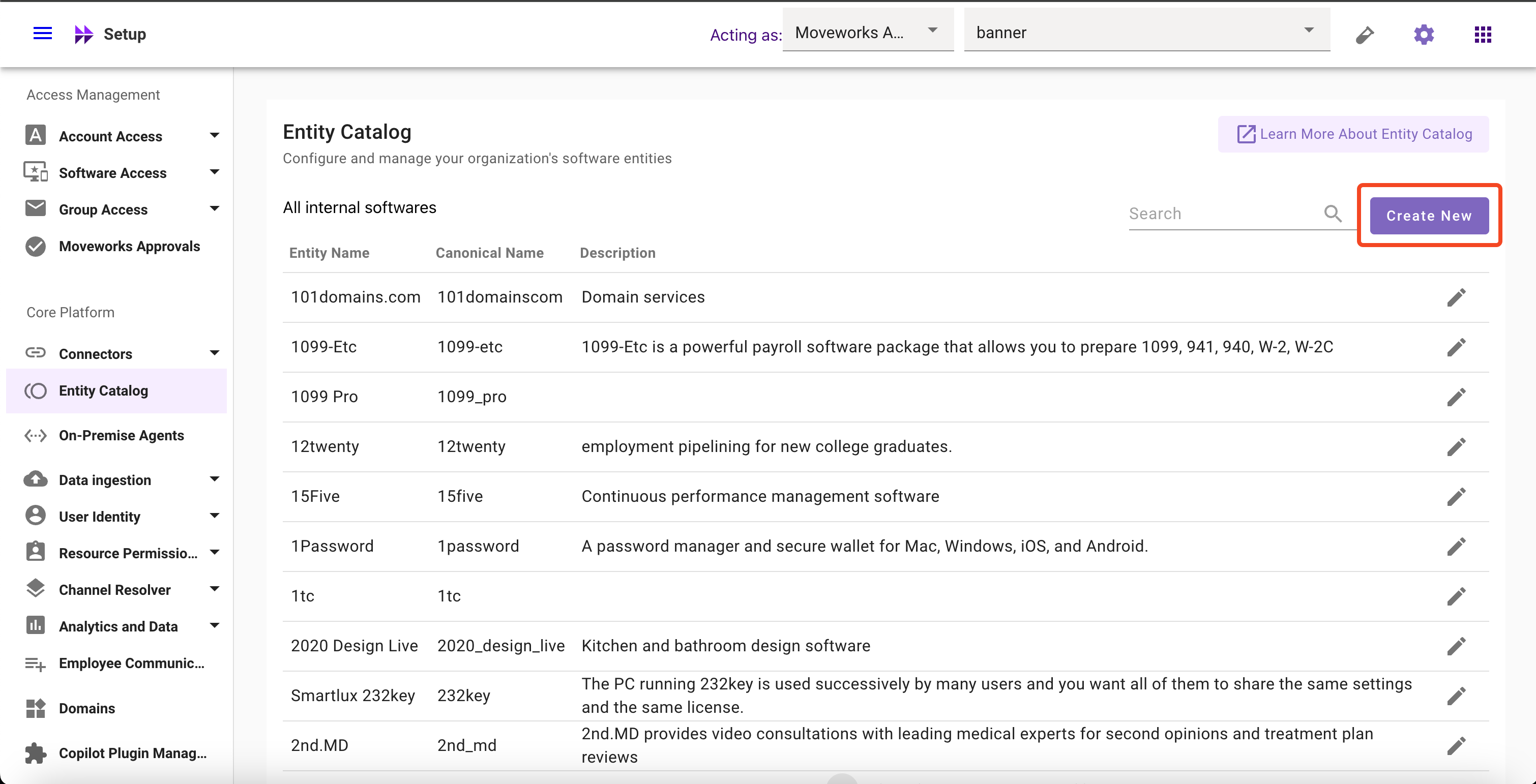
  2. Navigate to Entity Catalog and click on Create New button
  1. Fill in all required the fields
    FieldValue
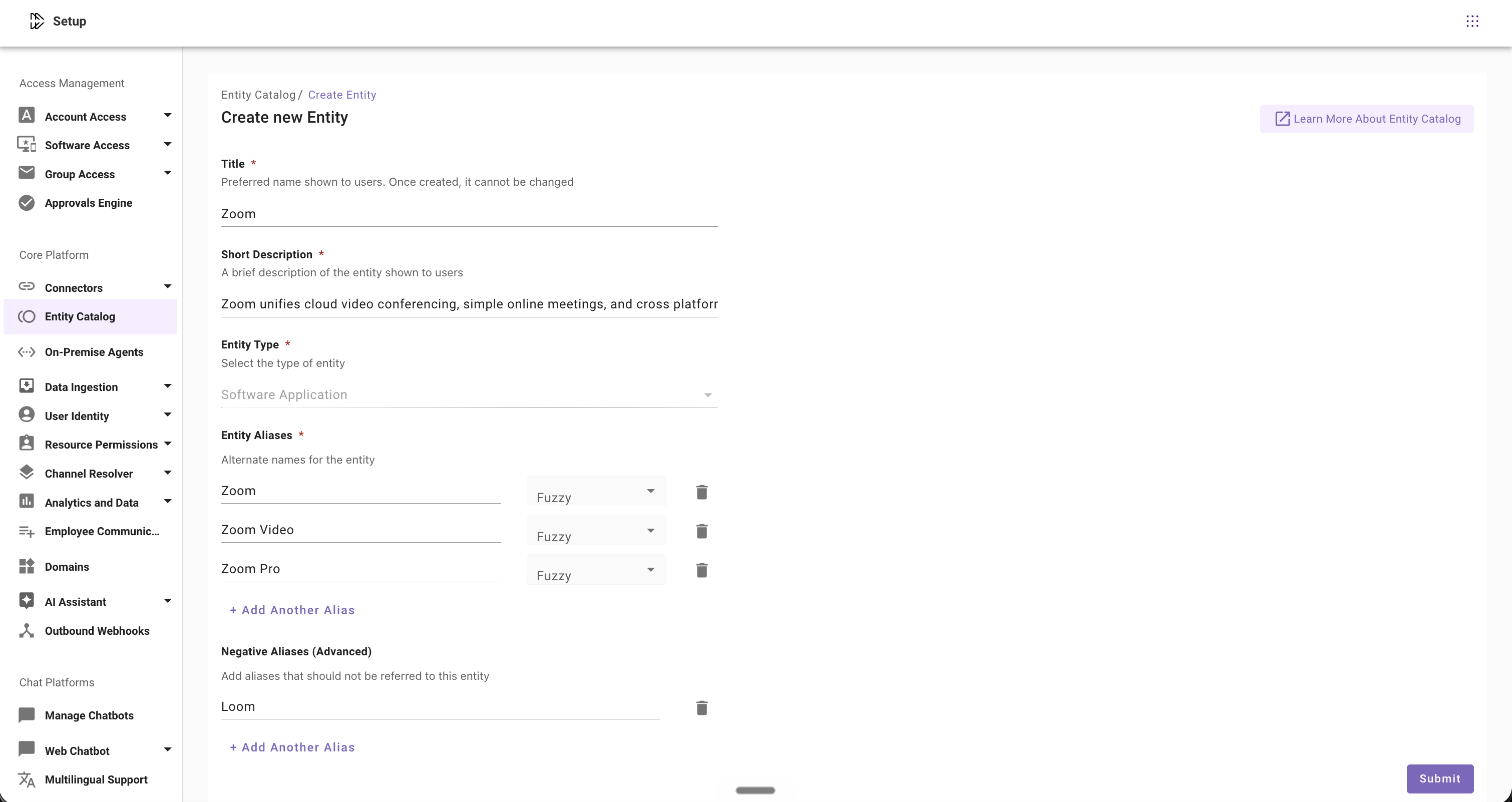
    TitleZoom
    Short DescriptionZoom unifies cloud video conferencing, simple online meetings, and cross platform group chat into one easy-to-use platform.
    Entity TypeSoftware Application (selected by default)
    Entity Aliaseszoom, zoom video, zoom pro
    Negative Aliasesloom
    image
  1. Click on Submit Button to create the entity

Modify Software Entities

  1. Navigate to Moveworks Setup > Entity Catalog and Click on Edit Button
    image
  2. Edit the fields that you want to modify in Entity Details page

    • Edit Description, or
    • Add, update or remove Aliases, or change their matching logic, or
    • Add, update or remove Negative Aliases
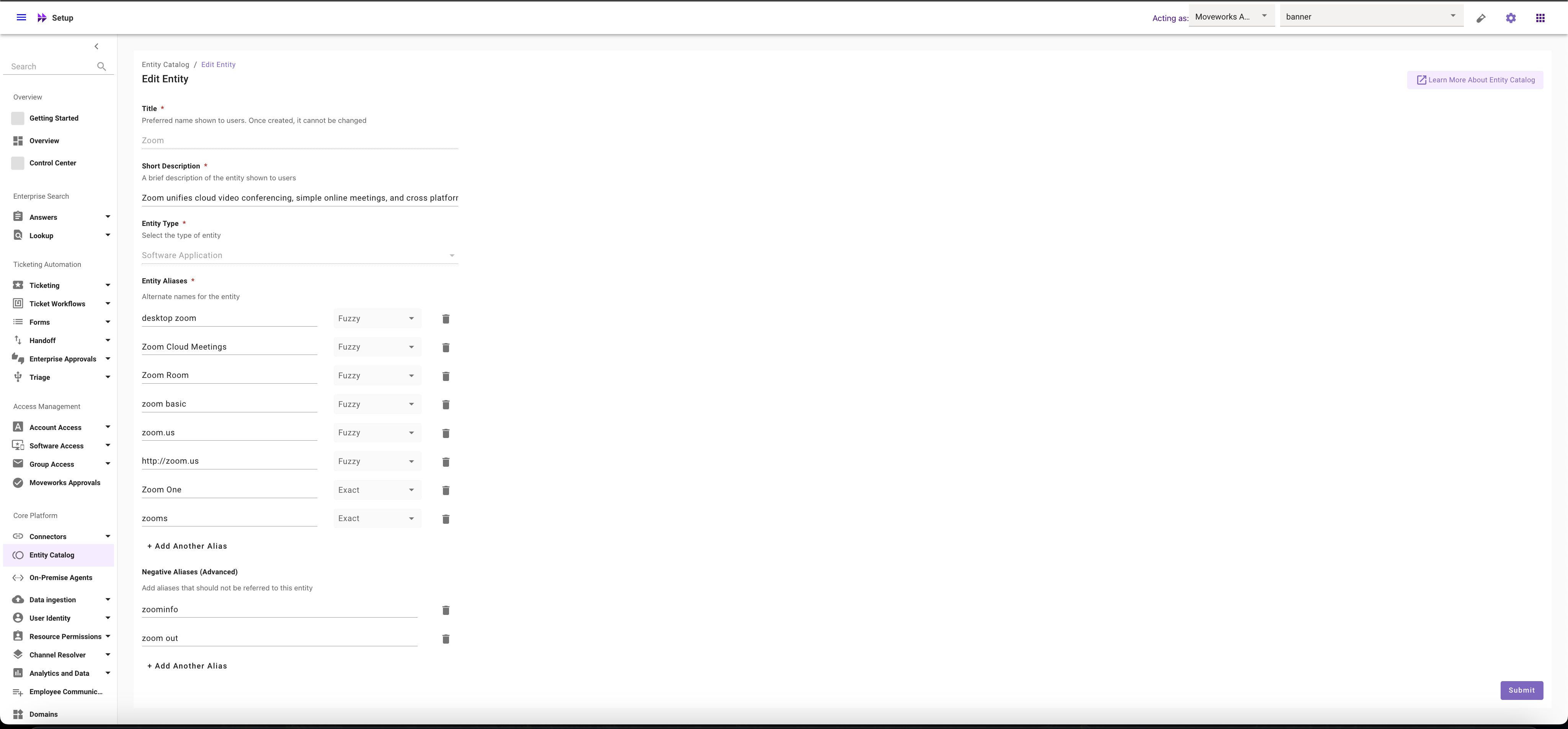
  3. Click on Submit Button

Where to Utilize Software Entities?

  1. Navigate to Moveworks Setup > Access Software > Software Catalog
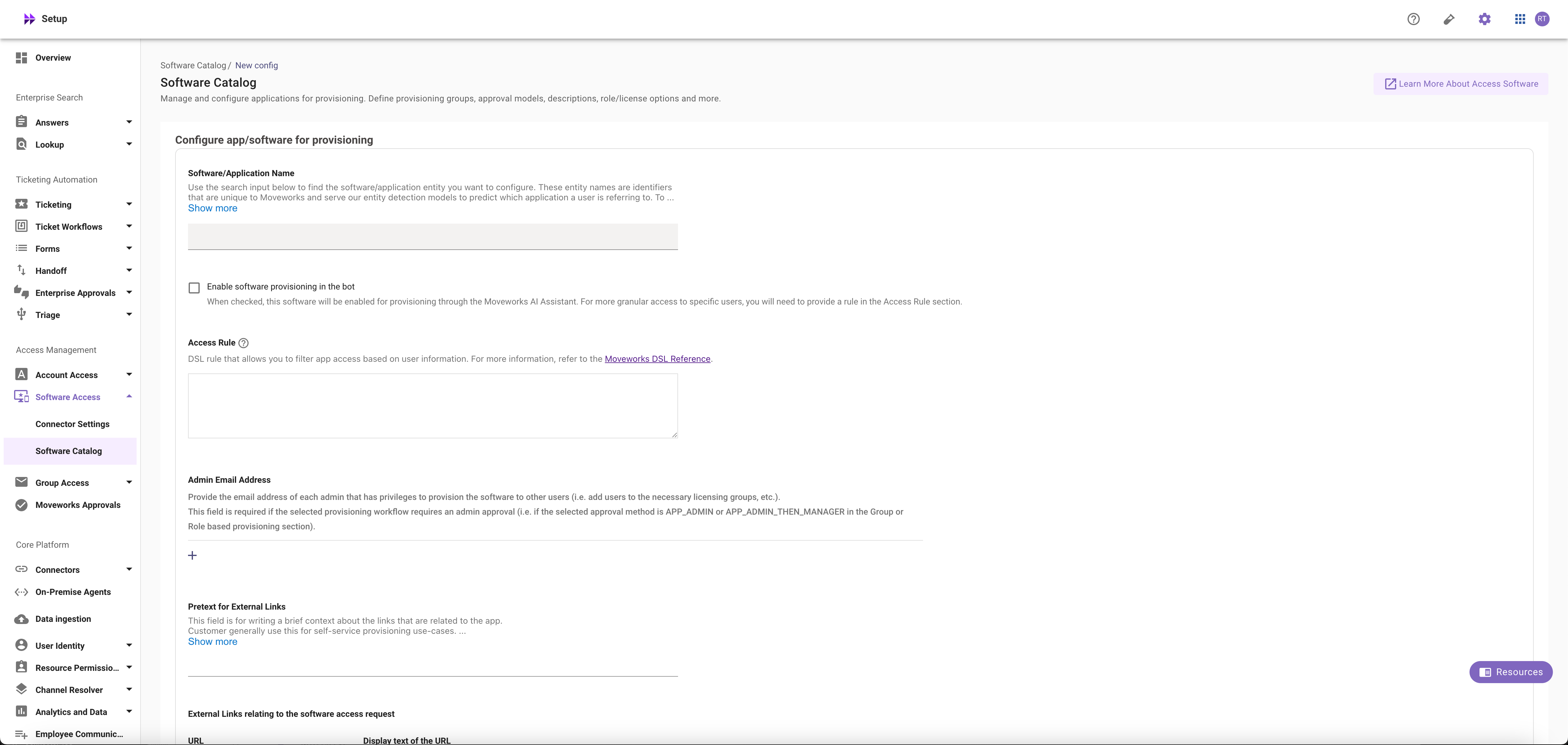
  2. Search for the entity in the Software/Application Name field
  3. Setup the Software Provisioning for the Software or Application. For more information, read the guide on Provision Management