
Monitor Alerts

View as Markdown

What are Moveworks Alerts?

Moveworks Alerts inform administrators of critical events within the customer instance that may impact skill functionality. These notifications enable rapid detection and response to potential issues, helping you maintain system health and resolve problems efficiently.

Alerts are by default available in Moveworks Setup Alerts module. To enable in-bot alert notifications (Beta), please reach out to your Customer Success Manager or support team.

How to navigate in Moveworks Setup?

  1. Open Moveworks Setup.
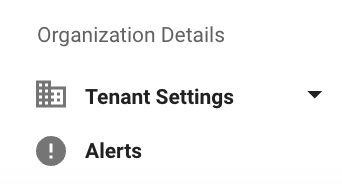
  2. Navigate to Organization Details > Alerts
Columns in Alerts home screen

  • Module: The segment of the system where the alert originates.
  • Alert ID: A unique identifier assigned to each alert.
  • Alert Name: The title that describes the essence of the alert.
  • Alert Description: A brief explanation providing context to the alert.
  • Alert Type: The category that the alert falls into
    • System Alert: Integration specific alerts
    • Configuration Alert: Alerts generating from configuration changes
    • External Alert: Alerts originating from external chat system
  • Last Fired at: The most recent time and date when the alert was last triggered.
  • Total Times fired: Count of times the same alert was fired.
  • Active Since: Time from which a specific alert is active.
  • Acknowledged By: User who is acknowledging an active alert in the UI.

There are 2 states a alert can be present in

  1. Active - Active alerts signifying that the issue is possibly still persisting
  2. Archived - Historical alerts that were triggered and resolved.
    1. An Alert gets moved to the Archived section if alert expression criteria is resolved internally.
    2. The archived alerts section contains a history of the last 2 months of alerts.

Supported Alert Types

Moveworks Alerts infrastructure is evolving. Currently Moveworks support a limited number of alerts covering few scenarios that impacts a skill functioning.

ModuleAlert NameAlert TypeAlert DescriptionDownstream Alert ImpactTroubleshooting Docs or Recommended Steps
ConnectorIntegration Failure - {System}System AlertSystem is failing to connect with {System}. Please check credentials and the authentication system usedImport Users, Account Access, Group Access, Employee CommsEnsure the Connector has been setup Following the Steps here
IdentityUser validation failedConfiguration AlertUser identity validation failed.If not fixed over time this will impact : Import Users, Ticketing, Knowledge Search, File Search, Account Access, Group Access, Employee CommsThe issue is commonly due to the Integrations not having the same Joining Key, Please ensure the step here has been followed when configuring Identity.
TicketingTicketing - Tickets are not passing the Universal ticket filterTicketing Filter AlertNo tickets have passed universal filter. Check ticket filters (particularly Universal ticket fetching filter)Ticketing, Ticket Actions, Ticket Polling, Ticket InterceptionLearn more about how Ticket Filters are setup here.
Internal KnowledgeKnowledge Ingestion - Large drop in articlesConfiguration AlertA significant (>50%) decrease in the number of ingested articles has been detected.Internal Knowledge would have a gap in content.1. If this drop is expected, contact Moveworks Support and request: “Mark ingestion of knowledge articles as healthy despite large data drop”. 2. Check for intentional config changes 3. Verify source system health 4. Check connector permissions
AgentAgent disconnectedExternal AlertThere are no Moveworks on-prem agents connected.Import Users, Account Access, Group Access, Employee CommsPlease follow this Troubleshooting Document for steps to Resolution
ConnectorChat credentials expiredSystem AlertChat system responded with “401 - Unauthorized”. This means that the existing credentials are no longer valid and the bot is unable to send messages to the users.Bot Unresponsive to user/users in the Chat Interaction Platform.Credentials Rotation Guide for : Microsoft Teams Slack
ChatBot has been disabled by adminExternal AlertThe bot has been disabled and is unable to send messages to users and/or users may be unable to locate the bot in their chat client. Please reach out to your Microsoft Teams admin to get the bot re-enabled in your Teams admin console. This may also require modifying the app’s Permission Policy.Bot Unavailable to user/users in the Chat Interaction Platform.Please reach out to your Microsoft Teams admin to get the bot re-enabled in your Teams admin console. This may also require modifying the app’s Permission Policy.
ConnectorServiceNow Service Account Timezone MismatchSystem AlertThe timezone of the ServiceNow service account configured as a Moveworks connector does not match one of the expected timezones (‘GMT’, ‘GMT0’, ‘UTC’, ‘America/Danmarkshavn’).In Ticketing > Ticket Polling would be unable to poll tickets due to the invalid timezone.Here are the steps to setup the Time Zone.
ConnectorMicrosoft Teams - Message Authentication FailureSystem AlertFailure to authenticate Microsoft Teams inbound messagesBot Unresponsive to user/users in the Chat Interaction Platform.Reach out to the Moveworks Support Team
ConnectorMicrosoft Teams Installation ForbiddenSystem AlertFailure to install bot in Microsoft Teams to subset of users.Microsoft Teams - Bot installation blocked for some users1. Have your Microsoft Teams Admin confirm the bot is assigned and authorized for the necessary permissions (User.Read.All & TeamsAppInstallation.ReadWriteSelfForUser.All) 2. Review the app permission policy settings for the bot. 3. Verify that the bot has not been blocked or restricted by organizational policies.
PermissionsServiceNow Permissions Data StaleSystem AlertMoveworks ServiceNow User Criteria Ingestion is failingServiceNow Knowledge may not serve to users1. Verify connector is properly Configured 2. Verify Moveworks acl Update set is properly installed 3. Confirm that the moveworks_user role in ServiceNow must be granted to the Moveworks service account After confirming above, file a Moveworks Support ticket.
Access GroupsGroup ingestion FailureSystem AlertIssues importing Groups into MoveworksGroups leveraged in the Access DL skill may not be able to discover new Groups1. Verify connector has the right scopes 2. Check with your IDAM team if there is issues with the system.
Internal KnowledgeKnowledge Ingestion FailureSystem AlertKnowledge data is stale due to a downstream error or other restriction such as Large Data Change Protection being triggered.Moveworks AI Assistant will not be able to answer questions related to new1. Verify the connector has the right scopes and the credentials are correct. 2. Check with your Knowledge team if there is issues with the specific system. 3. Navigate to Core Platform > Customer Data Ingestion, to view the knowledge ingestion, Click View Logsfor further info, ensure to review the Error Summary. 4. Email Moveworks Support to mark the Ingestion as approved if it is due to a Large Data Change Protection alert.
Group Identity StaleGroup Ingestion FailureSystem AlertGroup Ingestion data is stale due to a downstream error or other restriction such as Large Data Change Protection being triggered.Groups leveraged in the Access DL skill may not be able to discover new Groups1. Verify connector has the right scopes and the credentials are correct 2. Check with your IDAM team if there is issues with the system. 3. Email Moveworks Support to mark the Ingestion as approved if it is due to a Large Data Change Protection alert.
User Identity StaleUser Ingestion FailureSystem AlertUser Identity data is stale due to a downstream error or other restrictionNew employees may not be able to use the Moveworks Assistant.1. Navigate to Core Platform > Customer Data Ingestion, see which connector is failing 2. Verify connector has the right scopes and the credentials are correct. 3. Click View Logsfor further info, ensure to review the Error Summary.
Form Data StaleForm Ingestion FailureSystem AlertForms are stale due to a downstream error or other restrictionNew forms may not surface from within the Moveworks Assistant.1. If this drop is expected, please contact Moveworks Support and request: “Mark ingestion of Forms as healthy despite large data drop” 2. Ensure the external data source that forms are being imported from is online and accessible. 3. Confirm that the Moveworks service account or equivalent API credential has the correct permissions and access scopes to import forms.