
Lab #9: EmployeeWorks Web App
Overview
- Learning Objectives: Stand up the EmployeeWorks Web App on your ServiceNow instance: install the ServiceNow applications, connect them to your Moveworks AI Assistant, and test the experience as an employee.
- Estimated Time: 45 minutes, plus up to 1 hour for the ServiceNow application install
- Prerequisites:
Key Concepts
The EmployeeWorks Web App is the EmployeeWorks web experience on your ServiceNow instance, with the Moveworks AI Assistant built in. Employees ask questions, submit forms, and act on their tickets from one page on your ServiceNow instance.
- A surface, not a separate platform: Everything the EmployeeWorks Web App shows employees comes from the configuration you built in Labs #3 through #8. Knowledge answers come from Lab #6, forms from Lab #7, and ticket actions from Lab #8. If one of those doesn’t work in the AI Assistant, it won’t work here either.
- Two halves: You configure one half in Moveworks Setup (a dedicated chatbot and the EmployeeWorks page) and the other half in ServiceNow (two store applications and the Admin Console).
- Trusted Issuer: ServiceNow signs a token for the logged-in employee, and Moveworks accepts it only from the instance URLs you list as trusted issuers. This is how Moveworks knows which employee is chatting without a second sign-in.
- Identity still matters: Moveworks matches the employee from ServiceNow against the users ingested in Lab #4. An employee who isn’t in Imported Users can’t use the assistant, even though they can log in to ServiceNow.
Relevant Documentation:
🛠️ 1: Walkthrough
Moveworks Setup does not auto-save. Click Save or Submit before you leave any Moveworks Setup page, or you lose your changes.
1.1: Install the EmployeeWorks Applications
Start this step first. The install runs in the background while you complete Sections 1.2 and 1.3.
- In ServiceNow, navigate to System Applications > All Available Applications > All
- Search for EmployeeWorks Web App
- Install both applications:
- When prompted, select Load Demo Data
The install can take up to an hour, and it blocks other installs. While it runs, ServiceNow rejects update set previews and commits with “another operation is running.” Don’t retry the install. Check progress in System Applications > All Available Applications > All and wait for the status to show installed.
Can’t find the applications? Search for EmployeeWorks. If nothing similar appears under All, your instance isn’t entitled to the applications. Contact your ILT host.
1.2: Create the EmployeeWorks Chatbot
The EmployeeWorks Web App needs its own chatbot record in Moveworks Setup. Don’t edit the chatbot your tenant already has.
- In Moveworks Setup, navigate to Chat Platforms > Manage Chatbots > Chatbots
- Open your tenant’s existing webchat chatbot (its Bot Name ends in
-webchat) and note its Select Connector value. Don’t change anything on this record. - Go back to the list and click Create
- Enter the values below
- Click Save
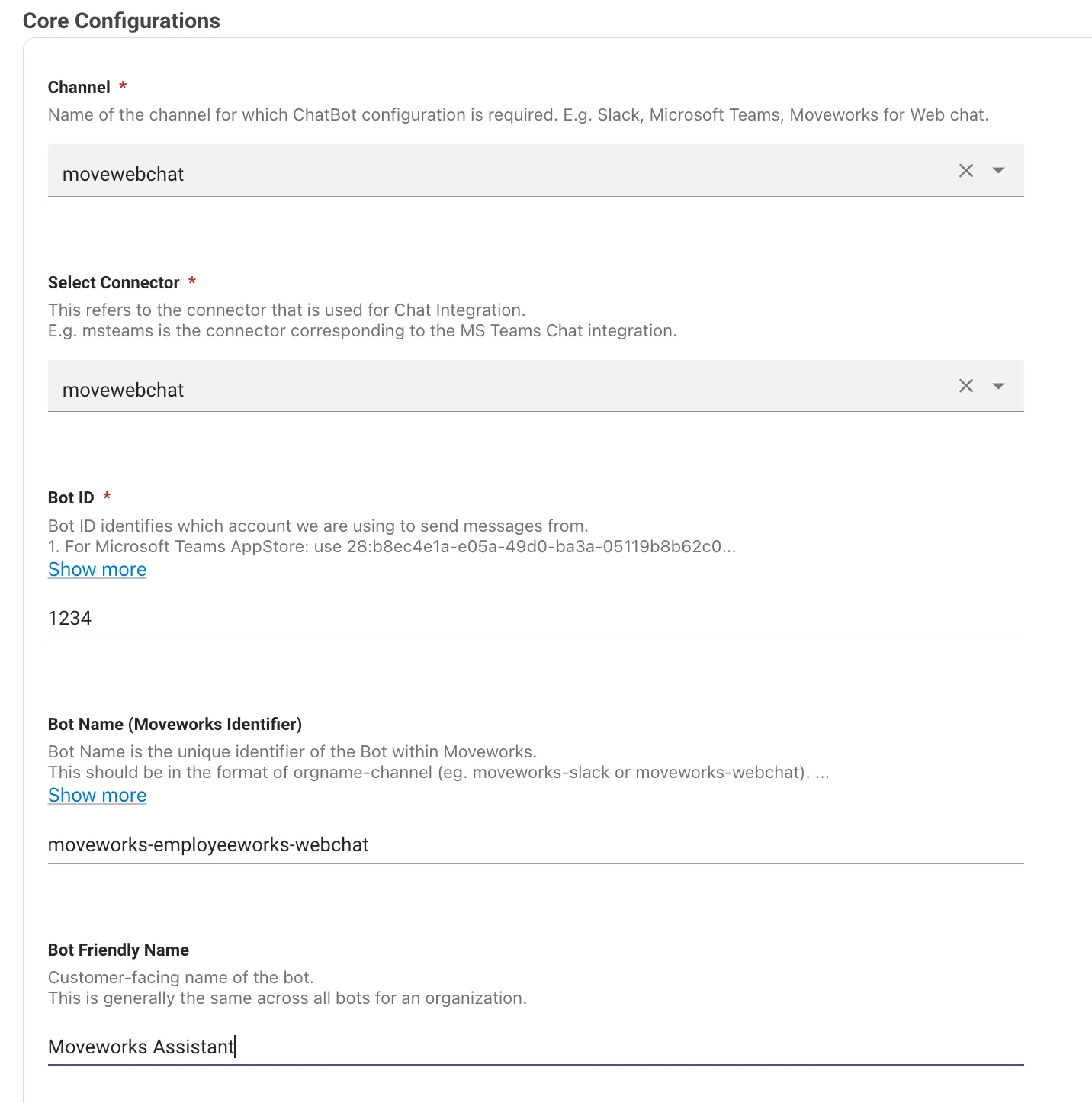
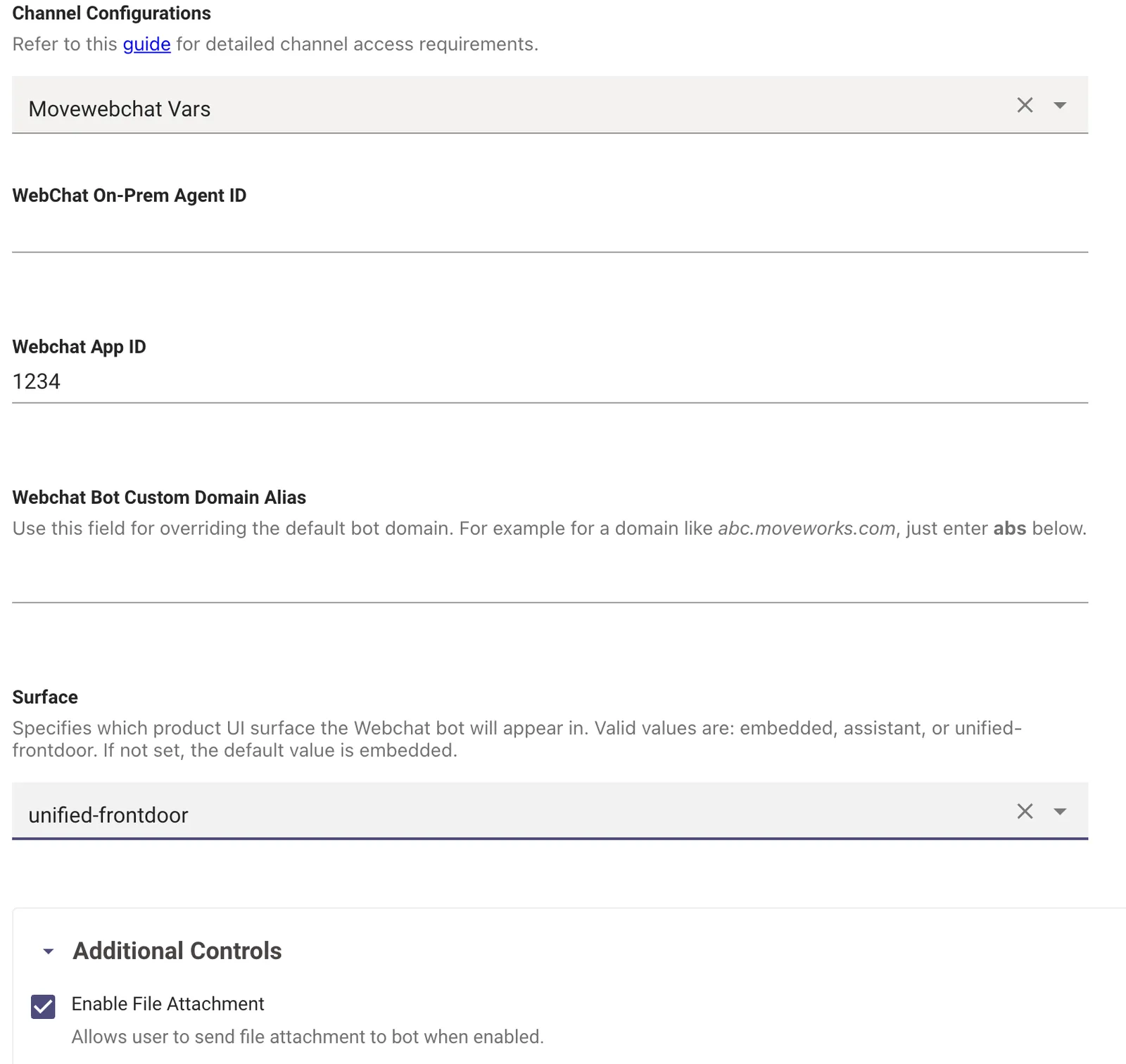
The Bot Name can’t be changed after you save, and it must end in -webchat. Moveworks generates the chatbot’s ID from the name, so a typo means creating a new chatbot. Check the name before you click Save.
Create a new chatbot. Don’t reuse or edit the existing webchat chatbot. Changing the existing chatbot’s Surface breaks the assistant everywhere that chatbot is used.
Surface must be unified-frontdoor. If you leave it blank, it defaults to embedded and the EmployeeWorks Web App won’t connect.
1.3: Configure the EmployeeWorks Page
This page tells Moveworks which ServiceNow instance to trust and what to show on the EmployeeWorks home page.
- In Moveworks Setup, navigate to Chat Platforms > EmployeeWorks
- Under Connector and Trusted Issuer, add a group:
- Select your connector:
snow(the connector from Lab #3) - Add Trusted Issuer: your ServiceNow instance URL,
https://[your-instance].service-now.com
- Select your connector:
- Under Universal Assistant Suggested Prompts, add up to four prompts that employees can click on the home page. Each prompt has two fields:
- Display Text: the label under the chat bar, 16 characters maximum
- Utterance: the full message sent when an employee clicks the prompt, 130 characters maximum
- Optionally, set Universal Assistant Input Placeholder Text: the hint shown in the chat bar before an employee types, 130 characters maximum
- Click Submit
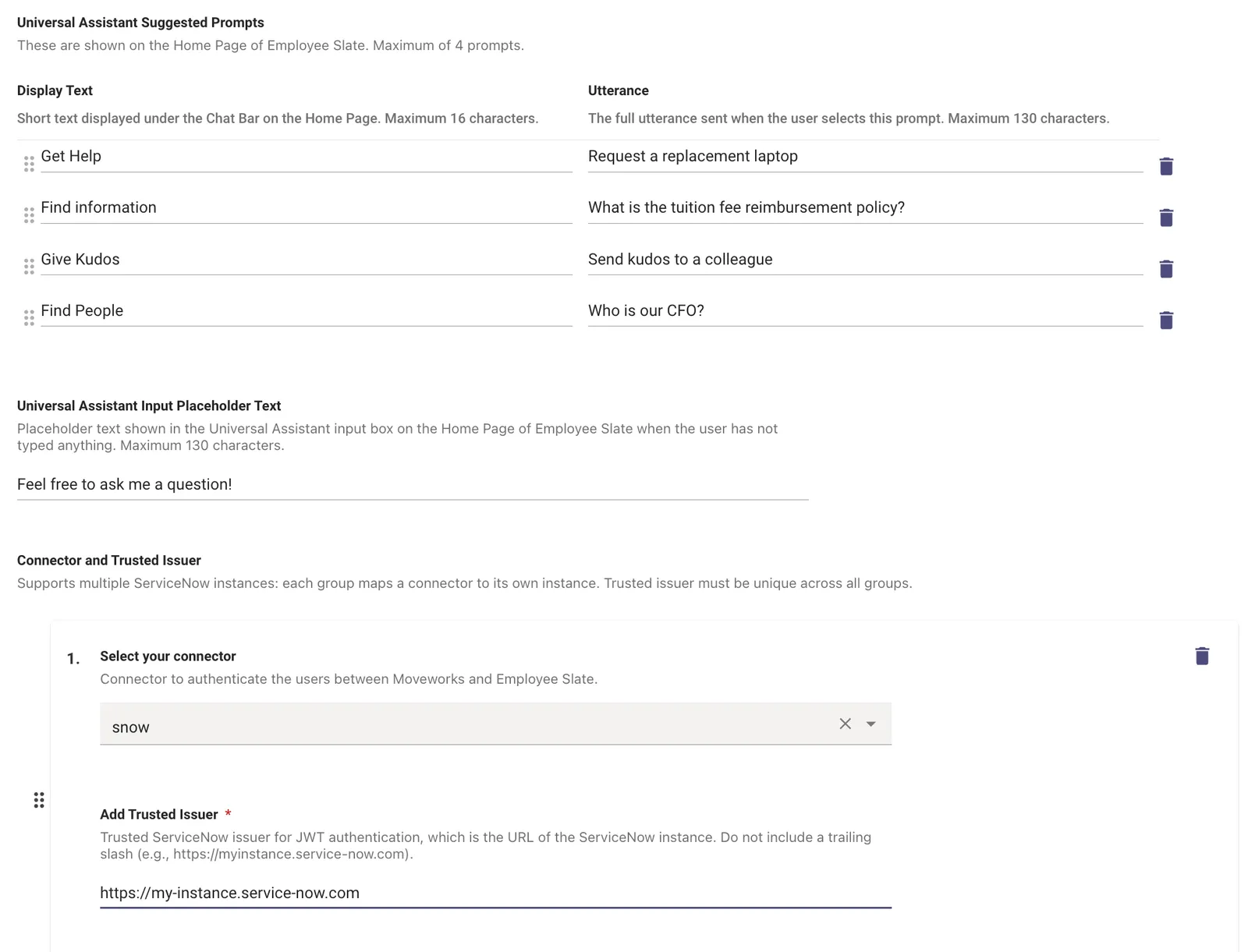
The Trusted Issuer must exactly match the instance the connector points to, with no trailing slash. https://[your-instance].service-now.com/ fails. A group whose connector and trusted issuer reference different instances also fails, and both mistakes show up later as a 401 error with no other clue.
Example suggested prompts built on the earlier labs:
1.4: Configure the Experience in the Admin Console
Continue once the install from Section 1.1 has finished.
-
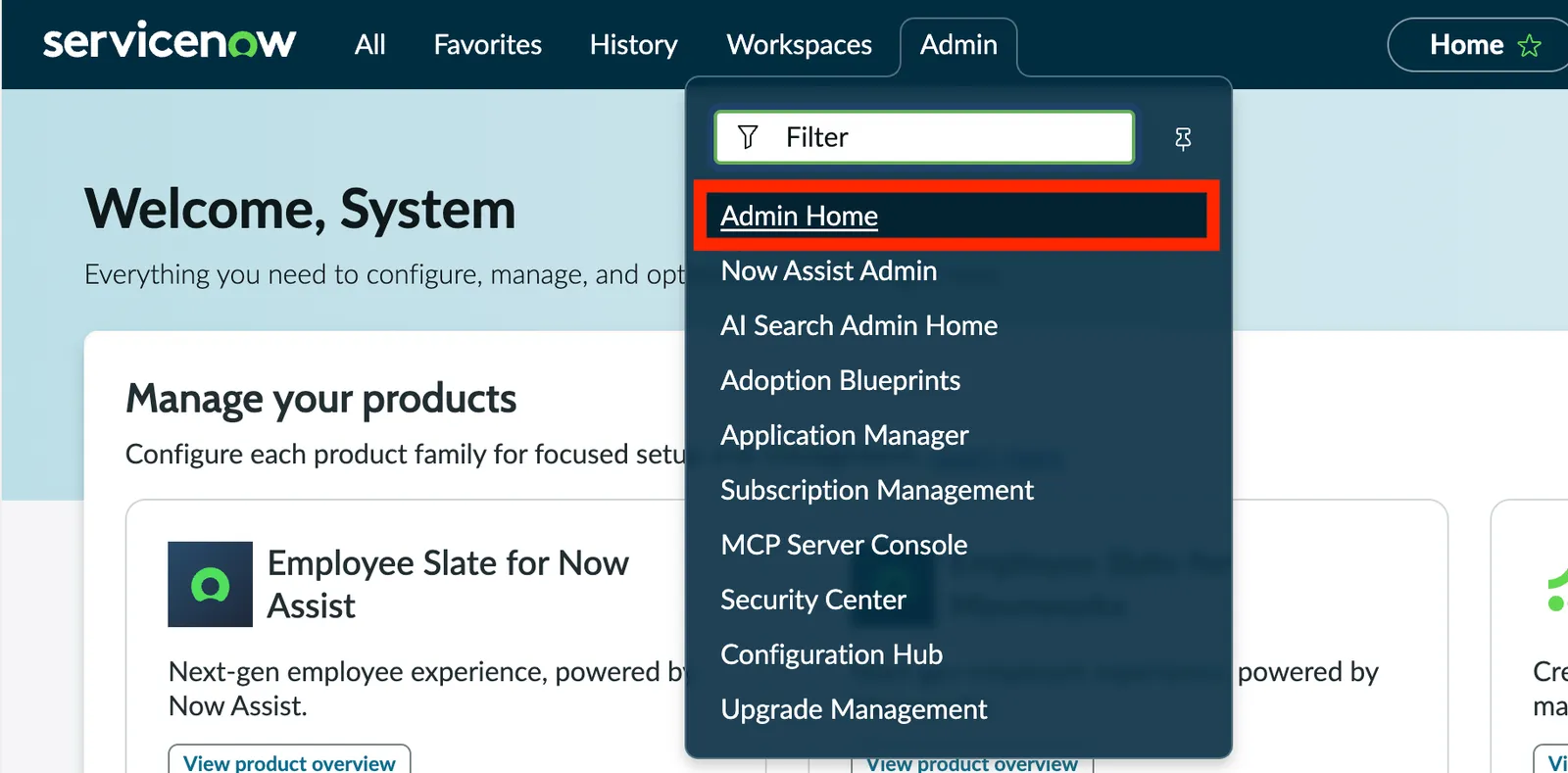
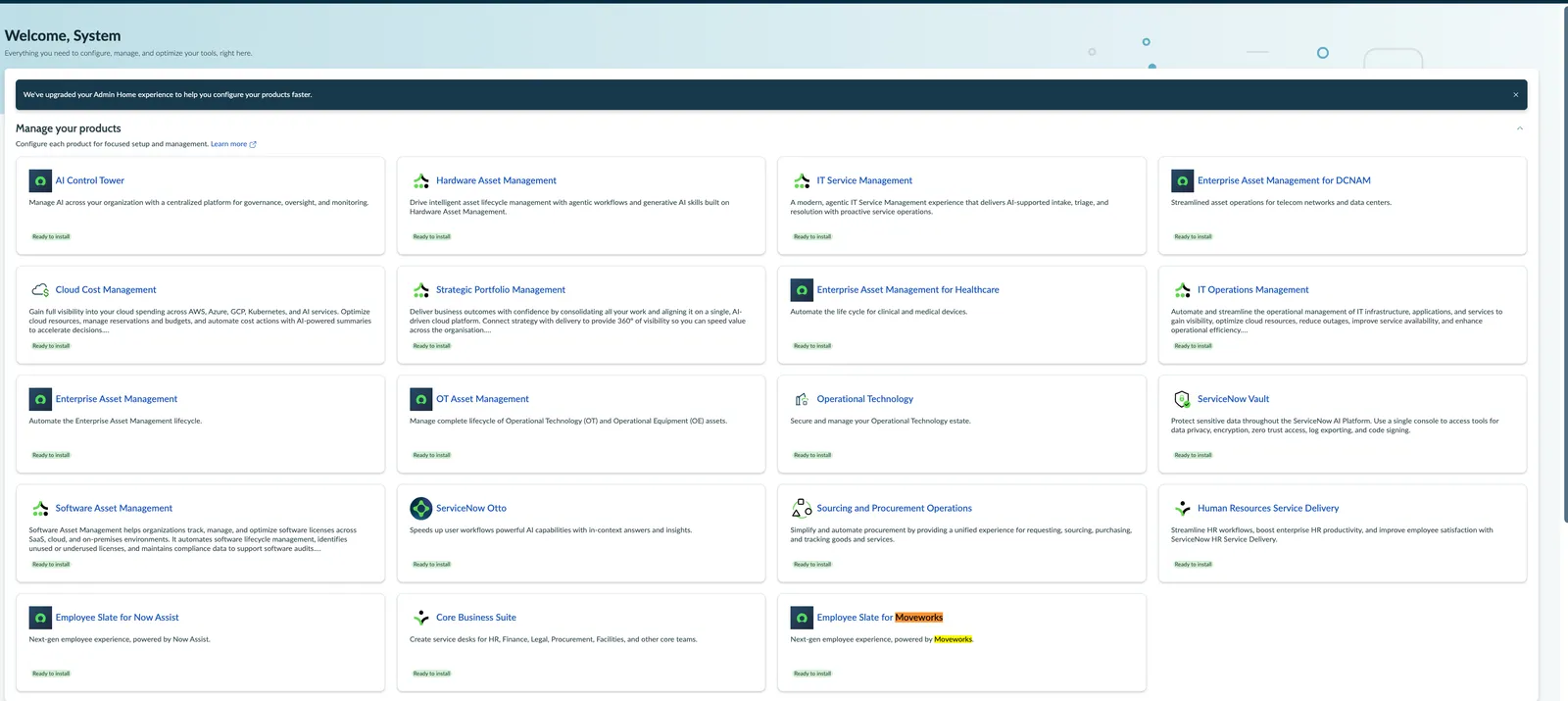
In ServiceNow, navigate to Admin > Admin Home
-
Under Manage your products, click the Employee Slate for Moveworks card. This is the EmployeeWorks Web App product.
-
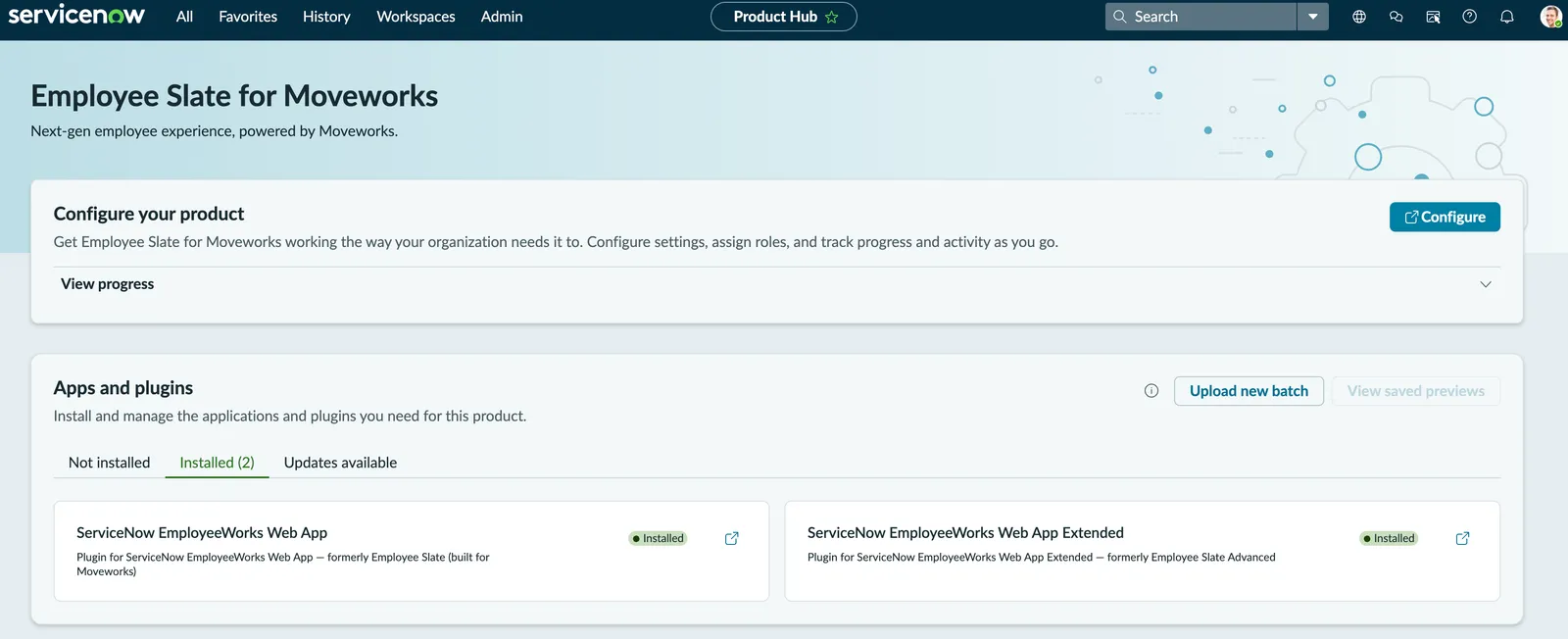
Confirm both applications show Installed, then click Configure
Conversational Assistant (required)
- Under Conversational assistant, open Moveworks setup
- In Moveworks instance, enter your Moveworks AI Assistant instance URL: the base URL of your tenant, with no trailing slash
- Click Save
To find your tenant URL, open Moveworks Setup and copy the address bar up to and including moveworks.com.
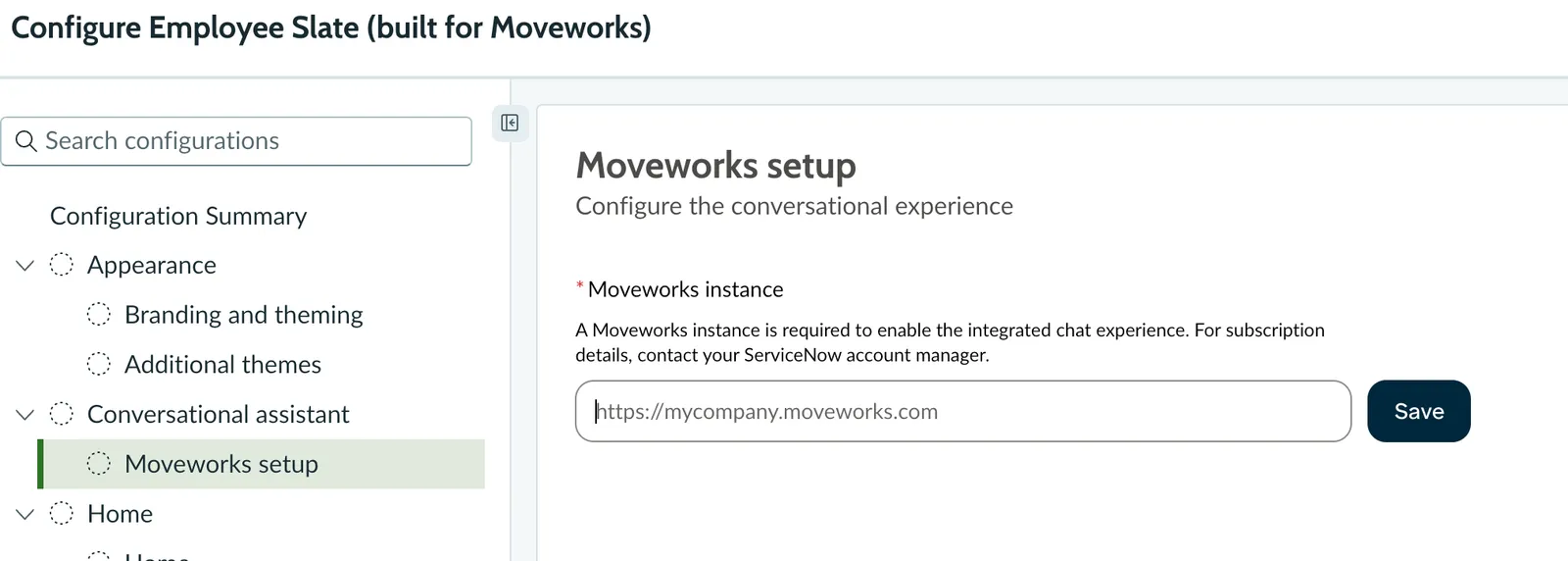
Use the base URL only, with no trailing slash. Include https:// and stop at moveworks.com. A wrong URL leaves the assistant area of the page blank.
Appearance (recommended)
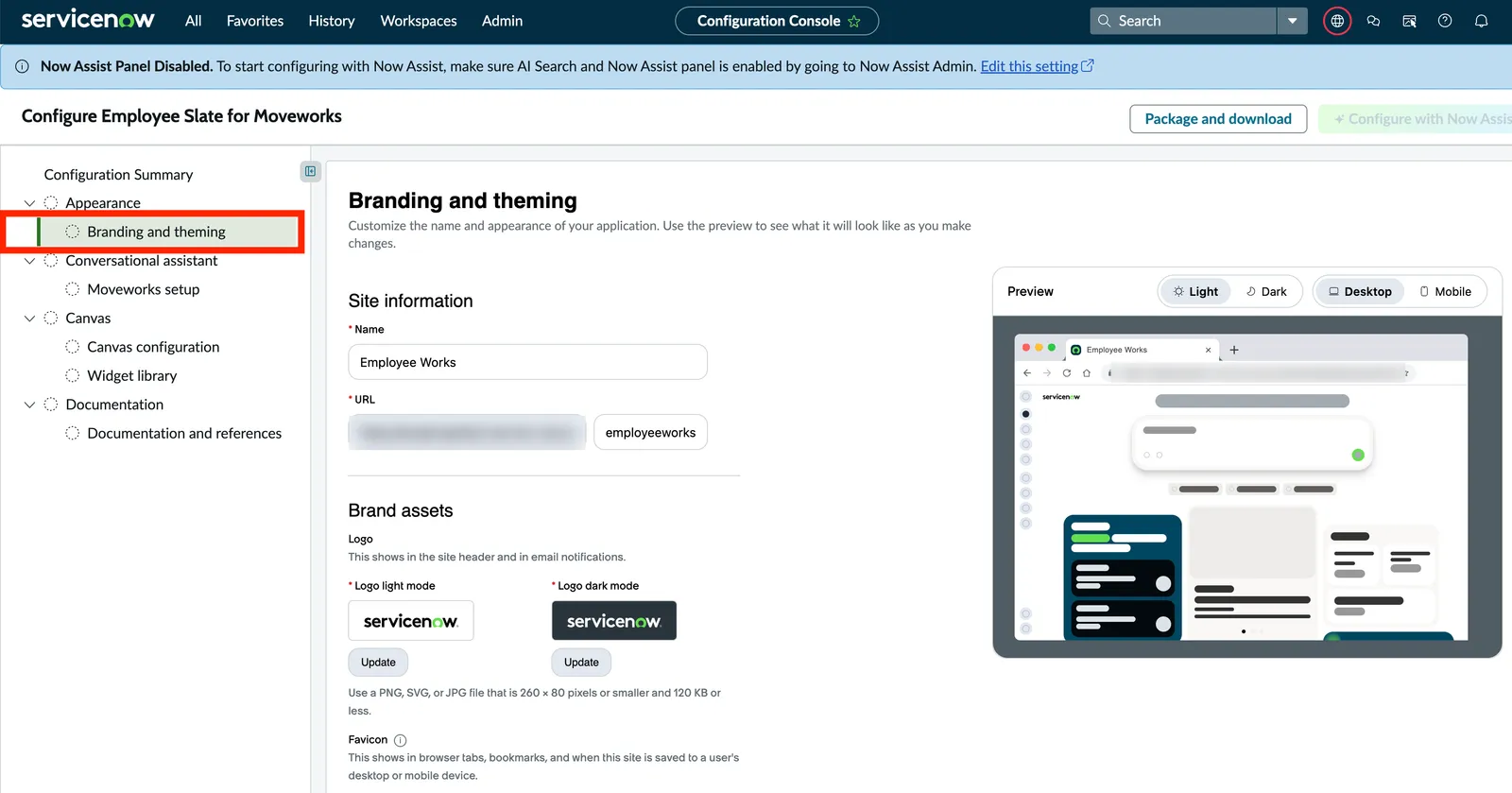
- Under Appearance, open Branding and theming
- Enter a Name for the portal, and optionally upload a logo and choose colors
- Use the preview to check desktop and mobile, light and dark modes
- Save the module
The other modules are optional for this lab. Homepage Widgets, the Canvas Widget Library, Tasks & Requests, and Email Notifications all work with their defaults. The Implementation Guide covers each module, plus taxonomy, communication banners, and URL rewrite rules.
✅ 2: Verification & Testing
2.1: Confirm the Test User
Don’t test as admin or another built-in account. Built-in accounts usually aren’t in the Moveworks user roster, so the assistant can’t identify them and doesn’t load.
- Use the personal user you created in Lab #2, or a teammate’s
- In Moveworks Setup, navigate to Core Platform > User Identity > Imported Users and search for that user
- Confirm the user appears in the results
Users created after Lab #4 aren’t in Imported Users yet. Ingestion runs about every four hours. Pick a user who was active when Lab #4 ran, or wait for the next ingestion.
2.2: Open the EmployeeWorks Web App
- In ServiceNow, impersonate the test user from Section 2.1
- Navigate to
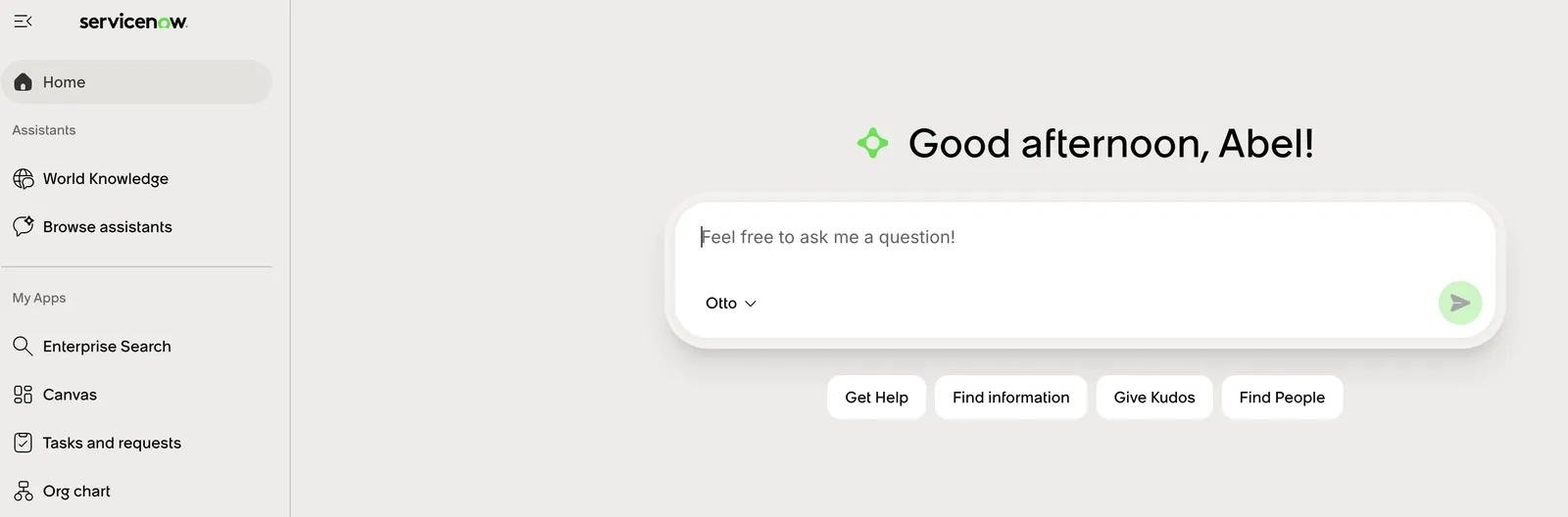
https://[your-instance].service-now.com/aiux/employeeworks/home - Confirm the home page loads with your portal name and the suggested prompts from Section 1.3
2.3: Exercise the Earlier Labs
Each test below exercises one lab through the EmployeeWorks Web App:
A test that fails here and also fails in your AI Assistant is a gap in the earlier lab, not in the EmployeeWorks Web App. Fix it in that lab, then retest.
2.4: Troubleshooting
You’ve completed the core Moveworks Setup labs! Next, pick any of the optional labs, or start the Tool Studio Quickstart series to build plugins on your configured Moveworks instance. Start with the Purple API Tool to set up your shared session, then work through Quickstart #1.
🪞 3: Reflecting on This Configuration
Through this lab, you’ve learned the following:
- How the EmployeeWorks Web App sits on top of the Moveworks platform you configured in Labs #3 through #8
- How to install the EmployeeWorks applications and configure them from the ServiceNow Admin Console
- How to create a dedicated
unified-frontdoorchatbot without disturbing the existing webchat chatbot - How the Connector and Trusted Issuer group lets Moveworks identify the employee signed in to ServiceNow
- Why testing as a normal, ingested user matters, and how to split a failure between the platform and the experience
How this will come up during live implementations:
- Validate the platform first. Run the checklist on Configure EmployeeWorks Web App before touching the experience. Most “EmployeeWorks is broken” reports are a missing platform layer.
- Plan for every ServiceNow environment. The connector, identity, knowledge, forms, and ticketing configuration, plus the application install and update sets, repeat for each ServiceNow environment. Each environment also needs its own Connector and Trusted Issuer group. See Deploy to Multiple ServiceNow Environments.
- Customer instances may have run an older Moveworks web widget. If a
moveworks.webchatupdate set is present, back it out before installing the EmployeeWorks applications. Otherwise the install skips records and the experience doesn’t render. - Promote configuration, don’t rebuild it. The Admin Console’s Package and download option exports your experience configuration as an update set for moving from staging to production.