
Lab #2: ServiceNow Setup
Overview
- Learning Objectives: Get into your ServiceNow lab instance, add your personal user, create the integration account Moveworks uses to connect to ServiceNow, and capture that account’s
sys_idfor Lab #4. - Estimated Time: 20 minutes
- Prerequisites:
- Lab #1: Moveworks Access and SSO complete (Moveworks portal access)
- A ServiceNow instance URL and admin credentials from your ILT host
Open ServiceNow in a new browser tab so you can switch between ServiceNow and Moveworks Setup without losing your session in either.
🛠️ 1: Walkthrough
1.1: Sign In to Your ServiceNow Instance
Goal: Log in to a ServiceNow instance as admin.
- Open the instance URL from your ILT host (
https://[your-instance].service-now.com). - Sign in with the admin username and password your host provided.
1.2: Add Your Personal User
Goal: Create a user record that represents you, separate from the admin account.
-
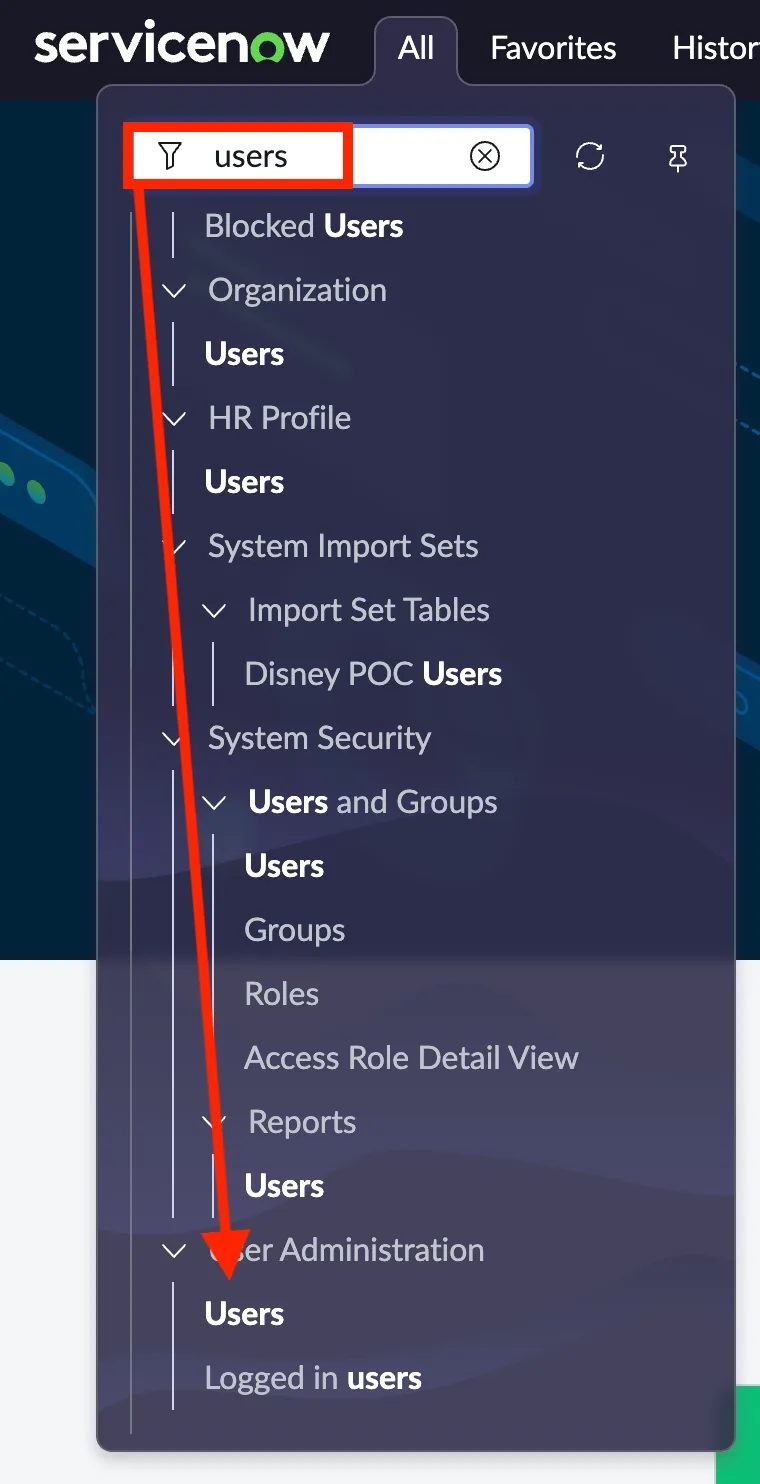
Go to User Administration > Users. You can find it by searching for Users in the All menu filter.
-
Click New and add a user with your work email address.
-
Set Department to
IT, then click Submit.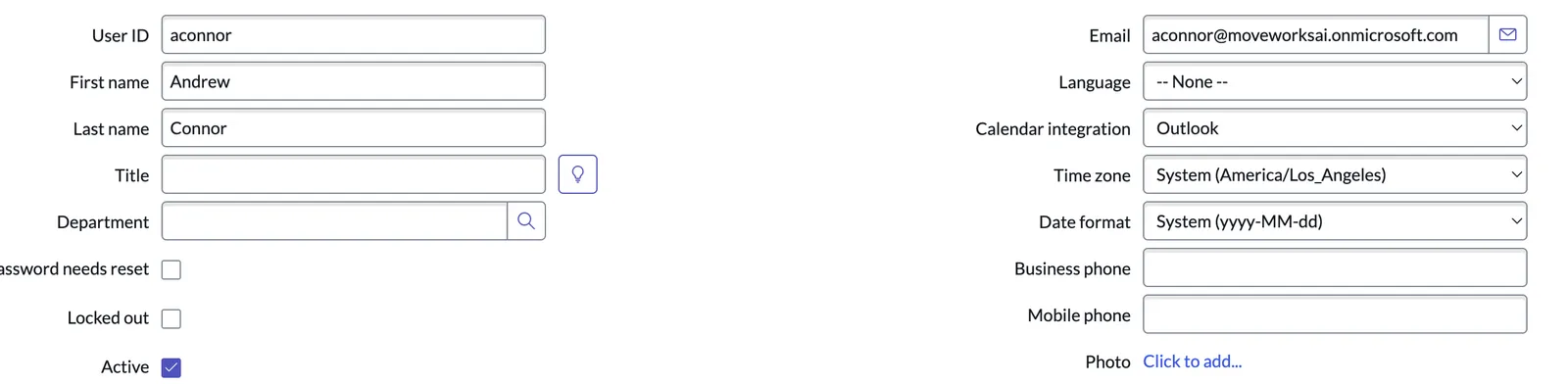
Sharing this instance with teammates? Repeat this section for every teammate assigned to the same lab environment.
1.3: Create the Integration Account
Goal: Create the account Moveworks uses to call ServiceNow.
Moveworks authenticates to ServiceNow as a single integration account. The labs call it machine_admin. Lab #3 uses its credentials for the connector, and Lab #4 uses its email and sys_id for the Bot Account.
Why not use admin? ServiceNow can require multi-factor authentication for interactive accounts like admin, which blocks the basic authentication the connector uses. A machine identity account isn’t subject to that prompt.
-
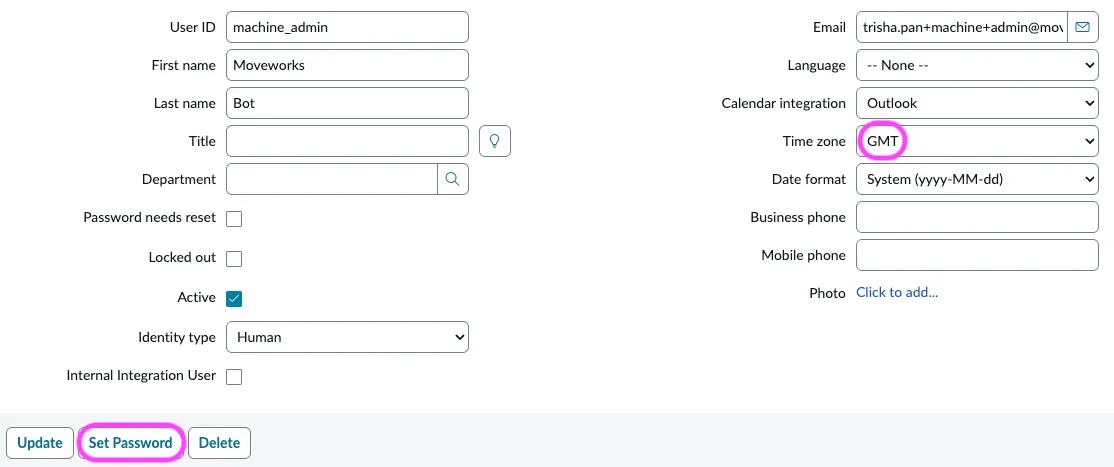
In User Administration > Users, click New and create a user with:
- User ID:
machine_admin - Email: any address you control or a placeholder such as
machine_admin@example.com. Lab #4 needs this value, so don’t leave it blank. - Time zone:
GMT, so that later labs behave consistently
- User ID:
-
Click Submit, reopen the record, click Set Password, and copy the generated password.
-
Open an incognito window (
Cmd+Shift+Nin Chrome), log in to your instance asmachine_admin, and set a new password when prompted. Save the new password in your notes; Lab #3 uses it for the connector. Follow the prompts to register a device for multi-factor authentication. -
Back in your admin session, open the
machine_adminrecord, set Identity type to Machine, and click Update.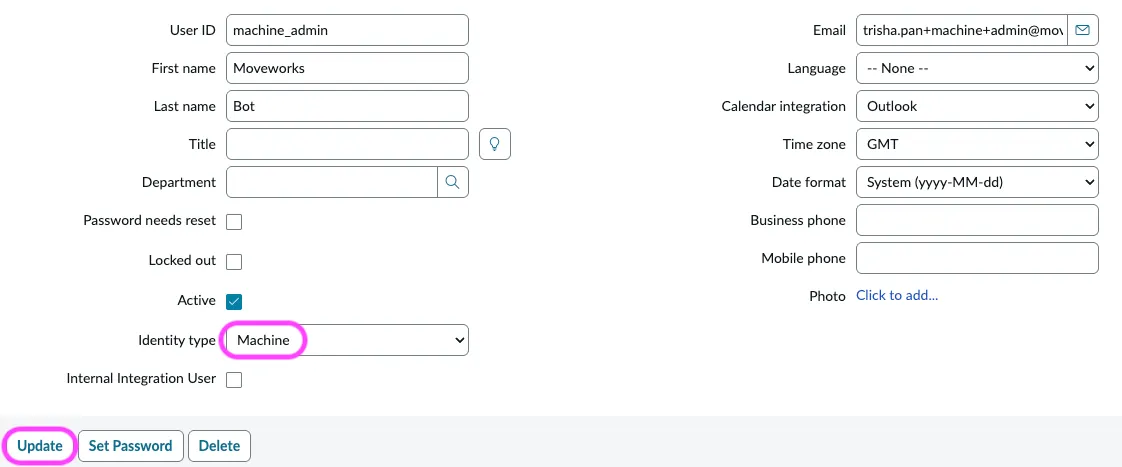
Once Identity type is Machine,
machine_admincan no longer sign in to the ServiceNow UI. Attempting to returns “Only interactive users are allowed to access UI.” This is expected: the account is now for integration use only.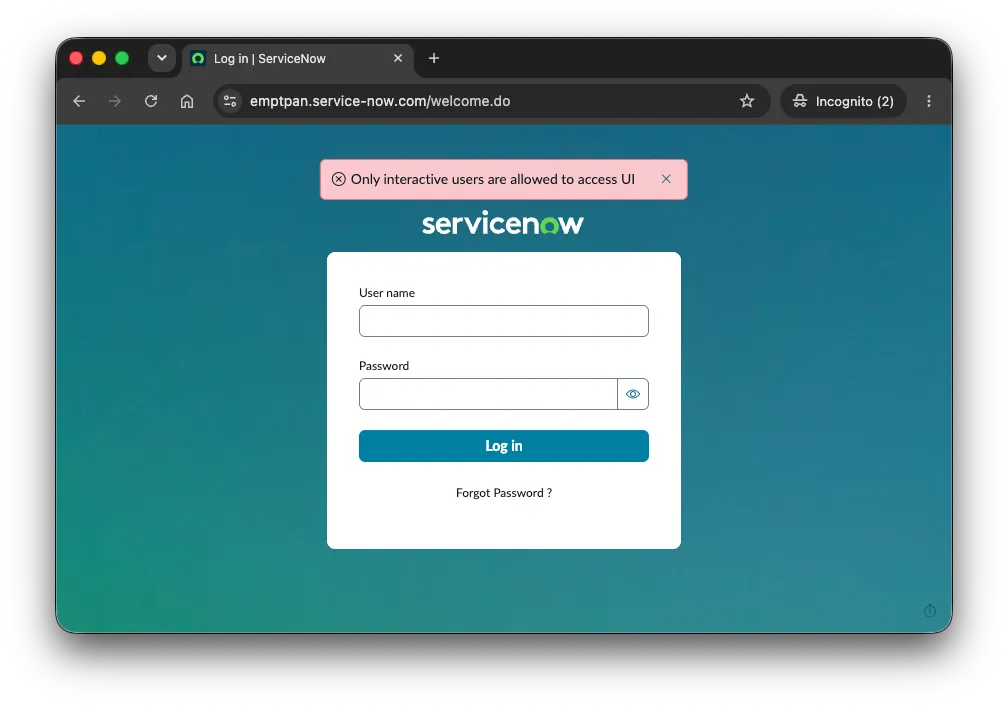
-
Reopen the
machine_adminrecord. On the Roles tab, click Edit and addadmin,security_admin,snc_required_script_writer_permission, andsnc_basic_auth_api_access. Hold Cmd (or Ctrl) to select several roles at once.snc_basic_auth_api_accesslets the account authenticate REST API calls with basic authentication. Without it, the Lab #3 connector test fails even with the right password.
For the full list of service account requirements, see ServiceNow Access Requirements.
1.4: Copy the Integration Account sys_id
Goal: Capture the identifier you’ll enter in Lab #4.
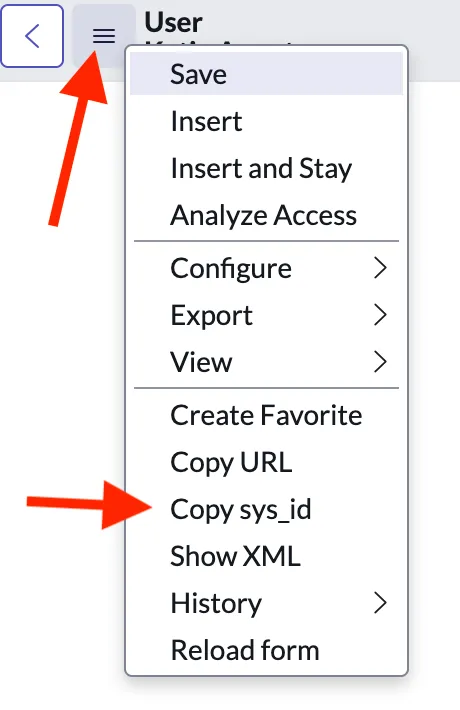
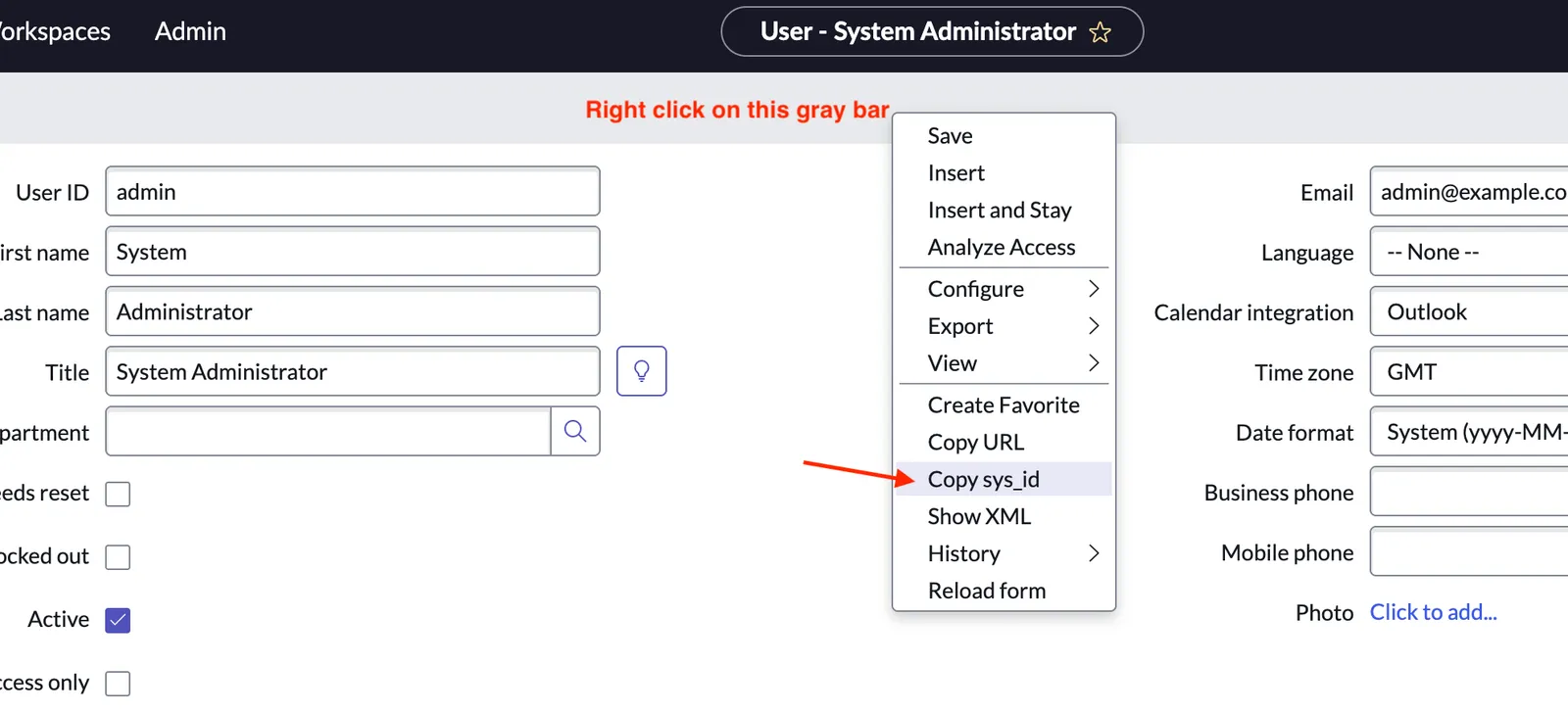
Lab #4 needs the machine_admin account’s 32-character sys_id to identify the account Moveworks acts as. With the machine_admin record open, copy it using any of these options:
Copy the sys_id for machine_admin, not your personal user.
Option A: Hamburger menu. Click the hamburger menu (three lines, top-left of the form), then Copy sys_id.
Option B: Right-click the form header. Right-click the gray header bar of the form, then Copy sys_id.
Option C: Copy it from the URL. With the record open, the URL contains the sys_id:
Do not include the 3D prefix. %3D is a URL-encoded equals sign, not part of the sys_id. The sys_id is the 32-character hex string that starts immediately after %3D: ed65ebcf8372e690cbcdc396feaad380, not 3Ded65ebcf8372e690cbcdc396feaad380.
✅ 2: Verification & Next Steps
You should now have, saved in your notes:
- Your ServiceNow instance URL and
admincredentials - Your personal user in ServiceNow with your work email and Department =
IT - The
machine_adminintegration account’s user ID, password, email, and 32-charactersys_id
❗ 3: Troubleshooting
I can’t sign in to my instance. Confirm the instance URL and admin credentials with your ILT host.
The Copy sys_id option doesn’t appear. Use Option B or Option C. The hamburger menu option varies by ServiceNow UI version.
🪞 4: Reflecting on This Configuration
Through this lab, you’ve learned the following:
- ServiceNow distinguishes between integration accounts used for system-to-system calls and personal user accounts that represent real employees. The Moveworks integration needs both.
- A machine identity type keeps the integration account out of interactive sign-in, so multi-factor authentication prompts don’t block the connector.
- The
sys_idis ServiceNow’s 32-character record identifier. It appears in URLs, REST API calls, and scripts as the canonical way to reference any record, including users.
⚙️ 5: Configuration Details
Save these values to your notes. Later labs reference them.