
Lab #5: Install the Moveworks Update Sets
Overview
- Learning Objectives: Install the Moveworks Update Sets into your ServiceNow instance and grant the integration account the
moveworks_userrole. - Estimated Time: 10 minutes
- Prerequisites:
- Lab #4 complete
- Admin access to your ServiceNow instance
- The XML versions of the Moveworks Update Sets
🛠️ 1: Walkthrough
-
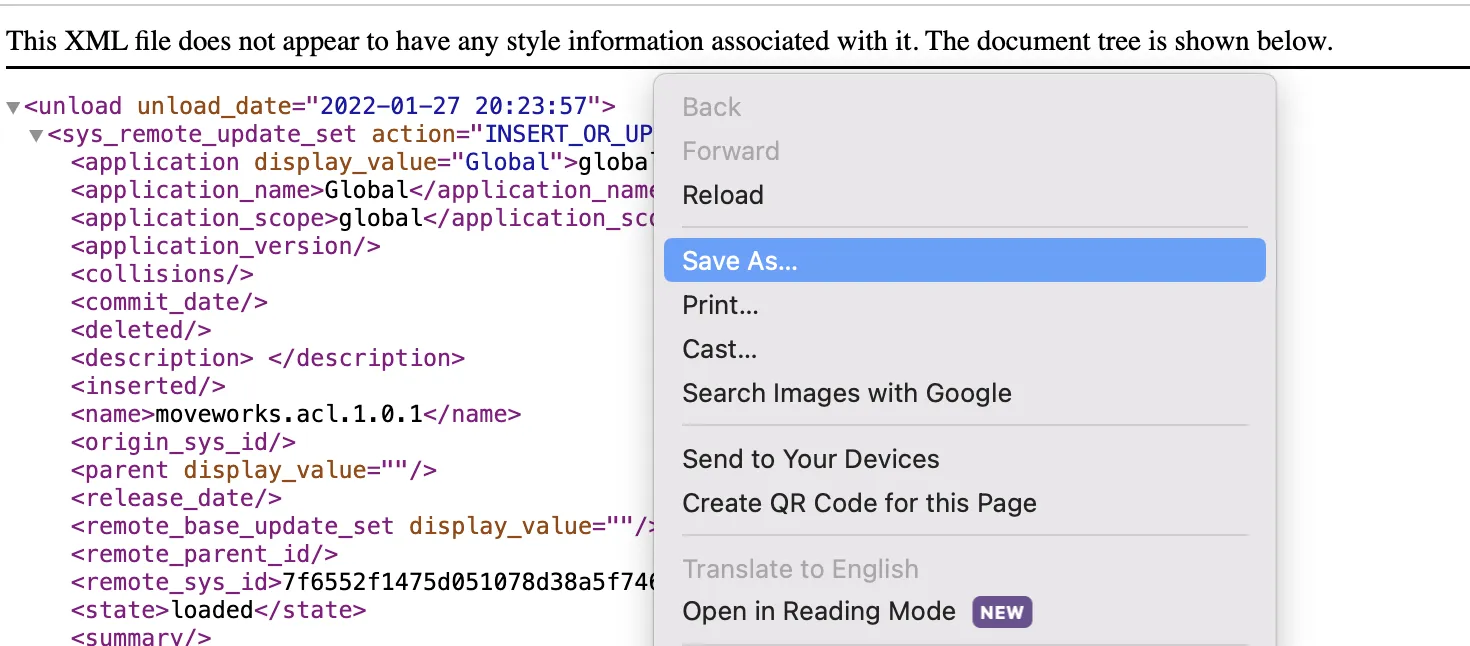
Download the
moveworks.baseandmoveworks.aclupdate sets from the Moveworks docs site.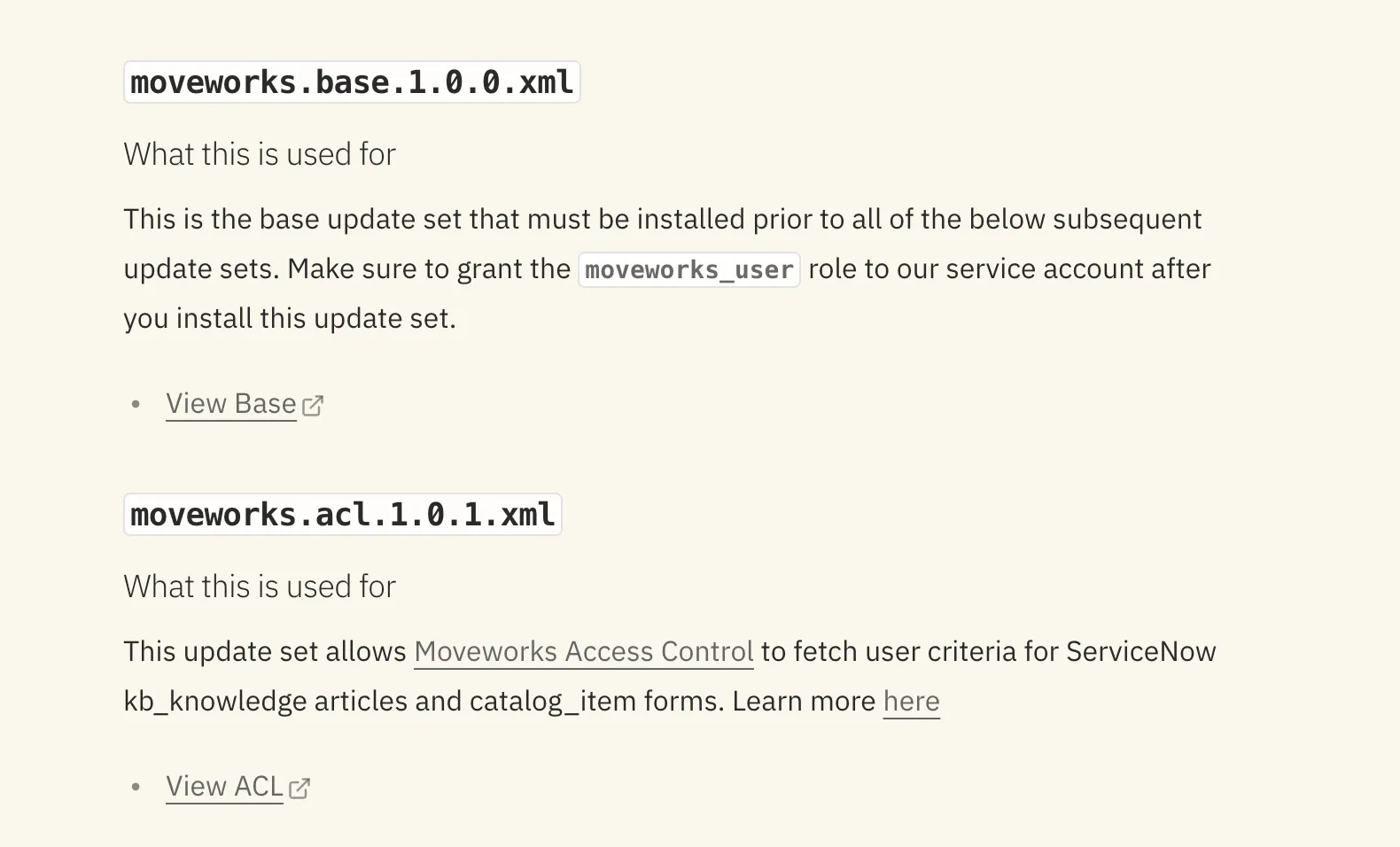
-
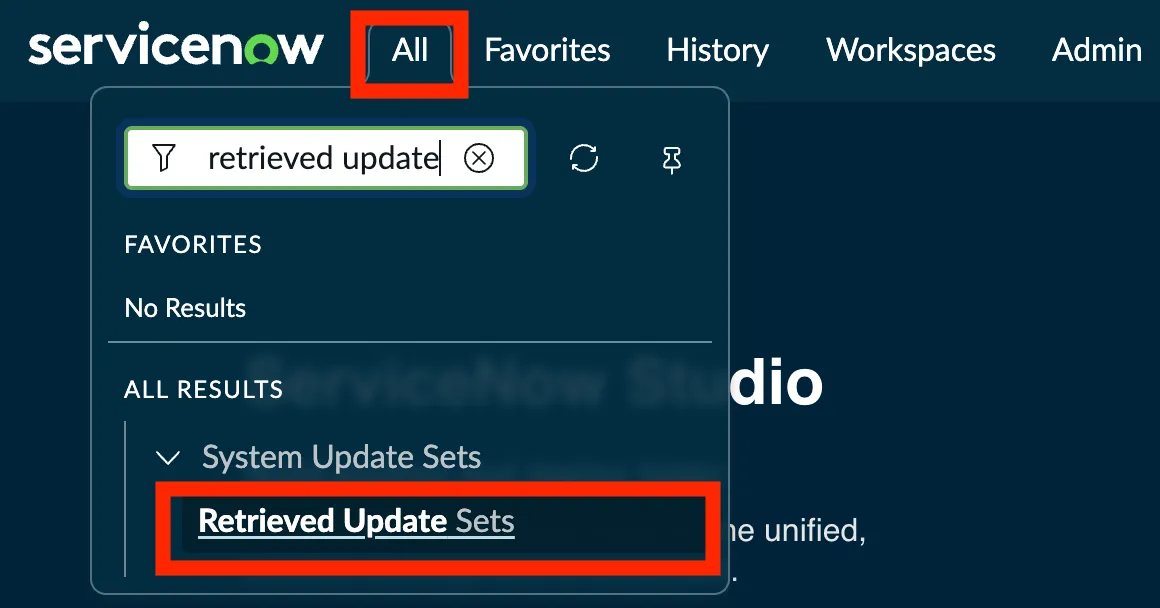
In ServiceNow, navigate to the Retrieved Update Sets page.
-
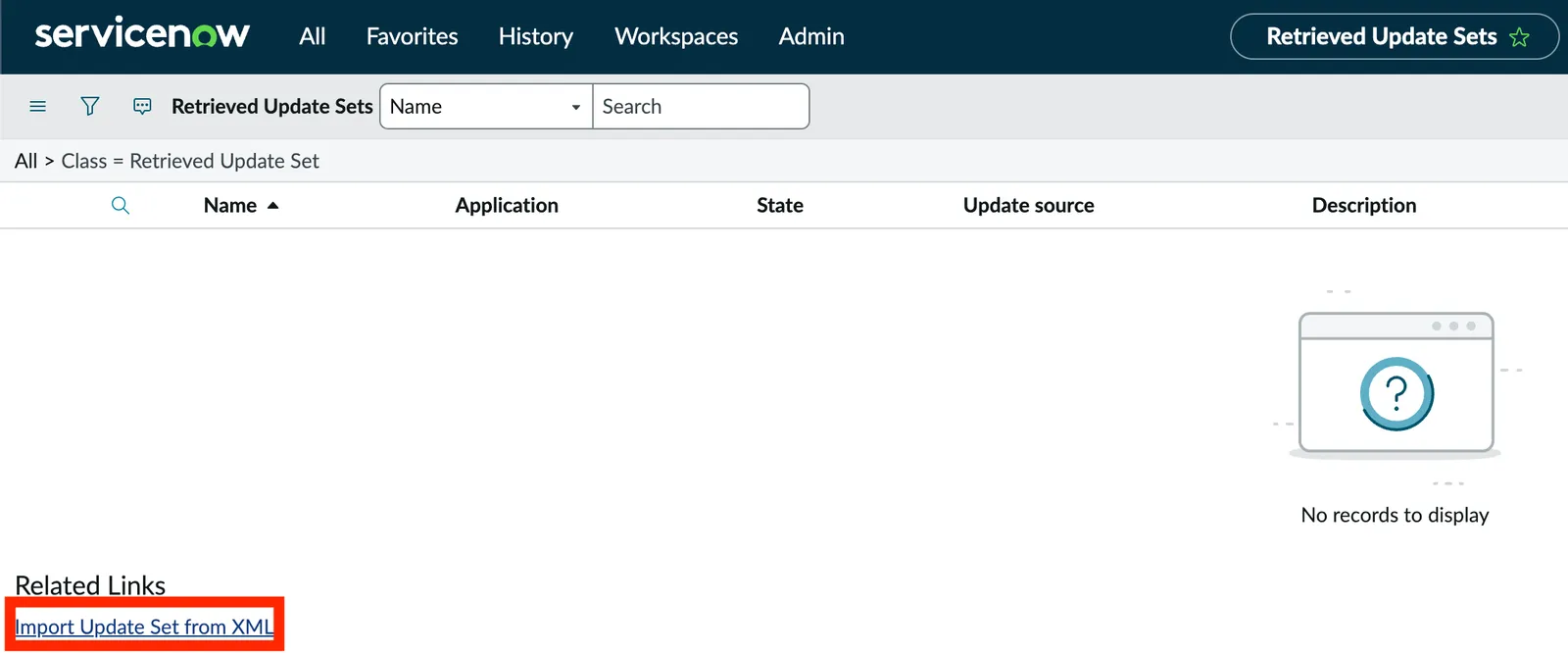
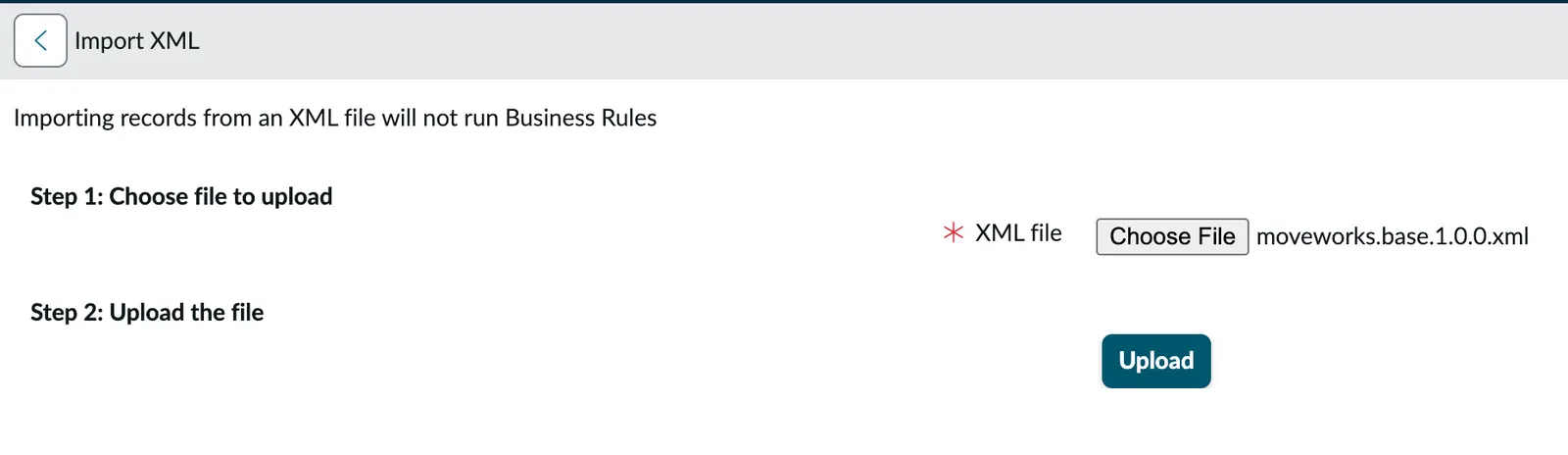
Click Import Update Set from XML at the bottom of the page.
-
Upload each update set you downloaded in step 1.
-
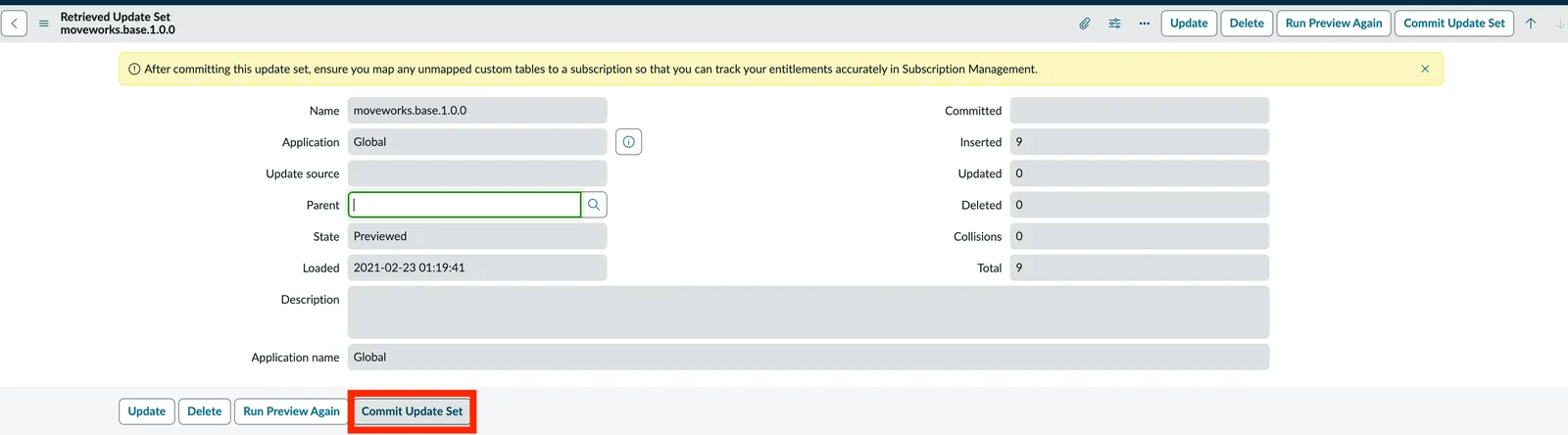
Preview and Commit each update set to activate it in your instance.
Commit the base update set (
moveworks.base) before any of the others. The remaining update sets depend on it, and committing them out of order causes errors.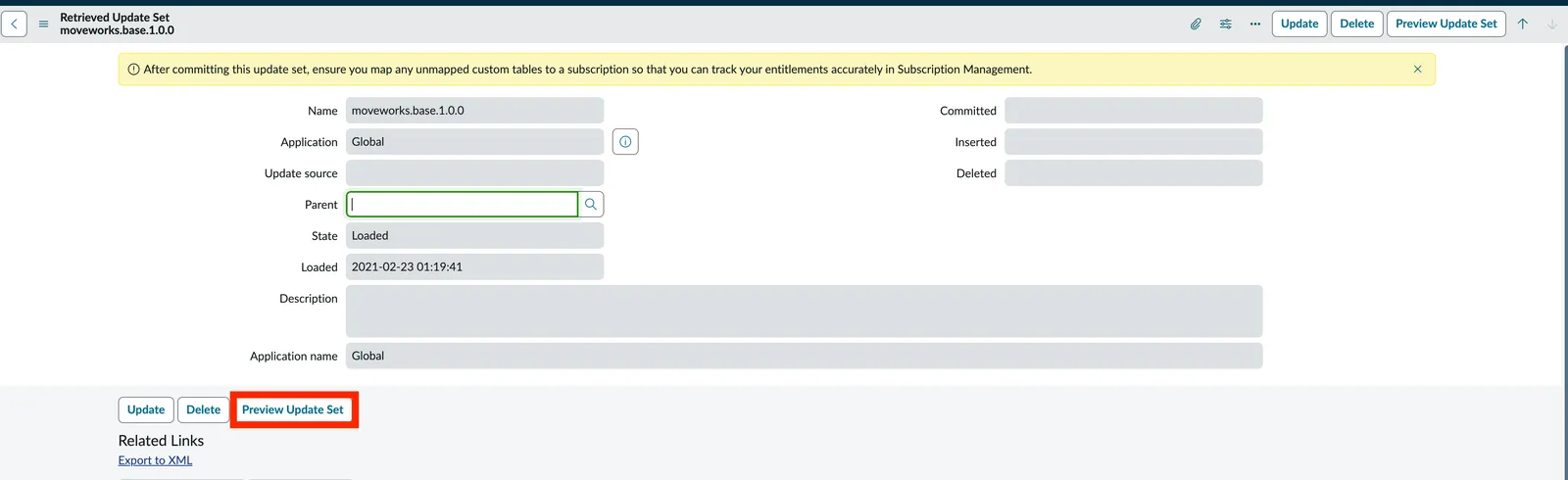
-
Confirm that all required update sets are installed.
The core labs need only
moveworks.baseandmoveworks.acl. The Optional Lab: Live Agent Handoff needs separate Live Agent update sets; your ILT host provides those.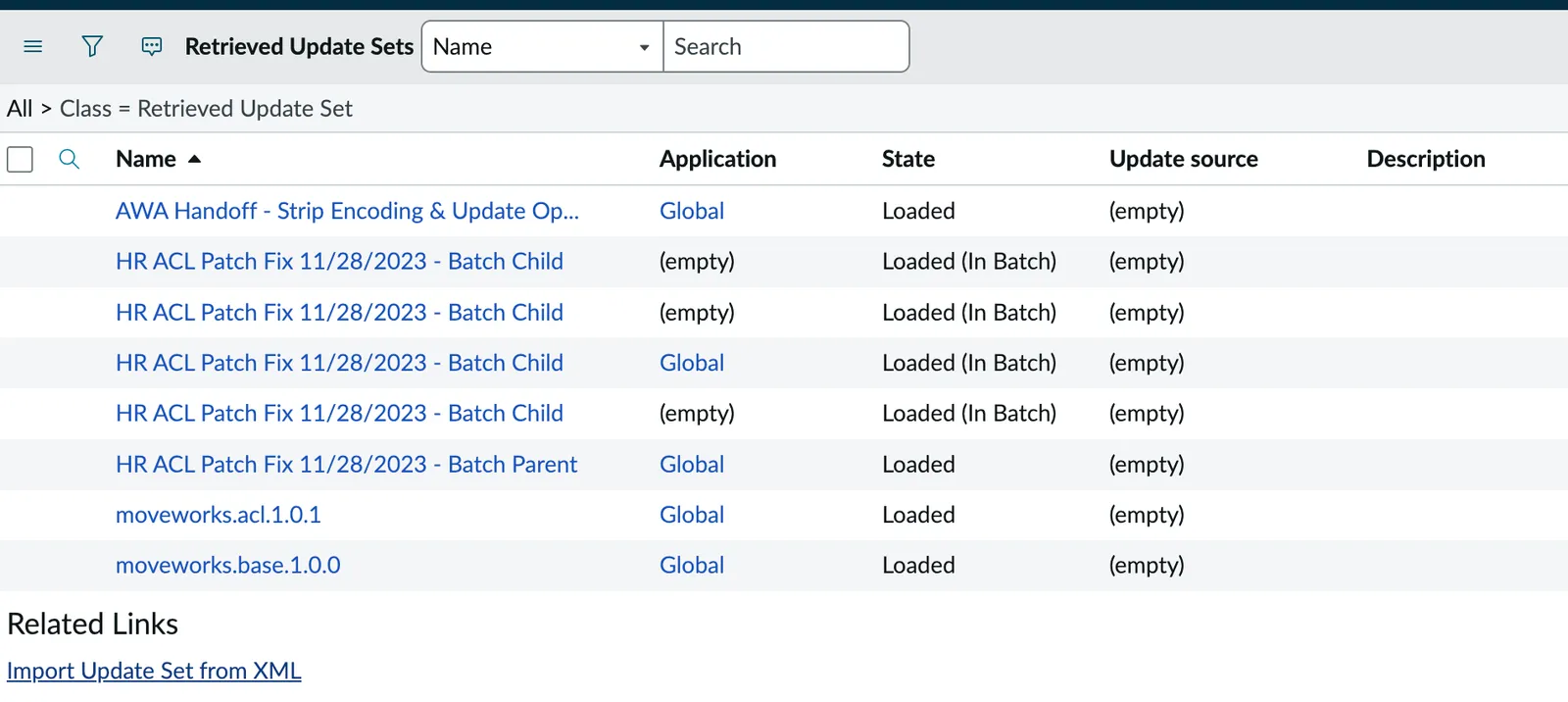
-
Navigate to User Administration > Users and open the
machine_adminintegration account.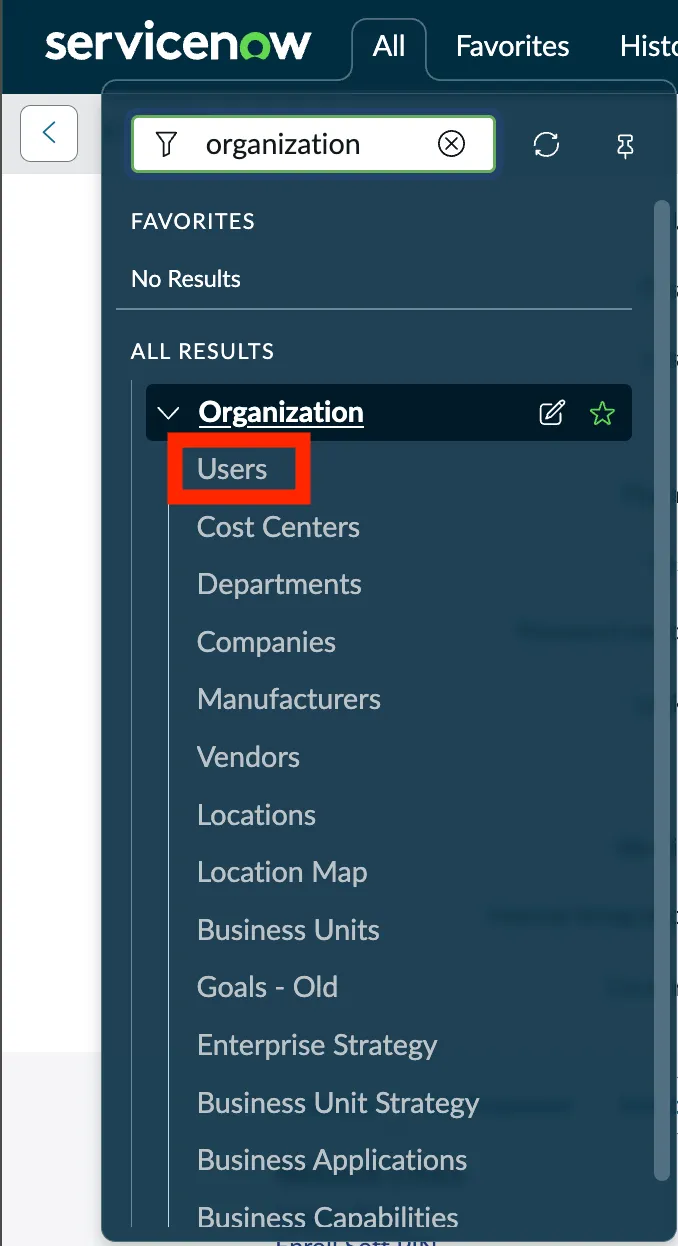
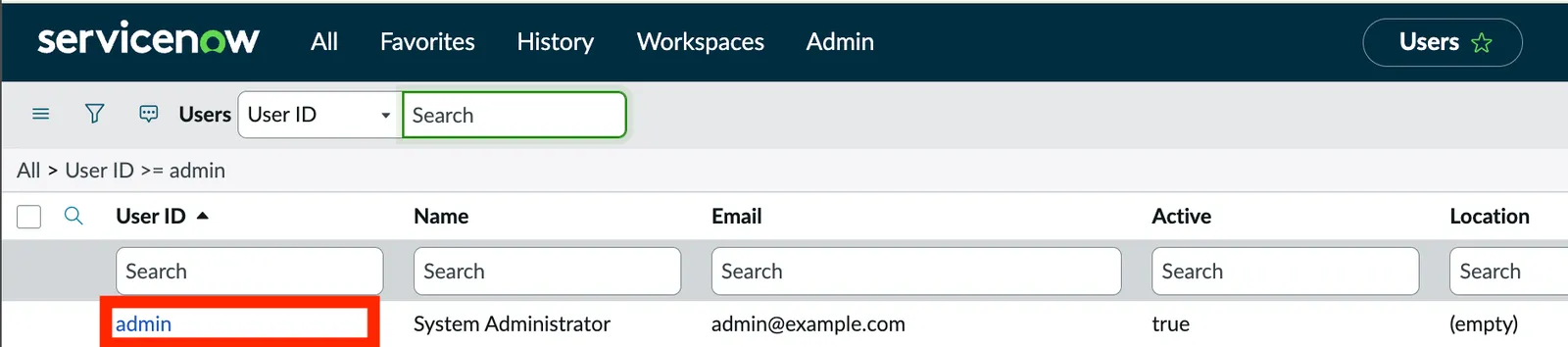
The screenshot shows the
adminaccount. Openmachine_admininstead. -
Add the
moveworks_userrole and click Save.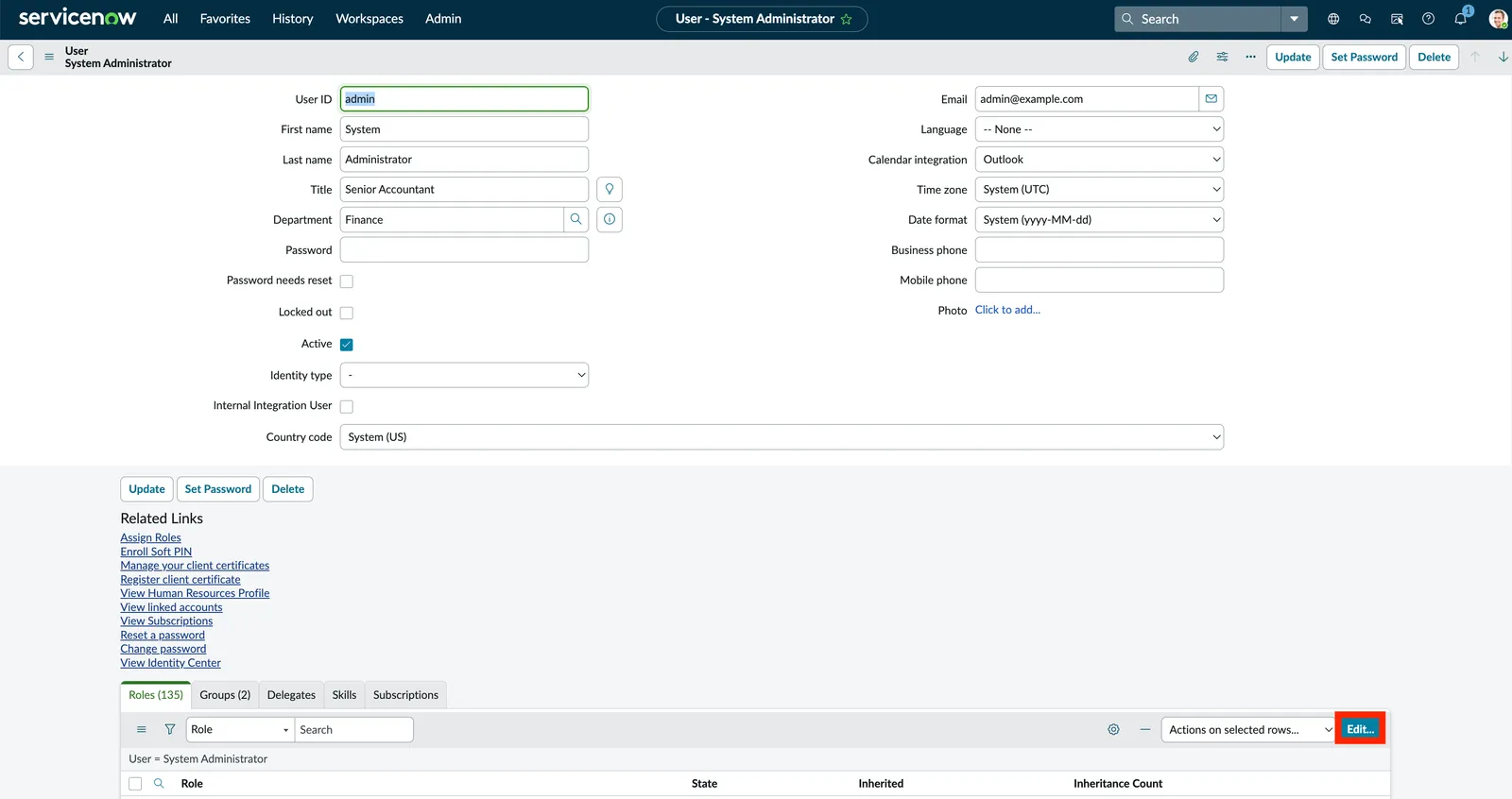
✅ 2: Verification & Next Steps
- Finalize:
- All update sets show as Committed
- The
machine_adminintegration account has themoveworks_userrole
🪞 3: Reflecting on This Configuration
Through this lab, you’ve learned the following:
- Where to find the Moveworks update sets for ServiceNow
- How to install them into a ServiceNow instance
- How to grant the
moveworks_userrole to the integration account Moveworks uses