
- Connectors & API Playground
- Connectors & API Playground
Overview
- Objectives: Learn how to connect external systems to Moveworks and validate that they are working as intended
- Estimated Time: 30 minutes
- Prerequisites:
- ServiceNow instance active and running
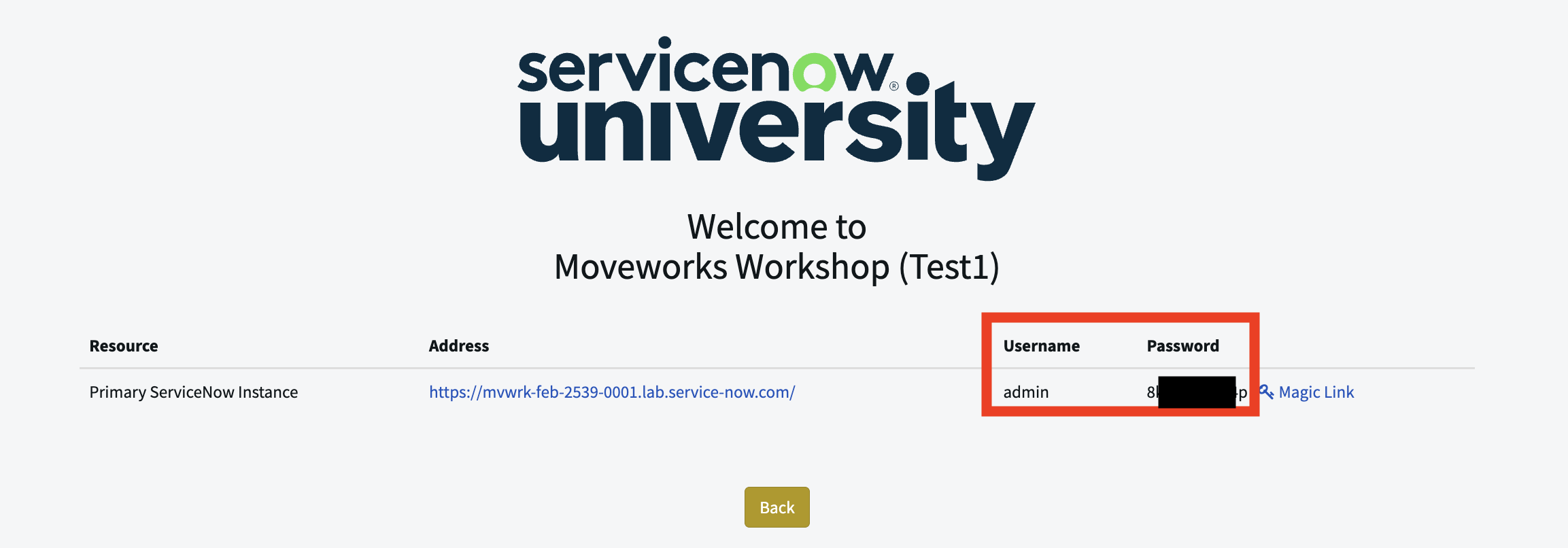
- ServiceNow admin username and password
Key Concepts
Moveworks uses connectors to establish secure links with your enterprise systems. Understanding how to validate these connections is the first step in any implementation:
- Connector Instance: A unique configuration that stores the authentication credentials (e.g., Basic Auth or OAuth) and the Base URL for an external system like ServiceNow.
- API Playground: A built-in testing environment that allows administrators to execute real-time API calls to verify that Moveworks has the correct permissions to fetch data.
- Response Payload: The raw JSON data returned by the system. Reviewing this helps you identify the exact field names (e.g.,
sys_id,user_name) required for later mapping steps. - Status Codes: Standard HTTP indicators (like 200 for success or 401 for unauthorized) used to diagnose connection or permission issues during setup.
Relevant Documentation:
🛠️ 1: Walkthrough
1.1: Instantiate your ServiceNow Connector
- Navigate to
Connectors > Built-in Connectorsin Moveworks Setup - Click
Create New

- Use the Search Bar in the upper right hand side to find the ServiceNow connector & select it
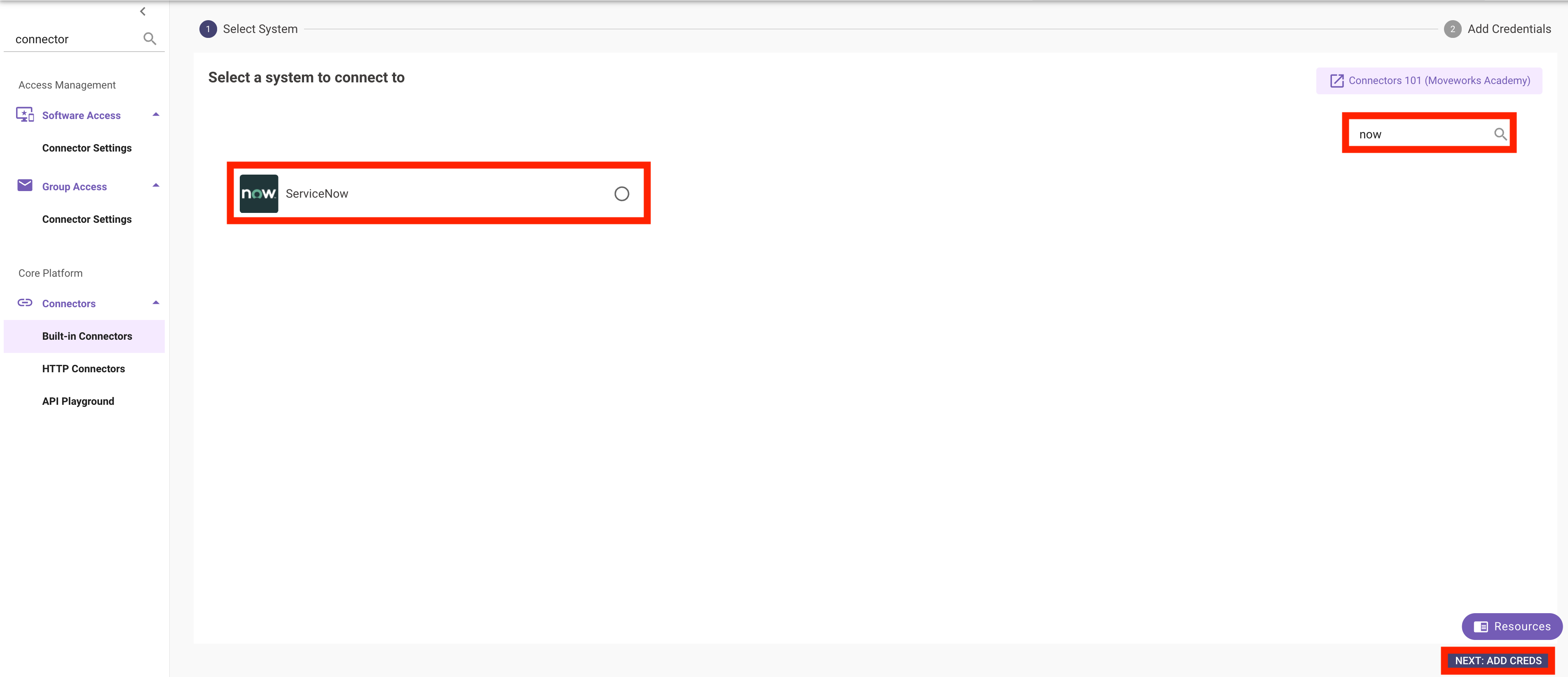
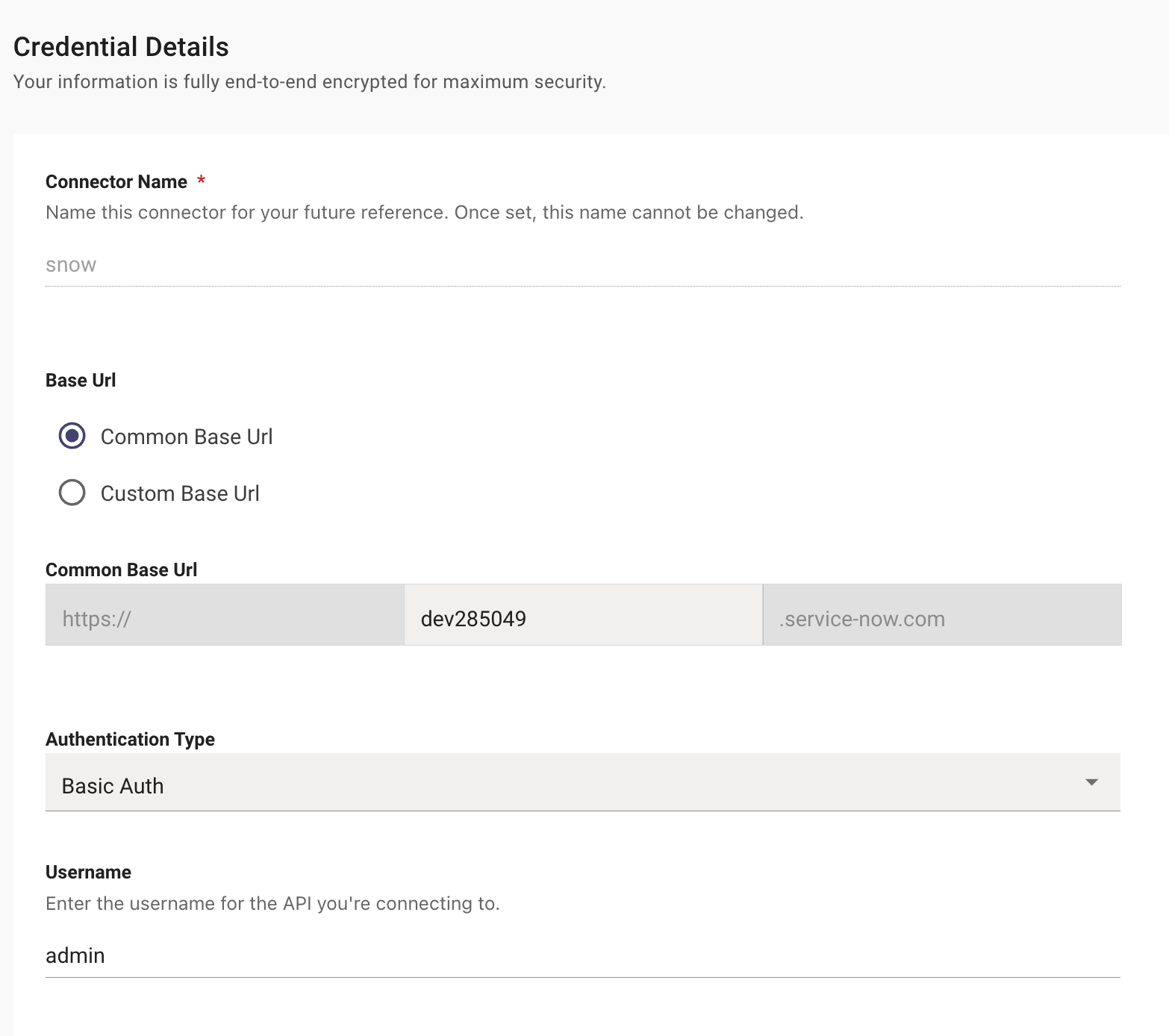
- Enter the following values (everything else can remain blank)
The connector name must be snow. This exact value is referenced in subsequent sections (User Identity, Enterprise Search, Ticketing). If you use a different name, you will need to substitute your custom value at every step that references snow throughout this guide.
ServiceNow (
snow)
- Common Base URL: Your PDI instance (e.g.
dev######)- Auth Type: Basic Auth
- Username:
admin(unless you changed it)- Password: Your admin password
1.2: Confirm Connection — API Playground
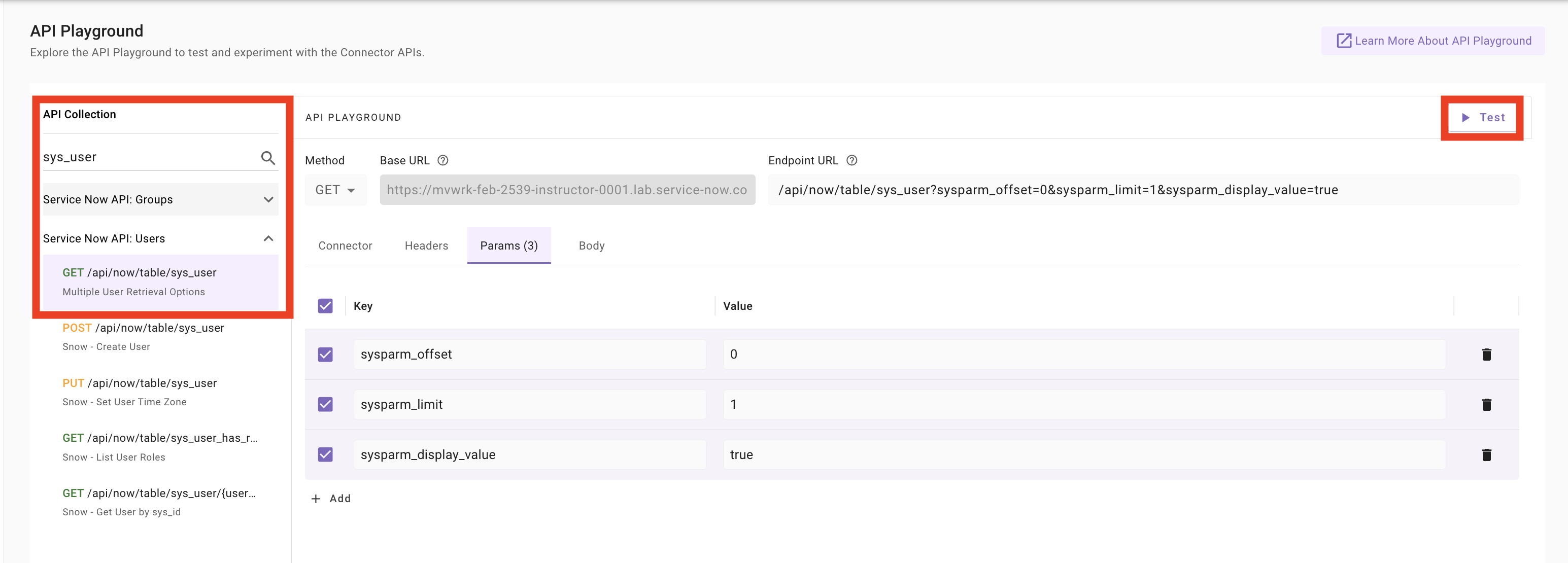
- Navigate to
Connectors > API Playground - Click
Select Connector - Select the
snowconnector created in the previous step
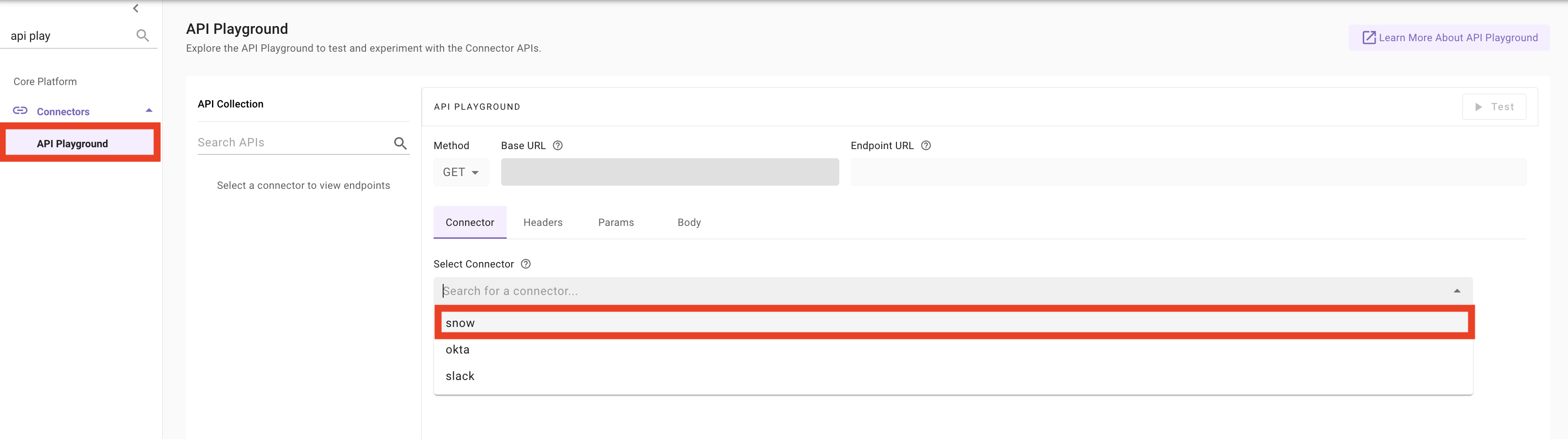
- Click into the
API Collectionsearch bar on the left hand side and search forsys_user - Select the GET API query, and then click
Testto validate that the connector is working as expected
✅ 2: Verification & Next Steps
Confirm Access:
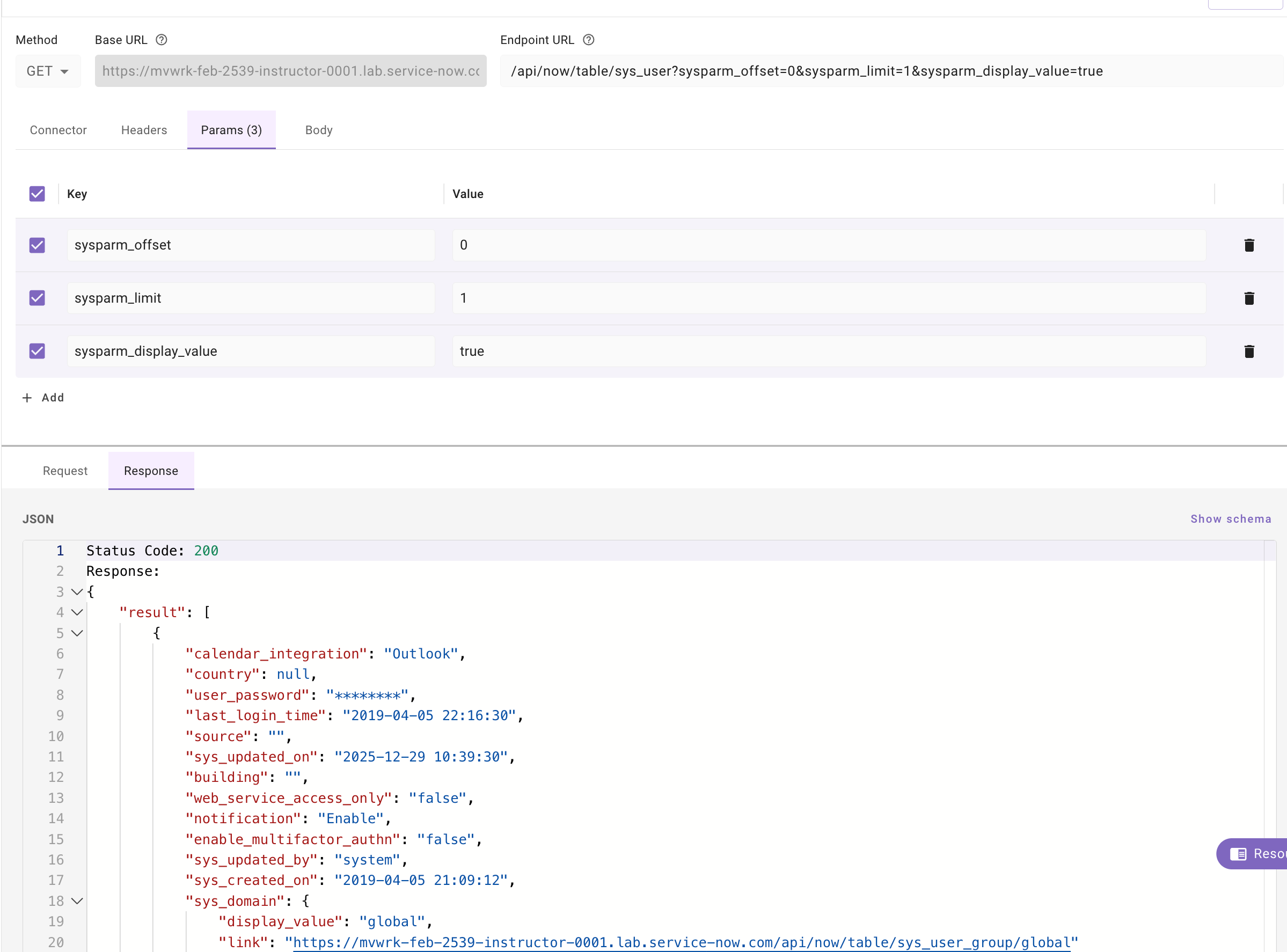
- Validate that when you click test, you are getting a
200 responseindicating that the ServiceNow instance is properly connected to Moveworks
Note: Your response object will not have the exact same values as shown in the screenshot. The purpose of this step is to confirm that you are able to successfully do a GET call to the user table within your connected NOW instance.
🪞 3: Reflecting on This Configuration
Through this guide, you’ve learned the following:
- How to connect an external system to Moveworks
- How to validate that connection using API Playground
How this will come up during live demos:
- After creating a new connector, always validate that the connector has the permissions required to deliver the full integration capabilities. Ensure the connector allows Moveworks to:
- Query the users in the environment
- For Knowledge — query the content and permissions for users and groups
- For Ticketing — query the tables/endpoints that Moveworks will support
⚙️ 4: Configuration Details
Use the table below to fill in the required fields accurately.