5. Configure Catalog Items
Overview
- Objectives: Configure forms ingestion for a single ServiceNow service catalog, understand what gets ingested (catalog items vs. record producers), and verify forms appear in Ingested Forms.
- Estimated Time: 20 minutes
- Prerequisites: Completed Sections 1 and 2 (ServiceNow connector configured and tested in API Playground). Your PDI must have the IT Service Catalog with 6-8 catalog items already created.
Part 1: Basic Forms Ingestion — IT Service Catalog
Key Concepts
Moveworks ingests forms from your ITSM’s service catalogs. The two most important form types to understand:
- Catalog Items — Standard request forms (e.g., “Request New Laptop”). Moveworks renders these natively in-chat because the variable structure is predictable.
- Record Producers — Forms that create records on other tables (e.g., incidents). These often have client scripts that make them harder to render in-chat, so Moveworks may deflect them to the portal unless you override.
🛠️ 1: Walkthrough
Warning: Forms ingestion requires the ServiceNow connector from Section 2. If your connector isn’t working, go back and verify it in API Playground before proceeding.
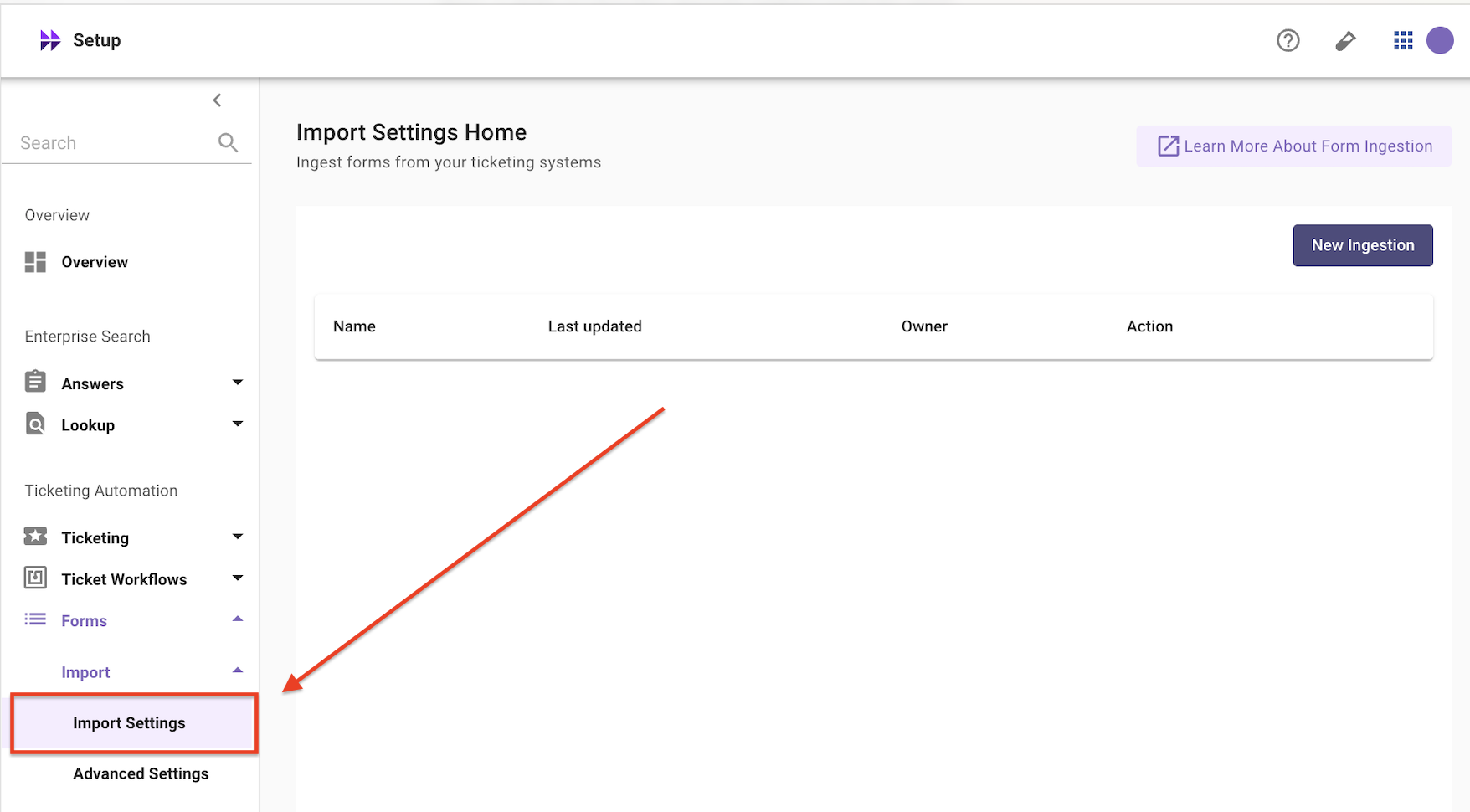
- Navigate to Forms → Import → Import Settings in Moveworks Setup
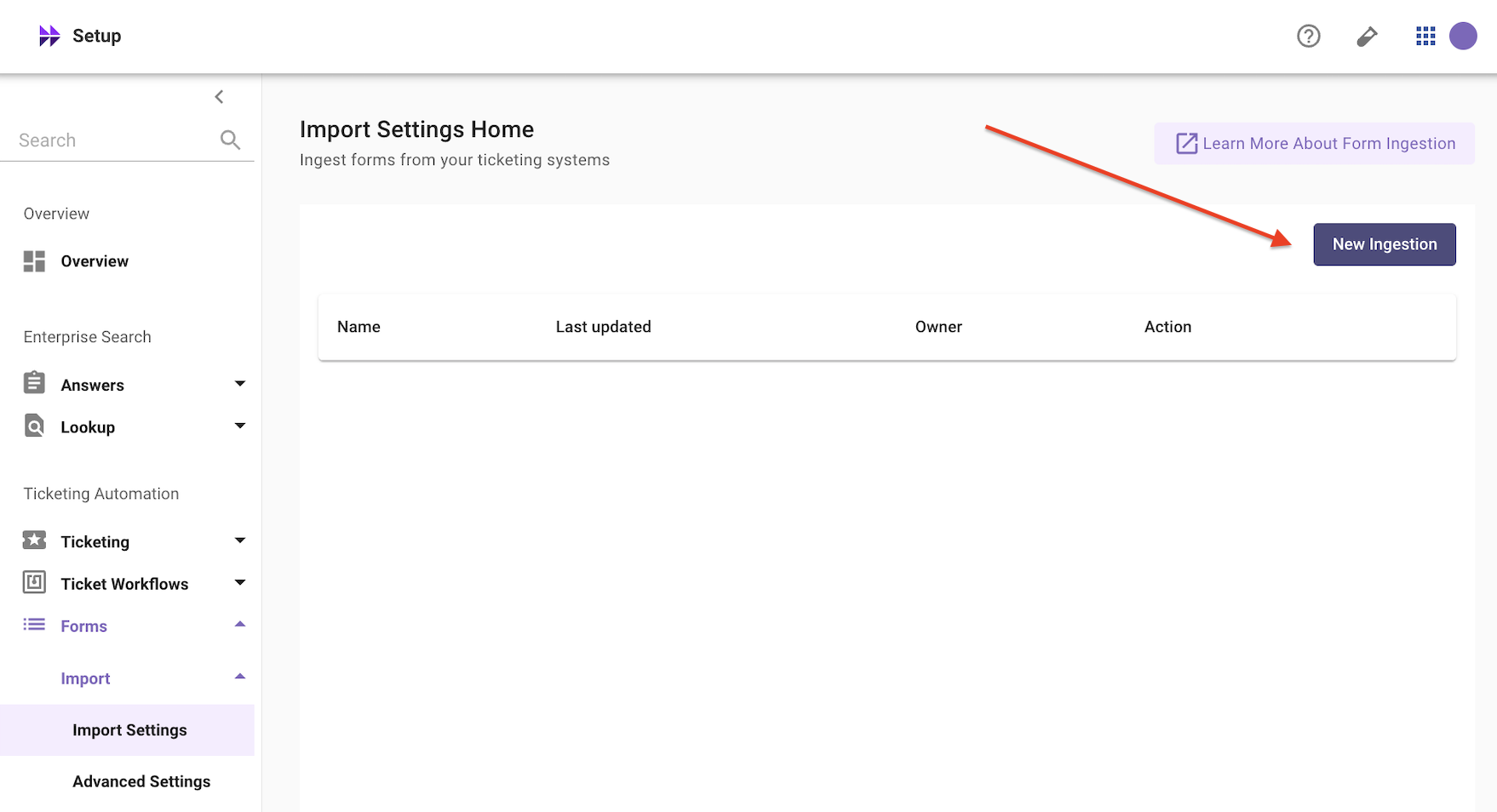
- Click New Ingestion (or Edit if a configuration already exists)
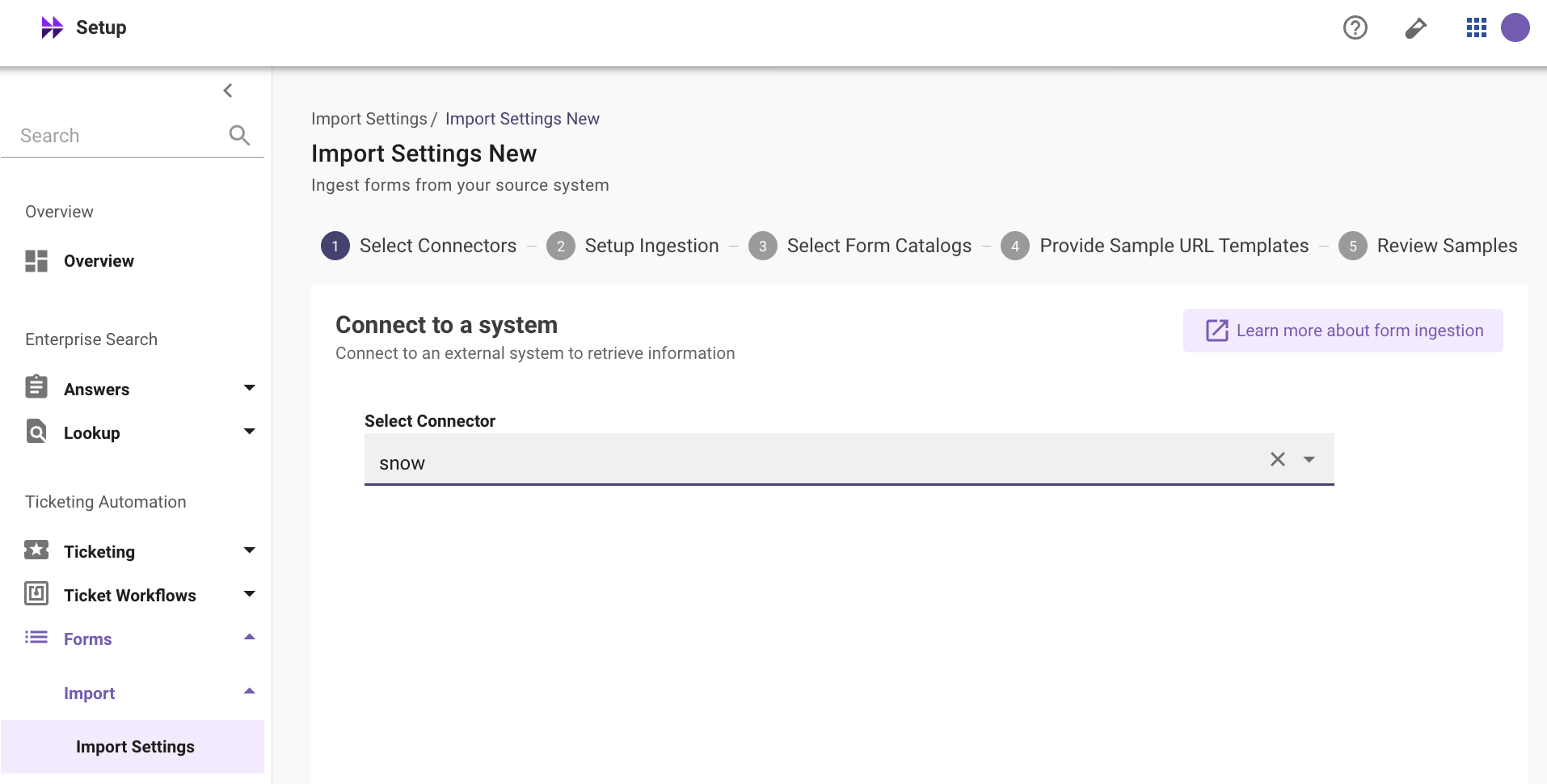
- Select Connector: Choose your
snowconnector
- Provide Configuration Name: Give a unique name to the Form Ingestion configuration
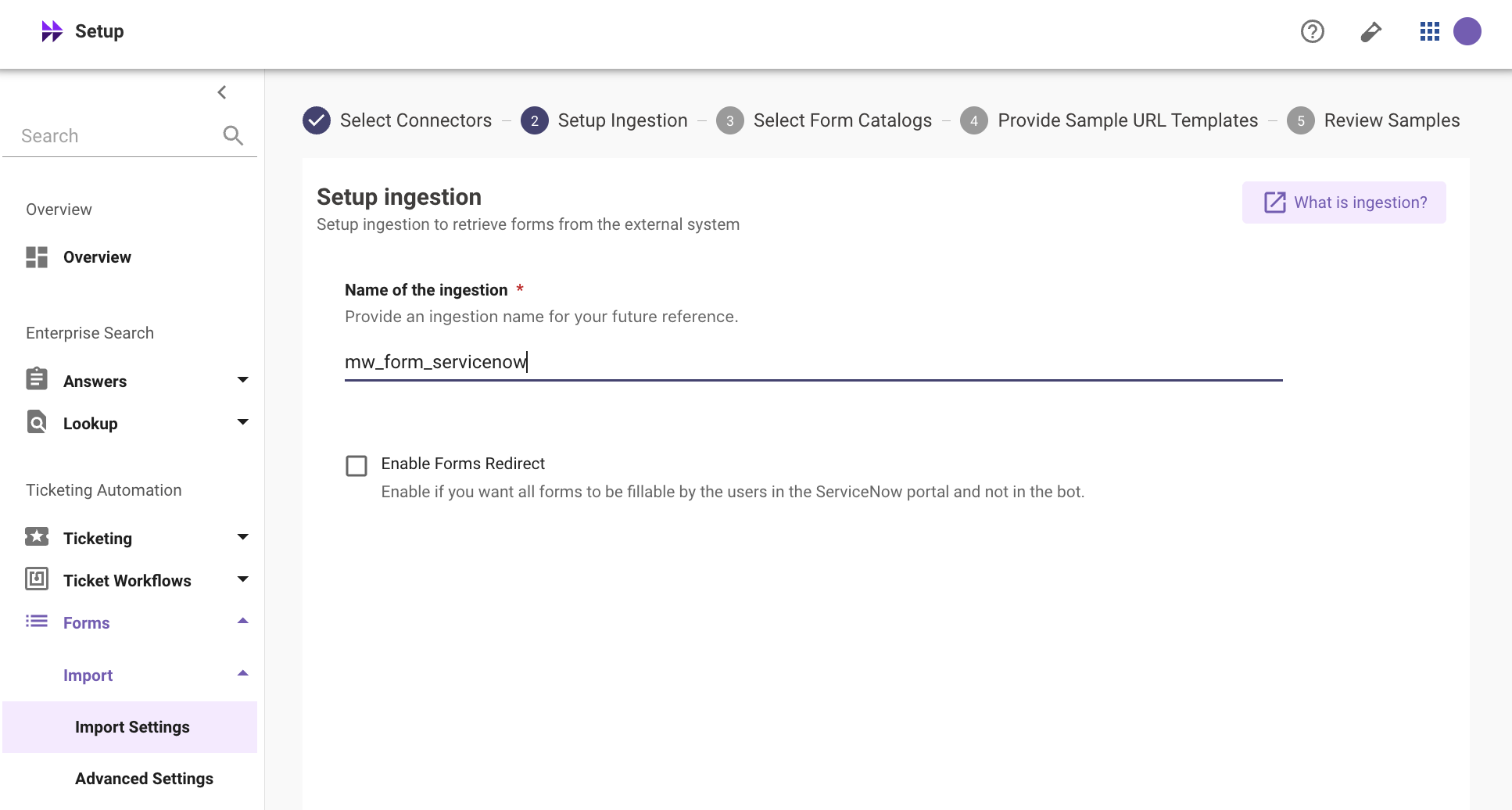
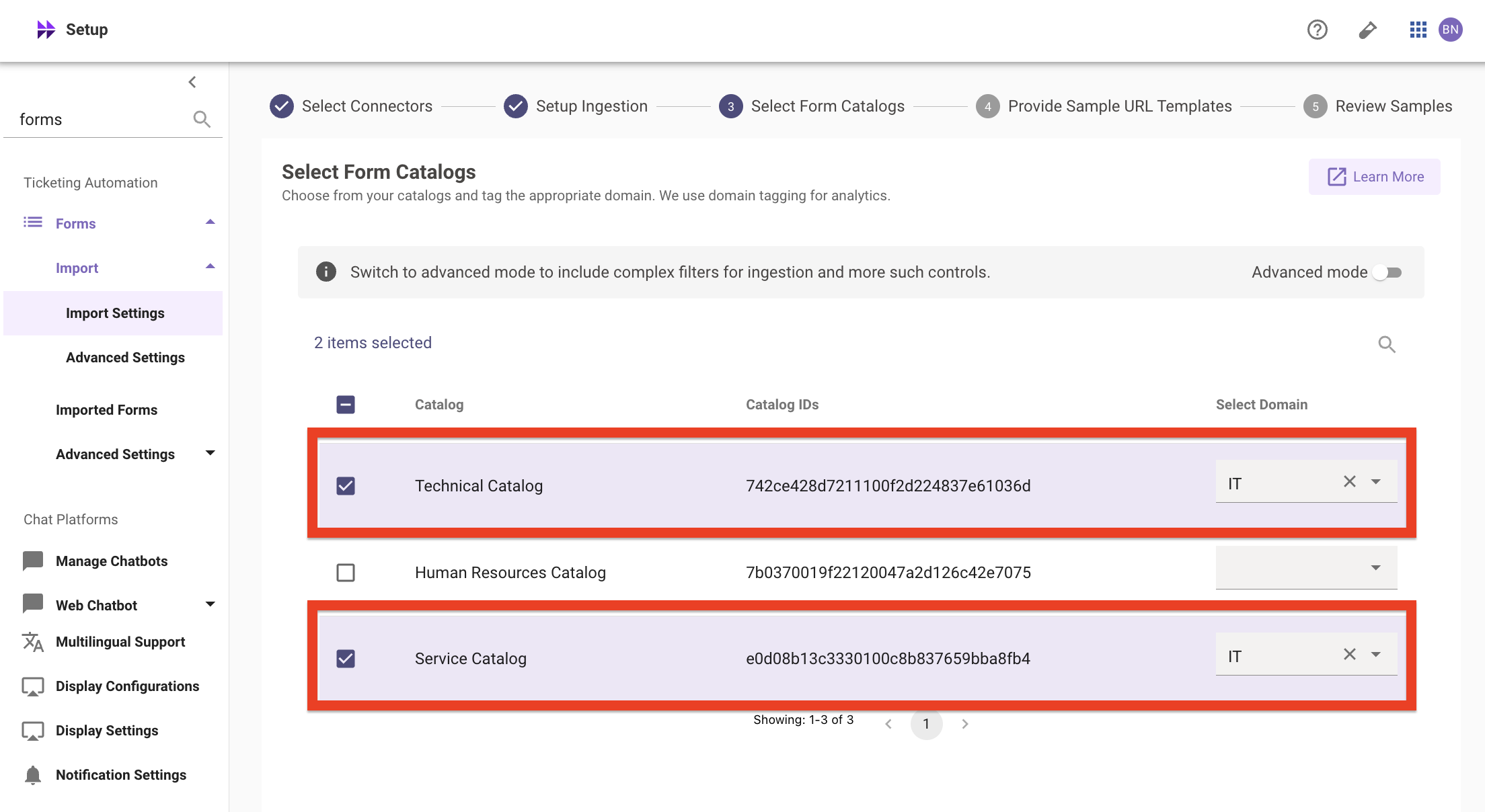
- Select Form Catalog: Choose IT Service Catalog
- Select Domain: Choose
IT— this tells Moveworks these are IT domain forms
Note: Each domain (IT, HR, Facilities, etc.) is configured separately. In Part 1 we only configure IT. Part 2 covers adding HR.
-
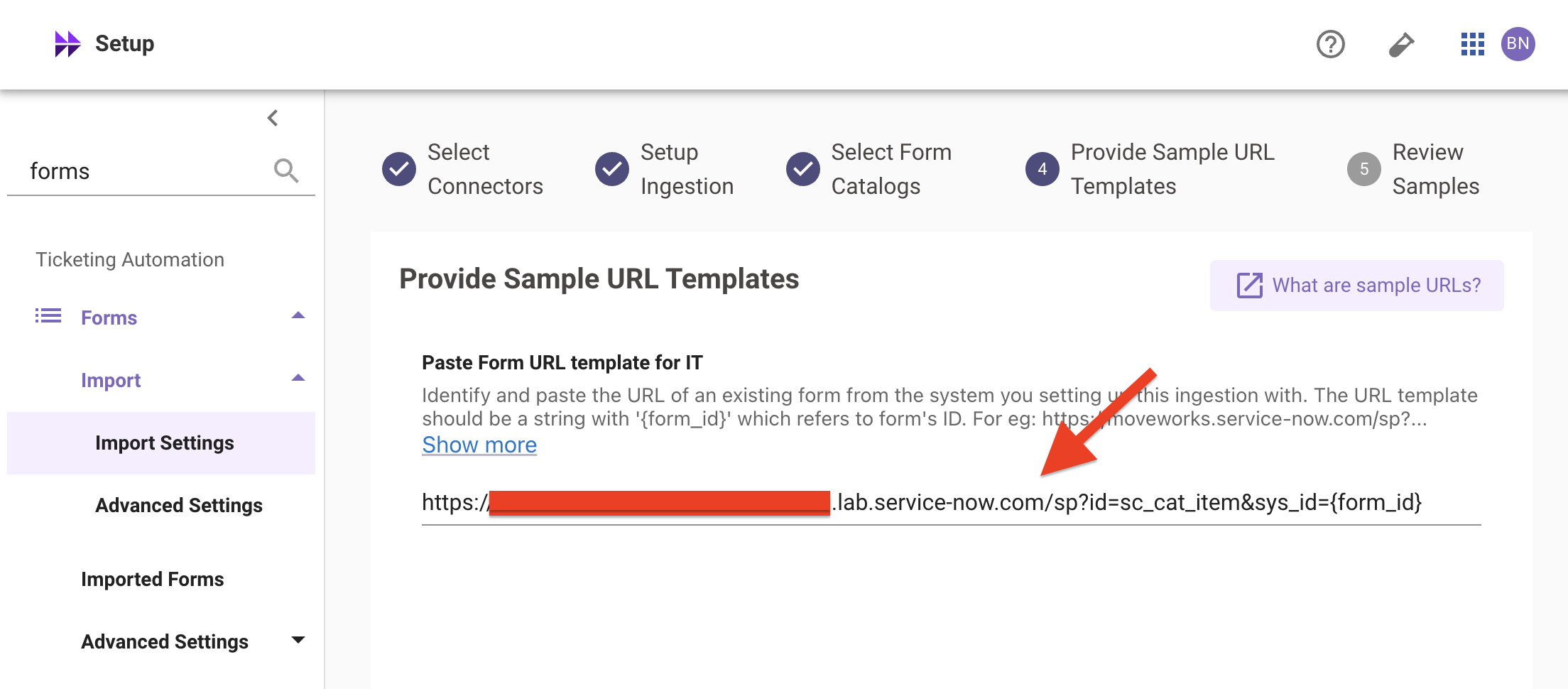
Provide Template URL
The Template URL is a template for Moveworks to use for the forms ingested in this particular ingestion configuration. Fill in the template URL with your instance URL and use
[form_id]as a placeholder for the sys_id of the Catalog Item:
-
Click Next to review Samples. You should see some examples of forms in that particular catalog. Once you confirm the forms look correct, select Save.
-
Click Run Ingestion (or wait for the next scheduled run). Ingestion typically takes 2-5 minutes for a small catalog.
Warning: Requires Moveworks team to run backend job.
- Once complete, navigate to Forms → Ingested Forms in Moveworks Setup
✅ 2: Verification & Next Steps
- Check Ingested Forms: Navigate to Forms → Ingested Forms. You should see your IT catalog items listed:
-
Check Fillability: Click on Request New Laptop — verify it shows as fillable with variables (
laptop_model,delivery_location,justification,needed_by_date,urgent). -
Check User Criteria: Click on Request Production Server Access — verify it shows restricted access (IT Department only). If you test as a user not in the IT Department group, this form should NOT appear in search results.
-
Test in Bot: Open the Moveworks bot in Teams/Slack and type:
"I need a new laptop"— Moveworks should surface the “Request New Laptop” form and begin conversational form filling.
Note: Check that your connector is valid (Section 2), the catalog sys_id is correct, and the catalog items are active in your ITSM.
🪞 3: Reflecting on This Configuration
Through this guide, you’ve learned the following:
- How to configure forms ingestion for a single service catalog using a catalog sys_id
- The difference between catalog items (fillable by default) and record producers (may require override)
- How user criteria carries over — restricted forms are only shown to authorized users in Moveworks
- How to verify ingested forms in Ingested Forms and test them through the bot
⚙️ 4: Configuration Details
Use the table below to fill in the required fields.
Leave all other fields at their defaults for Part 1.
Part 2 (OPTIONAL): Advanced Forms Ingestion — HR Catalog, Record Producers & Overrides
Overview
- Objectives: Add a second service catalog (HR), handle record producers, configure fillability overrides, use advanced query filters, and manage form exclusions.
- Estimated Time: 25 minutes
- Prerequisites: Part 1 complete (IT catalog ingested). Your PDI must have the HR Service Catalog with 5-6 catalog items and 2 Record Producers already created.
🛠️ 1: Walkthrough — Add the HR Service Catalog
Note: Adding a second catalog with a different domain demonstrates how Moveworks handles multi-domain form ingestion. IT and HR forms are configured independently so they can have different filtering and fillability rules.
- Navigate to Forms → Ingestion in Moveworks Setup
- Click Add Domain Configuration (or + Add if using the multi-domain view)
- Select Integration: Same
snowconnector - Select Domain: Choose
HR - Under Filter Settings, select Default Filter
- Enter the Catalog ID for the HR Service Catalog
Note: Find it the same way as Part 1: sc_catalog.list in your PDI → copy the sys_id for HR Service Catalog.
- In the Form Requester Field Names field, enter
opened_for— HR catalog items typically useopened_forinstead ofrequested_for - Click Save and Run Ingestion
⚙️ 2: Configuration Details — HR Catalog
🔍 3: Inspect Record Producers
After ingestion completes, go to Forms → Ingested Forms. You should now see both IT and HR forms. Look for the two Record Producers:
Why are Record Producers unfillable by default? Record producers often have client scripts that only run in the ITSM browser. Moveworks can’t execute those scripts in-chat, so it conservatively marks them as unfillable and deflects to the portal. You can override this in the next section.
🛠️ 4: Configure Fillability Overrides
To make the “Report IT Issue (Optimal)” record producer fillable in-chat:
- In Forms → Ingestion settings, scroll to the Advanced Deflection & Fillability section
- Find the field Form Filling Enabled Override
- This uses DSL (Domain Specific Language) rules. Enter a rule to target the specific form:
Note: To find the form’s sys_id: go to Ingested Forms, click the form, and copy the sys_id from the details panel.
- Click Save and Re-run Ingestion
- Go back to Ingested Forms — “Report IT Issue (Optimal)” should now show as Fillable
When to use this override: Only override fillability for record producers where the client scripts are non-essential (cosmetic, auto-fill, or visual-only). If a script performs critical validation, leave the form as deflected — the user will complete it in the ITSM portal instead.
Fillability Override Reference:
🛠️ 5: Exclude Specific Forms
Sometimes you need to exclude specific forms from ingestion entirely (e.g., deprecated items, internal-only forms).
- In Forms → Ingestion settings for the IT domain, find the Disallowed Form IDs field
- Enter the sys_id of “Report Issue (Non-Optimal)”
Note: Find the sys_id in your PDI: sc_cat_item_producer.list → click the form → copy the sys_id.
- Click Save and Re-run Ingestion
- Verify in Ingested Forms that “Report Issue (Non-Optimal)” no longer appears
🛠️ 6: Advanced Filtering — Custom Query Filter
Instead of the Default Filter, you can use an Advanced Filter with a custom query.
- Switch the Filter Type from Default Filter to Advanced Filter
- Enter a custom query filter. For example:
This example ingests only active, categorized, standard catalog items (excluding record producers and order guides).
Use Advanced Filters carefully. The Default Filter mirrors your ITSM portal’s visibility rules, which is correct for most orgs. Advanced Filters give full control but can miss forms or over-ingest if the query isn’t right. Stick with Default Filter unless you have a specific need.
- After testing, switch back to Default Filter for this lab — Advanced Filters are shown here for awareness.
🛠️ 7: Handling Client Scripts
If a form has client scripts that prevent native rendering, you can tell Moveworks to ignore specific scripts:
- In Forms → Ingestion settings, find Script IDs to Ignore
- Enter the sys_id(s) of the client scripts to skip (find these in your ITSM’s script list for the catalog item)
- After re-ingestion, the form may become fillable in-chat since the blocking scripts are ignored
Which scripts are safe to ignore?
- Safe: Scripts that auto-populate fields or toggle field visibility (cosmetic only)
- Not safe: Scripts that validate input formats or calculate values from other fields
- When in doubt: Leave the script active — the form will deflect to the portal instead
✅ 8: Verification & Next Steps
- Ingested Forms Check:
- IT catalog items: 6-8 forms (minus any excluded)
- HR catalog items: 5-6 forms
- “Report IT Issue (Optimal)”: shows as Fillable (after override)
- “Report Issue (Non-Optimal)”: Not listed (excluded via Disallowed Form IDs)
- Access Control Check:
- Log into the Moveworks bot as a user NOT in the IT Department or Engineering group
- Search for “production server access” — it should not appear
- Search for “new laptop” — it should appear and be fillable
- Record Producer Check:
- Search for “report IT issue” in the bot
- Moveworks should begin conversational form filling (since you enabled the override)
- Complete the form and verify a new Incident record is created in your ITSM (not a RITM)
🪞 9: Reflecting on This Configuration
Through this guide, you’ve learned the following:
- How to configure multi-domain forms ingestion (IT + HR with separate settings)
- How Moveworks handles record producers differently from catalog items — and when to override fillability
- How to use Disallowed Form IDs and Whitelists to control which forms are ingested
- How to use Advanced Filters for granular control over form selection
- How to handle client scripts that block native in-chat rendering using Script IDs to Ignore
- How requester field mapping can differ by domain (
requested_forvs.opened_for)
Summary: Forms Ingestion Settings Reference