
Lab #7: Handoff — Live Agent
Lab #7: Handoff — Live Agent
Overview
- Learning Objectives: Configure Moveworks to broker live agent chat sessions between users and ServiceNow agents using the Virtual Agent API integration.
- Estimated Time: 30 minutes
- Prerequisites:
- Access to a ServiceNow lab instance with the following update sets already applied:
Moveworks Live Agent VA API Config(Virtual Agent API scope)Moveworks Live Agent AWA Config(Global scope)
- Access to your tenant’s MyMoveworks portal with the Agent Studio module
- ServiceNow admin credentials for your lab instance
- Access to a ServiceNow lab instance with the following update sets already applied:
Key Concepts
Live Agent Message Brokering allows Moveworks to act as a bridge between end users in their chat platform (Slack, Teams, etc.) and live agents in ServiceNow’s Service Operations Workspace. When the AI Assistant cannot resolve a user’s issue, it can seamlessly hand off the conversation to a human agent.
- Message Brokering vs. Deep Link: Message brokering keeps the conversation within the user’s native chat platform (Slack/Teams). The alternative deep link approach redirects users to a ServiceNow portal. Message brokering provides a better user experience.
- Virtual Agent API: Moveworks uses ServiceNow’s Virtual Agent Bot-to-Bot API (
/api/sn_va_as_service/bot/integration) to initiate conversations and relay messages between users and agents. - Agent Availability: Moveworks checks the
awa_agent_presence_capacitytable to determine if agents are available before offering the handoff option. - AWA Routing: Interactions must be routed through Advanced Work Assignment (AWA) queues. Without a properly configured queue, assignment rule, and eligibility pool, interactions will immediately close.
🛠️ 1: Walkthrough
1.1 Verify ServiceNow Prerequisites
Warning: The update sets handle most of the ServiceNow configuration. Before proceeding, verify the setup was applied correctly.
Verify Virtual Agent API Plugin
- In your ServiceNow instance, navigate to System Applications > All Available Applications > All
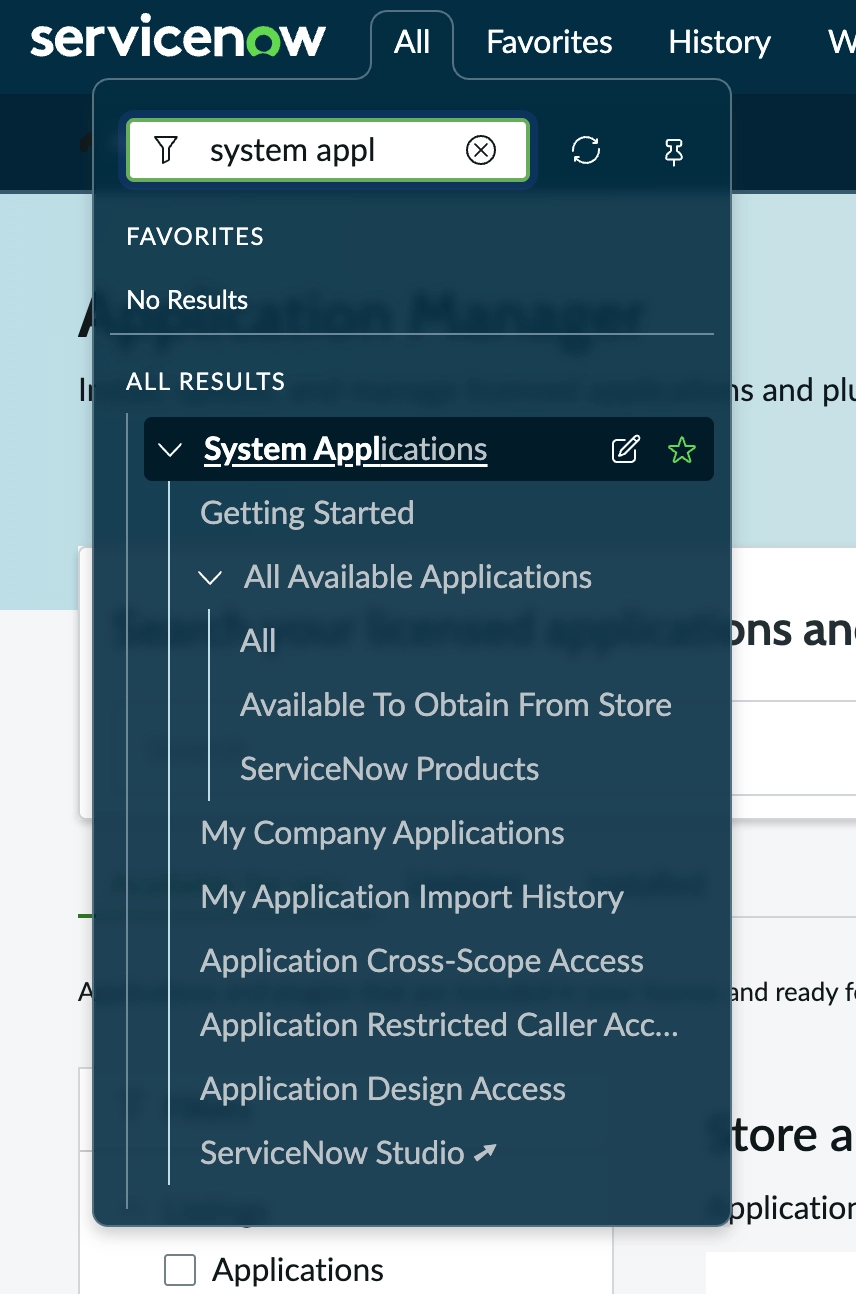
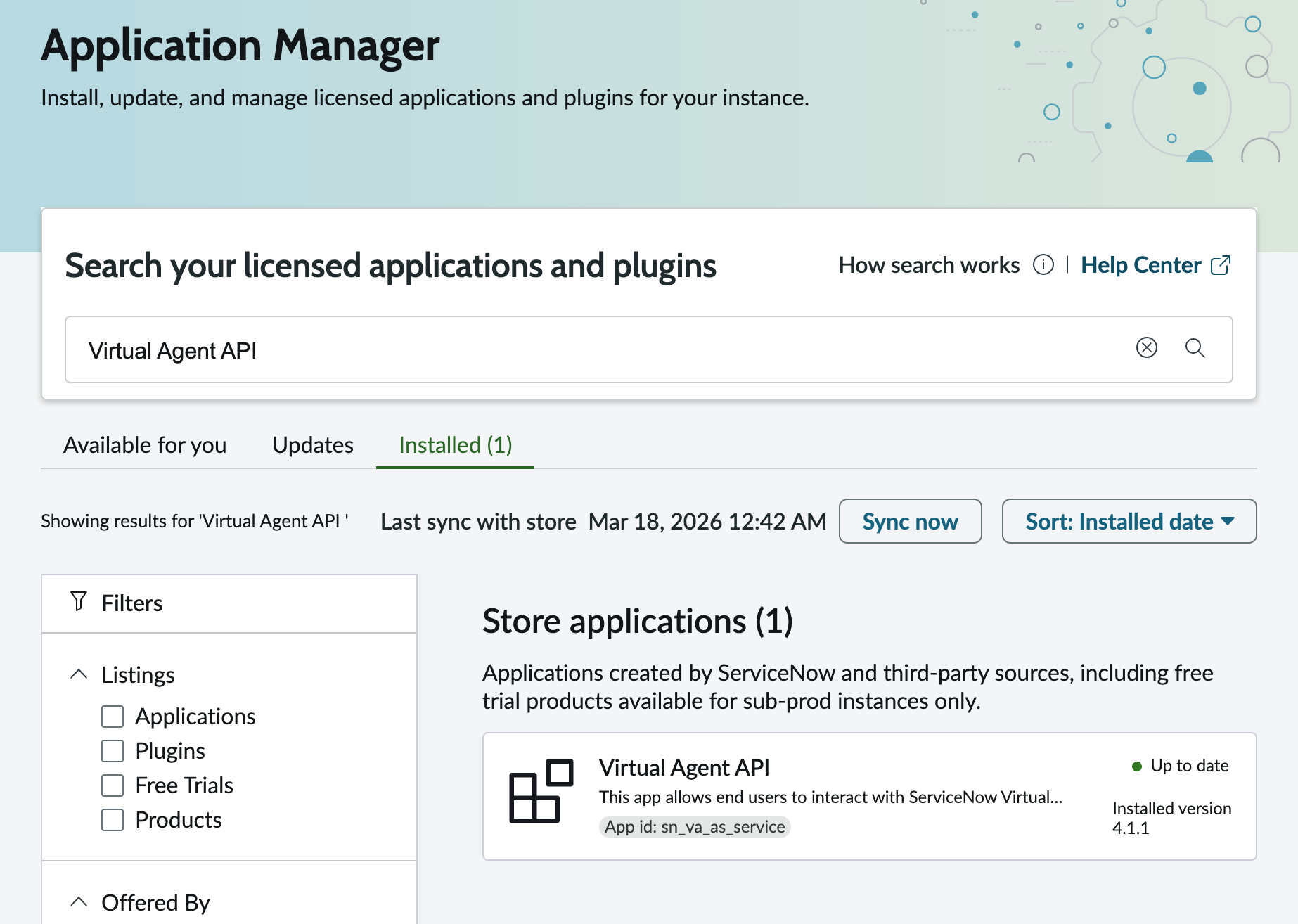
- Search for Virtual Agent API and confirm it is installed
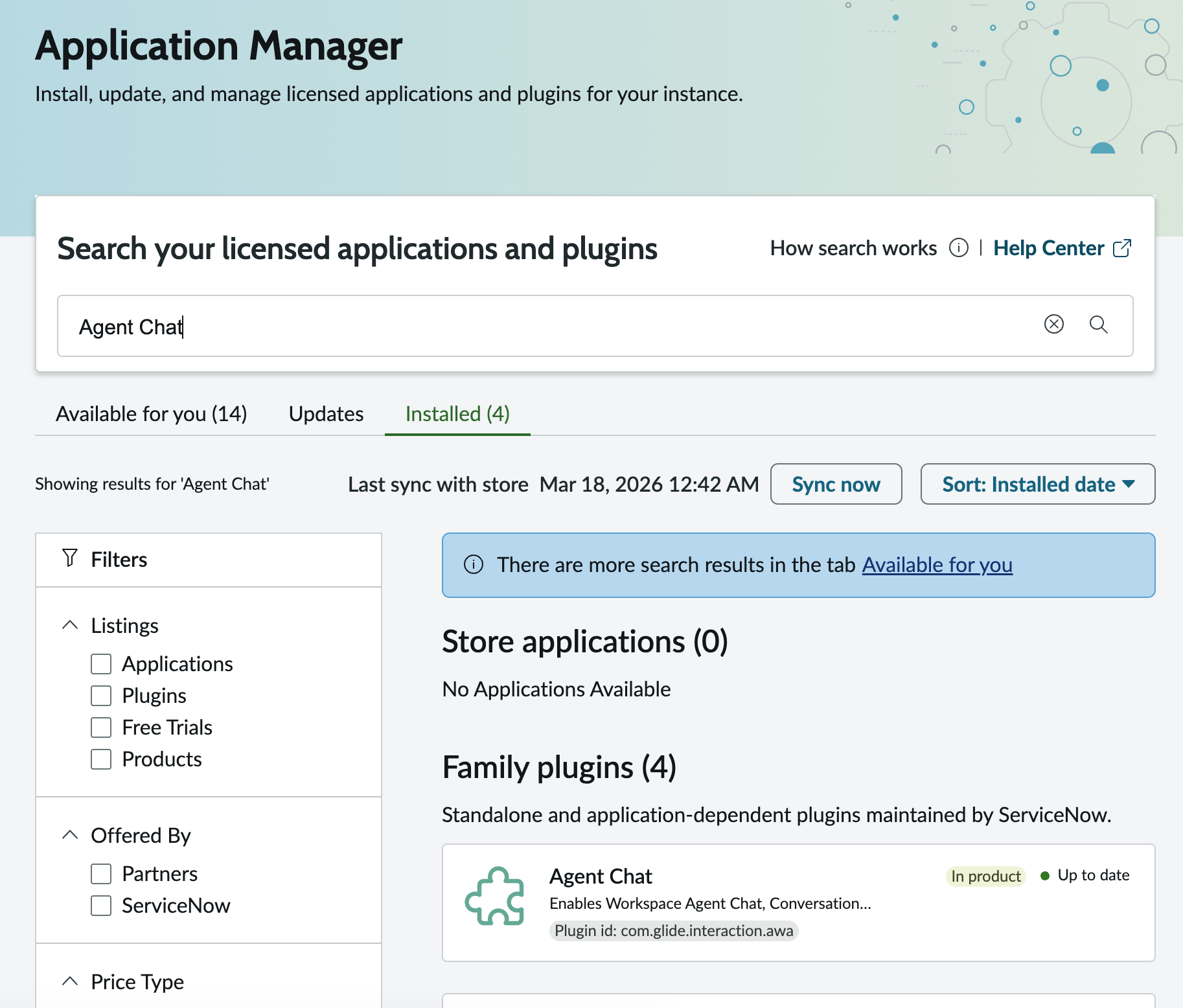
- Search for Agent Chat plugin and confirm it is installed
Verify Update Set Configurations
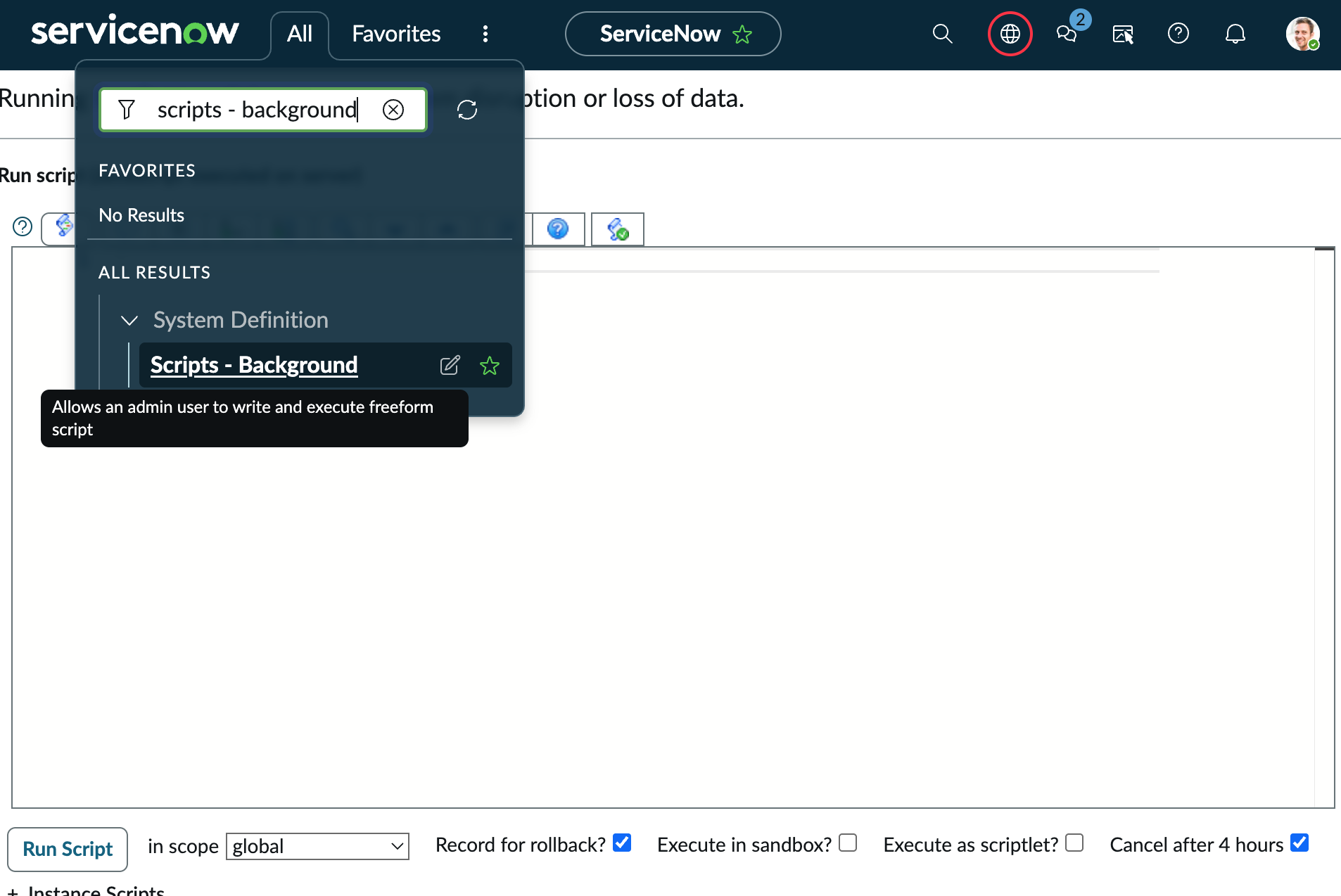
Run the following script in Scripts - Background to confirm the update sets were applied correctly:
Expected Output:
Note: All lines should show the expected values. If any line shows ERROR, the update set may not have been applied correctly. Contact your lab instructor.
1.2 Generate API Key
- Navigate to the MyMoveworks portal
- Open the HTTP Connectors App
- Click on Credentials and click Create
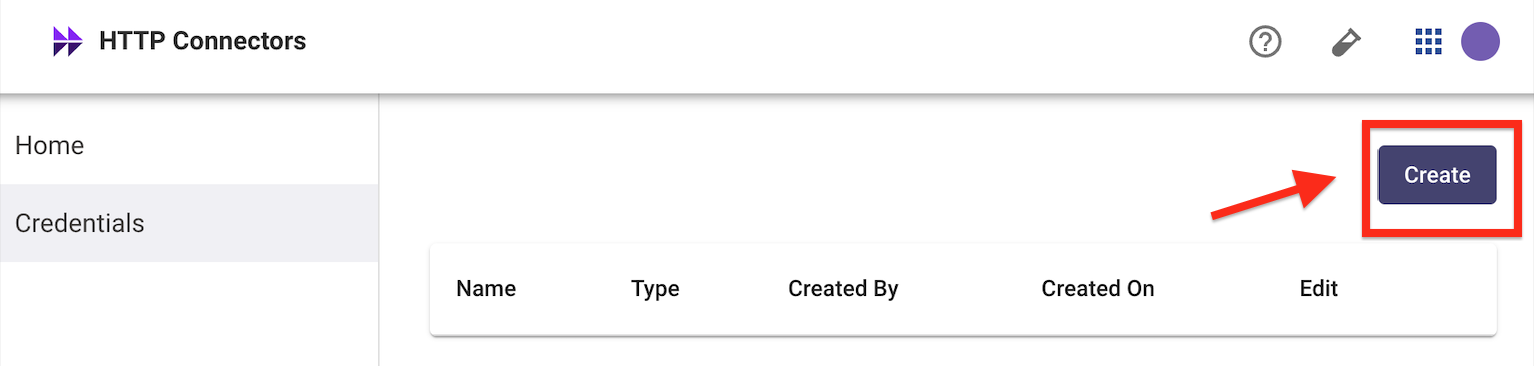
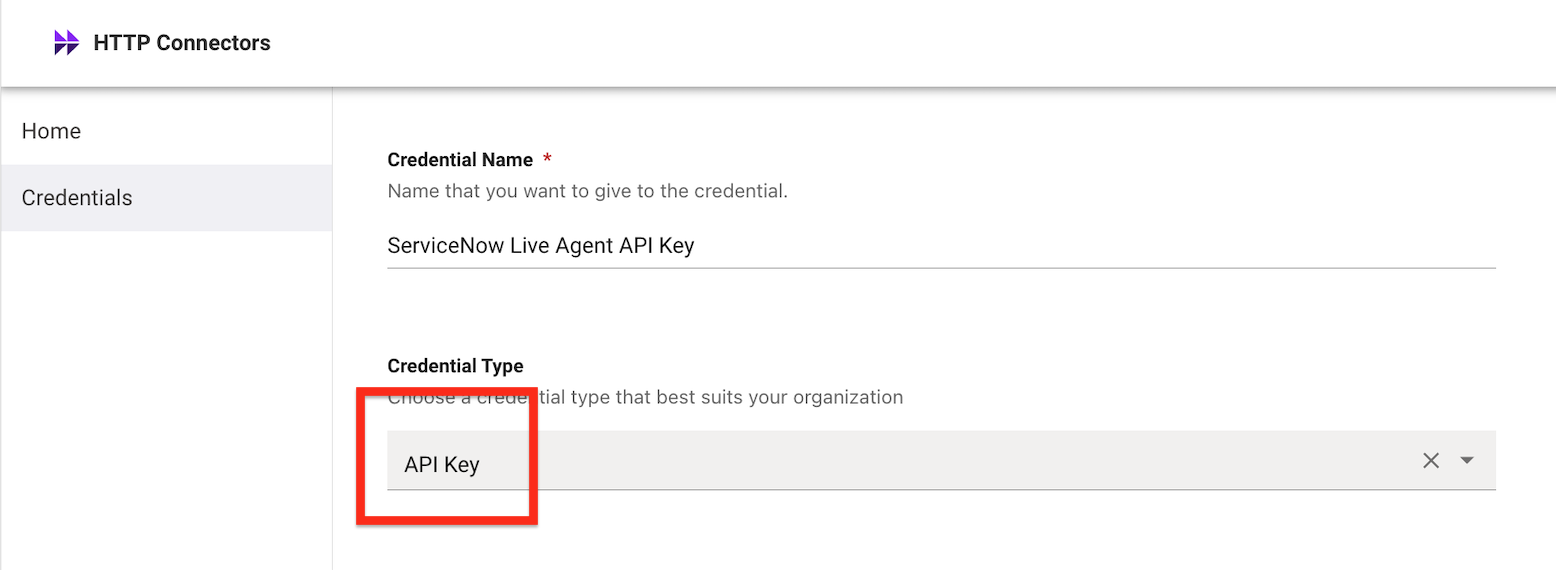
- Enter a Credential Name (e.g.,
ServiceNow Live Agent API Key) - Choose API Key
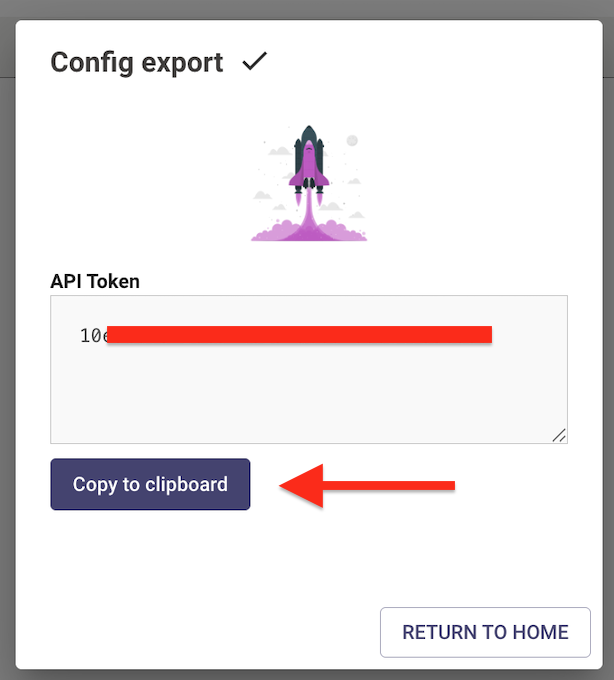
Warning: Once you click Publish, copy and paste the API Key immediately and save it in a secure location. This key will not be displayed again.
- Click Publish and save the API Key securely
1.3 Set Auth Profile Password in ServiceNow
The update set creates the auth profile but cannot transport the password. You must enter the API key you just generated.
- In your ServiceNow instance, navigate to Outbound > REST Message
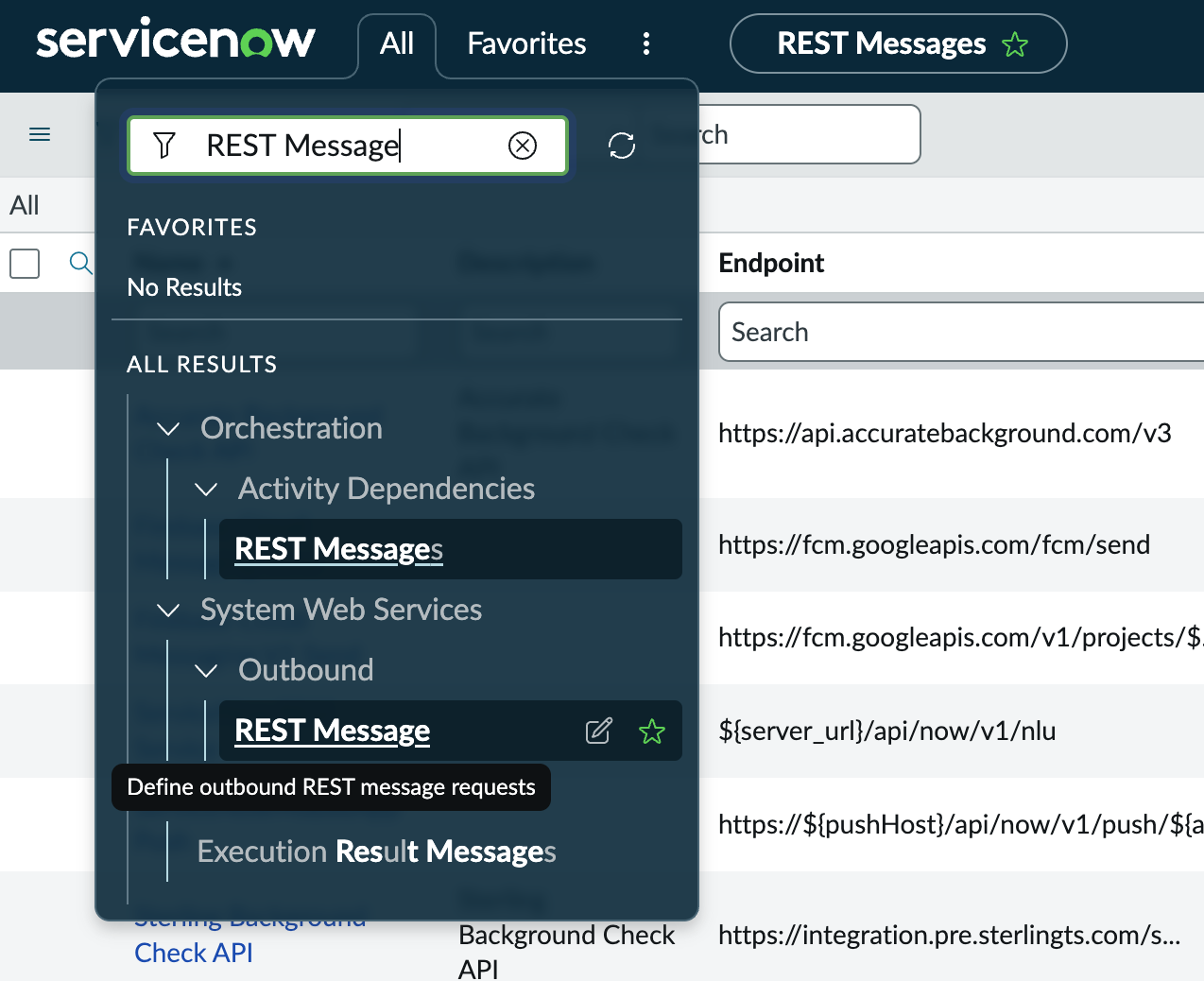
- Click into VA Bot to Bot
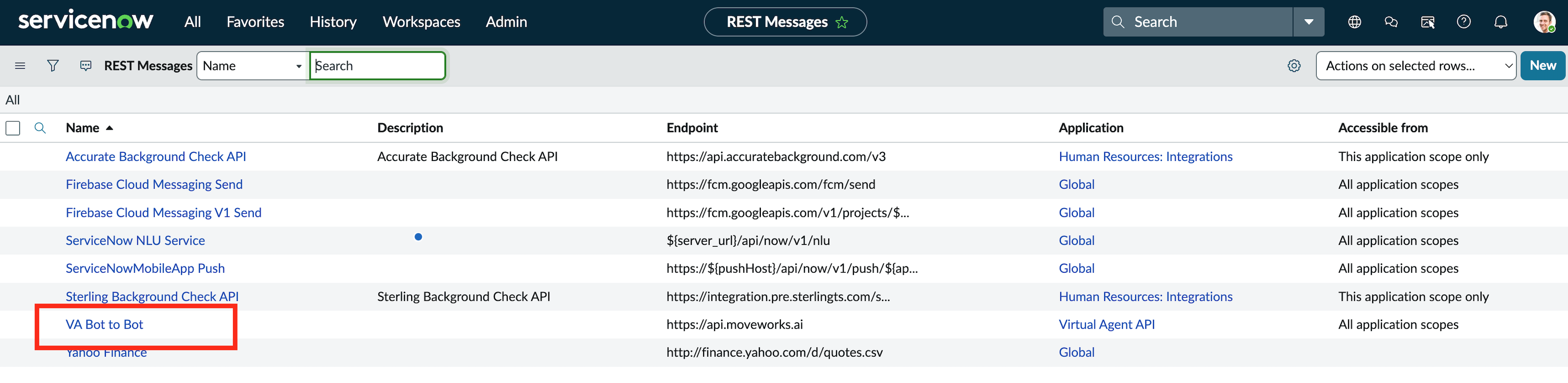
- Open the POST method record called
postMessage(listed under HTTP Methods)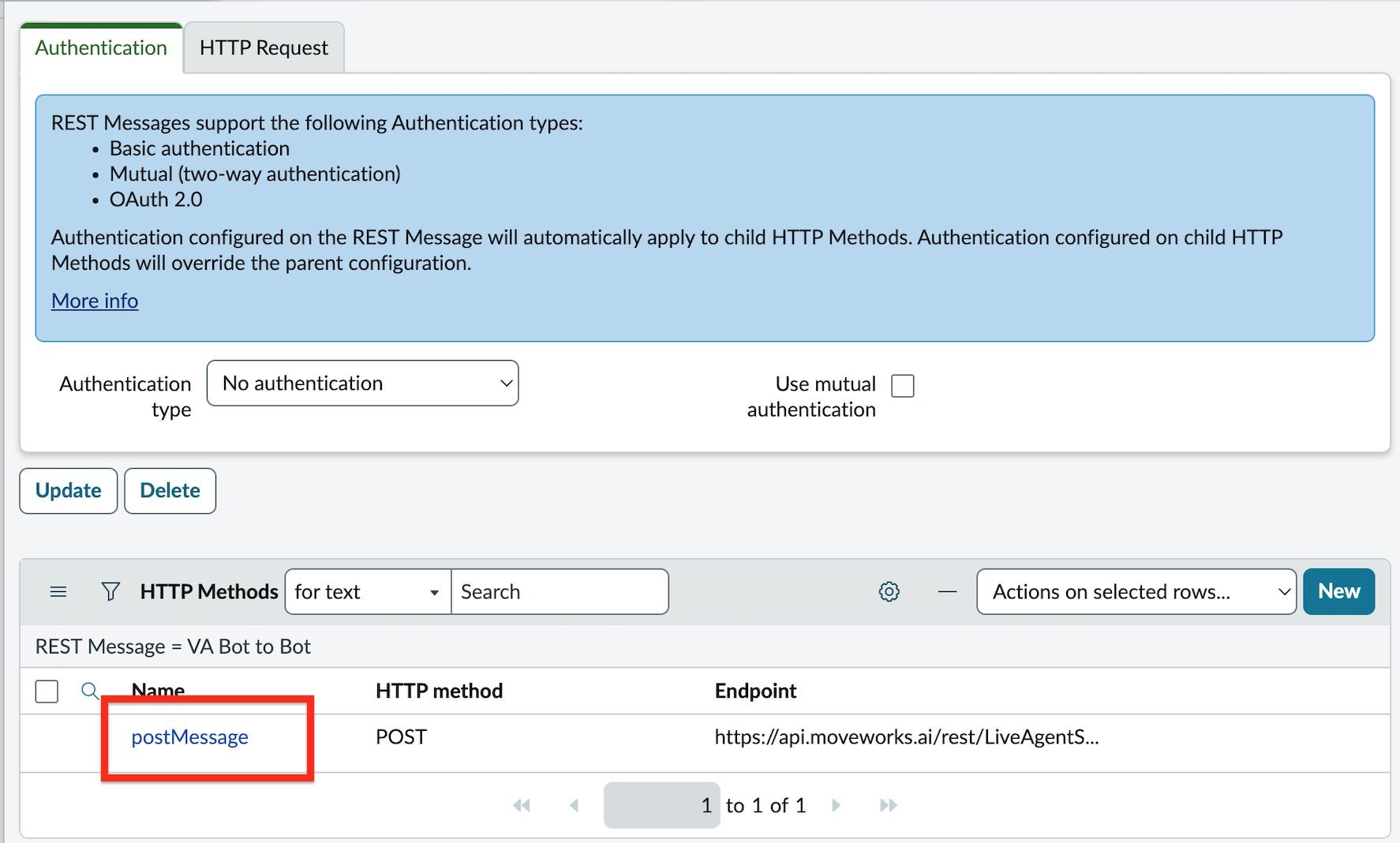
- Go to the Authentication tab and open the auth profile Moveworks Live Agent Auth (click the “i” icon and select open record)
Note: Some of these configurations reside within the Virtual Agent API application scope rather than the Global scope. You can learn more about application scopes here.
To complete the remaining steps, please click the link below to allow the changes to occur within the Virtual Agent API scope.
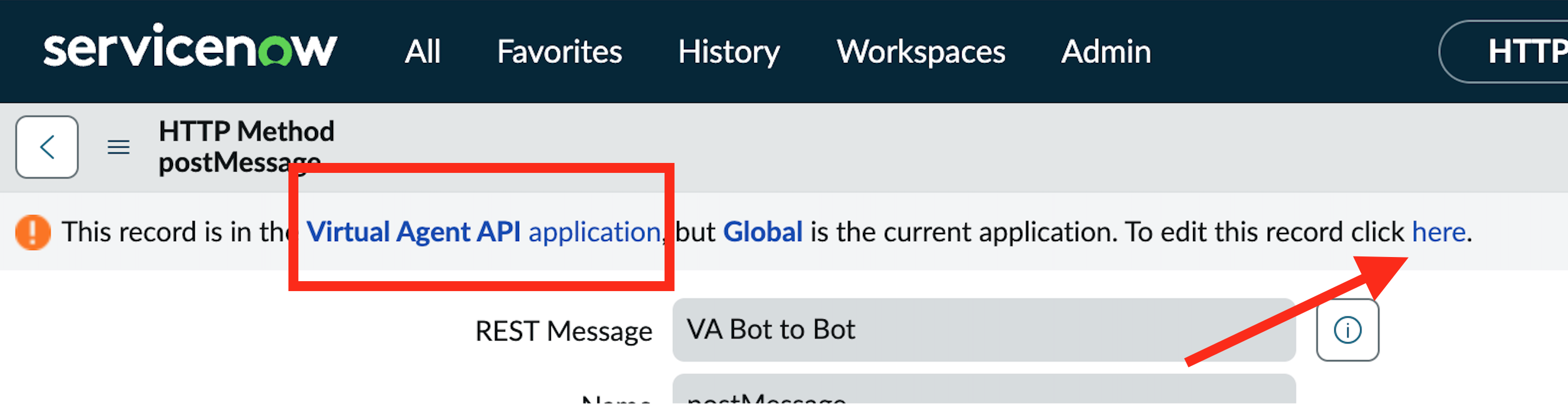
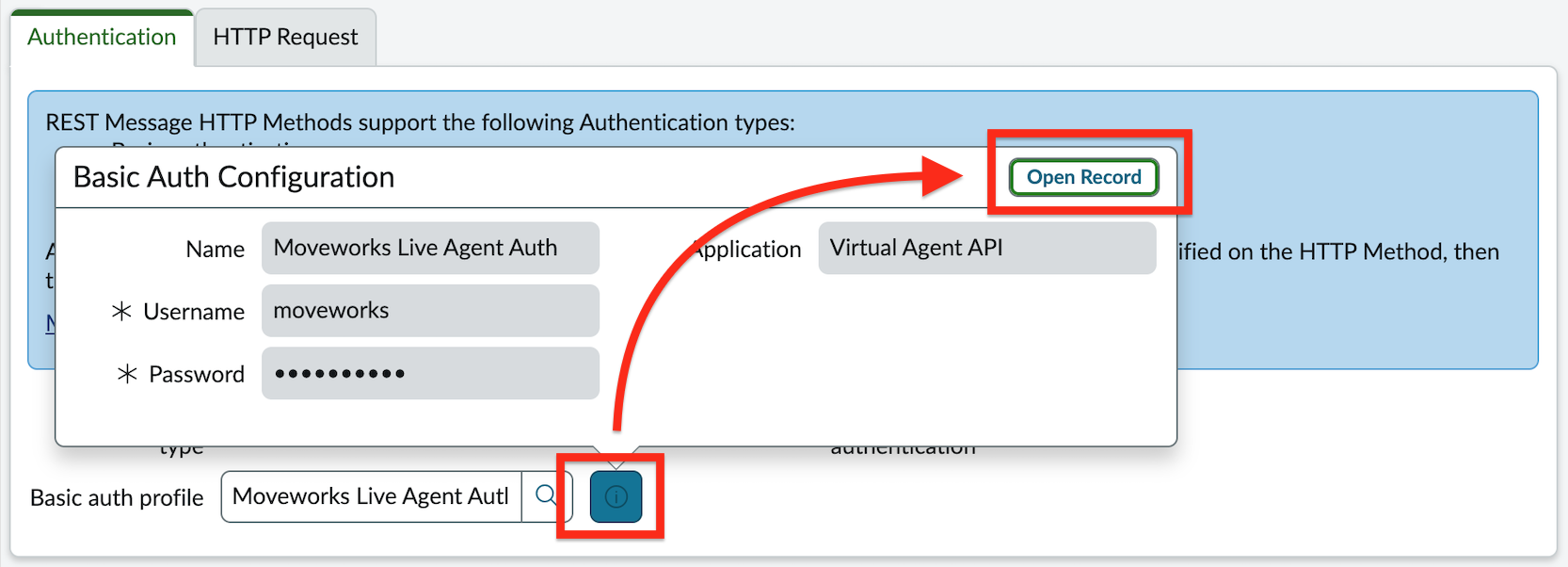
- Enter the API key from Section 1.2 as the Password
Note: To complete the remaining steps, please click the link below to allow the changes to occur within the Virtual Agent API scope.

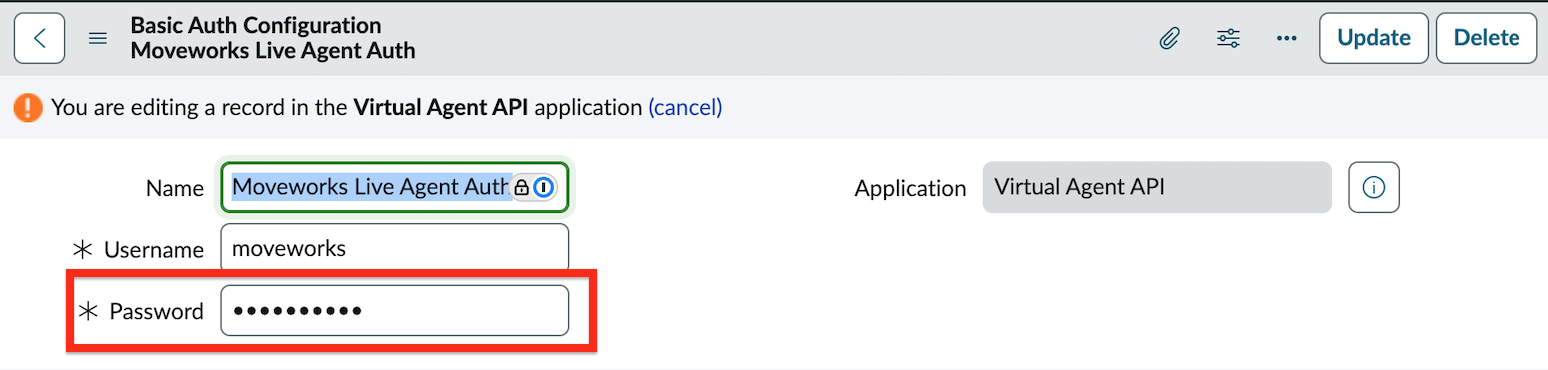
- Click Update
1.4 Set Token Verification Password in ServiceNow
The update set creates the token verification record but cannot transport the password. You must set it manually.
- Navigate to
[your_instance]/token_verification_list.do - Open the record named Moveworks Live Agent Message Brokering - IT
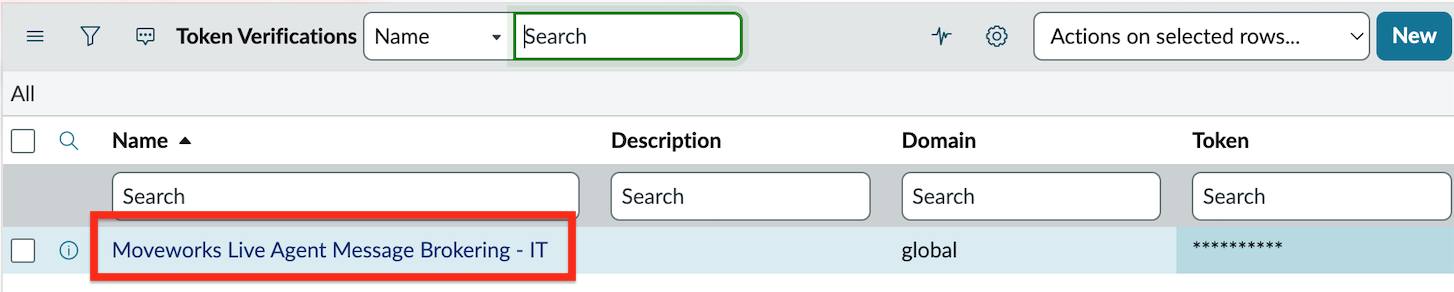
- Set any secure password in Token — save this password securely, you will need it in Section 1.6
- Click Update
1.5 Configure Live Agent Handoff
- In MyMoveworks, navigate to Handoff > Live Agent Handoff
- Click Create to add a new configuration
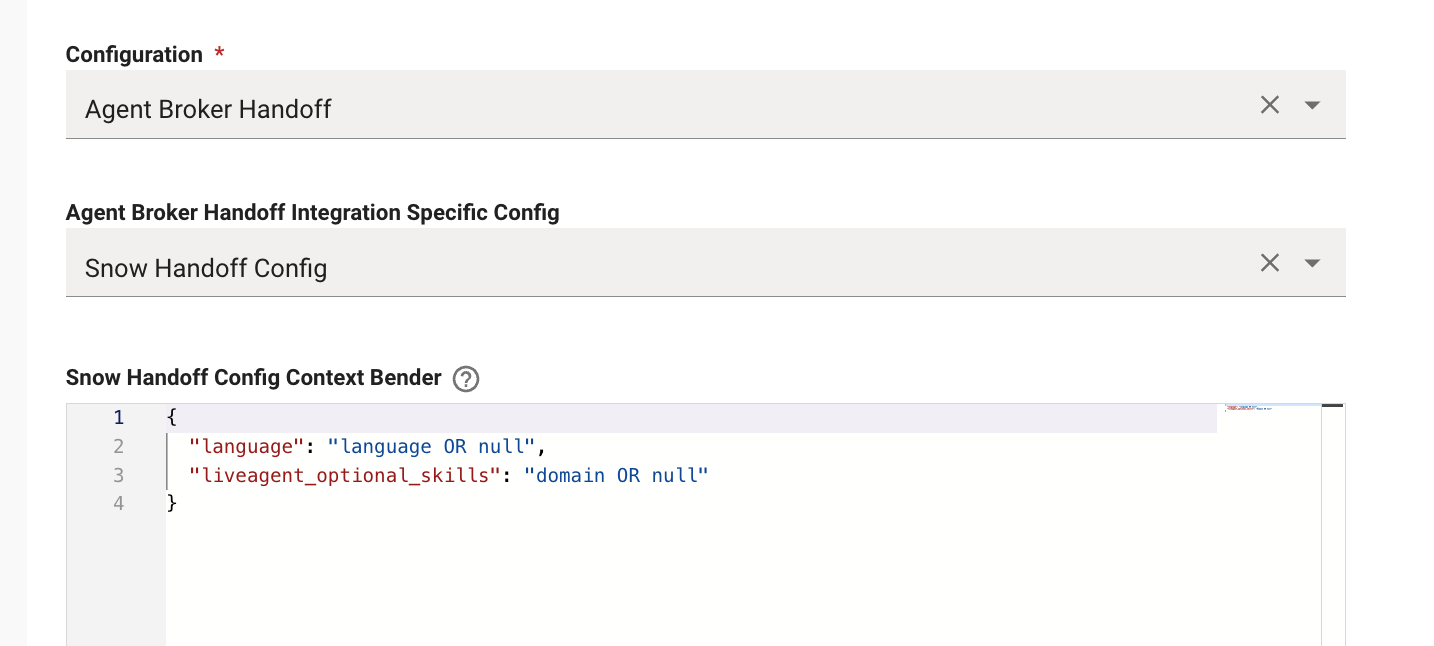
- Set Configuration to Agent Broker Handoff
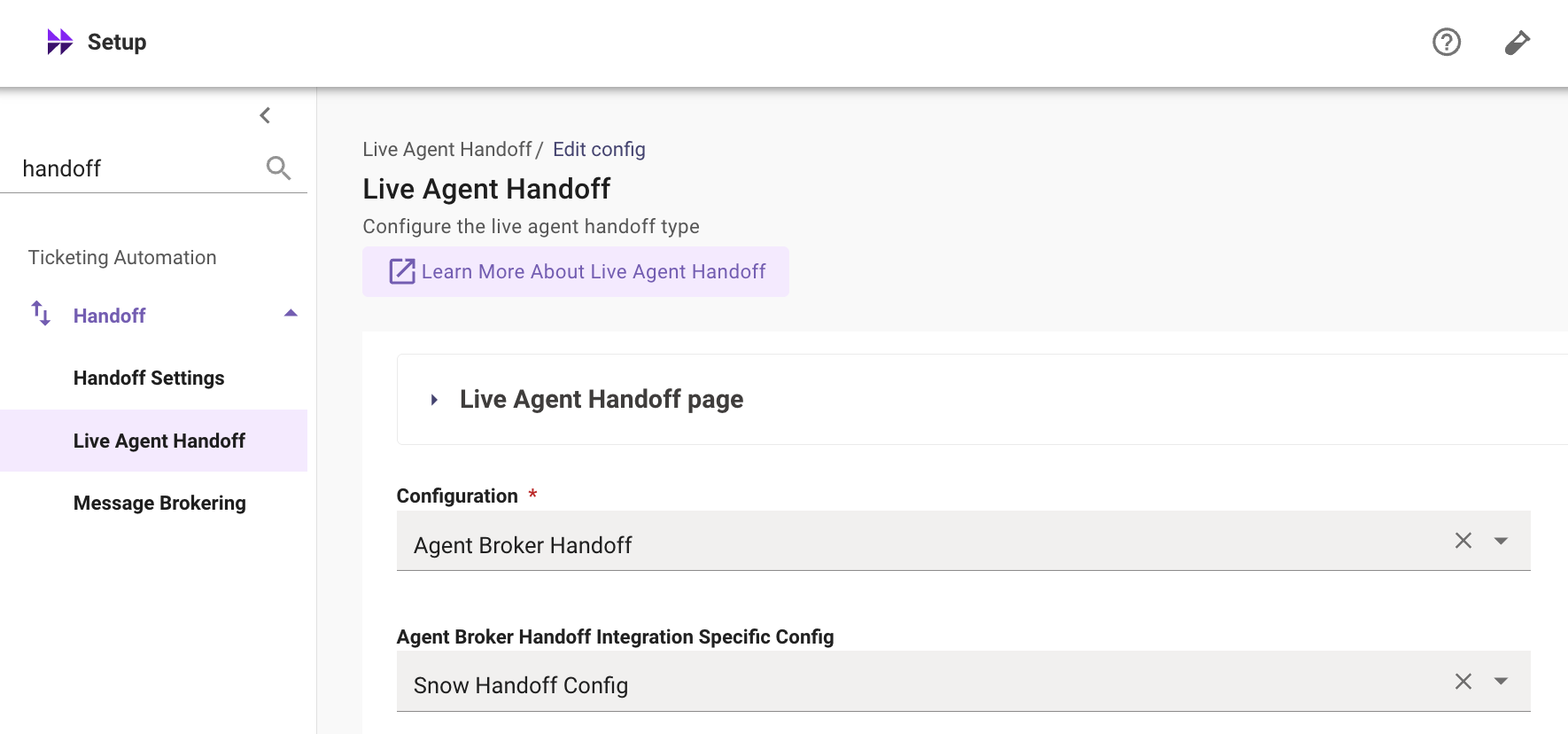
- Open the Live Agent Handoff dropdown and set the Handoff Identifier (e.g.,
agent_broker_instance_1)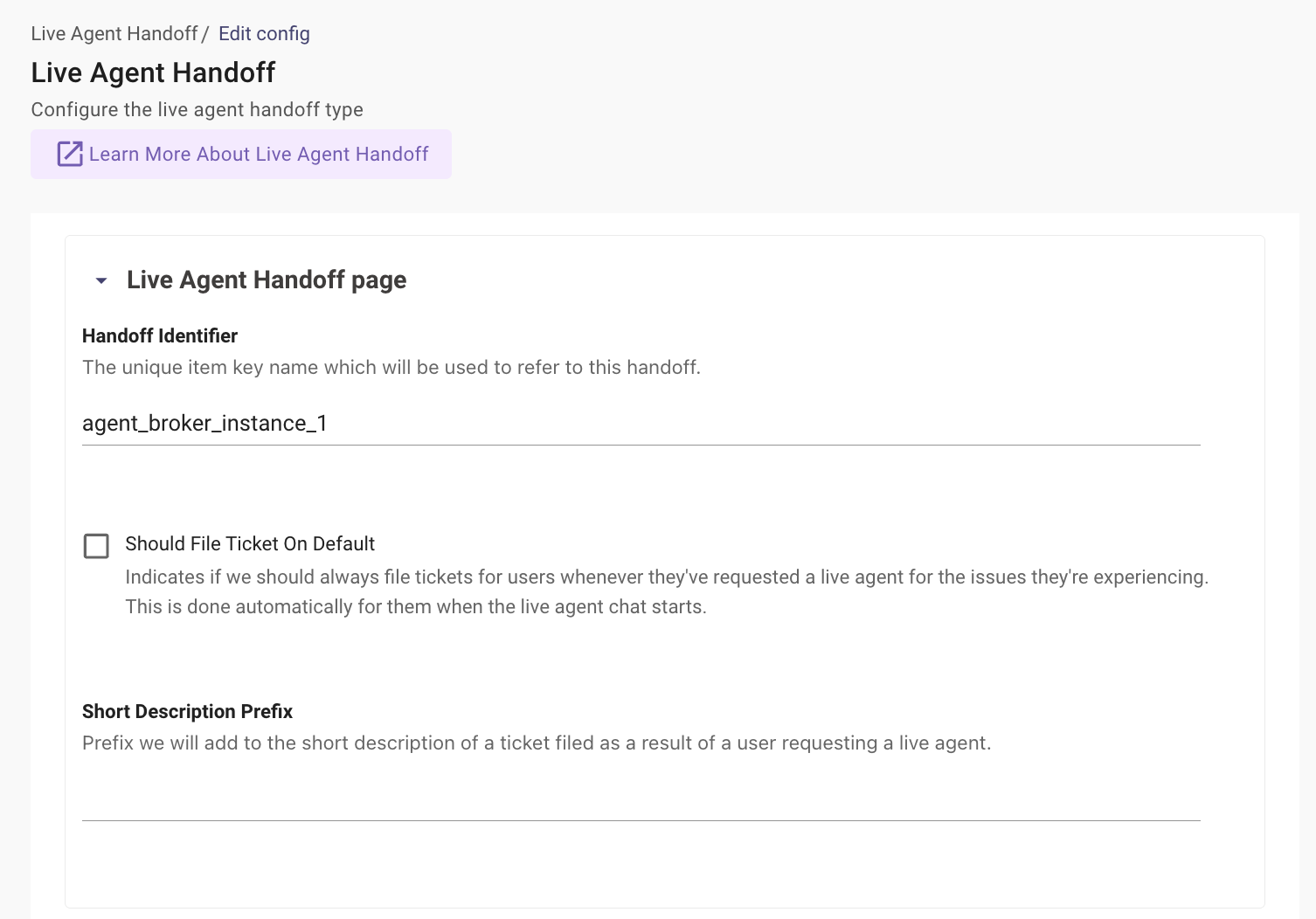
- Configure the Snow Handoff Config Context Bender with the following default payload:
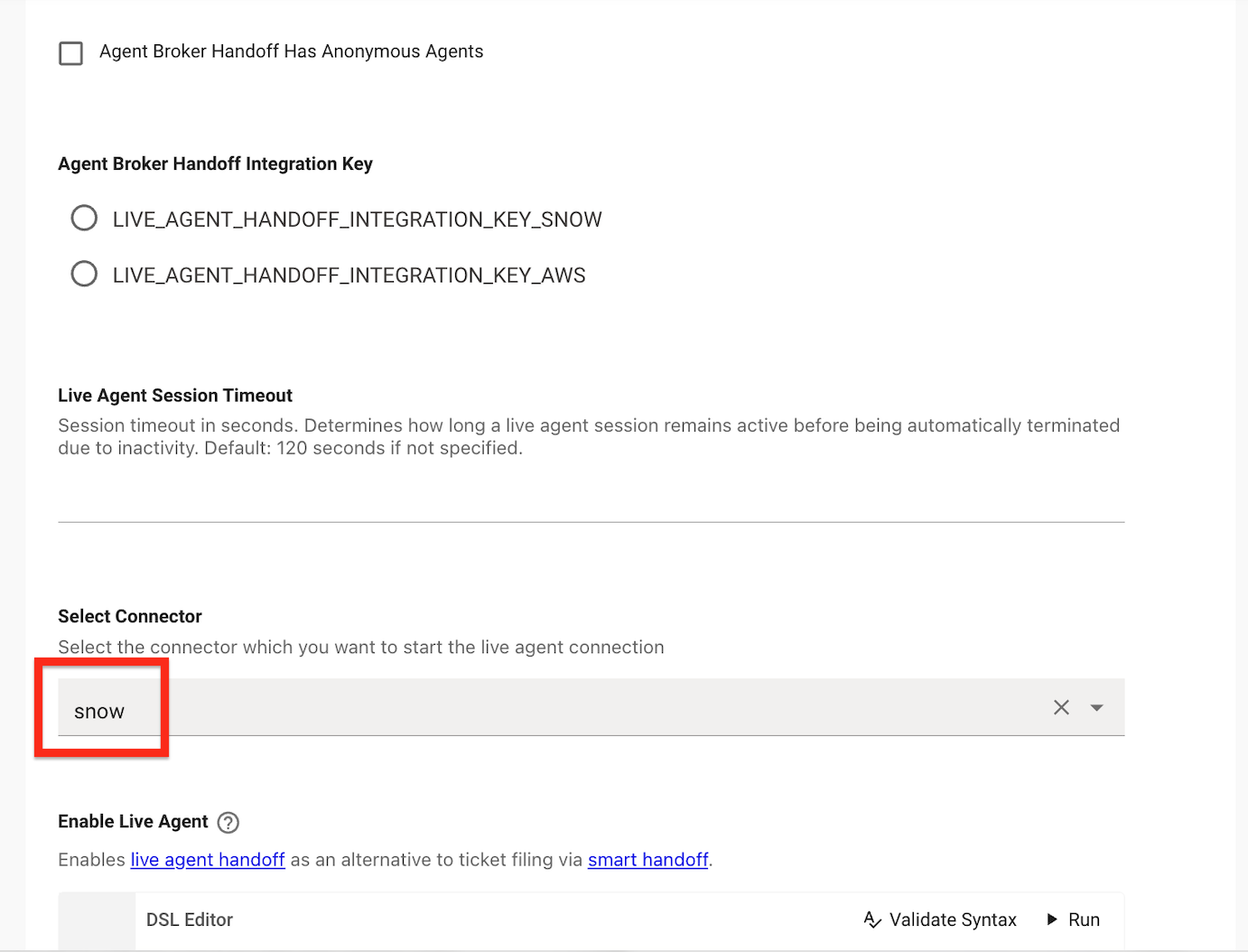
- Set the Integration ID to the ServiceNow connector that will be used as the live agent chat platform
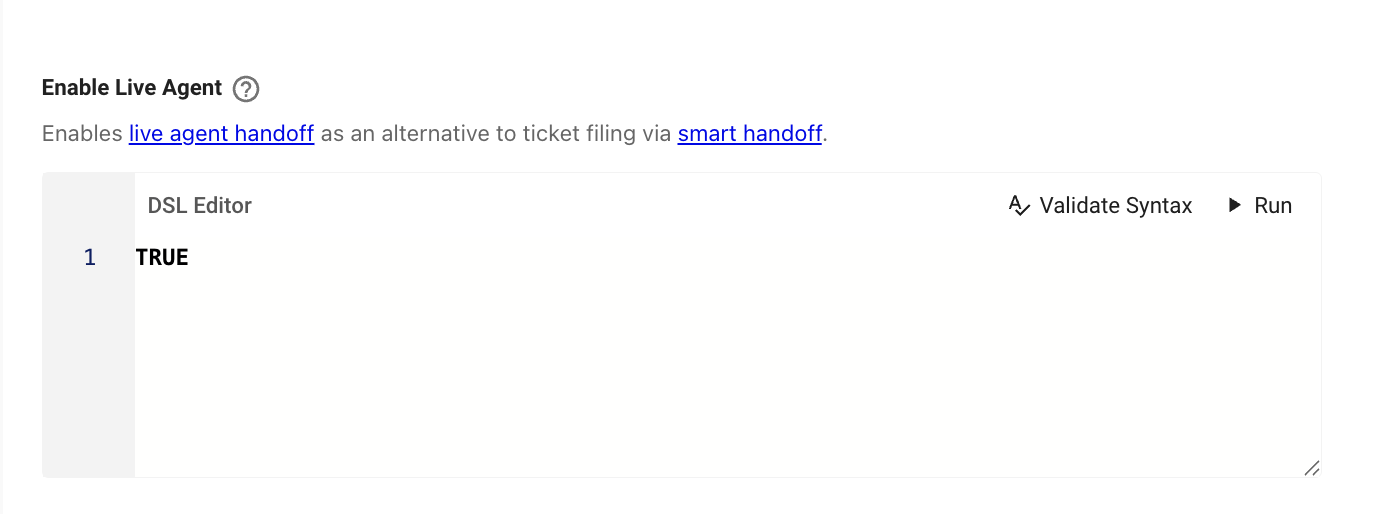
- Set Enable Live Agent to TRUE
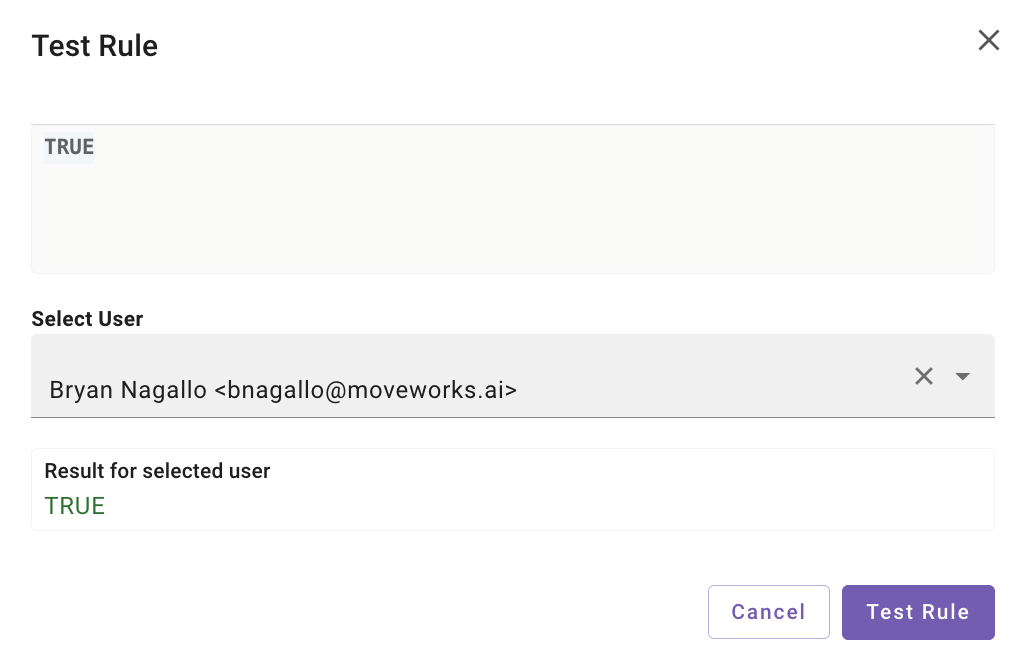
- Click Run and enter your email. This confirms the DSL rule evaluates to TRUE for your profile, ensuring that Live Agent is correctly enabled for you.
1.6 Configure Smart Handoff
- Navigate to Handoff > Handoff Settings
- Expand Setup items for categories, then add a new Item Display Key with the following values (you may need to scroll to the bottom and click Add +)
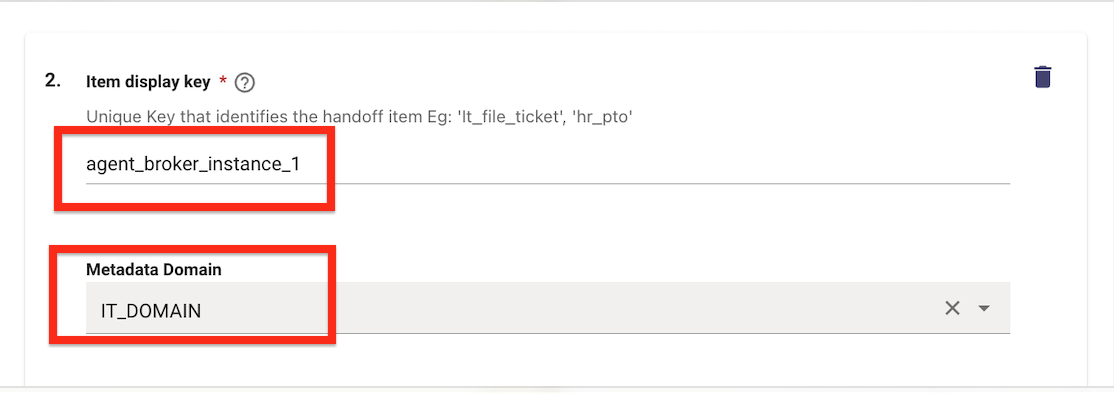
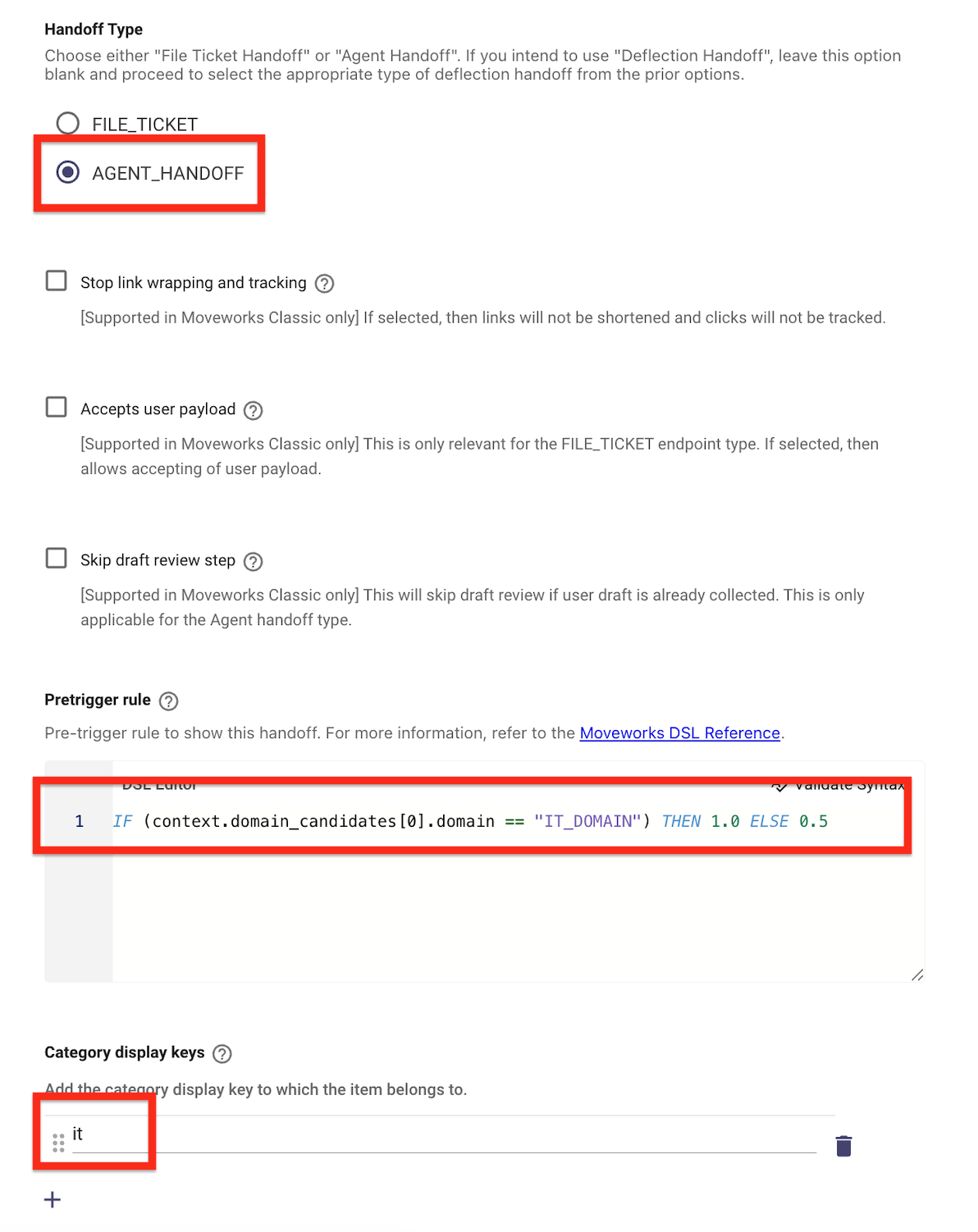
- Navigate to Display Configurations > Handoff
- Scroll down within the Handoff configurations and ensure the Handoff Identifier (
agent_broker_instance_1) is set under Map of actions for handoff items - Set the Value field to a user-friendly name (e.g.,
Live Chat) — this is what users will see when selecting this handoff option (if these values are already preset, you are done and can move on to the next step)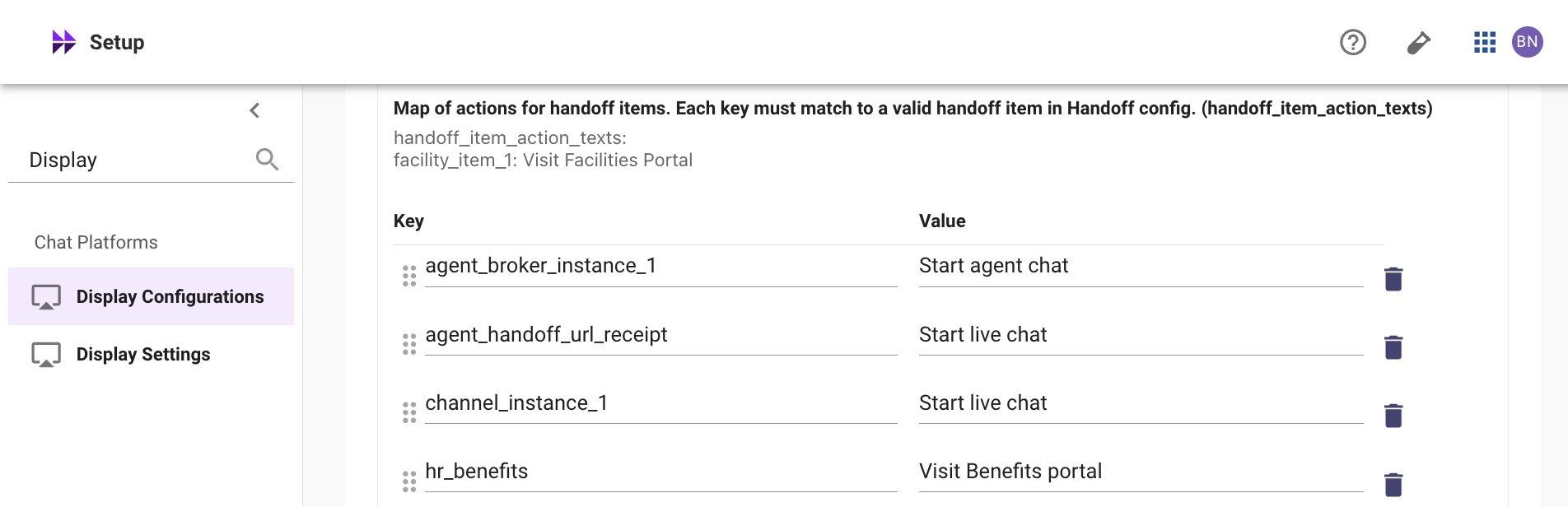
Note: If the Handoff Identifier is not set in Display Configurations, the “Start agent chat” button will not appear in the AI Assistant.
1.7 Update ServiceNow Connector with Token
- In Moveworks Setup, navigate to Connectors > Built-in Connectors
- Find the ServiceNow connector for your lab instance and click Edit
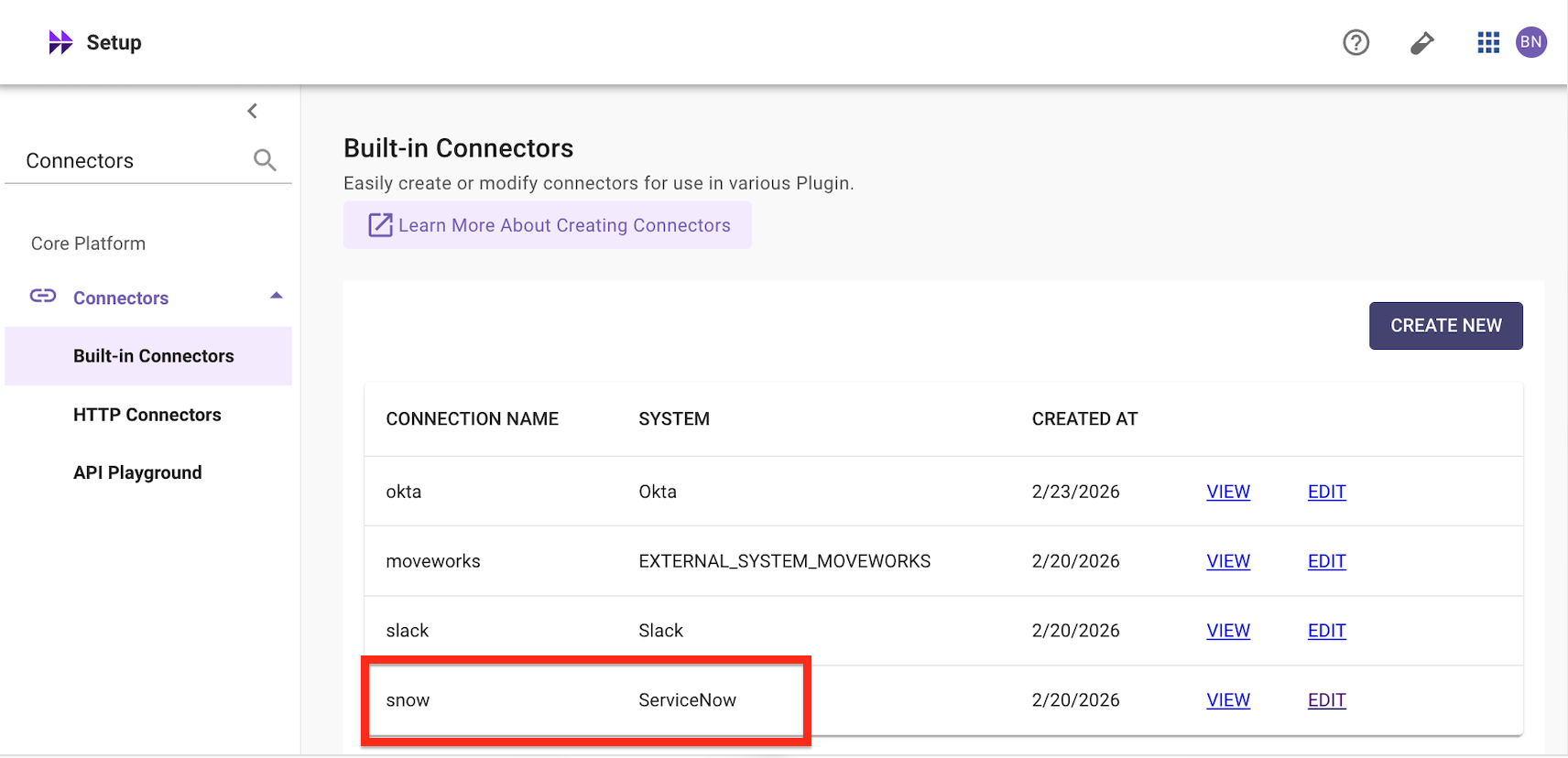
- Add the token password from Section 1.4 to the ServiceNow Virtual Agent API Token field
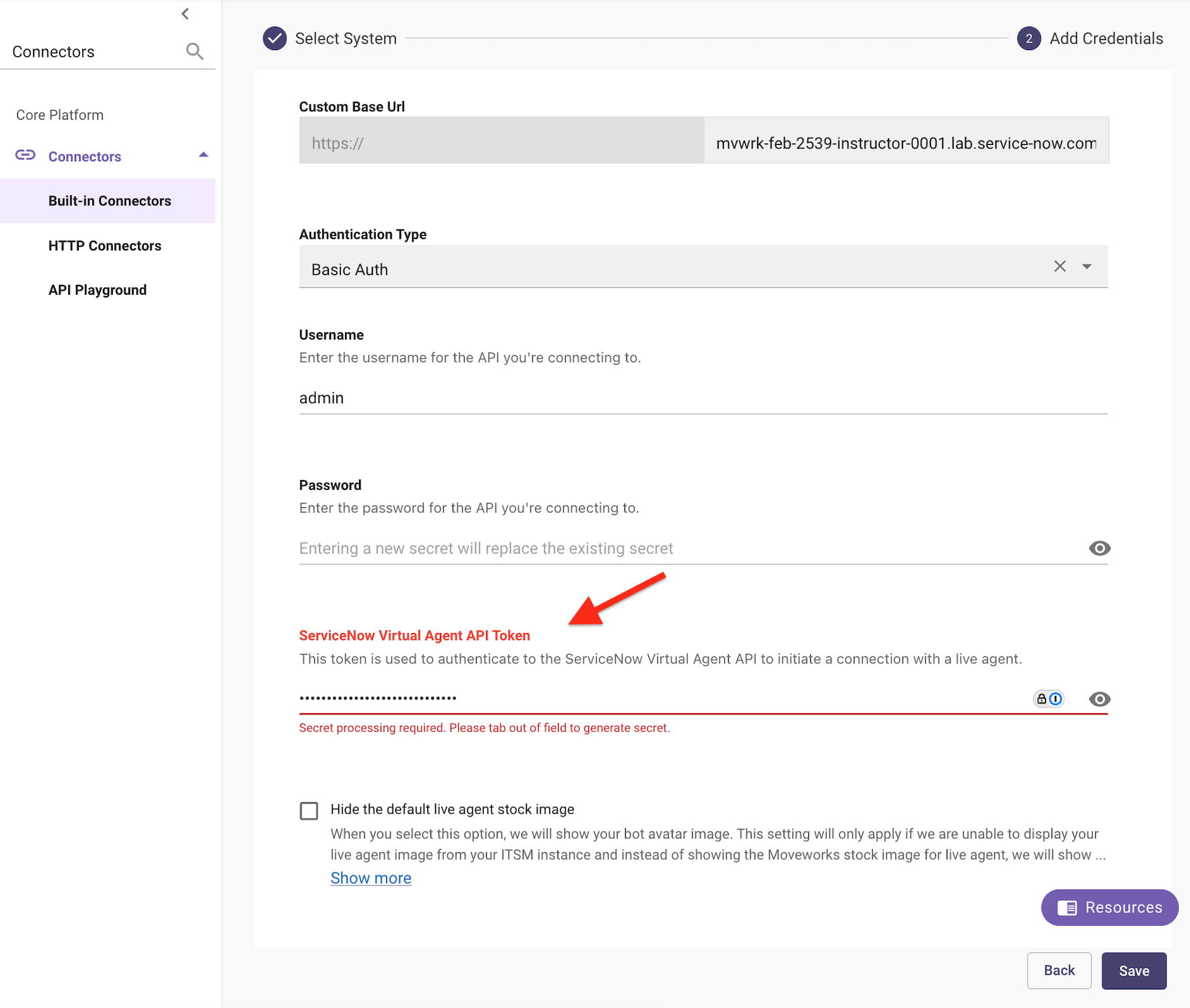
- Click Save
1.8 Set Up Your Agent in ServiceNow
Run the following script in Scripts - Background to configure your user as a live agent. Replace CHANGE_ME with your ServiceNow username:
Note 1: Make sure the instance is set to Global scope.
Note 2: The script is pre-configured to set up moveworks.admin (Jordan Taylor) as the live agent. You cannot answer your own live agent chat — the agent receiving the chat must be a different user than the one initiating the handoff.
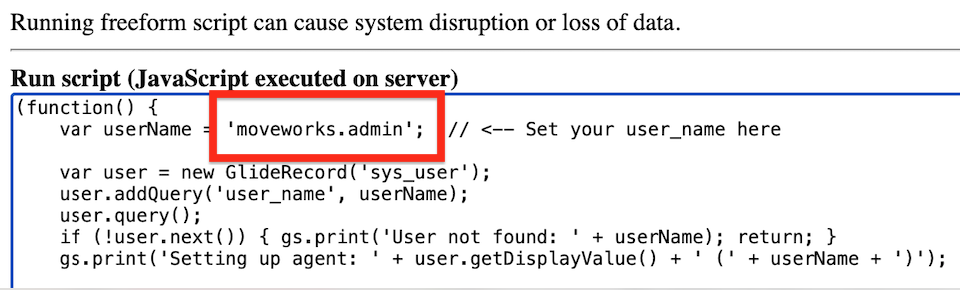
Expected Output:

Impersonate moveworks.admin (Jordan Taylor)

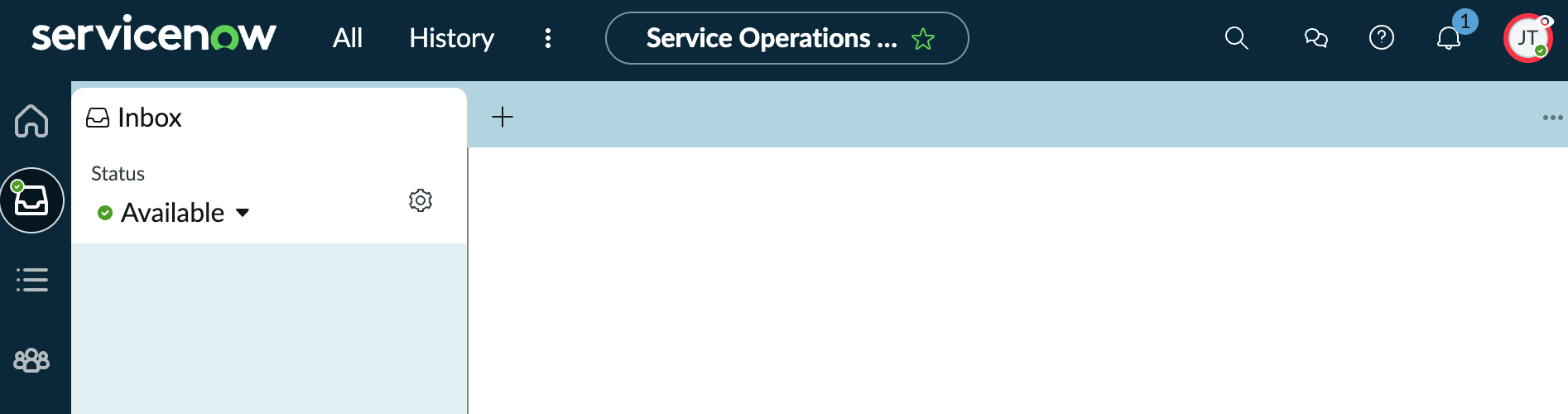
After running the script, open Service Operations Workspace in ServiceNow and set your status to Available.


✅ 2: Verification & Testing
2.1 Test the Handoff
- Open your AI Assistant
- Start a conversation and click Get Help

- Select Start agent chat

- Verify the description and click Submit
- The live agent session should begin — check Service Operations Workspace for the incoming chat
Note: Impersonate the moveworks.admin user (Jordan Taylor) to receive the incoming chat in Service Operations Workspace.
2.2 Troubleshooting
You’ve completed the Moveworks Setup labs! Recommended next step: the Agent Studio Quickstart series, which walks you through building plugins on top of your now-configured Moveworks instance. Start with the Purple API Tool to set up your shared session, then work through Quickstart #1.
🪞 3: Reflecting on This Configuration
Through this lab, you’ve learned the following:
- How to configure Moveworks Live Agent Handoff to broker chat sessions between users and ServiceNow agents
- How to connect Moveworks and ServiceNow using the Virtual Agent Bot-to-Bot API with proper authentication (API key + token verification)
- How to configure Smart Handoff rules to control when the live agent option appears based on domain context
- How to verify agent availability and troubleshoot common issues like missing AWA queue configuration, closed interactions, and authentication mismatches
- How the end-to-end flow works: availability check → interaction creation → AWA routing → agent assignment → message brokering