For AI agents: a documentation index is available at the root level at /llms.txt and /llms-full.txt. Append /llms.txt to any URL for a page-level index, or .md for the markdown version of any page.
Logo
DeveloperAcademyCommunityStatus
  • Getting Started
    • Welcome to Moveworks
    • Roadmap & Release Notes
    • Moveworks Best Practices
    • Labs
      • AI Assistant Lab
      • Salesforce Lab
      • ServiceNow Lab
        • Access and Login Guide
        • Create Intelligent Change Request
        • Build a Get CI By Name HTTP Action
        • Build a Get CR Notes by CI Relation HTTP Action
        • Build a Create Change Request HTTP Action
        • Create an Configuration Item Data Type
        • Create a Conversational Process
        • Publish this Conversational Process as a Plugin
        • Testing the Plugin
      • Agent Studio v2 Challenges
    • Professional Services
    • Support
  • AI Assistant
    • AI Assistant Overview
    • Capabilities
    • Web Experiences
    • Analytics & Performance
  • Enterprise Search
    • Overview
    • Search Connectors
    • Agentic RAG Overview
    • Content Ingestion Platform
    • How Search Works
    • Monitor Indexed Content
    • Vetted Content
    • Permissions
  • Productivity Boost
    • Overview
    • Configure Productivity Boost
    • Quick GPT
    • Calendar Management
    • Brief Me
DeveloperAcademyCommunityStatus
Getting StartedLabsServiceNow Lab

Publish this Conversational Process as a Plugin

||View as Markdown|
Was this page helpful?
Edit this page
Previous

Testing the Plugin

Next
Built with
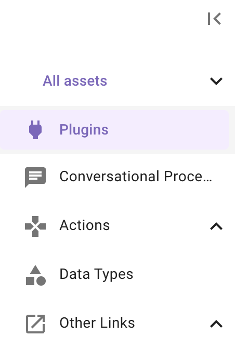
  1. In Agent Studio, navigate to Plugins

  2. On the top right, click the “CREATE” button

  3. Name the plugin with the same naming convention we used to build actions. Add the description as seen below as well.
    Or copy paste from here: firstname_lastname_create_change_request Creates a Change Request in ServiceNow and assesses risk based on historical data

  4. On the “Plugin Editor” tab, click the “Conversational” tile in the “Trigger” block. On the right you will see a dialog to provide examples of utterances that should trigger this plugin.
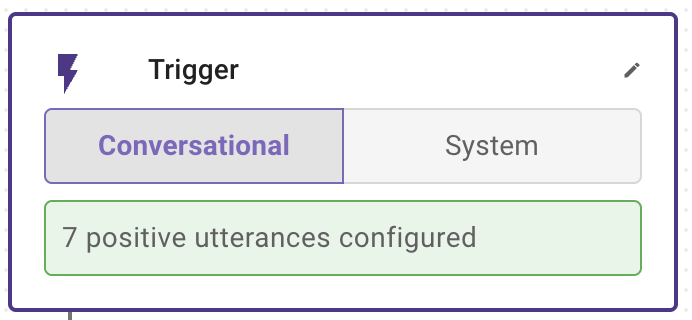
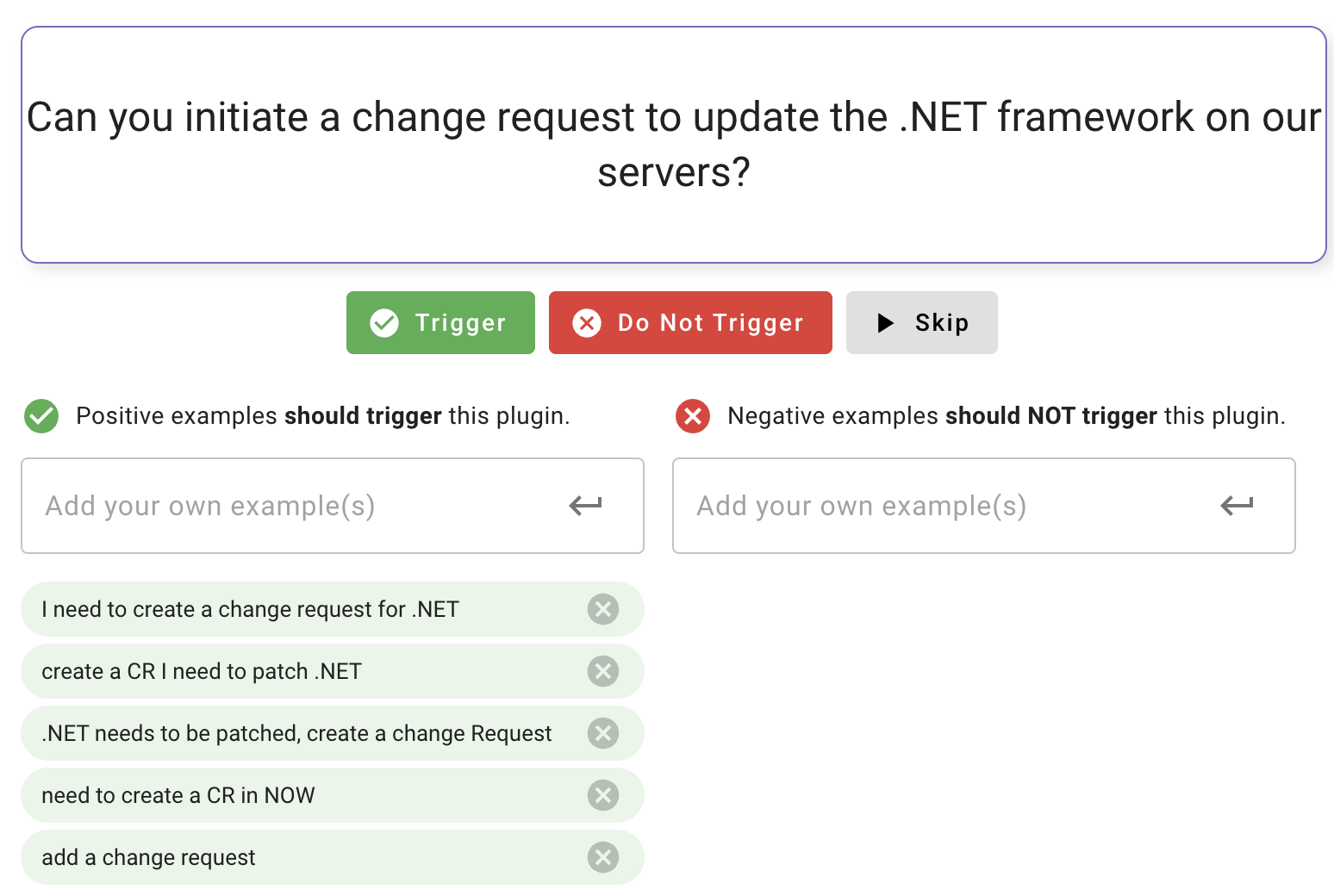
    Some examples will be provided for you. If they look good, choose the green “Trigger” button or skip it and provide some of your own. You need at least 5 examples in order to proceed. Once you have 5, click “Save Draft”.

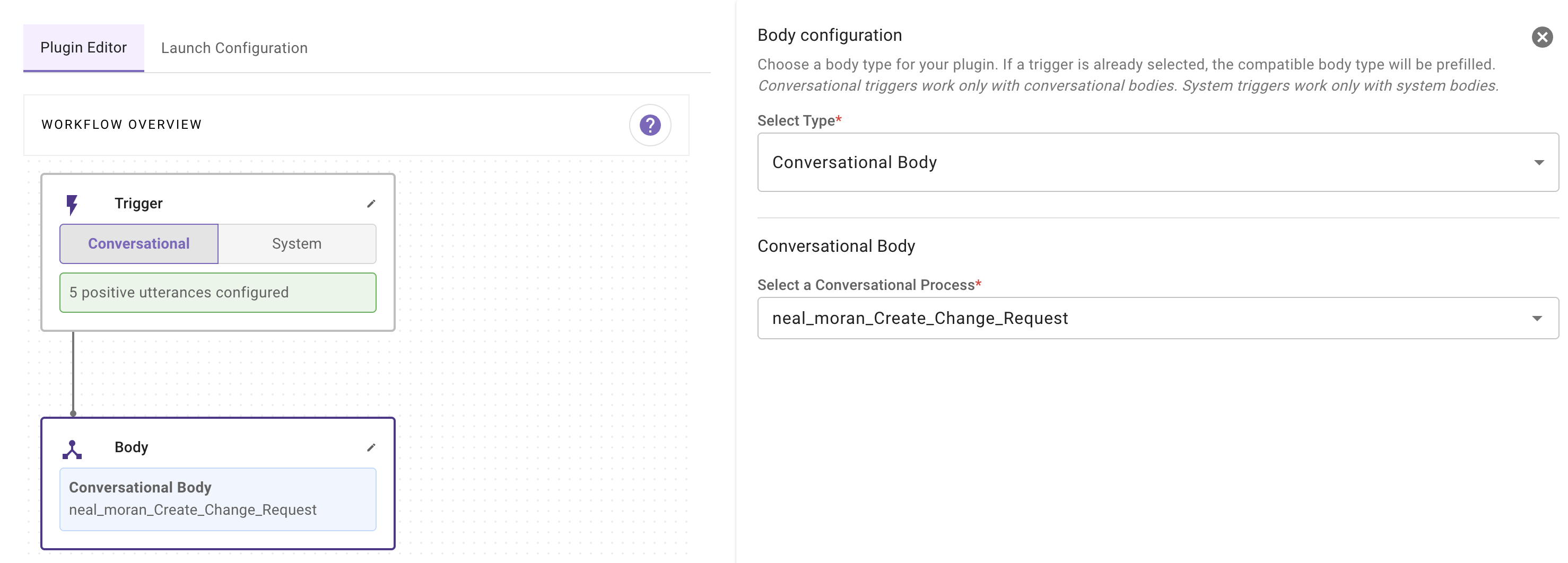
  5. Now select “Conversational Body” in the “Body” block, and reference your Conversational Process you just created. Be sure to choose “Conversational Body” as well.
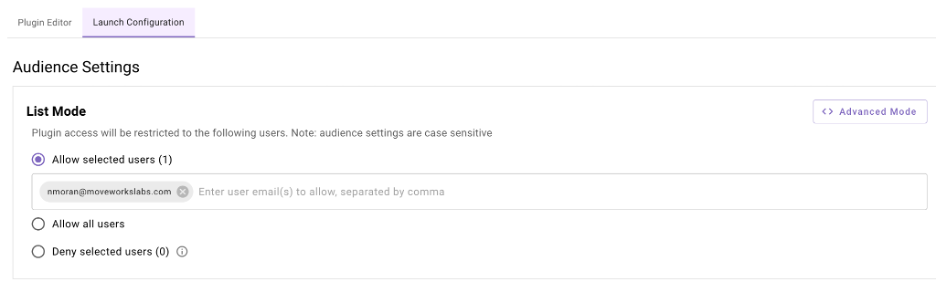
  6. Choose the “Launch Configuration” tab. Under “Allow Selected Users”, search for your email and launch only to yourself. This will ensure your plugin does not get triggered by someone else.
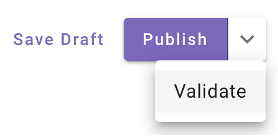
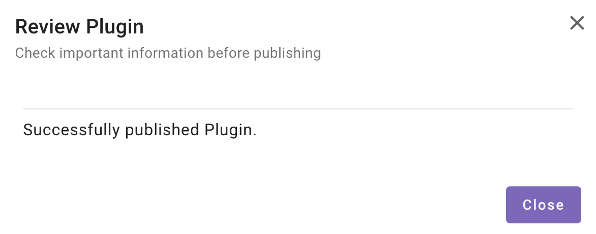
  7. Click “Save Draft” then “Validate” on the top right. If the validation is successful click “Publish” and you should see this.