
Lab #0 — ServiceNow Setup (Cloud Labs / ILT)
Lab #0 — ServiceNow Setup (Cloud Labs / ILT)
Overview
- Track: Instructor-Led Training (ILT). Use this page if you are attending an in-person or live instructor-led session and your instructor has provided a ServiceNow Cloud Labs reservation code.
- Learning Objectives: Claim your ServiceNow Cloud Labs (Student) instance, add your work user with the IT department, and capture the
adminuser’ssys_idfor use in Lab 2. - Estimated Time: 10 minutes
- Prerequisites:
- Student instance sign-up URL (provided by instructor)
- Reservation Code (provided by instructor)
- Completed Lab #0: Setup Lab Environments (Moveworks portal access)
Open ServiceNow in a new browser tab so you can switch between ServiceNow and Moveworks Setup without losing your session in either.
🛠️ 1: Walkthrough
1.1: Claim Your Cloud Labs Instance
Goal: Redeem your reservation code and log in to your assigned ServiceNow instance.
-
Your instructor will provide a Student instance sign-up URL and a Reservation Code.
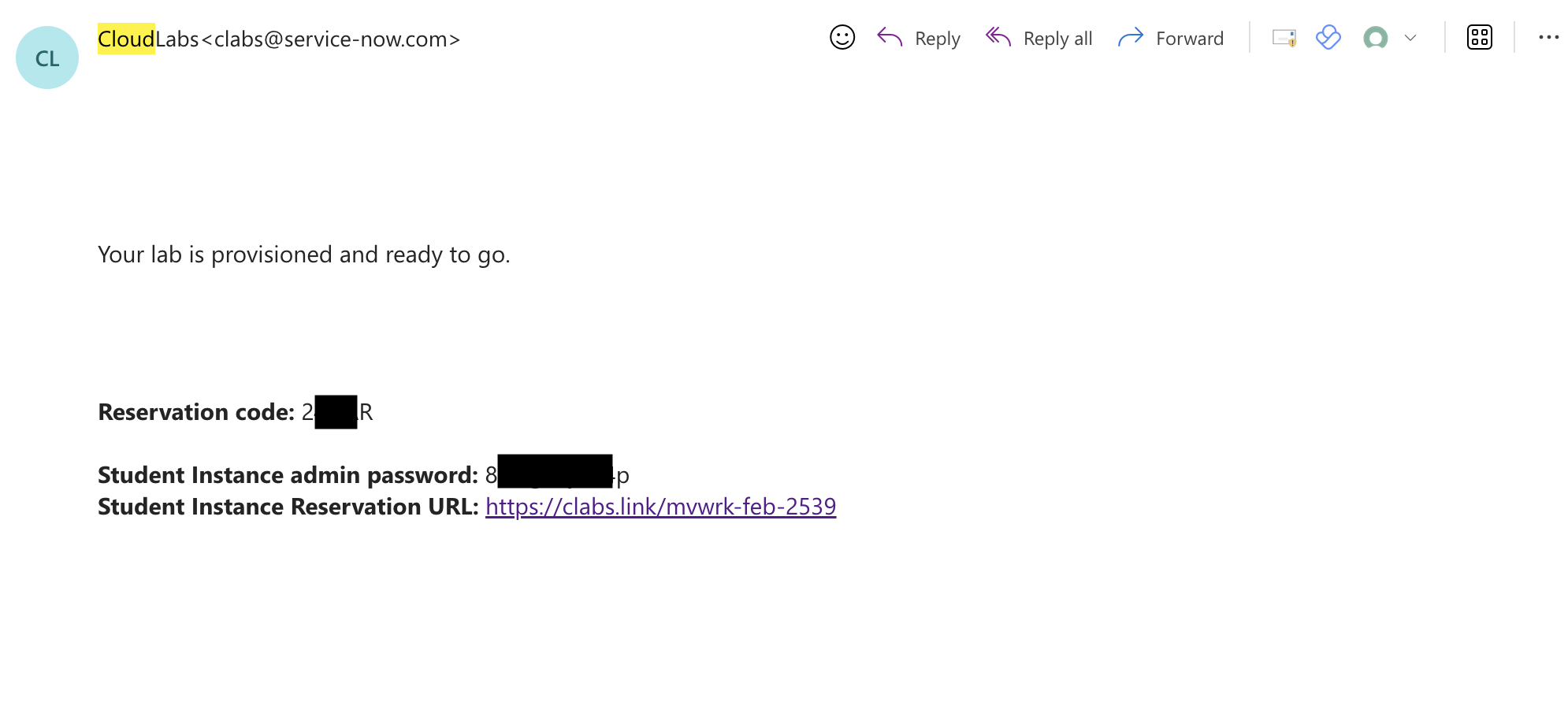
-
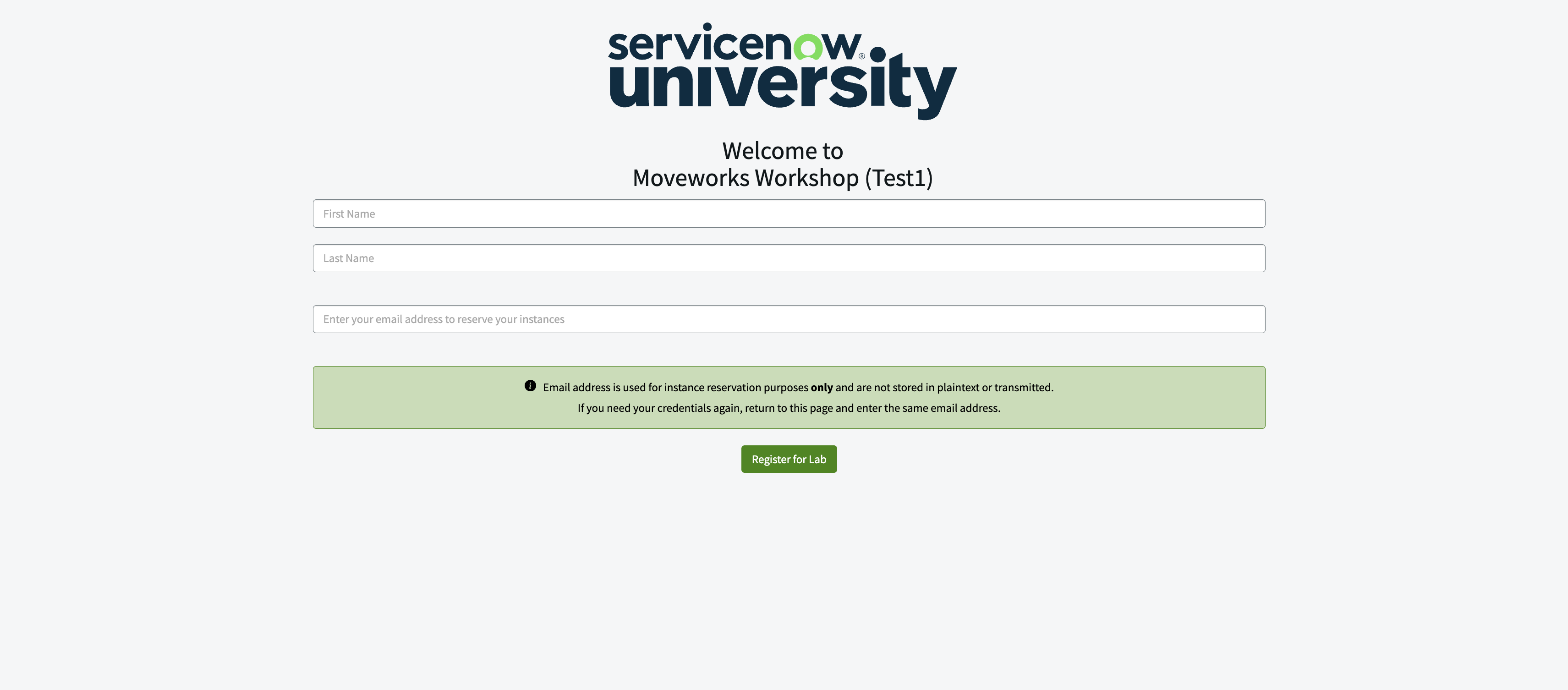
Navigate to the URL, and enter your name (first, last) and your work email.
-
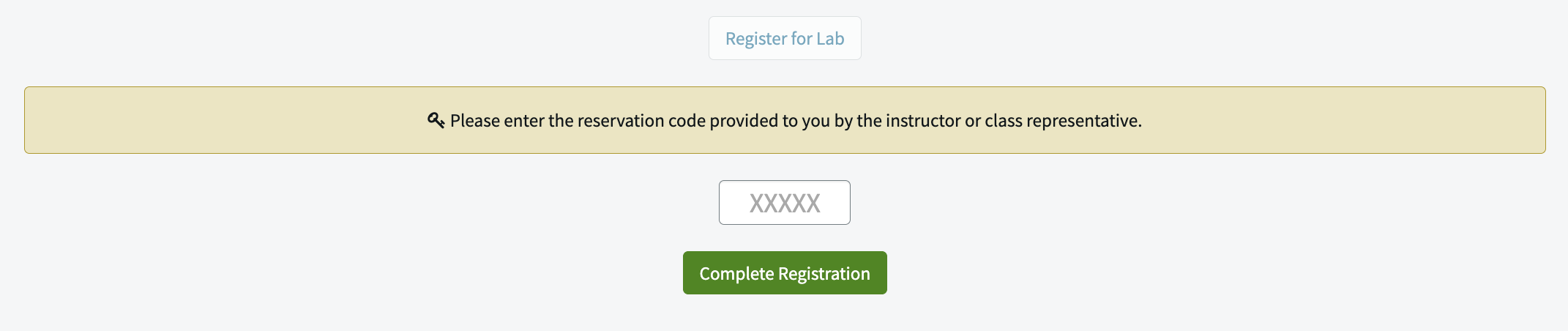
After claiming the instance, enter the reservation code provided by your instructor.
-
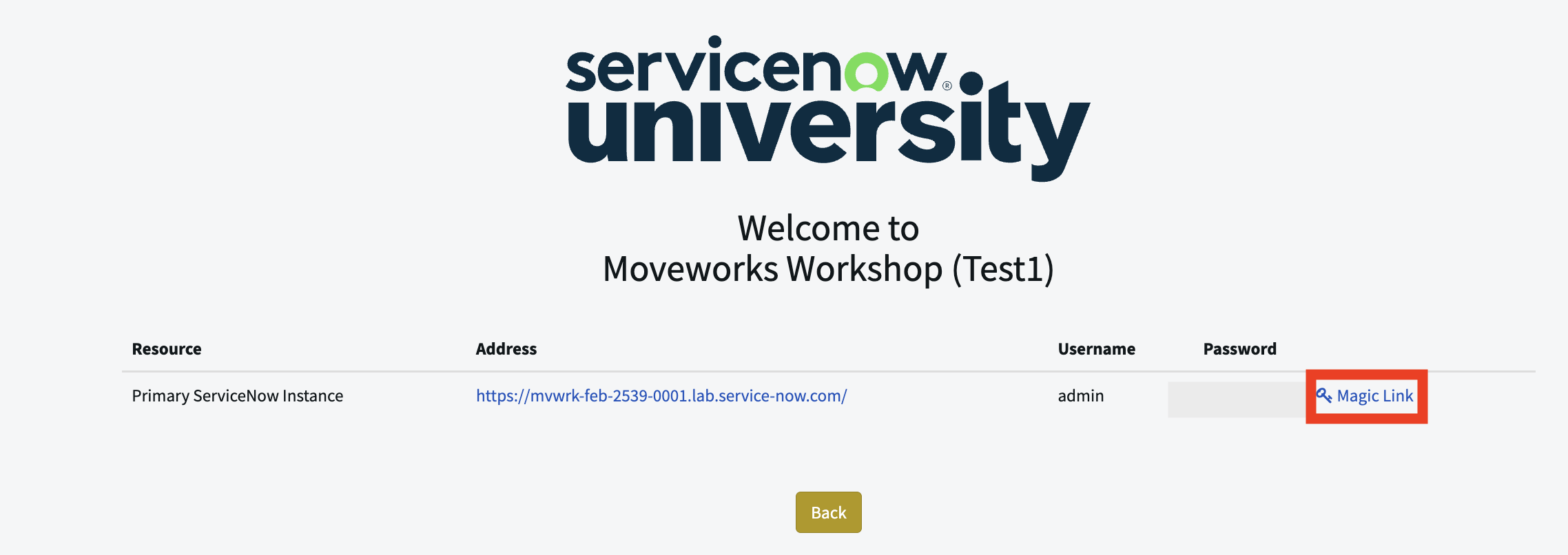
You will be redirected to a page where you can leverage the temporary link to login to your instance.
Note: We recommend keeping this tab open for the duration of your lab work. This will allow you to have quick access to logging back into your lab instance, as well as your admin username and password.
-
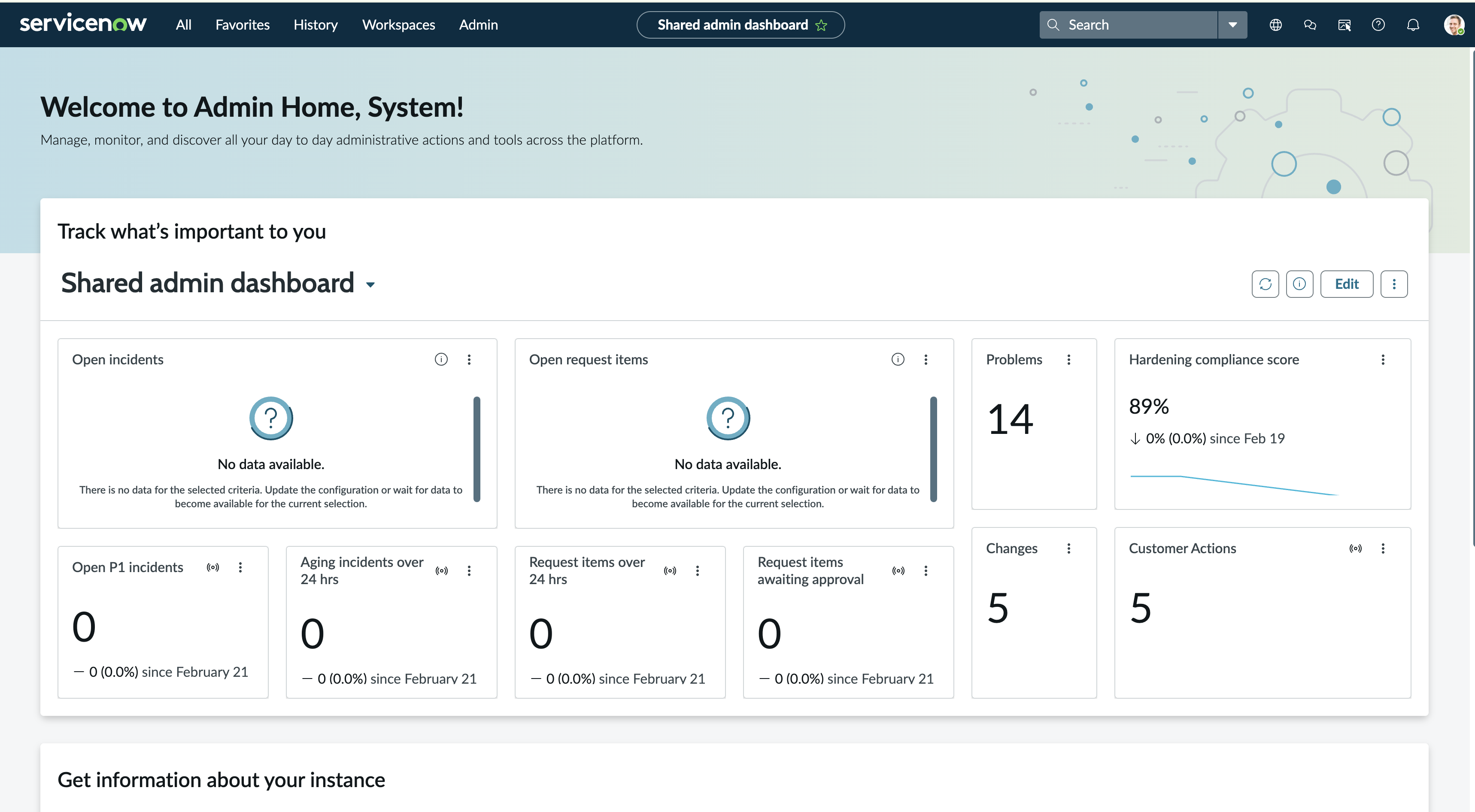
After clicking the temporary link, you will be redirected to your ServiceNow instance as an admin.
1.2: Add Your User to ServiceNow
Goal: Create a personal user record that represents you (separate from the admin service account).
-
Go to User Administration > Users.
- You can find it by searching for “Users” in the menu and scrolling to the User Administration section.
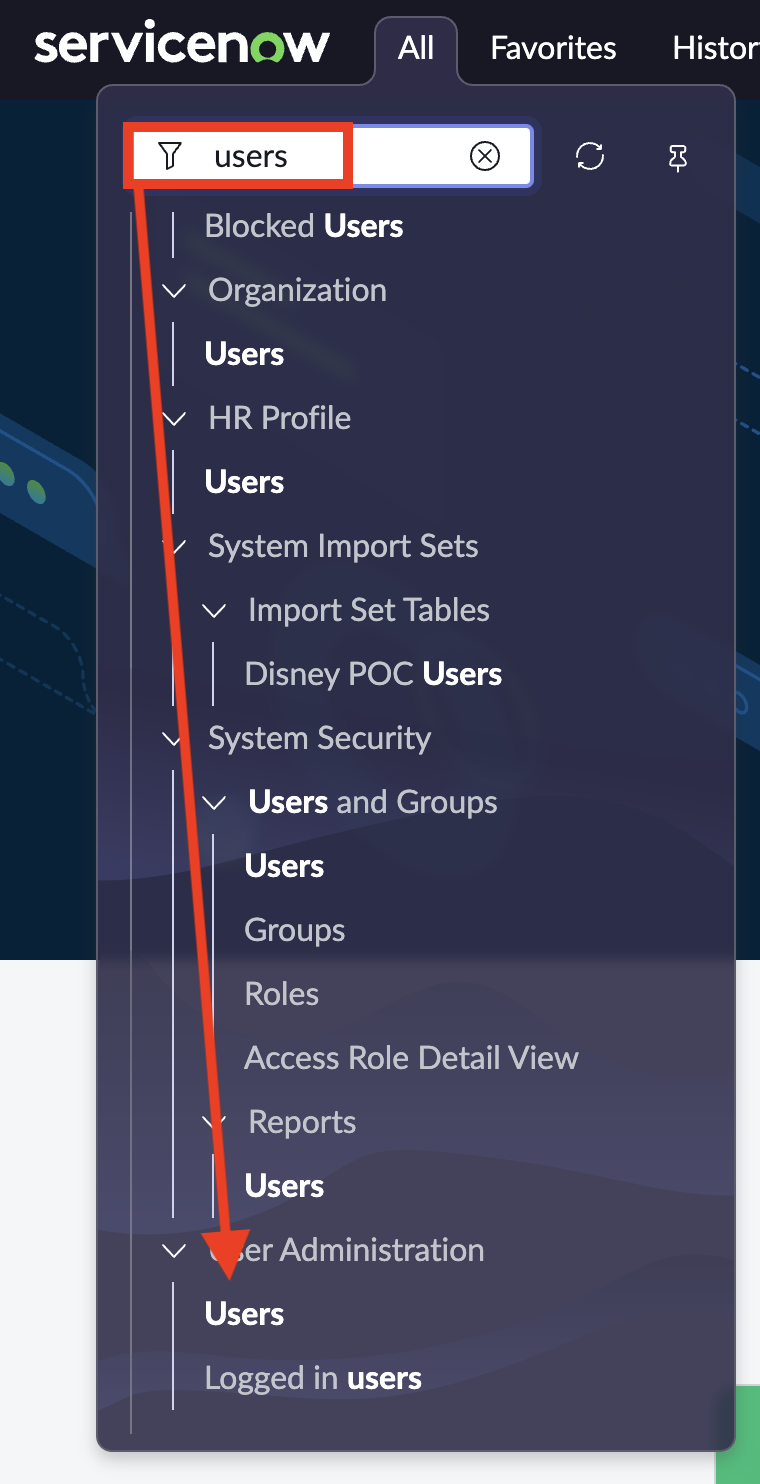
- You can find it by searching for “Users” in the menu and scrolling to the User Administration section.
-
Add a new user with your email address. This user account will be leveraged for your Moveworks ↔ ServiceNow connection in later labs.

- Set your
DepartmenttoIT.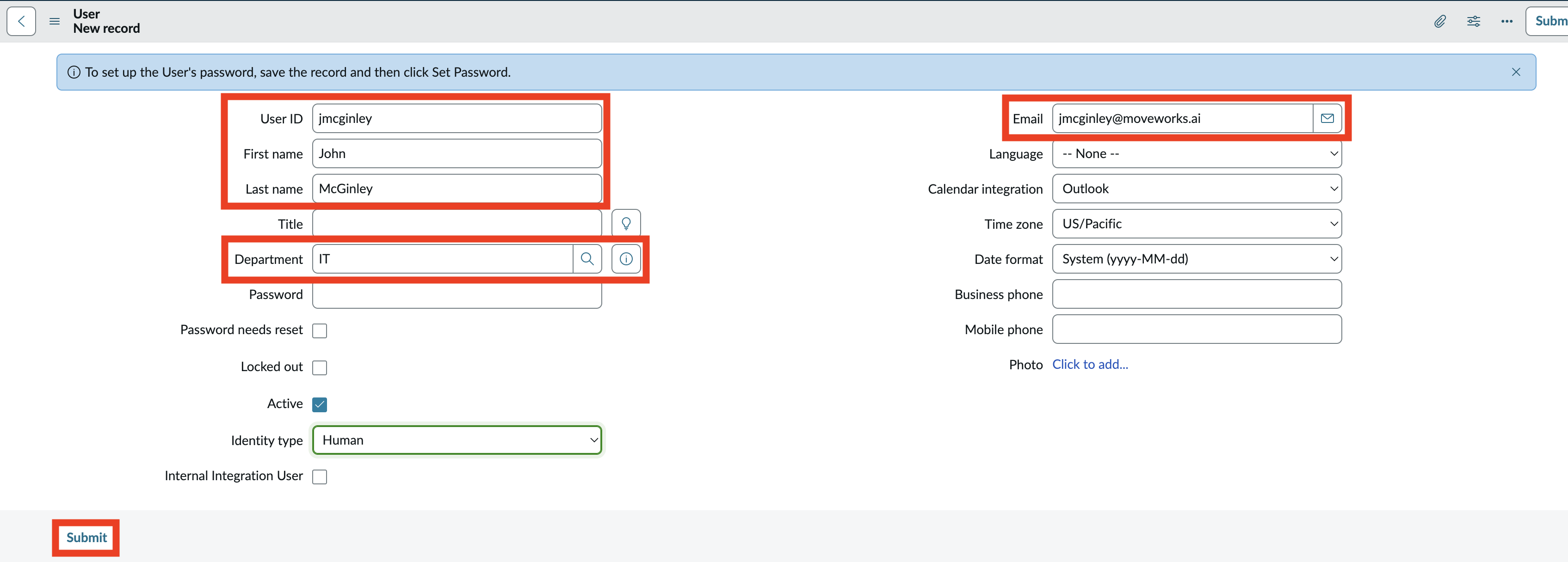
- Set your
1.3: Copy the Admin sys_id
Goal: Capture the canonical identifier you’ll paste into Lab 2.
Find and copy the admin system account’s sys_id into your notes — you will need it in Lab 2 (User Identity & Service Account Setup), where it’s used to identify the ServiceNow account Moveworks impersonates when calling into your instance. You’re already in ServiceNow for this section, so it’s the right moment to grab it.
Copy the admin system account’s sys_id — not your own user account’s.
You just created your personal user in the previous step. Make sure you navigate back to the admin account (User ID: admin) before copying the sys_id.
Don’t want to use the admin account? Real-world implementations typically use a dedicated Moveworks service account with scoped permissions instead of the built-in admin account. If your organization’s security policies don’t allow admin to be used for integrations, create a separate service account following the ServiceNow Access Requirements and capture that account’s sys_id instead. For lab purposes, using admin is the simplest path.
- Search by
User ID - Enter
admin - Right click the
adminprofile row and selectCopy sys_id


✅ 2: Verification & Next Steps
You should now have:
- A working ServiceNow Cloud Labs instance with admin access
- Your work email added as a ServiceNow user with
Department = IT - The
adminaccount’ssys_idsaved in your notes
Next: Lab #1 — Connectors & API Playground — start configuring the Moveworks ↔ ServiceNow connection.
🪞 3: Reflecting on This Configuration
Through this guide, you’ve learned the following:
- ServiceNow Cloud Labs are shared, instructor-provisioned ServiceNow instances backed by reservation codes — ideal for live training sessions where every learner needs a clean, ready-to-use environment without individual signup.
- ServiceNow distinguishes between service accounts (e.g.,
admin) used for system-to-system integration and personal user accounts used to represent real end users. Both are needed for the Moveworks ↔ ServiceNow integration to work end-to-end. - The
sys_idis ServiceNow’s universal 32-character record identifier — it appears throughout the platform (URLs, REST API calls, scripts) as the canonical way to reference any record, including users.
⚙️ 4: Configuration Details
Use the table below to fill in the required fields accurately. Save these values to your notes — you will reference them throughout the rest of the labs.