
Lab #0: Setup Lab Environments
Lab #0: Setup Lab Environments
Overview
- Learning Objectives: Configure the foundational environments required for the Moveworks implementation. By the end of this lab, you will have access to Moveworks Setup and (if applicable to your track) a secured Single Sign-On (SSO) connection via Okta. You will then complete the ServiceNow setup using the track-specific page that matches how you’re taking these labs.
- Recommendations:
- Leverage two monitors — there will be a lot of copy + pasting from disparate systems in this lab
- Open a Notes or Spreadsheet doc
- Maintain access to the following pages (keep them open in separate browser tabs):
- Okta Dashboard (if setting up SSO)
- My Moveworks portal
- Your ServiceNow track page (Cloud Labs or PDI — see Section 1.4)
- Estimated Time: 45–60 minutes (Moveworks + Okta), plus 10–15 minutes for your ServiceNow track page
- Prerequisites:
- Work email address
- Access to Moveworks Tenant URL (provided by instructor for ILT, or by your Moveworks contact for On-Demand)
- Okta Verify Application installed on your mobile device (only if setting up SSO)
🛠️ 1: Walkthrough
1.1: Access Moveworks & Moveworks Setup
Goal: Use the “side-door” entry to gain initial administrative access.
Temporary access links are only valid for 15 minutes. If you need to login to the environment again, send yourself an activation email via one of these links:
Please confirm with your class instructor which URL to use.
- Check your email for an onboarding message from
noreply@moveworks.aiwith subject “[Moveworks] Welcome to MyMoveworks”. It contains your org name and the welcome URL for your specific lab instance.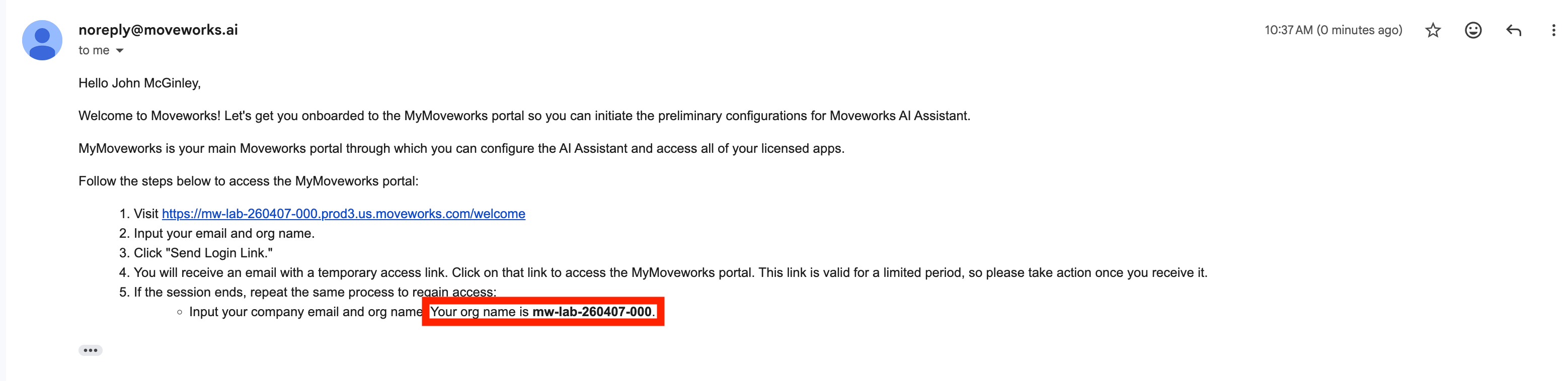
How to identify your data center: Look at the Visit URL in your onboarding email. If it contains prod3.us.moveworks.com, you are on the prod3 data center. If it contains my.moveworks.com, you are on the standard data center. You will need this when configuring Okta in section 1.2.
- Click the Visit link in the email to open the login page. Enter your Work Email and Org Name (both provided in the onboarding email), then click
Send Login Link.
Note: Retain your org name, you will need it for a later step
 3. Check your email for a message with subject “[Login] Temporary access link to login into MyMoveworks” and click the link to access your Moveworks portal.
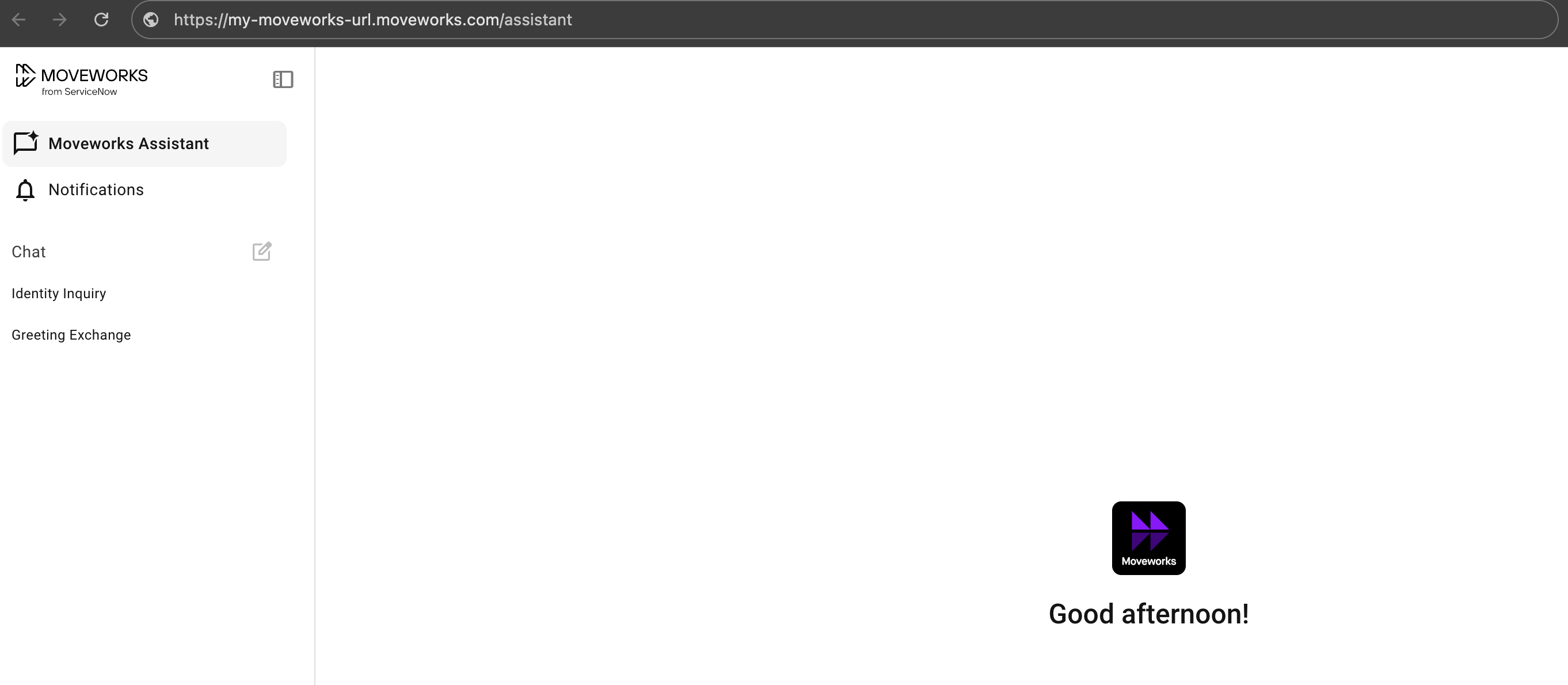
 4. Upon clicking the link, you will be redirected to an assistant window within My Moveworks
- Say
Hito start interacting with Moveworks- Moveworks won’t be able to do much yet, since this instance still needs to be configured!
- Click the
Manage appsin the lower left to be redirected to theMy Moveworks Product Page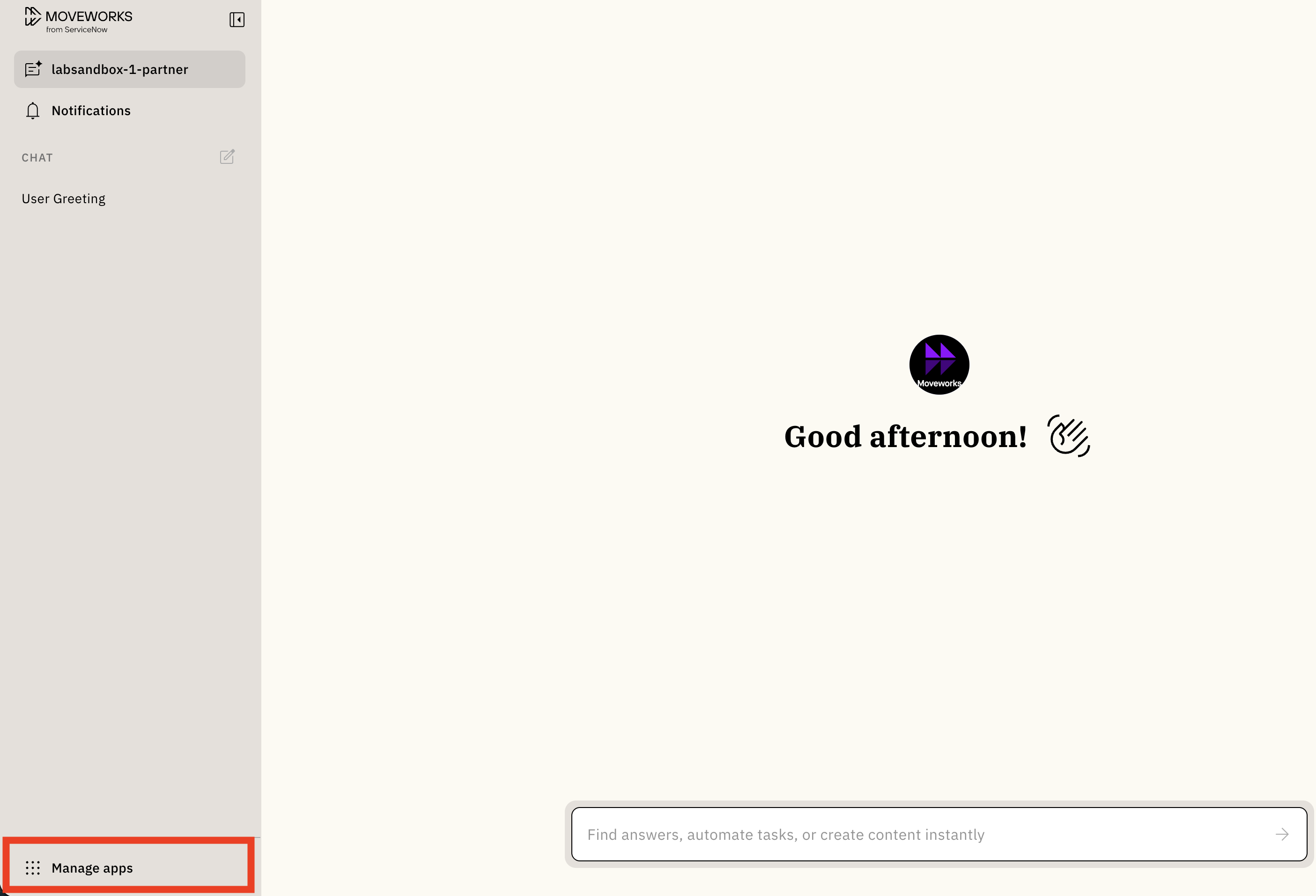
- On this screen we can see all of the available products within this Moveworks instance. To start implementing Moveworks, we will use Moveworks Setup, which is how the base functionality of Moveworks is configured.
- Select
Moveworks Setup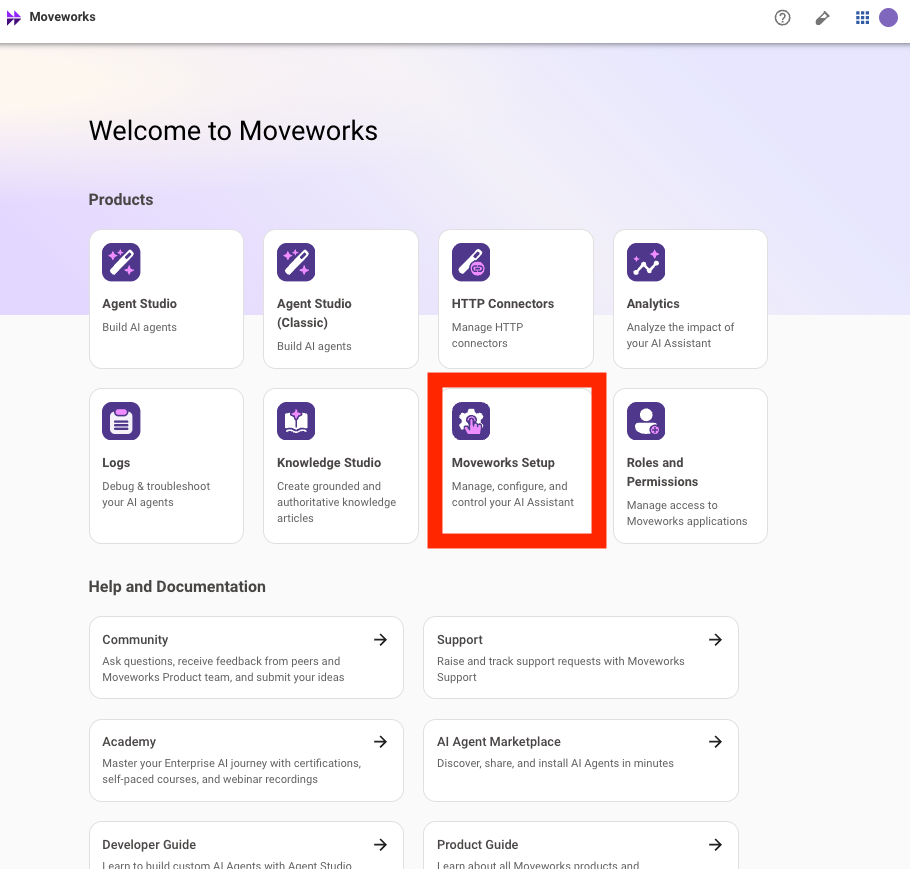
- Select
- You will be redirected to the
Moveworks Setup Overview Page& be able to see all of the available configuration modules for this Moveworks instance. Next we will set up SSO so you can log back in without a temporary link.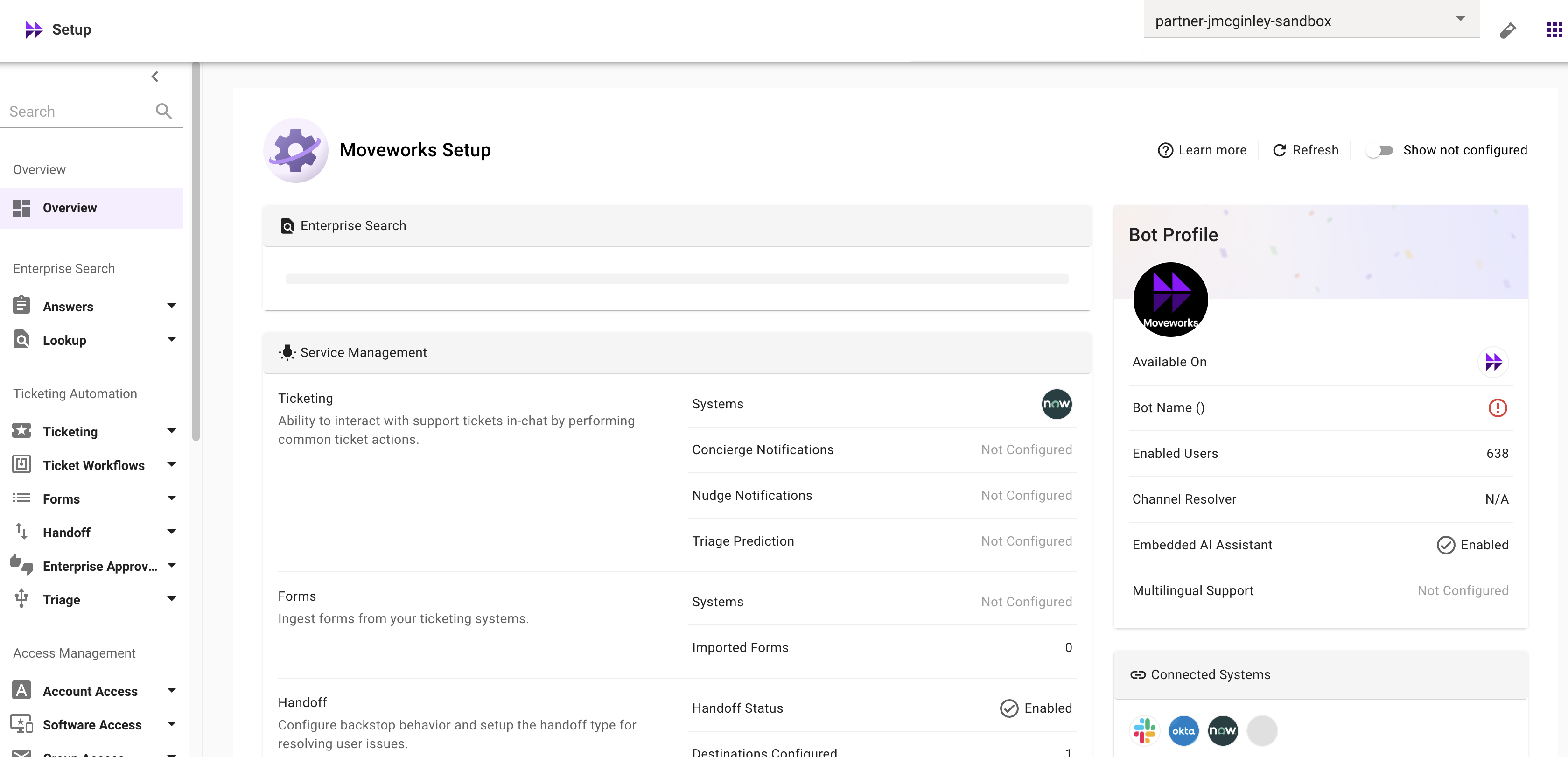
1.2: Setting up The Okta Trial Environment & Moveworks Application
Goal: Establish a sandbox Identity Provider (IdP) to simulate enterprise authentication.
On-Demand / PDI track: Okta setup is optional. If you don’t want to configure SSO, skip sections 1.2 and 1.3 and use temporary login links from my.moveworks.com/welcome (or my.prod3.us.moveworks.com/welcome) for the rest of the labs. The downside: you’ll need to request a new login link each time your session expires. We recommend completing 1.2 and 1.3 anyway if you plan to return to your instance regularly.
Open Okta in a new browser tab so you can switch between Okta and Moveworks Setup without losing your session in either.
Keep these tabs open throughout the lab:
- Okta Admin Console (if setting up SSO)
- Moveworks Setup
- Your ServiceNow track page (Cloud Labs or PDI — see Section 1.4)
Keep this information on hand (Notes doc or spreadsheet recommended):
- Moveworks Instance Name (e.g.
labsandbox-1-partner) - Okta Client ID & Client Secret (saved in step 9 below, if setting up SSO)
- ServiceNow Admin
sys_id(saved in your ServiceNow track page)
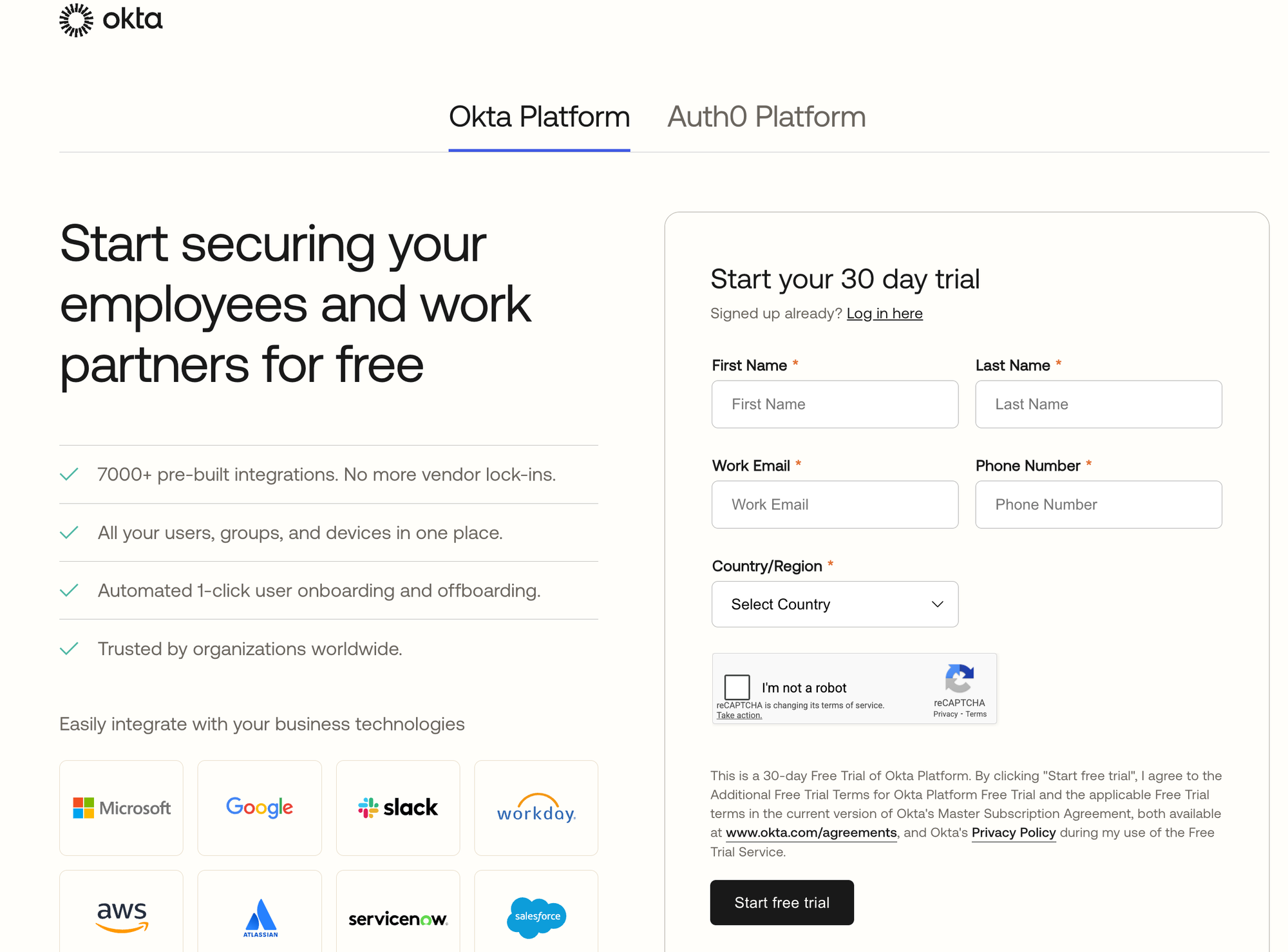
- Sign Up: Go to Okta & sign up for a free trial of the Okta platform using your business email address.
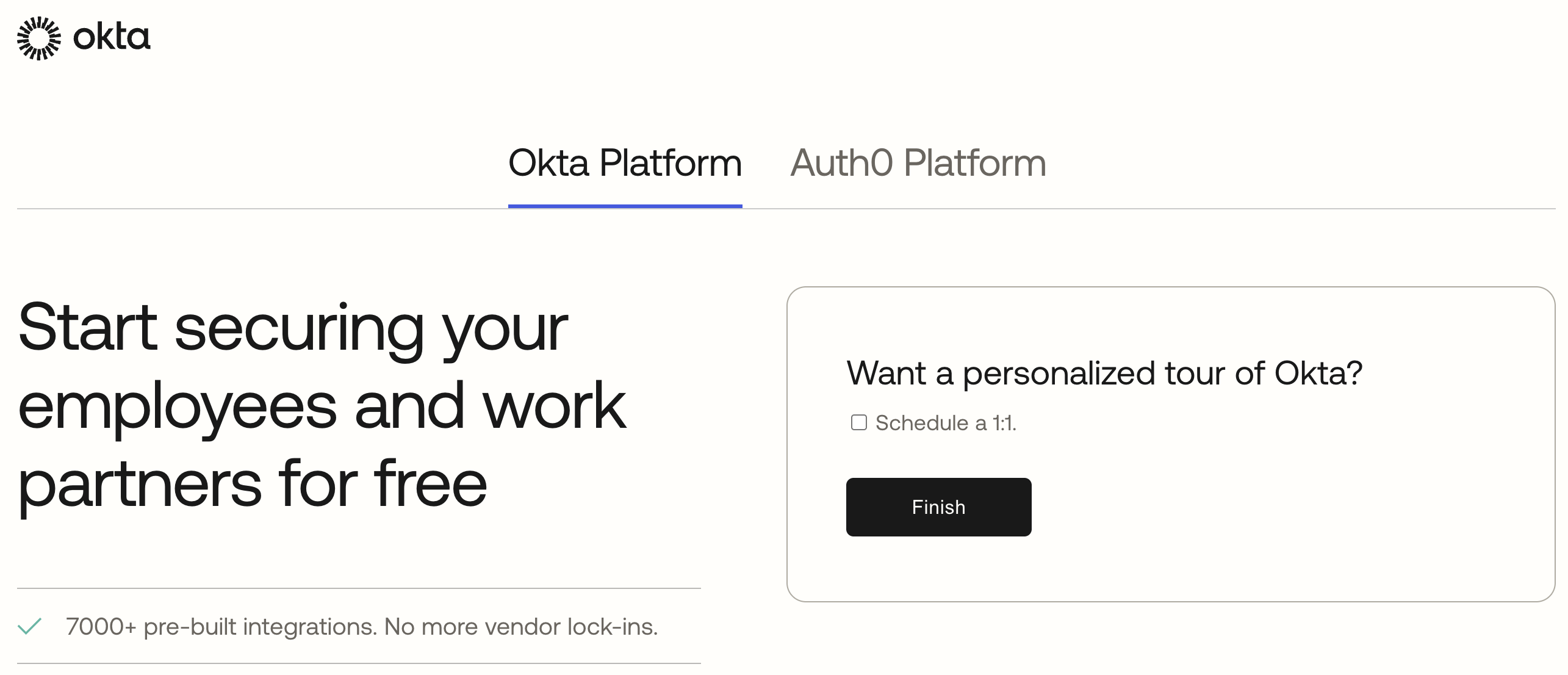
- Register: Fill out the registration form and choose Workforce Identity Cloud if prompted. If asked to schedule a 1:1 for a personalized tour of Okta, leave it unchecked — this is not needed. Click Finish.
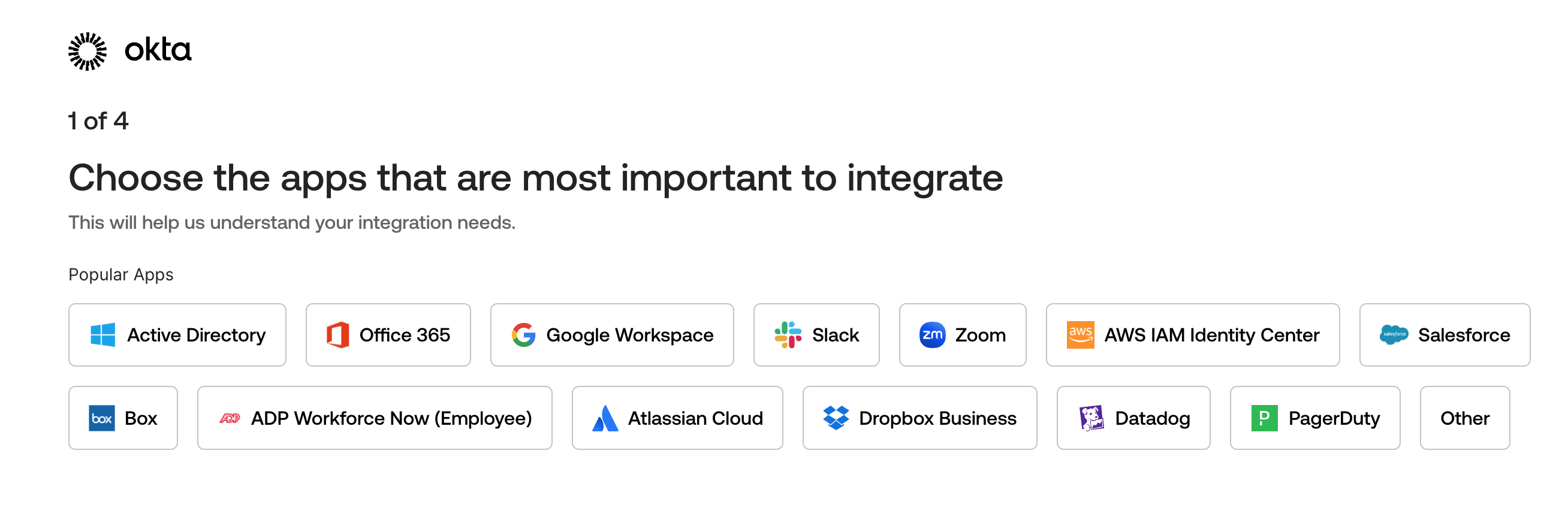
- If prompted with a 4-window onboarding flow starting with “Choose the apps that are most important to integrate”, select any values and proceed through each screen. These selections do not affect the lab configuration — the only requirement is a provisioned Okta trial instance.
- Activate: Check your email for the activation link. Your Okta Tenant URL will look like:
https://trial-#######.okta.com.
Note: You will need to configure a password & set up the Okta Verify app using your mobile device. Keep your mobile device handy, as you will need to use Okta verify again to login to the Okta Admin Dashboard
 5. Admin Console: Log in and ensure you are in the Admin Console (click “Admin” in the top-right if you are on the user dashboard).
Note: If you are prompted to import apps, select the skip button and continue
 6. Add User: Navigate to
 Directory > People > Add Person
- Create your own user account (if not already listed).
- Fill in your details and click
Save. After adding your own user account if should look like this: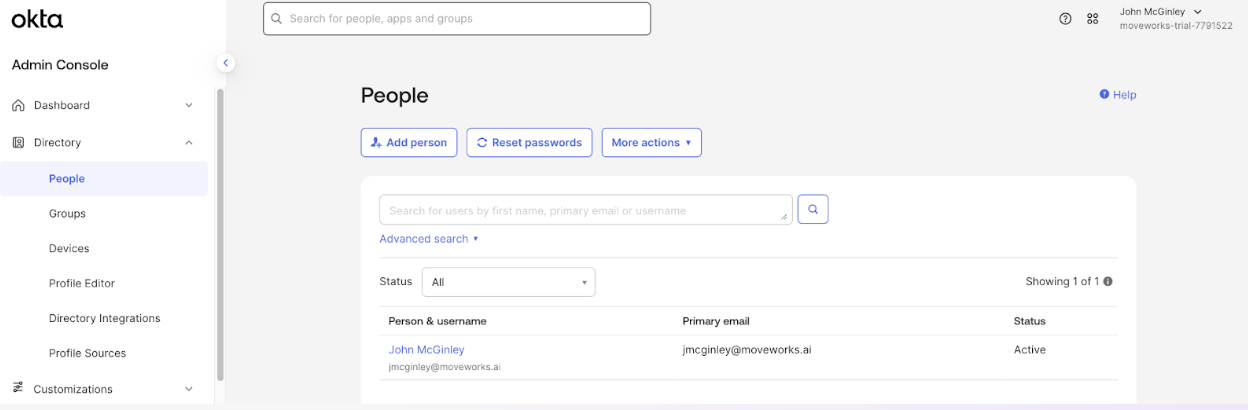
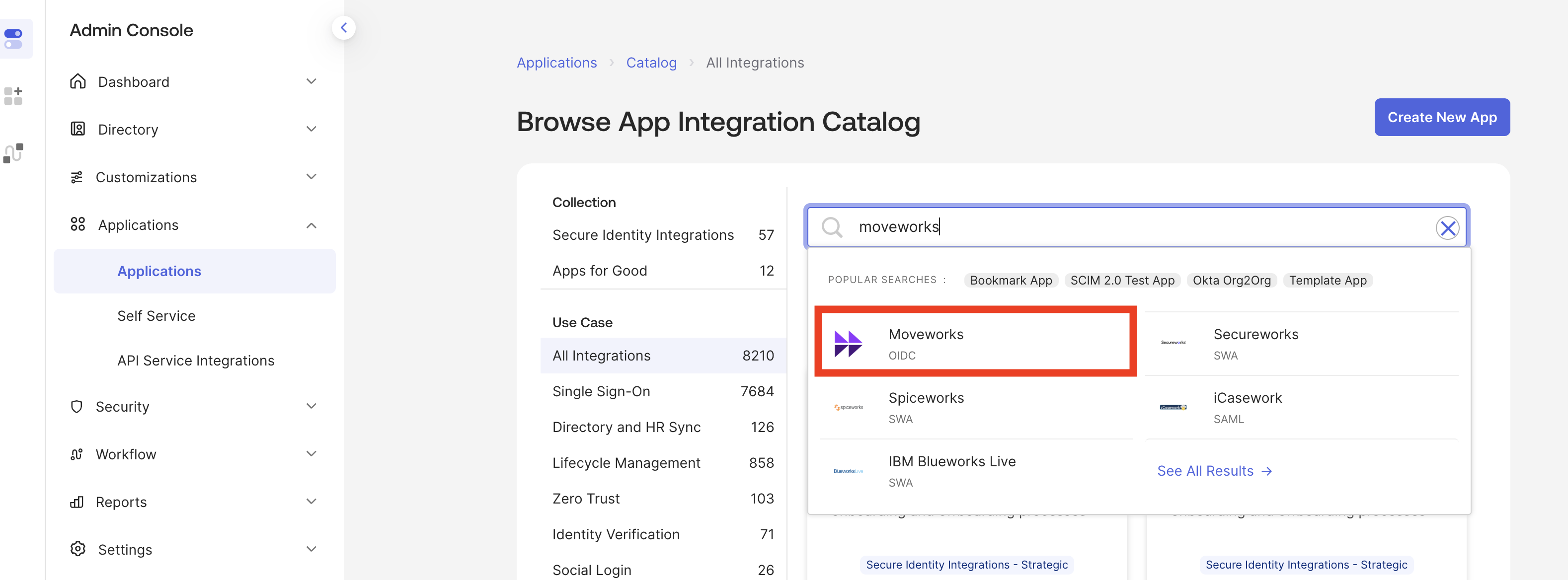
- Find the Moveworks App: Navigate to
Applications > Applications > Browse App Integration Catalog- Search for
Moveworksand selectMoveworks OIDC
- Search for
- Configure the Moveworks App.
- Application Label:
Moveworks - Subdomain:
[moveworks-instance-name]
- Application Label:
Replace [moveworks-instance-name] with your Moveworks org name from the onboarding email in step 1.1.1.
- Data Center: (check the Visit URL in your onboarding email to confirm)
- Prod3 lab environments:
prod3.us.moveworks.com - Standard environments:
moveworks.com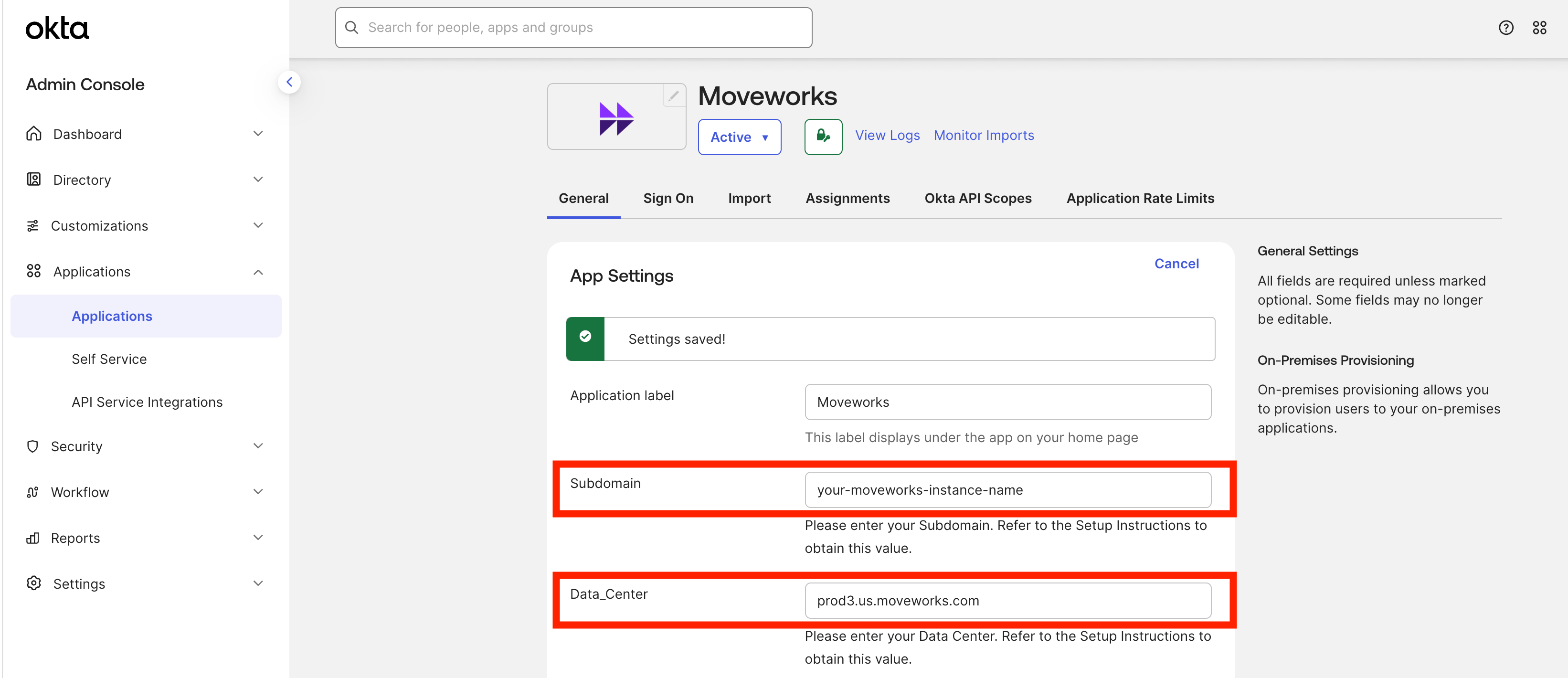
- Prod3 lab environments:
- Assign your user to the application:
- Go to the
Assignmentstab. - Click
Assign > Assign to Peopleand select your user.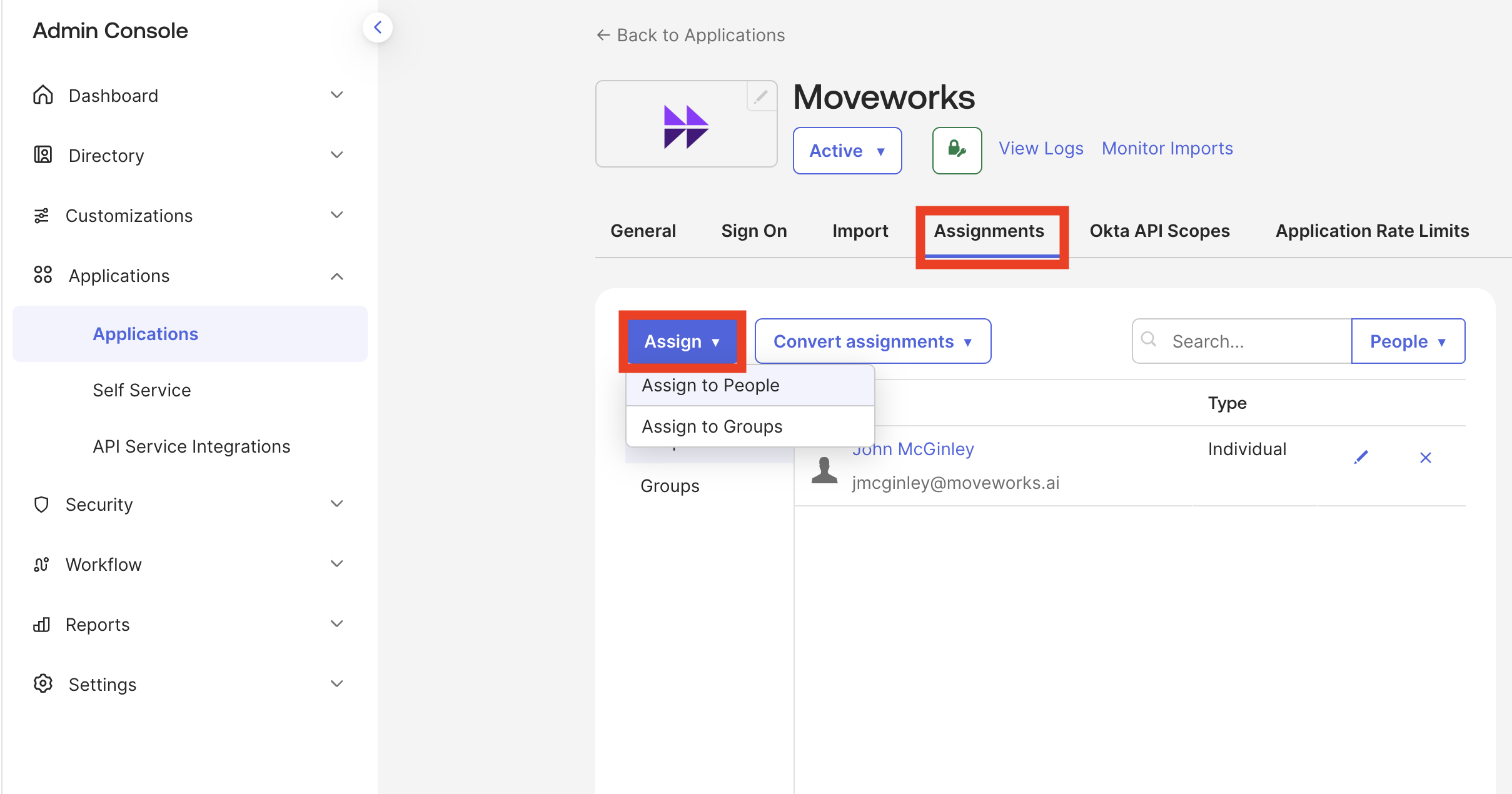
- Go to the
- Save your Credentials:
- Navigate to the
Sign Ontab & save yourClient ID & Client Secret- These credentials are required later when setting up My Moveworks SSO Access in Step 1.3!
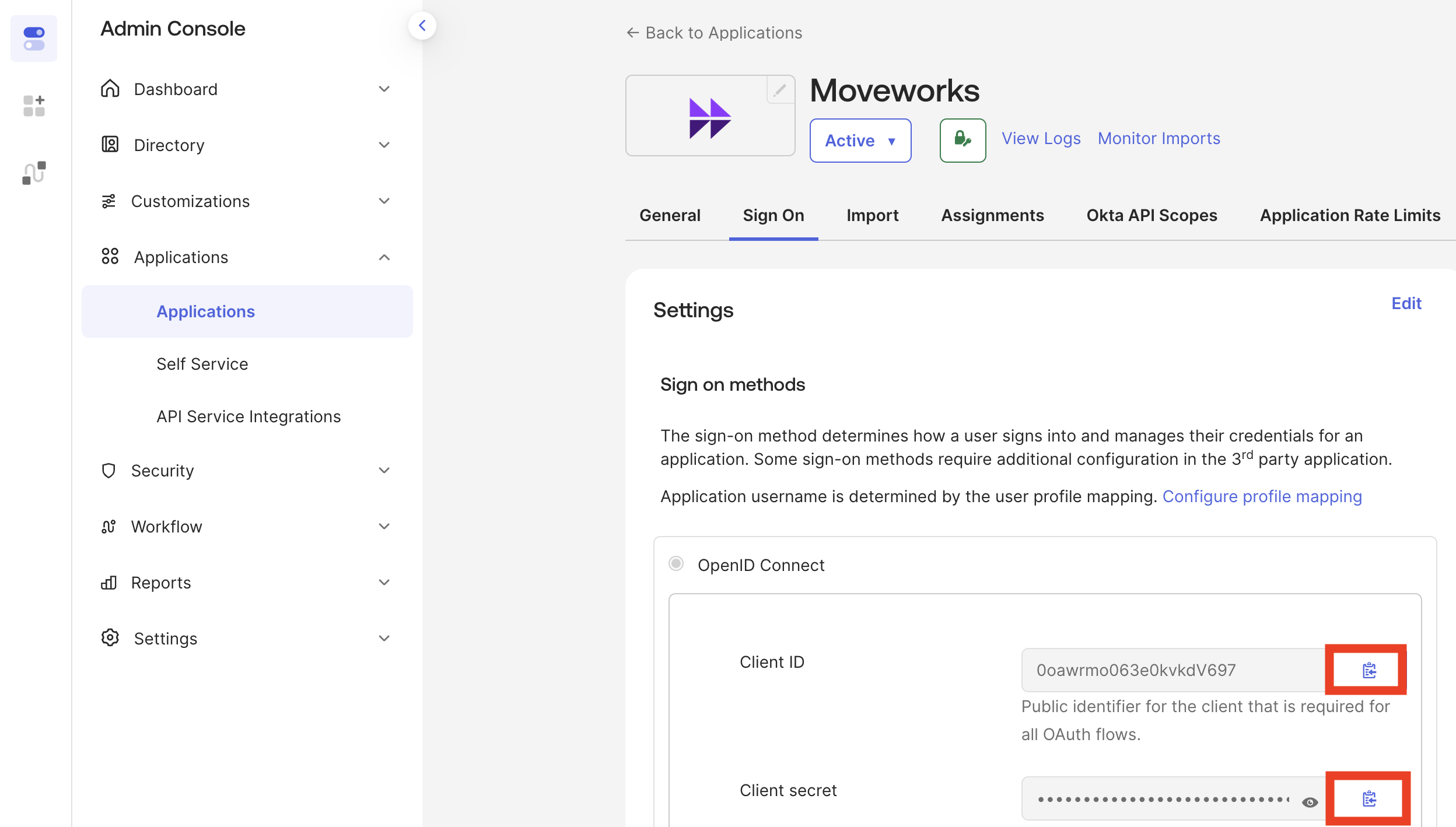
- These credentials are required later when setting up My Moveworks SSO Access in Step 1.3!
- Navigate to the
Note: While going through the rest of the Moveworks Labs, we recommend keeping your Okta session opened in a tab on your browser, for ease of navigation
1.3: Setup My Moveworks Okta SSO
Goal: Bridge Moveworks and Okta using OIDC.
Note: You will need the idp Client ID, Client Secret, and URL from your Okta instance to complete this step
- Keep your Okta tab with the application credentials open. In another tab, navigate back to your Moveworks Setup instance.
- In the upper left hand search bar, type in
SSOand navigate toOrganizational Details > Tenant Settings > Single Sign-On (SSO), - Select
Create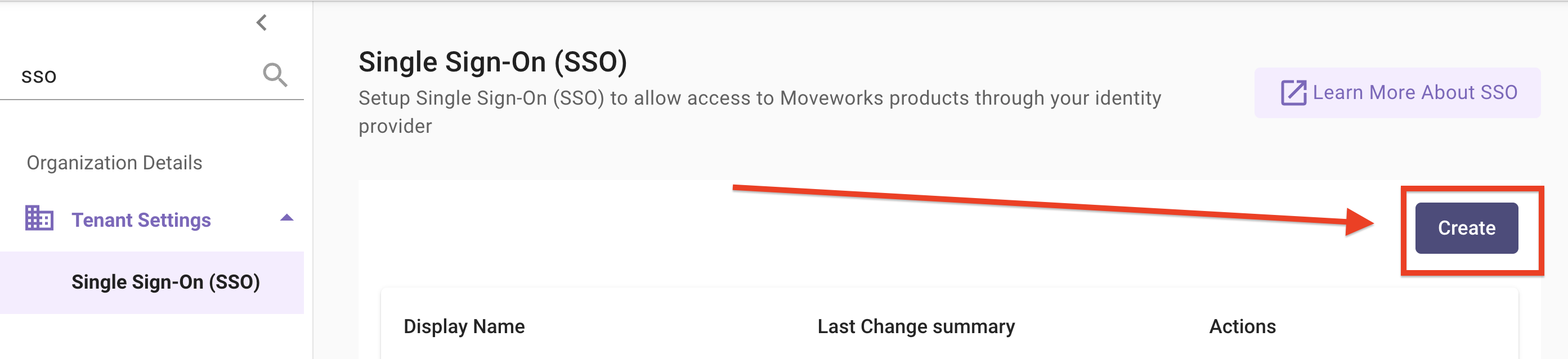
- Add the configuration details
- Moveworks Product:
Studio - Connector:
moveworks - Authentication Protocol:
OIDC - IDP Redirect URL:
- Moveworks Product:
Replace [moveworks-instance-name] below with your Moveworks org name from the onboarding email in step 1.1.1.
- Prod3 environments:
https://[moveworks-instance-name].prod3.us.moveworks.com/login/sso/oidc - Standard environments:
https://[moveworks-instance-name].moveworks.com/login/sso/oidc
Do NOT append -admin to your Okta URL. Using https://trial-[your_number]-admin.okta.com will cause SSO to fail. The correct issuer URL ends in .okta.com only.
- IDP Issuer: Your Okta Trial Instance URL
https://trial-[your_number].okta.com
- IDP Client ID + Secret
- Retrieved these values from the SSO tab in the Moveworks App created in Okta
 5. The other information can be left blank. After you are finished
 Submit your configuration
 6. Every time you save a configuration within Moveworks, you will leave a change history. This will appear in the
 Configuration Logs module.
Note: Always describe what you did in your change summary. Your future self will thank you!
 7. Verify SSO is working: Go to your Okta instance and click the
 Moveworks tile to confirm it logs you in successfully.
If the Okta tile does not log you in, double-check your entries from steps 1.2.8 and 1.3.4 — the most common mistakes are an incorrect Subdomain or IDP Redirect URL (wrong org name or wrong data center URL).

1.4: ServiceNow Setup — Choose Your Track
Goal: Get into a ServiceNow instance as admin, add your user, and capture the admin sys_id for Lab 1.
The ServiceNow setup steps differ depending on how you’re taking these labs. Pick the track that matches your situation and complete that page in a separate browser tab before proceeding to Lab 1.
You’re attending a live, instructor-led session and your instructor has provided a ServiceNow Cloud Labs reservation code. ~10 minutes.
You’re working through the labs on your own time and using your own ServiceNow Personal Developer Instance from developer.servicenow.com. ~15 minutes.
Both tracks produce the same end state: a ServiceNow instance with admin access, your work user added with Department = IT, and the admin account’s sys_id saved to your notes. Labs 1–7 are identical regardless of which track you complete here.
1.5: [OPTIONAL] Simplifying the Okta Login
You will always need to enter an Okta Verify code to get into the Admin panel within your Okta trial instance, but you can take the following steps so that your end-user okta session persists longer & no longer prompts Okta Verify
- Within the Okta Admin Console, navigate to
Global Session Policy
- Edit the Default Policy
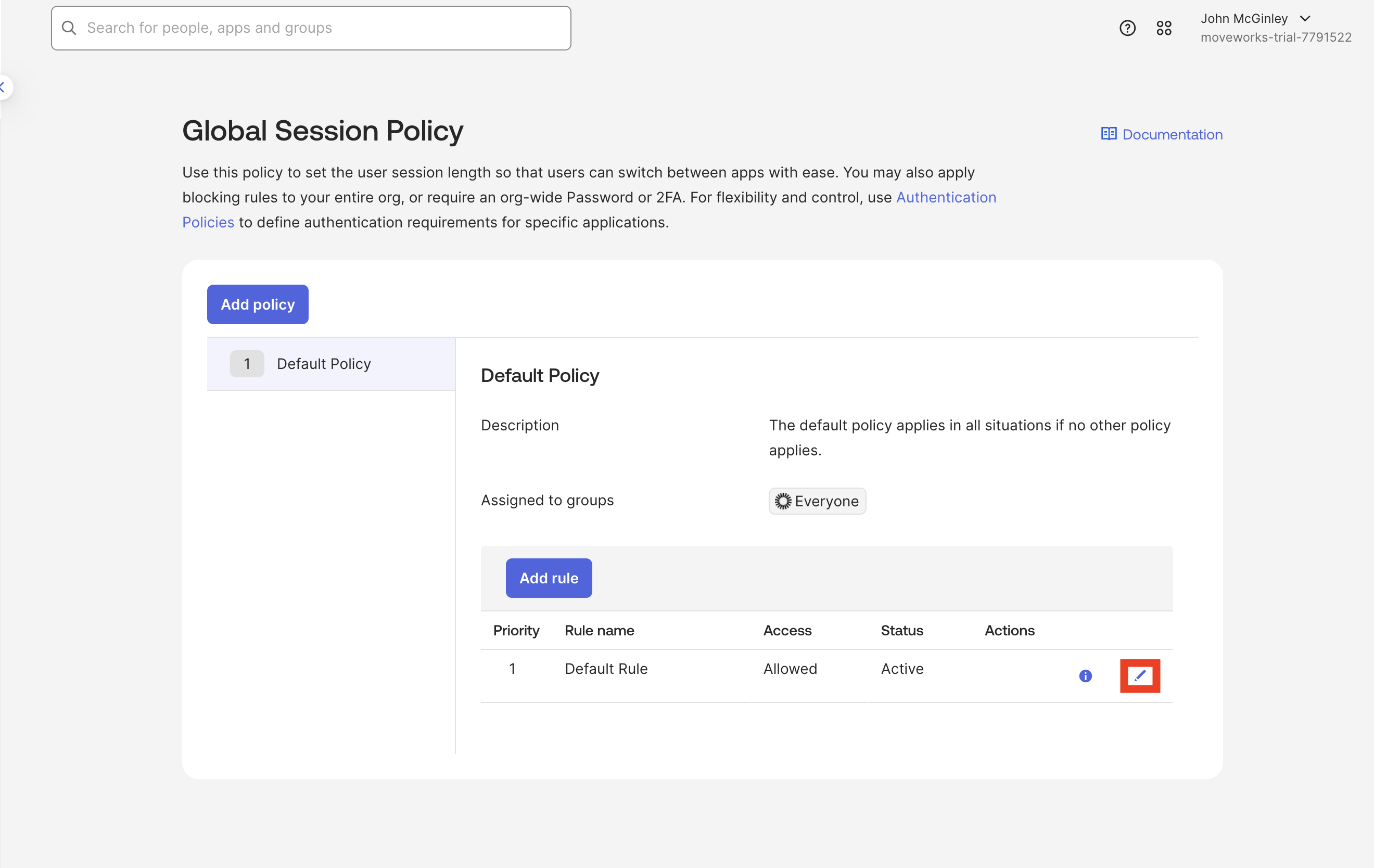
- Allow users to set Establish the user session with:
A password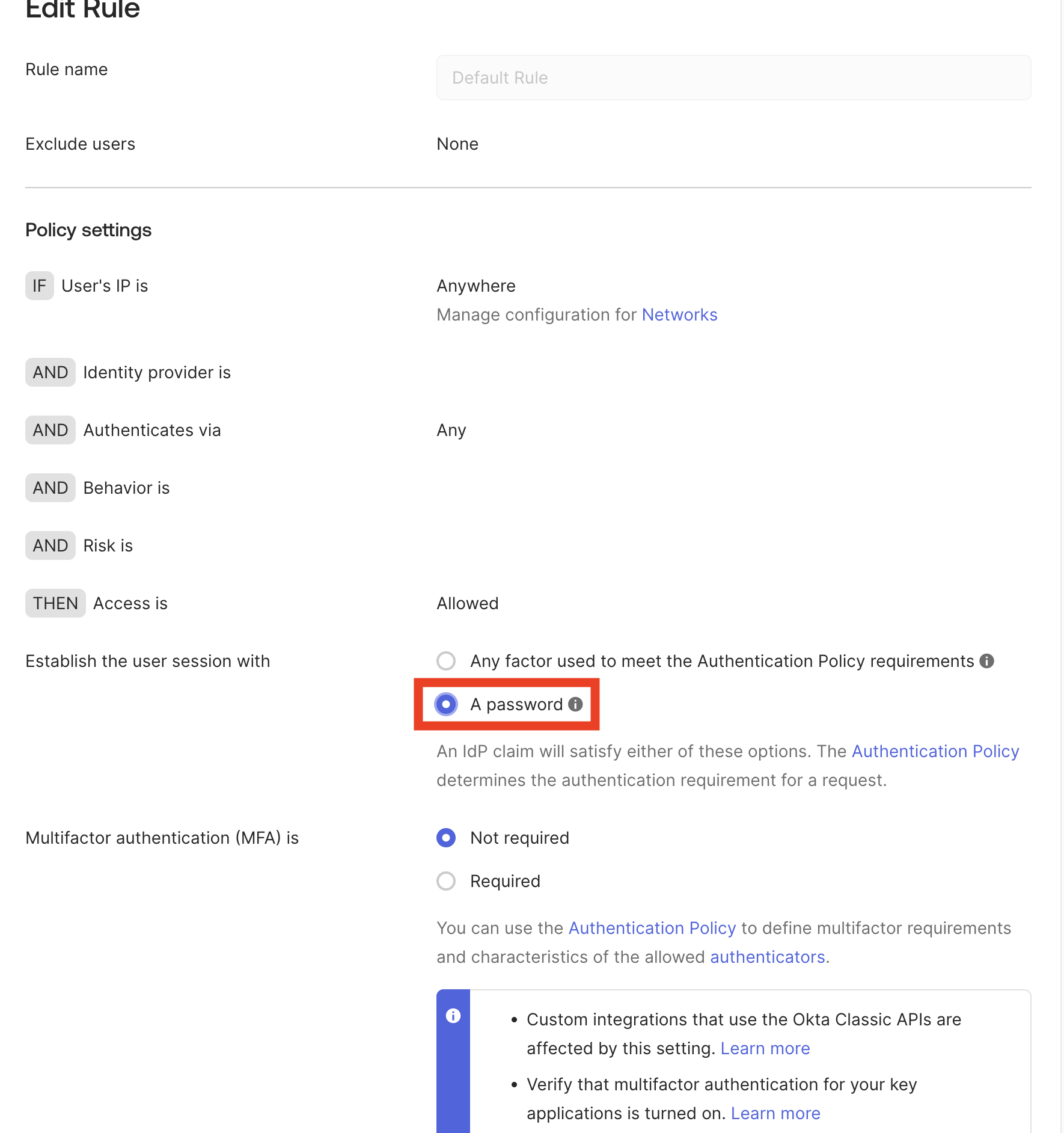
- Set the
Maxmimum Okta global session lifetime&Maximum Okta global session idle timeto the desired length. We recommend 2 days for each.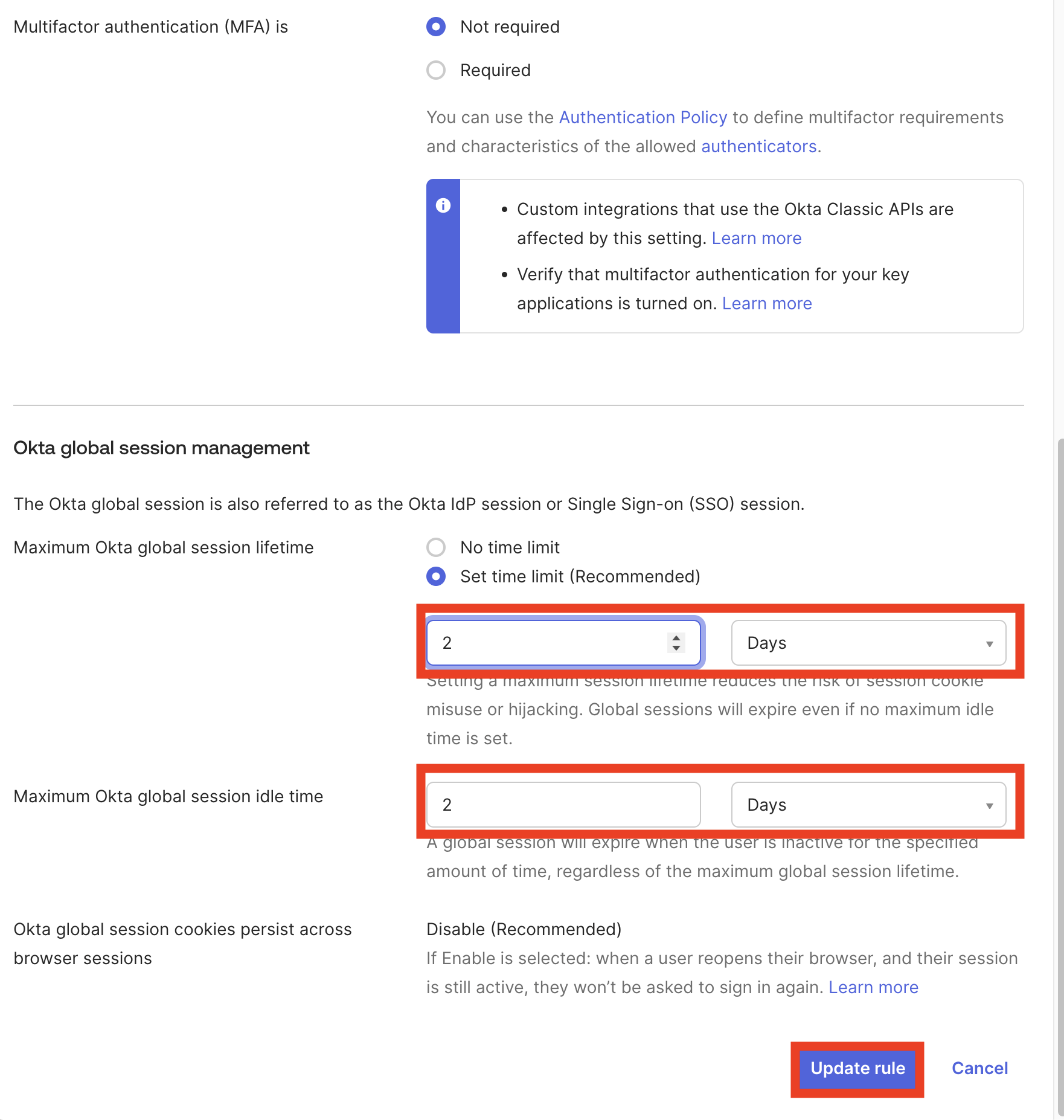
1.6: [OPTIONAL] If Working with a Lab Teammate — Sharing a Moveworks Instance
If you are sharing a Moveworks instance with a lab teammate, complete the following steps to grant them access.
Step 1 — Okta: Add your teammate as a user
- In the Okta Admin Console, go to
Directory > People > Add Person - Fill in your teammate’s name and work email, then click
Save - Go to
Applications > Applications, open theMoveworksapp, and go to theAssignmentstab - Click
Assign > Assign to Peopleand assign your teammate
Step 2 — ServiceNow: Add your teammate as a user
- In your ServiceNow instance (Cloud Labs or PDI), go to
User Administration > Users - Click
Newand fill in your teammate’s name and work email - Set their
DepartmenttoIT - Click
Save
Step 3 — Moveworks: Grant your teammate admin access (complete after Lab 2)
Your teammate must be ingested into the Moveworks roster (Lab 2) before you can assign them roles.
- In My Moveworks, click the grid icon in the upper right corner
- Select
Roles and Permissions - Find your teammate’s name and assign them all roles
✅ 2: Verification & Next Steps
- Check Success:
- If you completed Okta + SSO (sections 1.2–1.3): Go to your Okta instance and click the Moveworks application tile to confirm it redirects you to Moveworks on Web.
- If you skipped Okta (On-Demand track): Use the temporary login link from your welcome email to confirm you can reach My Moveworks. You’ll request a new link the next time you return.

Next: Complete the ServiceNow setup page that matches your track:
- ILT track: Lab #0 — ServiceNow Setup (Cloud Labs / ILT)
- On-Demand track: Lab #0 — ServiceNow Setup (PDI / On-Demand)
🪞 3: Reflecting on This Configuration
Through this guide, you’ve learned the following:
- The difference between Moveworks Temporary Access Links (one-time use) and SSO Access (enterprise-grade, persistent authentication).
- How to connect an Identity Provider (IdP) to Moveworks using OIDC for Single Sign-On.
- The importance of User Assignments within the IdP to grant platform access.
⚙️ 4: Configuration Details
Use the table below to fill in the required fields accurately.