
Lab #0 — ServiceNow Setup (PDI / On-Demand)
Lab #0 — ServiceNow Setup (PDI / On-Demand)
Overview
- Track: On-Demand / Self-Paced. Use this page if you are working through the labs on your own time and bringing your own ServiceNow Personal Developer Instance (PDI).
- Learning Objectives: Create a ServiceNow Developer account, request a PDI, log in as
admin, add your work user, set the admin user’s timezone to GMT, and capture theadminuser’ssys_idfor use in Lab 2. - Estimated Time: 20 minutes (plus ~2–5 minutes wait time for instance provisioning)
- Prerequisites:
- An email address you can verify
- Completed Lab #0: Setup Lab Environments (Moveworks portal access)
Open ServiceNow in a new browser tab so you can switch between ServiceNow and Moveworks Setup without losing your session in either.
🛠️ 1: Walkthrough
1.1: Sign Up for a ServiceNow Developer Account
Goal: Create the developer-program account that owns your PDI.
-
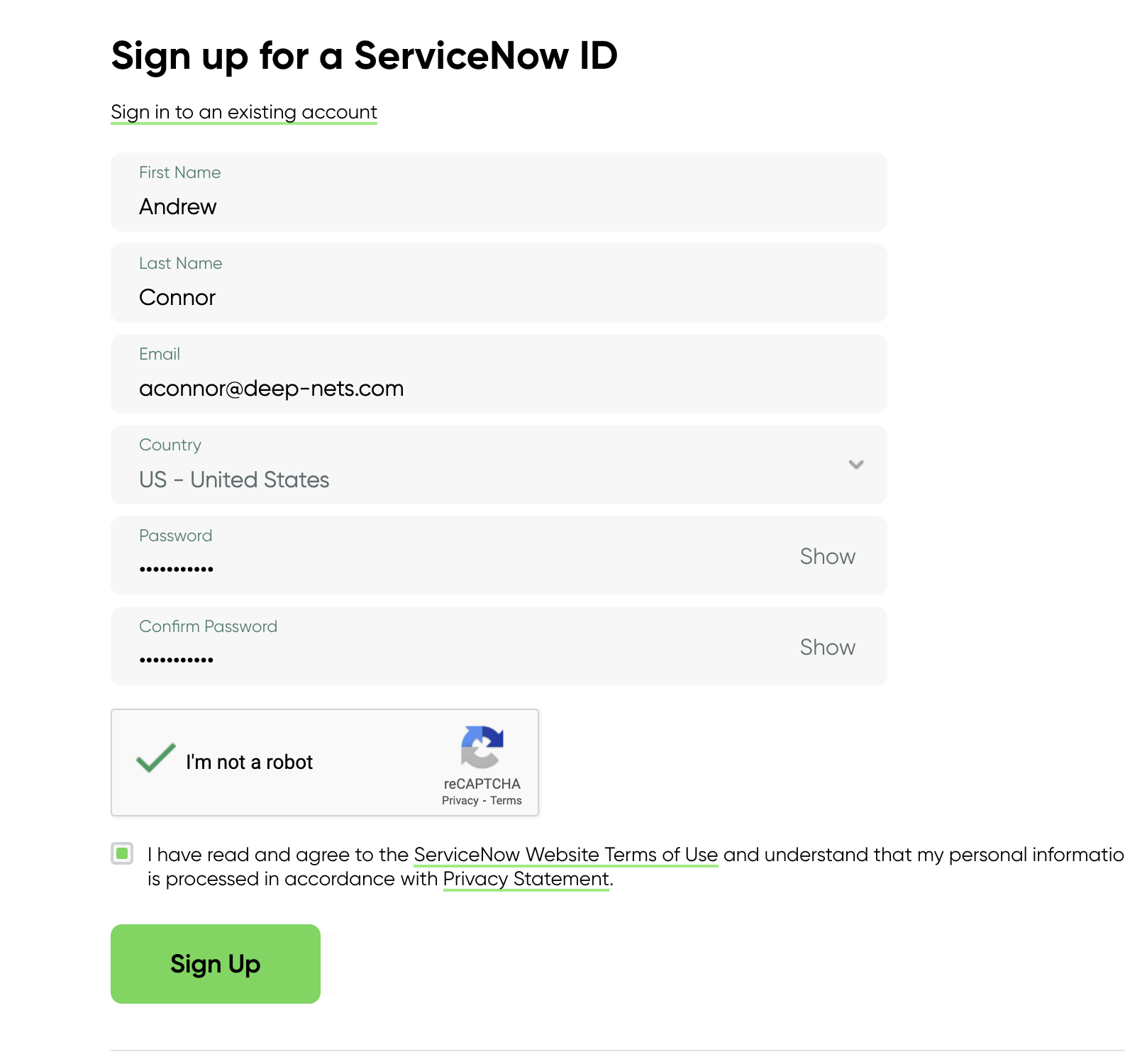
Click Sign up and Start Building.
-
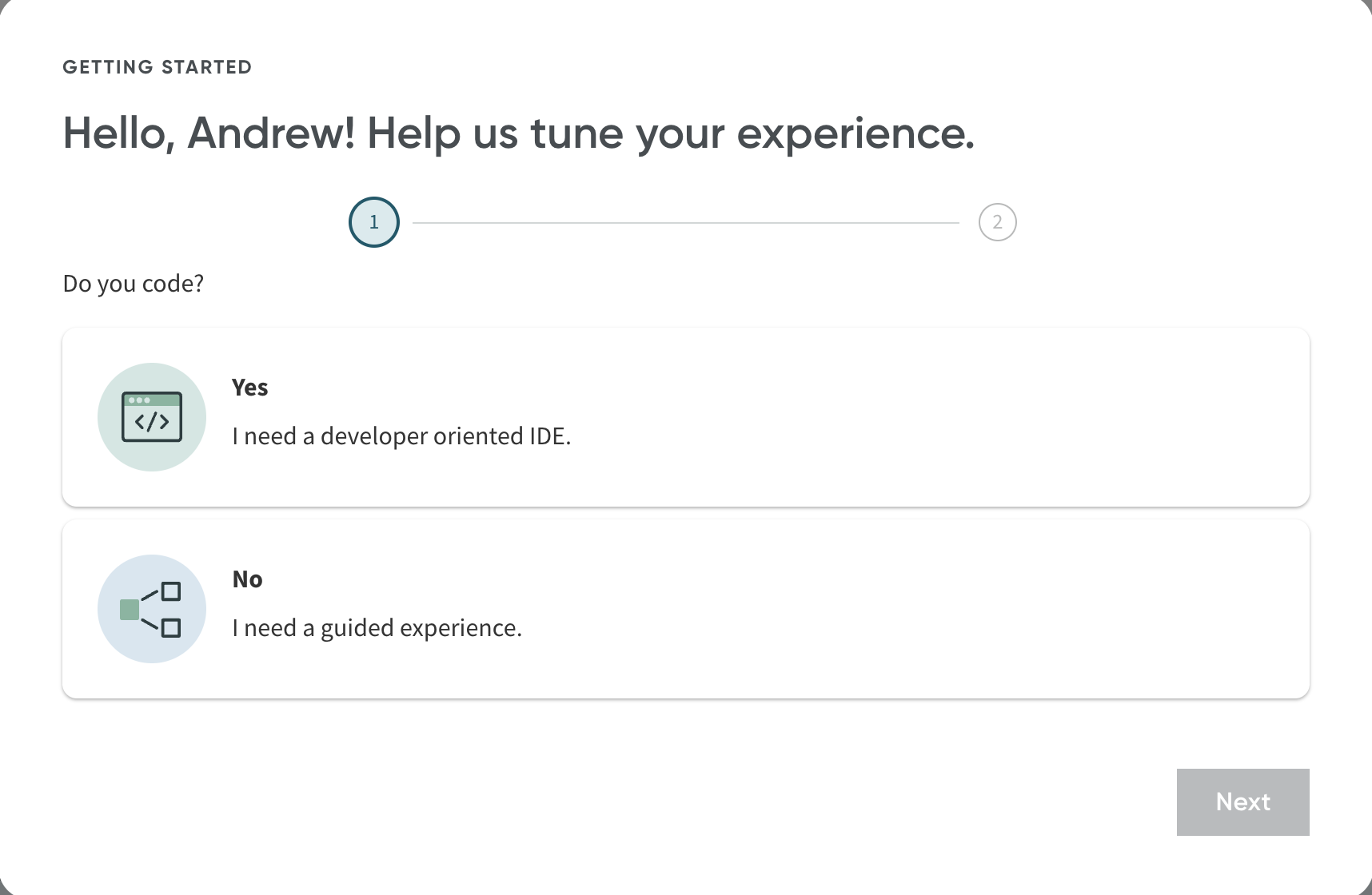
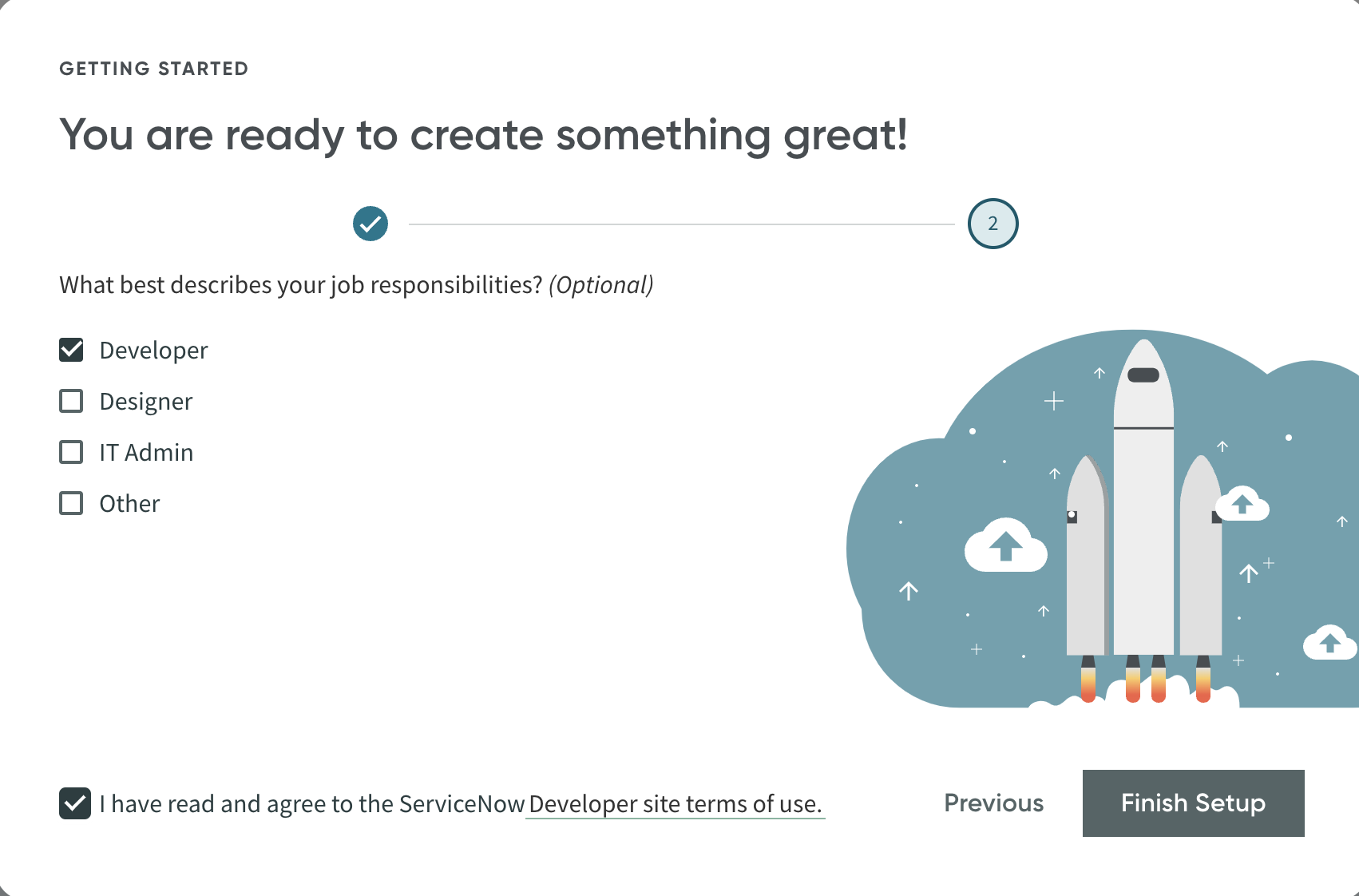
Verify your email and log in. Select your experience options when prompted (the choices don’t affect lab functionality — pick whatever fits).
1.2: Request Your Personal Developer Instance
Goal: Provision a fresh ServiceNow instance you fully control.
-
Click Request Instance at the top of the developer portal.

-
Wait a minute or two while ServiceNow provisions your instance. Refresh the page periodically to check whether it’s ready.
-
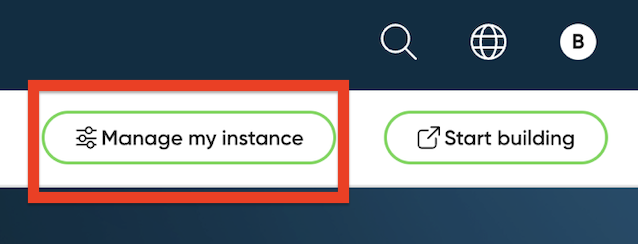
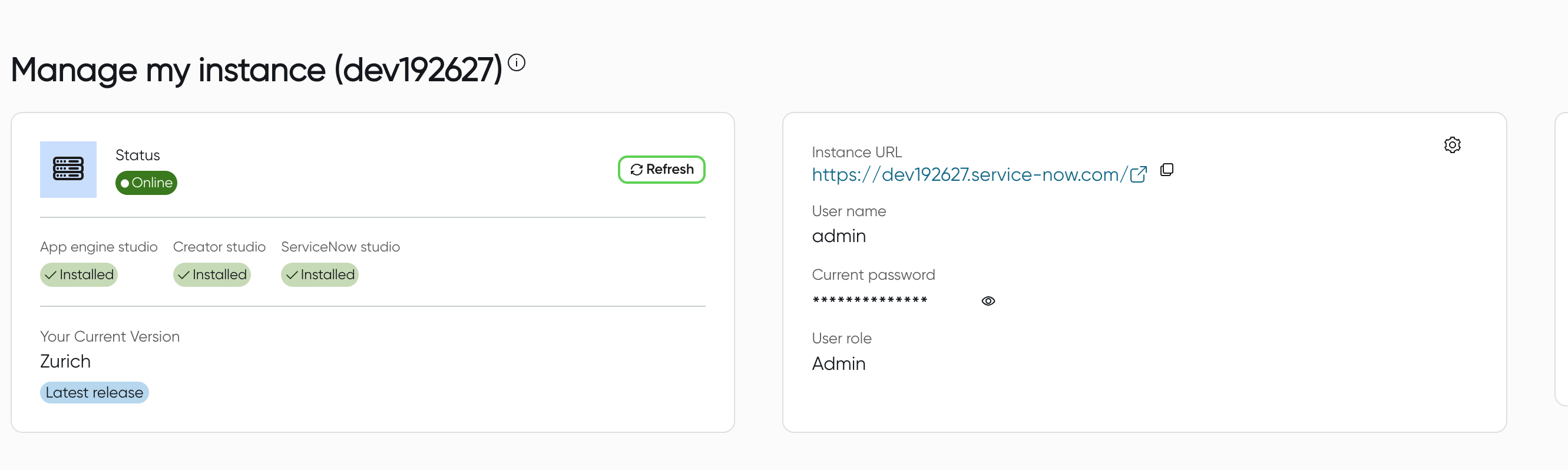
Once ready, click Manage my Instance.
-
🛑 IMPORTANT: Copy the Instance URL, Admin Username, and Admin Password and save them somewhere safe (Notes doc, password manager, or spreadsheet). The auto-generated password is displayed only here — if you lose it, you’ll need to reset it from the developer portal.
PDIs auto-hibernate after ~10 days of inactivity. If your instance is asleep when you return, wake it up from Manage > Instances in the developer portal and wait ~2 minutes before logging in again.
1.3: Log In to Your Instance
Goal: Confirm admin access before configuring users.
-
Open your instance URL (
https://dev######.service-now.com) — you can click the hyperlinked URL from the Manage Instance page. -
Sign in with username
adminand the password you saved in the previous step.
1.4: Add Your Personal User
Goal: Create a personal user record that represents you (separate from the admin service account).
-
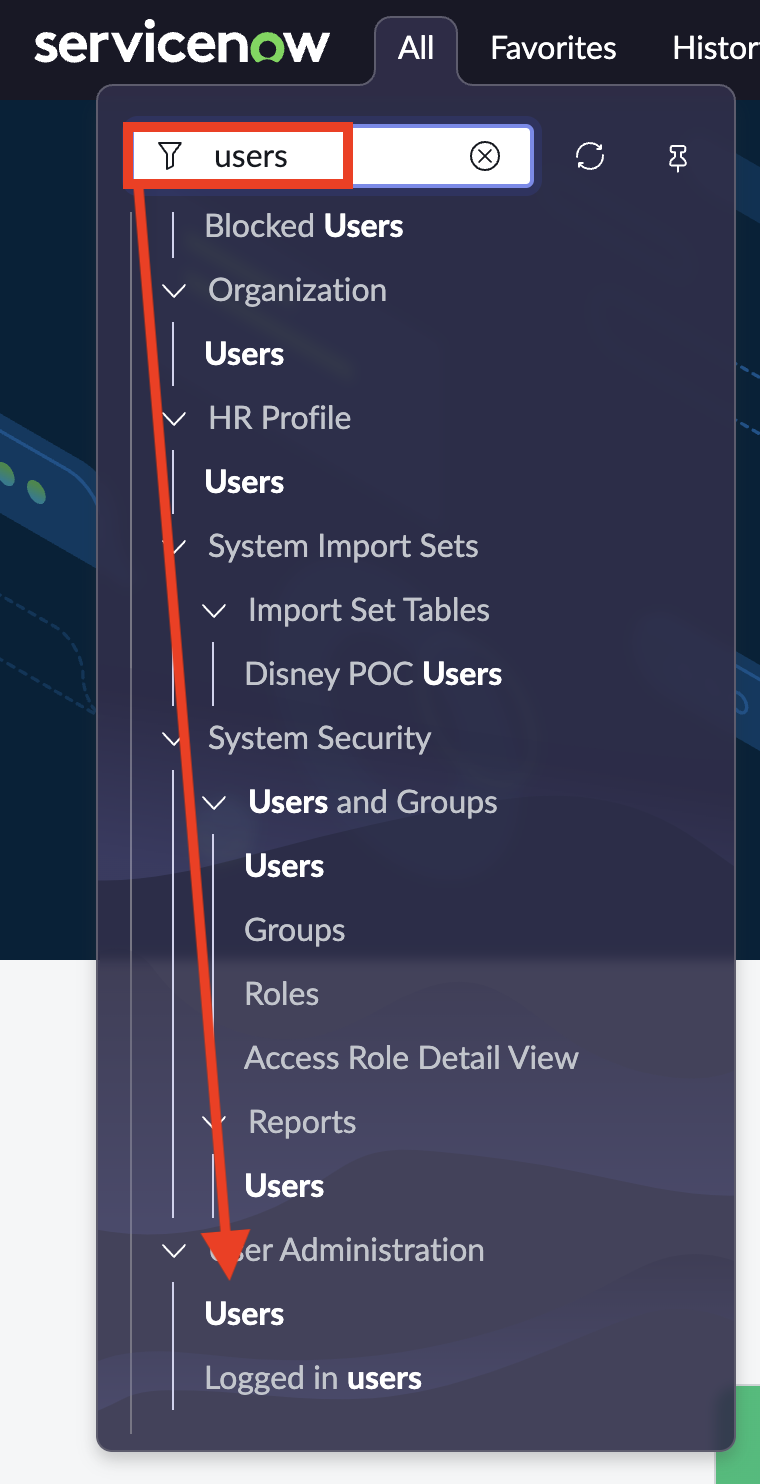
Once logged in, go to User Administration → Users.
- You can find it by searching for “Users” in the All menu (top-left filter) and scrolling to the User Administration section.
-
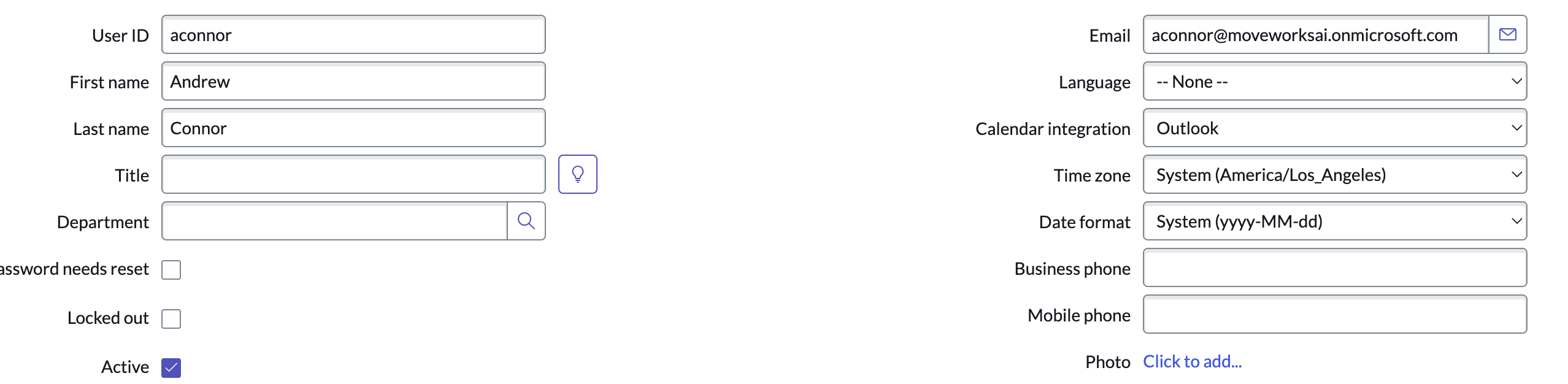
🛑 IMPORTANT: Add a new user with your email address. This is your personal user account — separate from the
adminservice account.Working in a group? If you are sharing this PDI with one or more teammates, repeat this step for every teammate assigned to the same lab environment.
1.5: Set the Admin User’s Timezone to GMT
Goal: Normalize the service account’s timezone so downstream labs behave consistently.
Required for the labs to work correctly. Some downstream lab steps depend on the admin user’s timezone being set to GMT. Skipping this step will cause confusing time-related issues later.
-
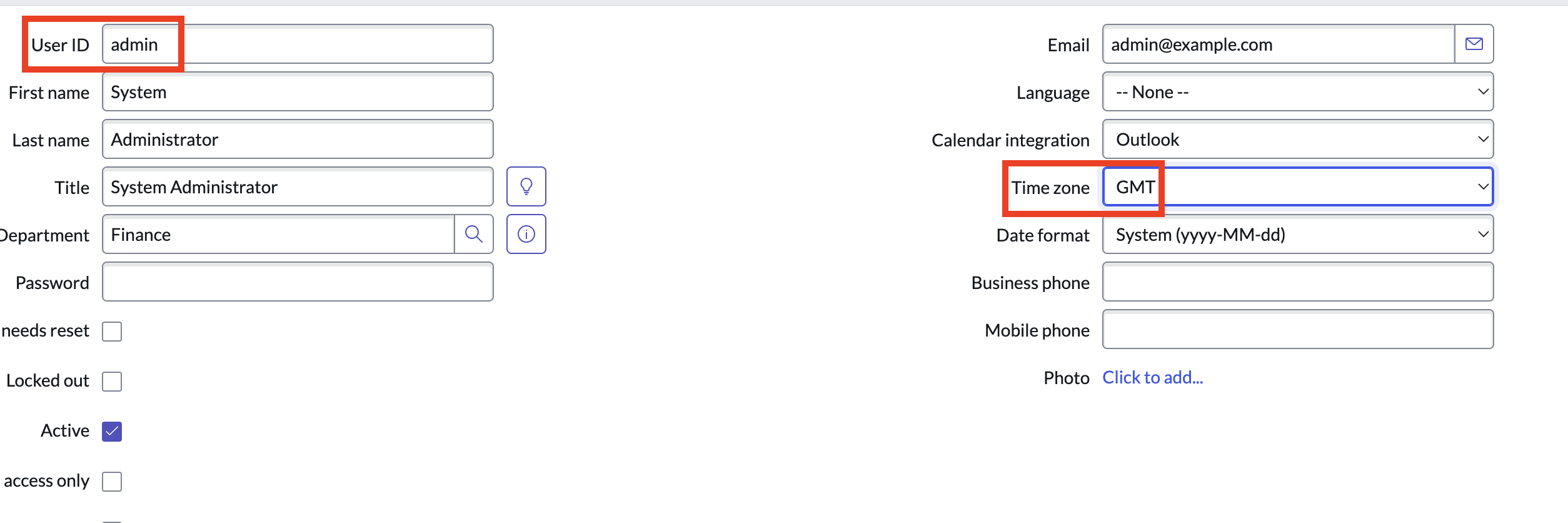
Still in User Administration → Users, open the user record where User ID =
admin(this is the ServiceNow service account, not the personal user you just created). -
Change the Time zone field to
GMT. -
Save the record.
1.6: Copy the Admin sys_id
Goal: Capture the canonical identifier you’ll paste into Lab 2.
You need the admin user’s 32-character sys_id for Lab 2 (User Identity & Service Account Setup), where it’s used to identify the ServiceNow account Moveworks impersonates when calling into your instance. You’re already inside the admin user record from the previous step, so it’s the right moment to grab it.
There are three ways to copy the value — use whichever works for you.
Make sure you’re copying the sys_id for the admin system account, not your personal user.
Don’t want to use the admin account? Real-world implementations typically use a dedicated Moveworks service account with scoped permissions instead of the built-in admin account. If your organization’s security policies don’t allow admin to be used for integrations, create a separate service account following the ServiceNow Access Requirements and capture that account’s sys_id instead. For PDI / lab purposes, using admin is the simplest path.
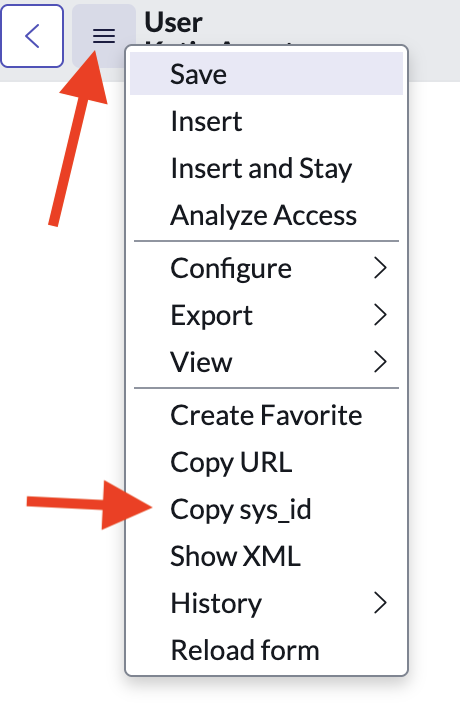
Option A — Hamburger menu
Open the admin user record. Click the hamburger menu (three lines, top-left of the form) → Copy sys_id.
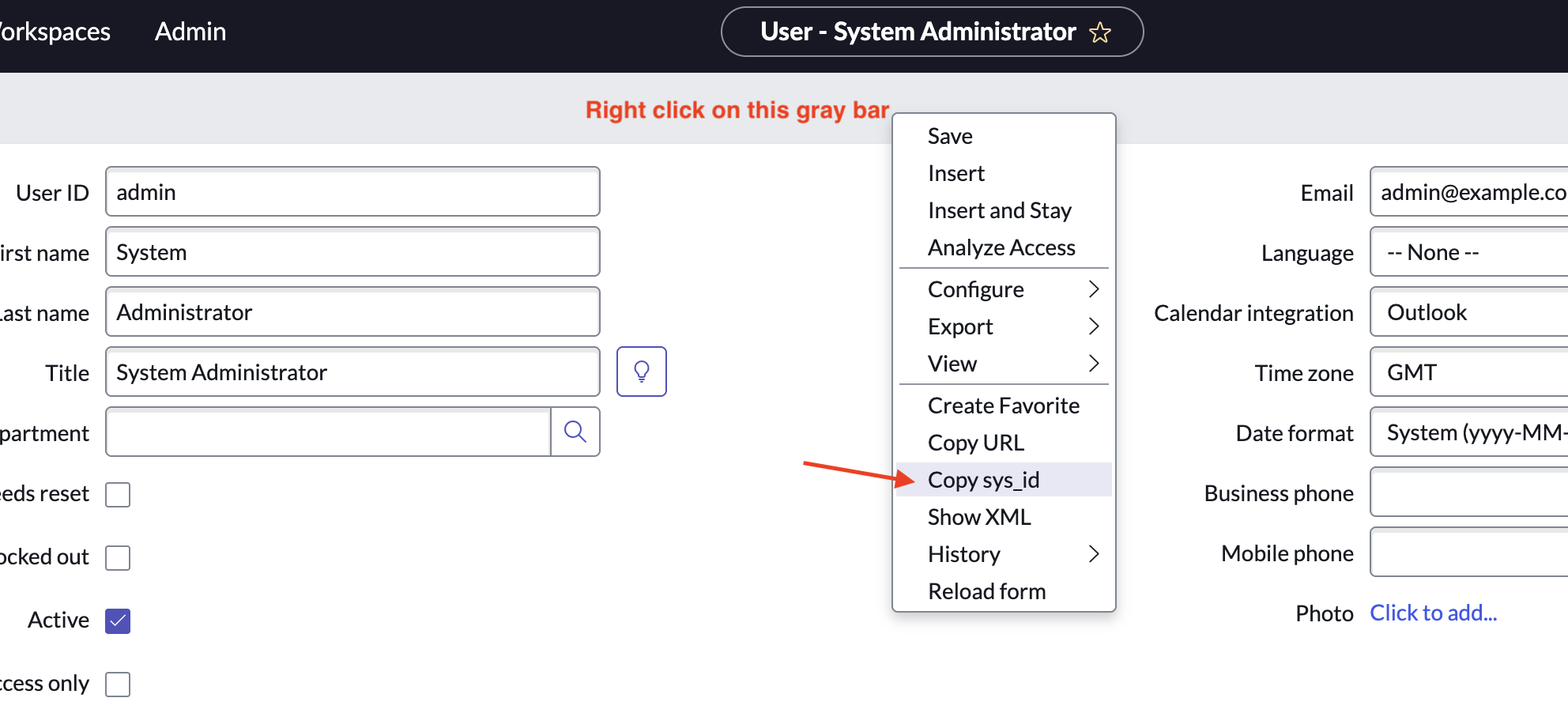
Option B — Right-click on the form header
Open the admin user record. Right-click on the gray header bar of the form → Copy sys_id.
Option C — Pull it from the URL
With the admin record open, the URL contains the sys_id:
Do NOT include the 3D prefix. The URL contains sys_id%3D — the %3D is a URL-encoded equals sign and is not part of the sys_id. The sys_id is a 32-character hex string that starts immediately after %3D, e.g., ed65ebcf8372e690cbcdc396feaad380 — not 3Ded65ebcf8372e690cbcdc396feaad380.
✅ 2: Verification & Next Steps
You should now have:
- A working ServiceNow PDI with admin access (URL + auto-generated admin password saved to your notes)
- Your personal user added to ServiceNow with your email address
- The
adminuser’s timezone set toGMT - The
adminaccount’s 32-charactersys_idsaved to your notes
Next: Lab #1 — Connectors & API Playground — start configuring the Moveworks ↔ ServiceNow connection.
❗ 3: Troubleshooting
My PDI is hibernating / I can’t sign in. Go to developer.servicenow.com → Manage > Instances. If your instance shows as Hibernating, click Wake Up Instance. Wait ~2 minutes, then refresh your instance URL.
I lost my admin password. Go to Manage > Instances > Your Instance > Reset Password in the developer portal. A new auto-generated password will be issued.
Request Instance is greyed out. Make sure your ServiceNow Developer account is verified (check the email you registered with). If you’ve recently released a previous PDI, there can be a short cooldown before you can request a new one.
The Copy sys_id option doesn’t appear. Try Option B (right-click the gray form header) or Option C (extract from the URL). The hamburger menu option can vary depending on which ServiceNow UI version your PDI was provisioned with.
🪞 4: Reflecting on This Configuration
Through this guide, you’ve learned the following:
- A PDI (Personal Developer Instance) is a free, isolated ServiceNow sandbox provisioned by the developer program — ideal for self-paced learning and experimentation without affecting any production environment.
- ServiceNow distinguishes between service accounts (e.g.,
admin) used for system-to-system integration and personal user accounts used to represent real end users. Both are needed for the Moveworks ↔ ServiceNow integration to work end-to-end. - The
sys_idis ServiceNow’s universal 32-character record identifier — it appears throughout the platform (URLs, REST API calls, scripts) as the canonical way to reference any record, including users. - Setting the
adminuser’s timezone to GMT keeps audit timestamps and scheduled-job behavior consistent across the labs.
⚙️ 5: Configuration Details
Use the table below to fill in the required fields accurately. Save these values to your notes — you will reference them throughout the rest of the labs.