
Lab #4b: Advanced Forms
Lab #4b: Advanced Forms
2026-04-28: revised lab is now available
The rewritten Lab 4b is live as of today. Walk-through changes since the original:
- Multi-domain HR catalog step now uses the existing
snowsource config (no more Error 13008) - New fillability error cheat sheet (Requires-override vs Blocking tiers)
- Hands-on override demo using Report a Defect, a record producer that actually exists in your training instance
- Hands-on exclusion demo using Item Designer Category Request to show when override can’t help and you have to disallow the form instead
- Advanced filter section with a safe encoded-query example
Keep reporting issues. We’ll keep refining.
Earlier updates
- 2026-04-22: Initial rewrite landed in draft.
- 2026-04-21: Acknowledged community feedback that several steps didn’t line up with Moveworks Setup; promised a revised version.
Supplemental to Lab 4a only. Experimental. This lab covers advanced forms configurations (multi-domain ingestion, record producers, fillability overrides, query filters). It’s not a prerequisite for next week’s webinar series on ticketing concepts. Skip anything that doesn’t make sense, or try it on your own if you’re curious.
Overview
- Learning Objectives: Add a second catalog (HR) to your existing forms ingestion as a new domain, read and reason about fillability errors by severity, apply a fillability override to a record producer, recognize when override can’t fix a form and exclude it instead, and explore advanced filtering options.
- Estimated Time: ~35 minutes of active configuration, plus ingestion wait time between sections (several ingestion cycles are needed: one after §1.1, one after §1.3’s override, and one after §1.4’s exclusion). In practice, plan for the active work plus up to 48 hours total elapsed.
- Prerequisites:
🛠️ 1: Walkthrough
1.1: Add the Human Resources Catalog as a Second Domain
Why this matters: Adding a second catalog with a different domain demonstrates how Moveworks handles multi-domain form ingestion. IT and HR forms are configured independently so they can have different filtering rules and requester field mappings.
Heads up: Error 13008, “At most one source config is allowed per integration ID.”
If you try to create a brand-new ingestion source config for the snow integration, Moveworks will reject it with this error. Each integration can have only one source config, and multiple domains live inside it as per-domain configurations.
The fix: open the source config you already created in Lab 4a and add a new domain inside it. The steps below use that path.
-
In Moveworks Setup, navigate to
Forms > Ingestion. -
Open the existing ingestion configuration for the
snowintegration (the one you created in Lab 4a) to launch the ingestion wizard. -
Step through the wizard to Step 3: Select Form Catalogs. The five wizard steps are: Select Connectors → Setup Ingestion → Select Form Catalogs → Provide Sample URL Templates → Review Samples.
About the Advanced mode toggle on this step. In the top-right corner of the Select Form Catalogs page you’ll see an Advanced mode toggle. The subtitle reads: “Switch to advanced mode to include complex filters for ingestion and more such controls.” Toggling Advanced mode unlocks per-domain settings like custom filter queries, Disallowed form IDs, Additional form ID’s to ingest, and additional table names.
Basic mode is sufficient for §1.1 (adding the HR catalog as a second domain). However, Advanced mode is required later in §1.4 (Disallowed form IDs) and §1.5 (Advanced filter). You can toggle between modes freely; nothing saves until you confirm ingestion at the end of the wizard.
-
In the catalog table, check the Human Resources Catalog row. (The sys_id should already appear in the Catalog IDs column; in most training instances it’s
7b0370019f22120047a2d126c42e7075.) -
In the Select Domain dropdown for that row, choose
HR. All three catalogs (Technical Catalog (IT), Service Catalog (IT), and Human Resources Catalog (HR)) should now be checked with their domain tags assigned.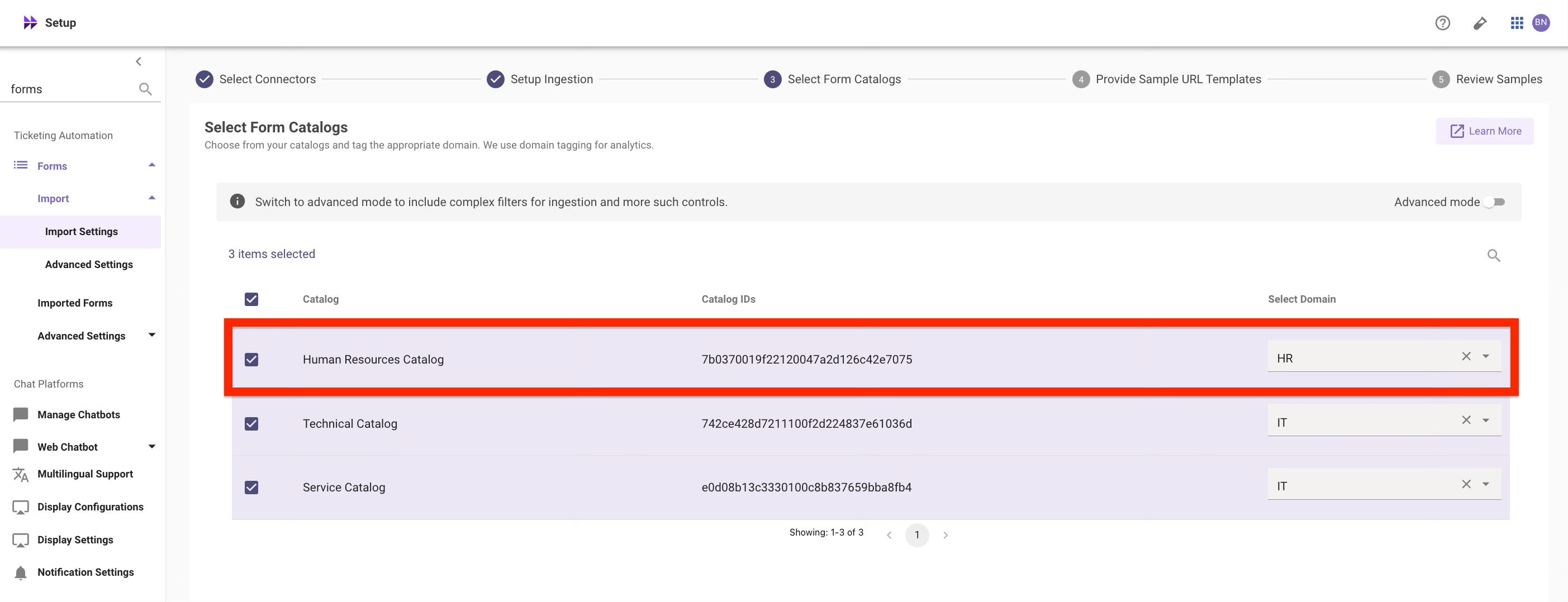
-
Click Next to advance to Step 4: Provide Sample URL Templates. You’ll now see a URL template field for each domain. The IT template should already be populated from Lab 4a.
-
In the Paste Form URL template for HR field, enter the ESC (Employee Center) URL template:
textReplace
[your-servicenow-instance-name]with your ServiceNow instance hostname (the same one you used for the IT template in Lab 4a, something likemvwrks-apr-7294-instructor-0001). The{form_id}placeholder is required; Moveworks substitutes it with each ingested form’s sys_id at runtime. -
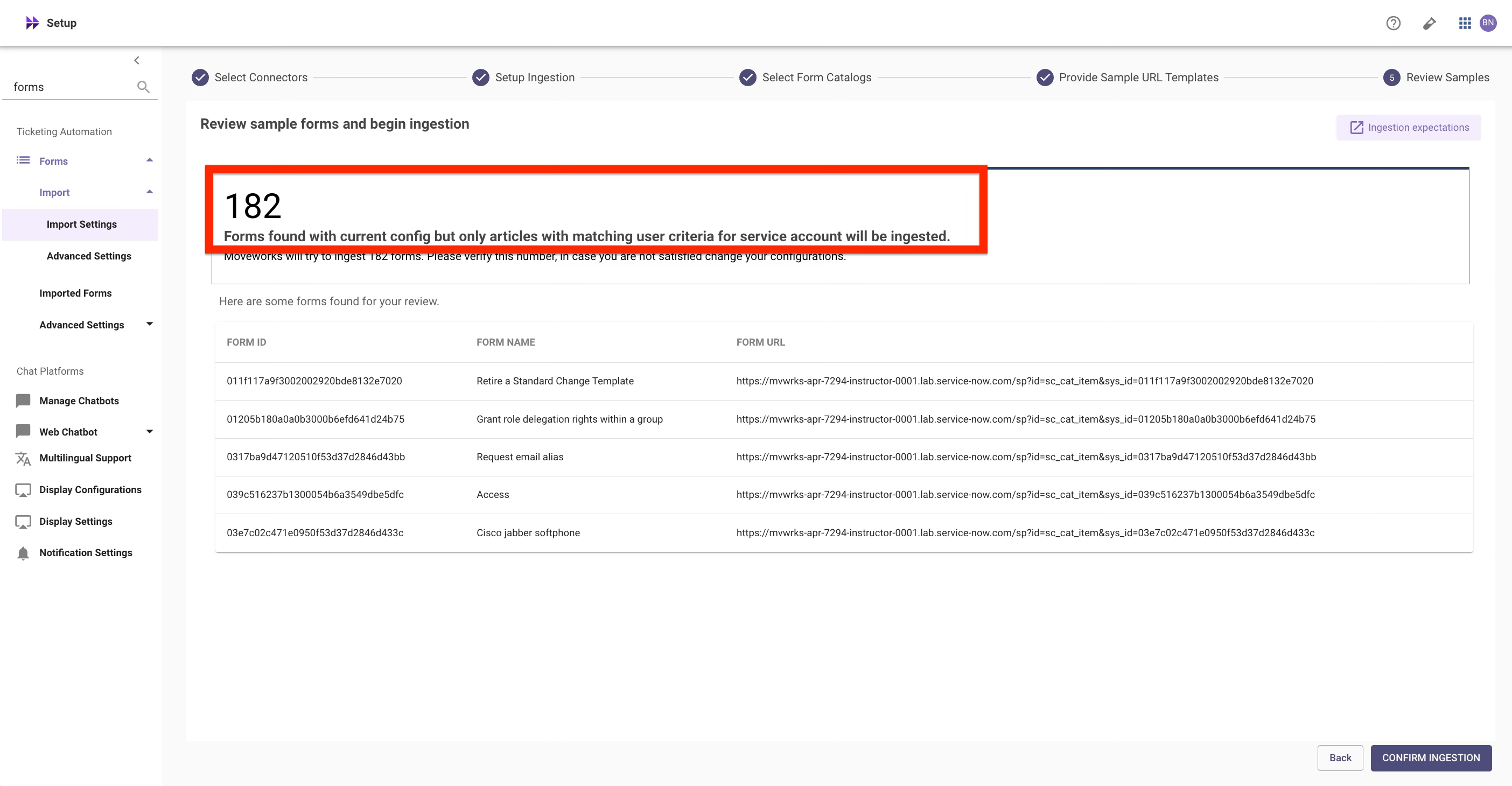
Click Next to advance to Step 5: Review Samples. Moveworks will show a preview of forms it found with the current config. You should see approximately 182 forms, up from the ~119 forms you saw with IT-only ingestion in Lab 4a. (The exact count may vary by training instance, but it should be significantly higher than Lab 4a’s baseline.) Confirm HR forms appear alongside IT forms in the sample list, then click Confirm Ingestion.
-
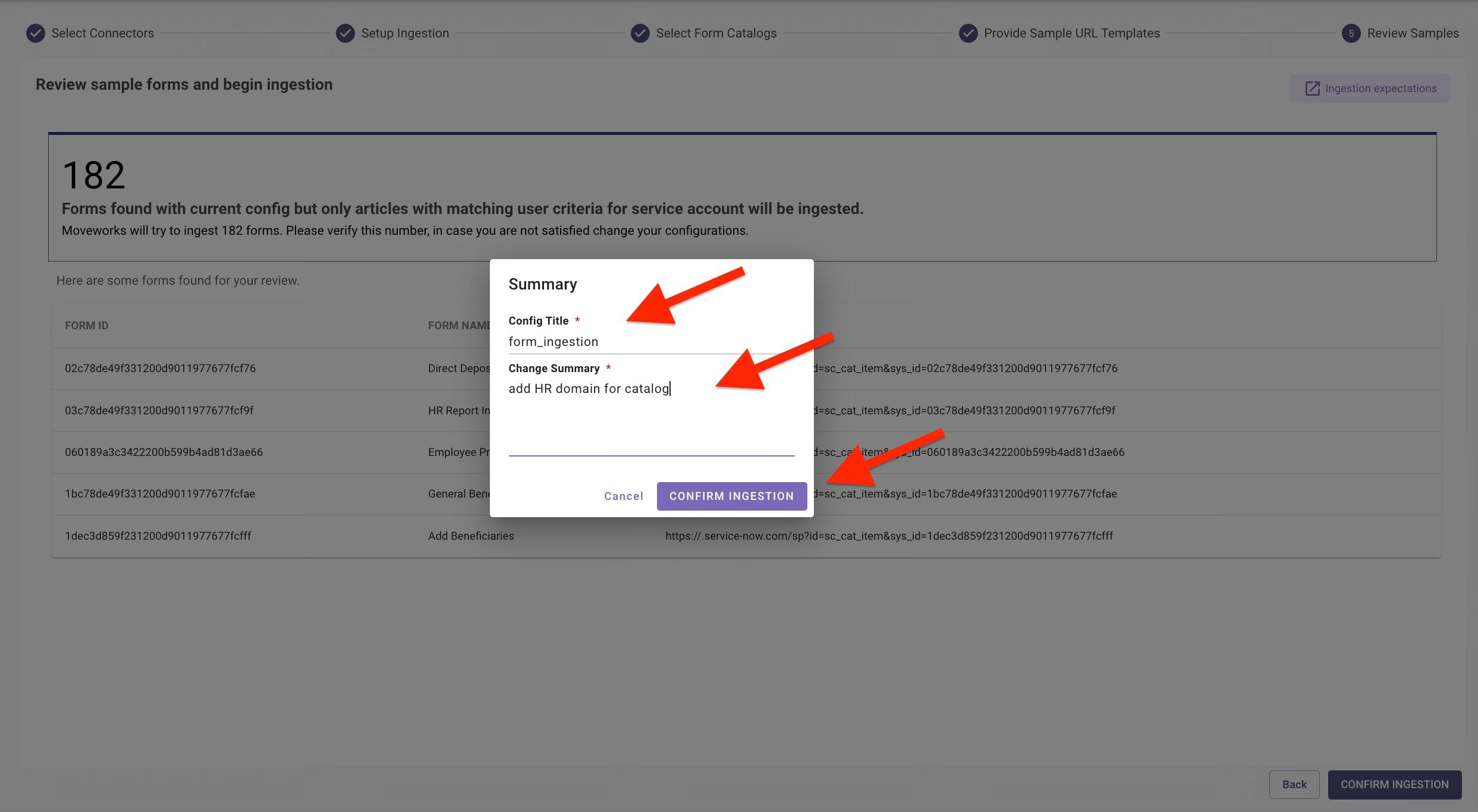
A Summary dialog opens with two required fields:
Both fields are mandatory. The Config Title names this ingestion configuration for future reference; the Change Summary creates an audit-trail entry describing what you changed in this revision. Click Confirm Ingestion in the dialog to finalize.
Sample values for illustration only. The values above are suggestions to keep this lab consistent. Your organization can use any naming convention. The Config Title should describe the ingestion config; the Change Summary should describe the specific revision being saved. Both are surfaced in the configuration’s change history, so future-you (or another admin) can quickly see what changed and why.
Heads-up about HR record producers in this training instance. All 34 HR producers use sn_hr_core.hr_ServicesUtil.createCaseFromProducer, which derives the case’s opened_for from the GlideSession user, so Moveworks submissions get attributed to the service account, not the actual employee. Ingesting still demonstrates multi-domain setup; making in-chat submission attribute correctly would need ServiceNow-side changes (out of scope here). See the Moveworks Help docs for context on this anti-pattern.
Ingestion of the HR catalog will start on the next scheduled run. You can check progress under Forms > Ingested Forms.
1.2: Reading Fillability Errors
Why is the ingested count lower than Step 5’s preview? You’ll likely see fewer forms in Forms > Ingested Forms than the wizard’s Sample Preview promised (e.g. ~159 ingested vs. ~182 previewed). The preview query only checks active=true and catalog membership; ingestion applies a stricter set of validations and drops anything that fails them. The most common reasons a form is dropped at ingestion:
- Empty or inactive category (the form has no category, or its innermost category is set to inactive)
- No active catalogs remaining for the form (after blacklist/inactive filters)
visible_standaloneis false (the catalog item is hidden as a standalone item)hide_spis true (the item is configured to hide from Service Portal)sys_class_nameoutside the allowlist (onlysc_cat_item,sc_cat_item_producer,sc_cat_item_guide,pc_software_cat_item,pc_hardware_cat_item, andx_fls_appportal_catalog_itemsare ingested)- Empty name on the form
For most labs you can ignore the gap, it’s expected behavior and doesn’t affect the demos in §1.3 and §1.4.
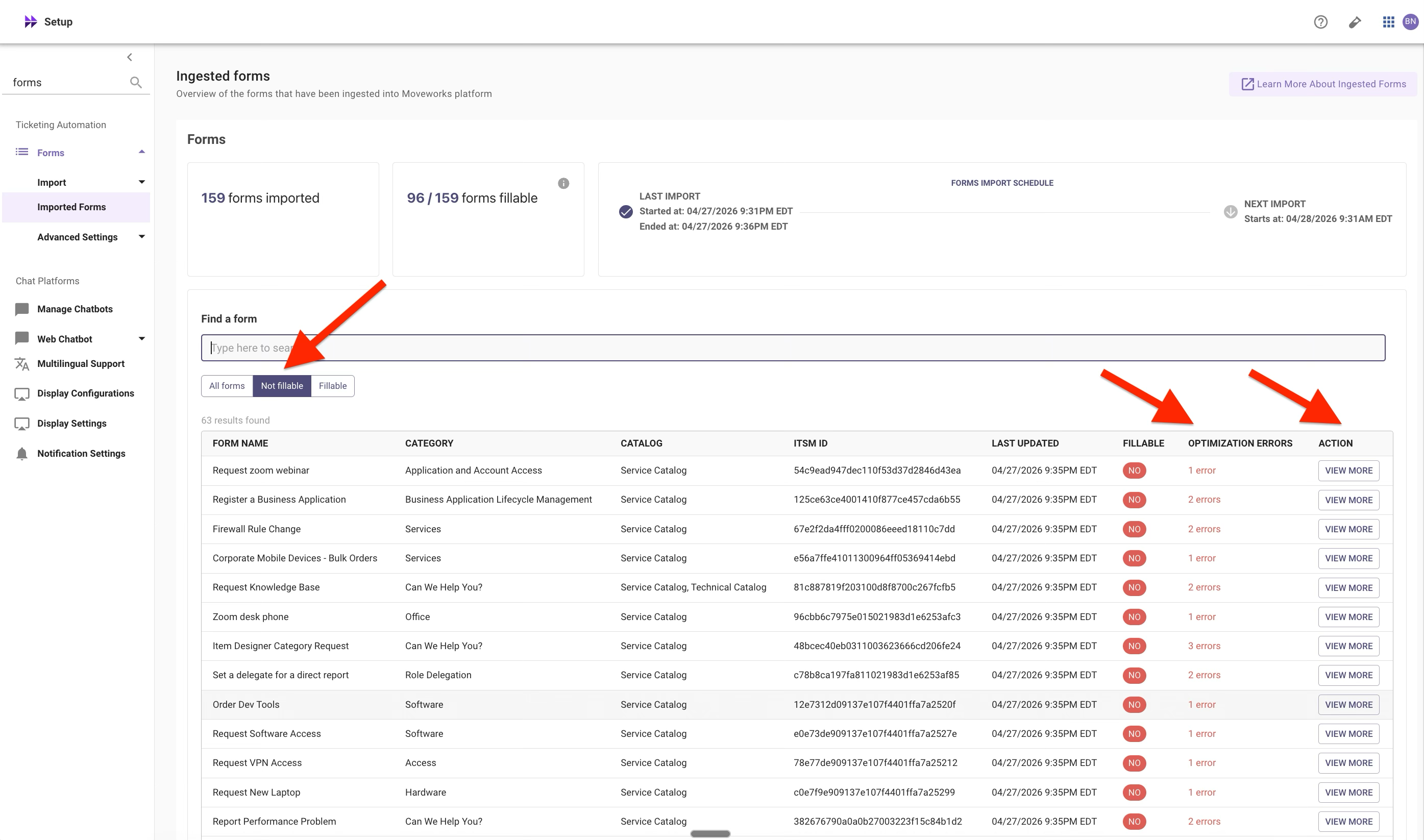
Once ingestion finishes, open Forms > Ingested Forms and sort by the Fillable column. Many forms will show as Not fillable with one or more optimization errors. Before reaching for overrides, learn to read the errors.
Click any unfillable form to open its detail panel. The Form optimization errors section lists each error with a type, description, and a “Learn how to resolve” link.
Fillability error cheat sheet
Every “Not fillable” error falls into one of two severity tiers. The “Override unfillable forms to be fillable” setting clears only the first tier; it has no effect on the second. For the canonical reference (every error type, root cause, and remediation), see the Form Fillability ServiceNow Error Guide.
Rule of thumb: if every error on a form is “requires override,” override will work. If even one error is “blocking,” override won’t help. You either fix it in ServiceNow, exclude the form, or let it deflect to the portal.
1.3: Report a Defect (override demo)
Where this lives: §1.3’s override rule is the only setting on Forms > Advanced Settings > Plugin Settings. §1.4 (Disallowed form IDs) and §1.5 (Advanced filter) are configured back in the ingestion wizard with Advanced mode toggled on, not on this page.
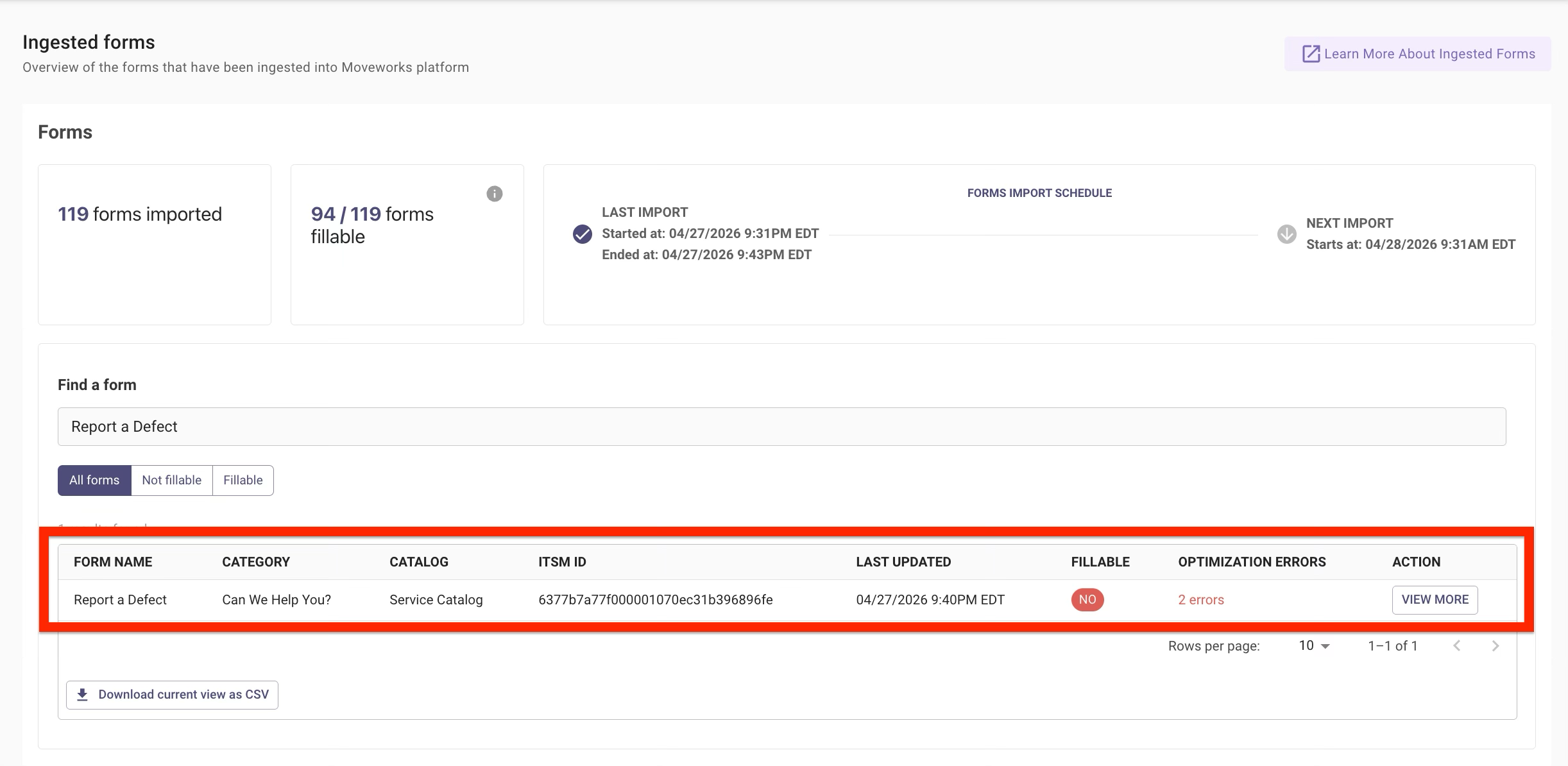
Report a Defect is a record producer with two “requires override” errors and no blocking errors. That makes it an ideal case for demonstrating the override feature end-to-end. After override, the form fills in chat and submits cleanly.
-
In
Forms > Ingested Forms, find Report a Defect (sys_id: 6377b7a77f000001070ec31b396896fe) and click into it. You should see 2 Form optimization errors, both “requires override”:- “Record producer forms must be manually verified to be working correctly” (IS_RECORD_PRODUCER)
- “Record producer writes tickets to unsupported table
rm_defect” (UNSUPPORTED_RECORD_PRODUCER_TABLE)
-
Copy the sys_id from the form detail panel.
-
Navigate to
Forms > Advanced Settings > Plugin Settingsin the sidebar. -
Scroll to the Override unfillable forms to be fillable field (the description reads: “Force an override of unfillable forms to be fillable in chat. Note that this only applies to ServiceNow forms due to a client script, UI Policy Script, or virtue of being a Record Producer.”).
-
In the DSL Editor, enter this rule:
textThe
IN [...]syntax is a list. You can extend it later with more form sys_ids separated by commas, each wrapped in.$LOWERCASE(). The case-normalization ensures the rule matches regardless of how ServiceNow returns the sys_id casing.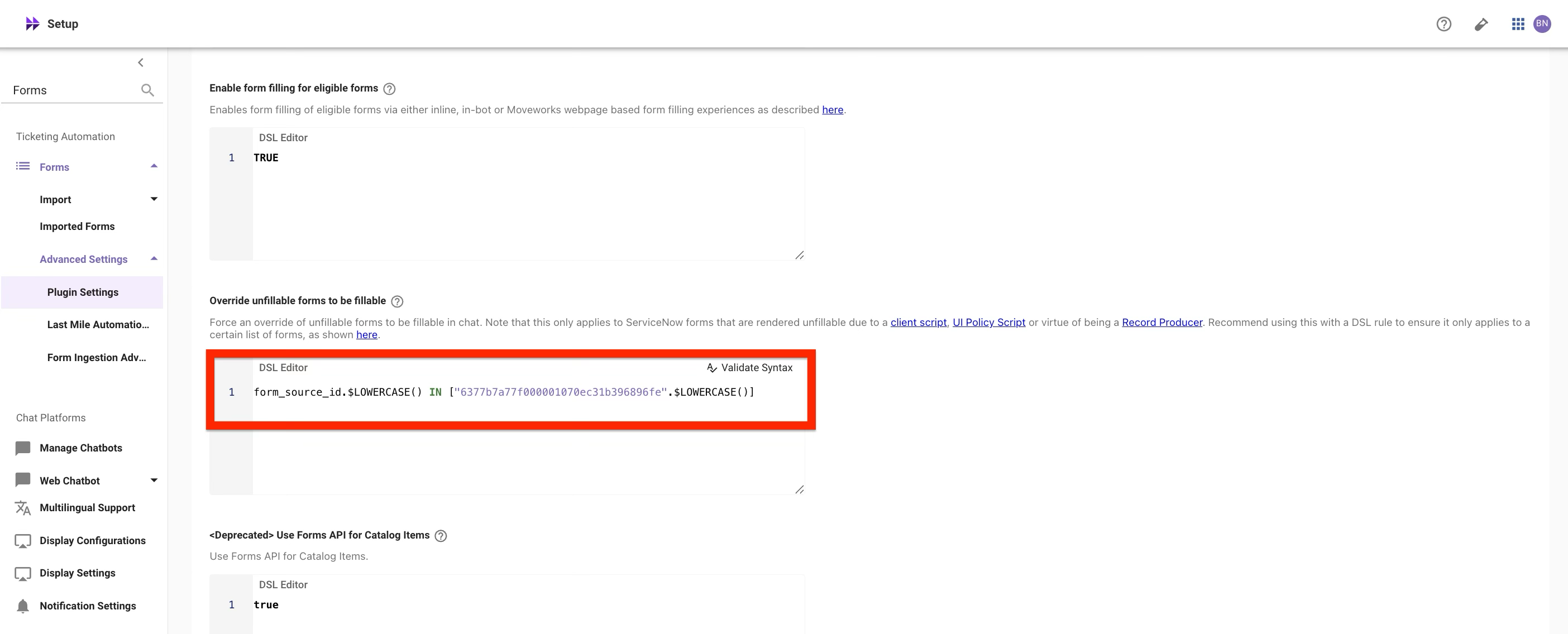
-
Click Validate Syntax to confirm the DSL parses. Then click Save and wait for the next ingestion cycle to re-index the form.
-
Back in
Forms > Ingested Forms, refresh Report a Defect. It should now show as Fillable.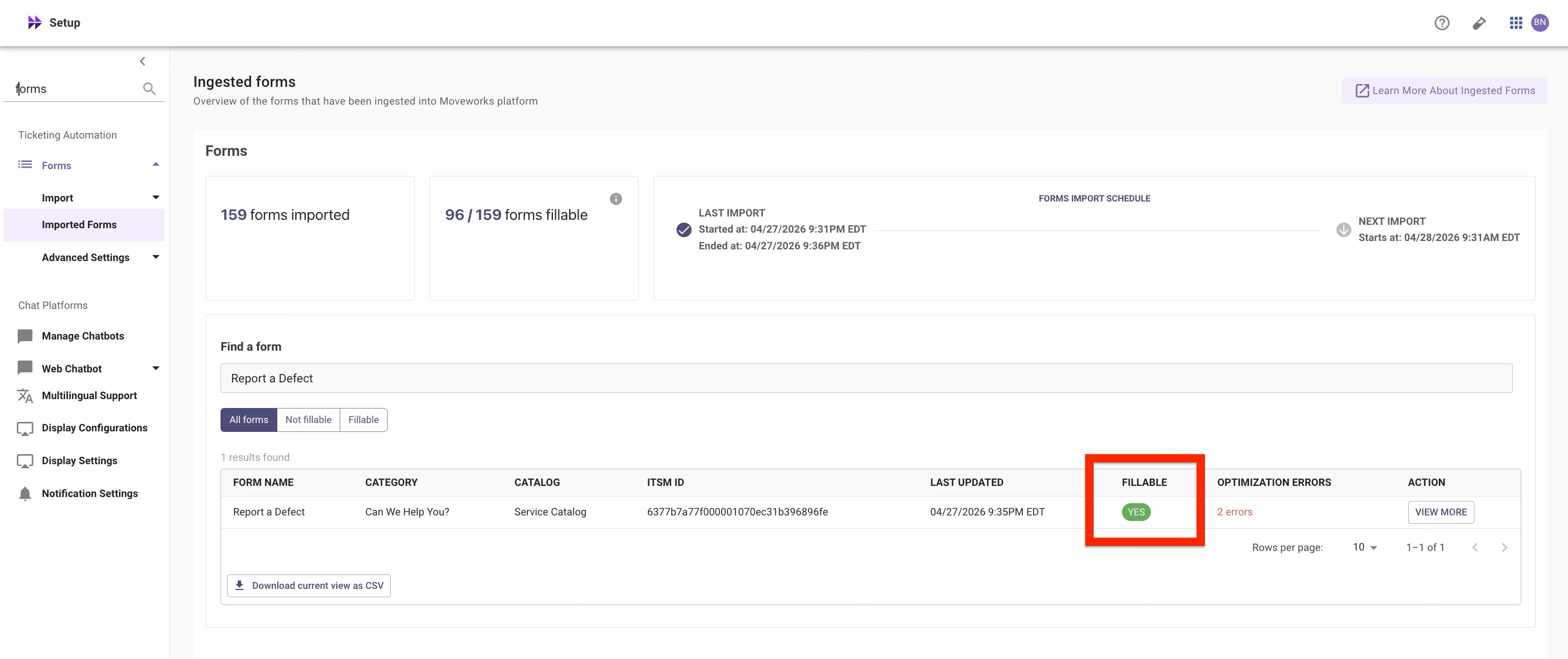
-
Test in the AI Assistant: type
"report a defect"(or similar). The Assistant surfaces Report a Defect with a Complete this request button.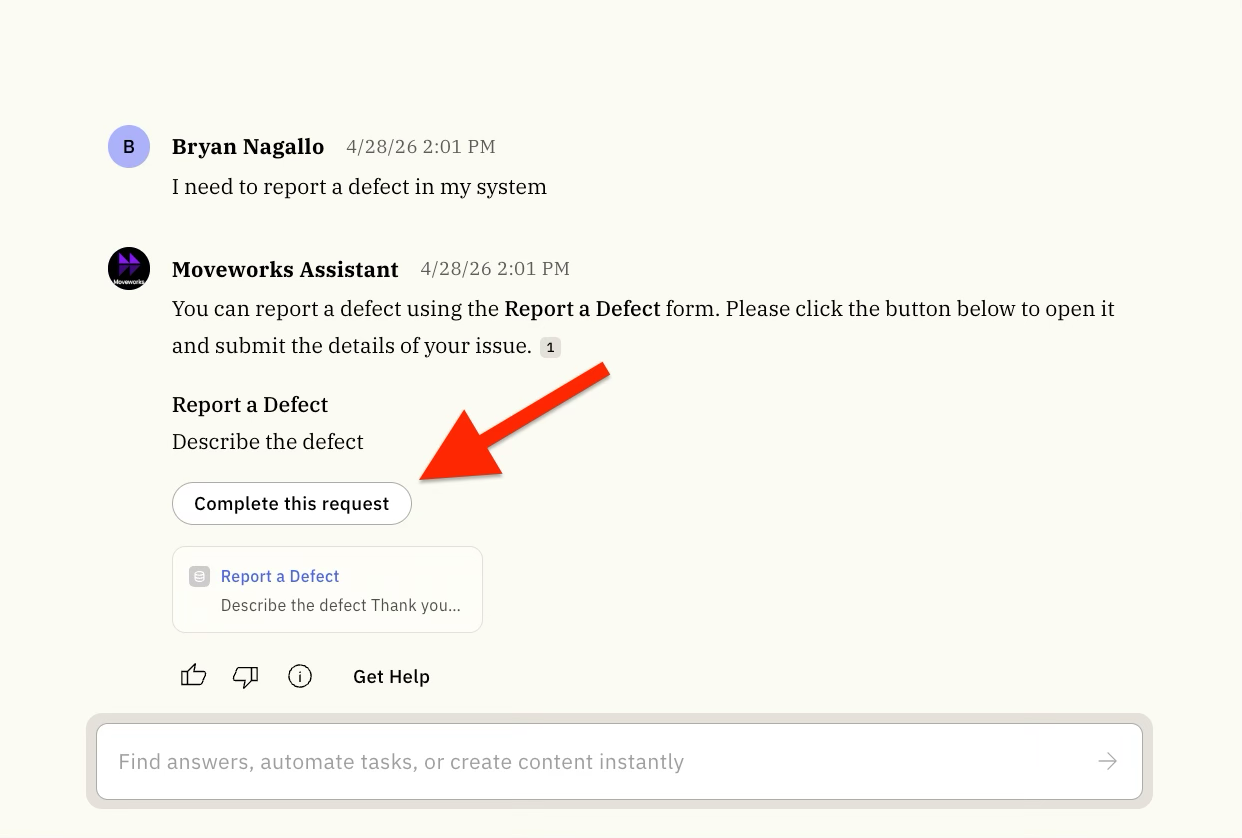
Click Complete this request to open the form modal in chat. It only has two fields: Short description and Description (both mandatory). Fill them in and submit. Verify a new record appears in ServiceNow at
rm_defect.list.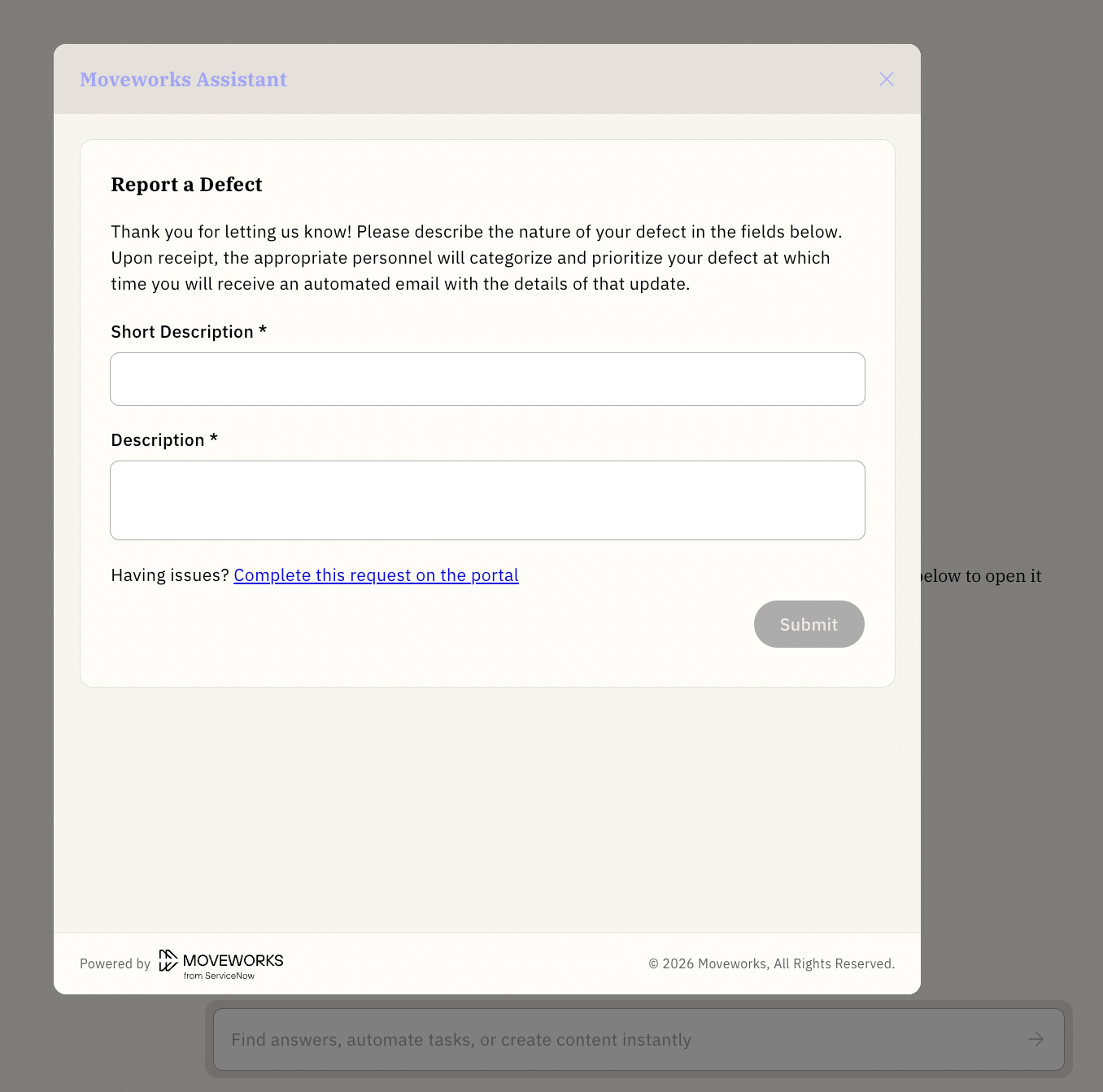
Try it from a different angle. What’s another way you could verify the record landed, without opening ServiceNow’s UI? Hint: you set up something for this in Lab 1, the API Playground. See if you can craft a
GET /api/now/table/rm_defectrequest that returns the record you just submitted.
Pause and think about this.
If you haven’t completed Lab 5: Ticketing (Core) yet, there are a lot of ticketing concepts that would be required for end-to-end ticket handling, none of which are configured in your instance right now:
- Table mappings: Moveworks Setup needs to know about each destination table (Incident, Request, Request Item, Task) before it treats records there as tickets
- Table Actions: Query, Create, Update, Resolve, Reopen permissions per table
- Routing & workflows: which intent routes to which ticket type
- Field mappings:
caller_id/requested_for/requested_bymappings, custom_data, default values - Service Portal URL: for “View in portal” links in chat
- Polling & notifications: for status updates and concierge nudges
Moveworks Setup even flagged this exact form earlier with “Record producer writes tickets to unsupported table rm_defect”. So why did the AI Assistant just successfully file a record from it?
Think about it: what did the override actually do, and what code path runs when you hit Submit? Does Moveworks need to know about the destination table to call the record producer’s submit endpoint? Of all the ticketing concepts above, which ones would you actually need to configure to make this form work the way it just did? And which ones come into play only after submission?
Sit with the question for a moment before reading the next callout.
Why it worked anyway. Submission hits ServiceNow’s record-producer API (POST /api/sn_sc/servicecatalog/items/{sys_id}/submit_producer); Moveworks just calls that endpoint, and ServiceNow’s own producer script writes to rm_defect. There’s no Moveworks-side check at submit time for “is this table in your ticketing config?”, and the override already cleared the fillability checks.
Where the ticketing config would matter is after submission: tracking the record as a ticket in chat (status, reopen, “View in portal”, lifecycle). rm_defect isn’t mapped, so you get a plain confirmation. To get full lifecycle in a real deployment, you’d add rm_defect as a new table mapping (out of scope here).
1.4: Item Designer Category Request (when override isn’t enough)
Not every unfillable form can be rescued by override. Item Designer Category Request is the canonical example: override handles two of its three errors, but one is Blocking and nothing clears it.
-
In
Forms > Ingested Forms, open Item Designer Category Request (sys_id: 48bcec40eb0311003623666cd206fe24). You’ll see 3 Form optimization errors: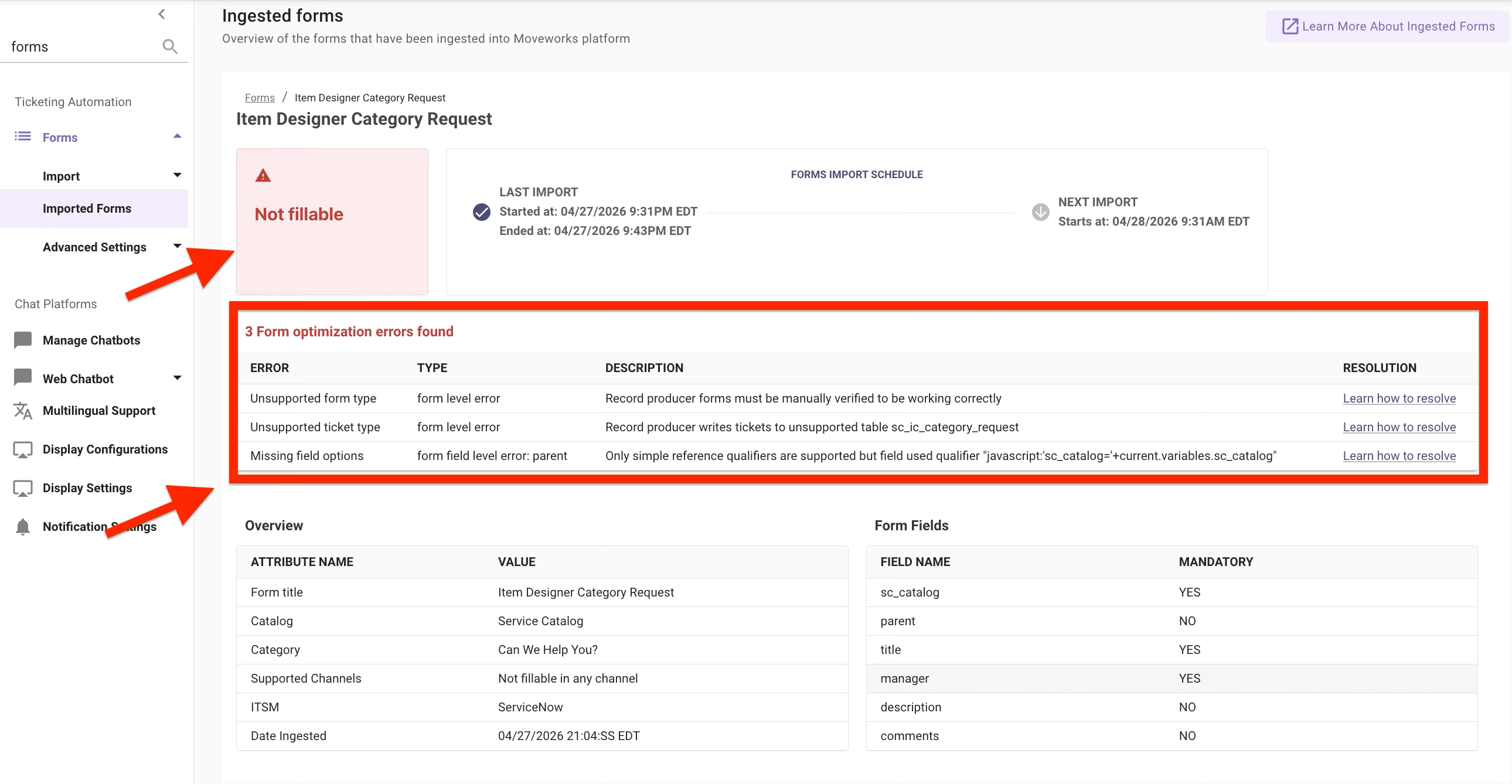
-
Even if you applied an override rule for this form’s sys_id, the reference qualifier on the
parentfield still uses JavaScript (javascript:'sc_catalog='+current.variables.sc_catalog), which Moveworks can’t evaluate in chat. The form would stay unfillable.
The real fix is in ServiceNow, not Moveworks Setup. The blocking error requires either rewriting the parent field’s reference qualifier as a static encoded query (e.g., sc_catalog=<hardcoded_sys_id>) instead of JavaScript, or accepting that this form belongs in the ITSM portal.
Why not use Script ID’s to ignore? That setting only filters client scripts (sys_script_client records on the catalog item). It does not affect reference qualifier JavaScript, which is a different ServiceNow construct handled in a separate code path. No Moveworks configuration field can bypass a REF_QUALIFIER_USES_SCRIPTS blocking error. The fix has to happen in ServiceNow.
Since Item Designer Category Request is an admin-facing form that employees won’t use through the AI Assistant anyway, the pragmatic choice is to exclude it from ingestion entirely.
Catalog scoping. Item Designer Category Request lives in the Service Catalog (IT domain), not the HR catalog you added in §1.1. The exclusion below is added under the IT domain block of your existing ingestion source config, not under HR.
-
Navigate to
Forms > Import > Import Settingsand open your existingsnowingestion source config. Step through the wizard to Step 3: Select Form Catalogs, and toggle Advanced mode on (top-right of the page). Without Advanced mode, the per-domain configuration block stays collapsed and the Disallowed form IDs field is hidden. -
Expand the IT domain’s per-domain configuration block, then scroll to the Disallowed form IDs field (description: “Form IDs you do not want ingested. This setting will be respected regardless of other options.”). No DSL rule is needed here. The field is a plain Value / Display Value list; you enter the form’s sys_id directly.
-
Click + to add a new entry. In the Value column, paste the sys_id below. Leave the Display Value column blank, it’s optional and not used by the filter.
text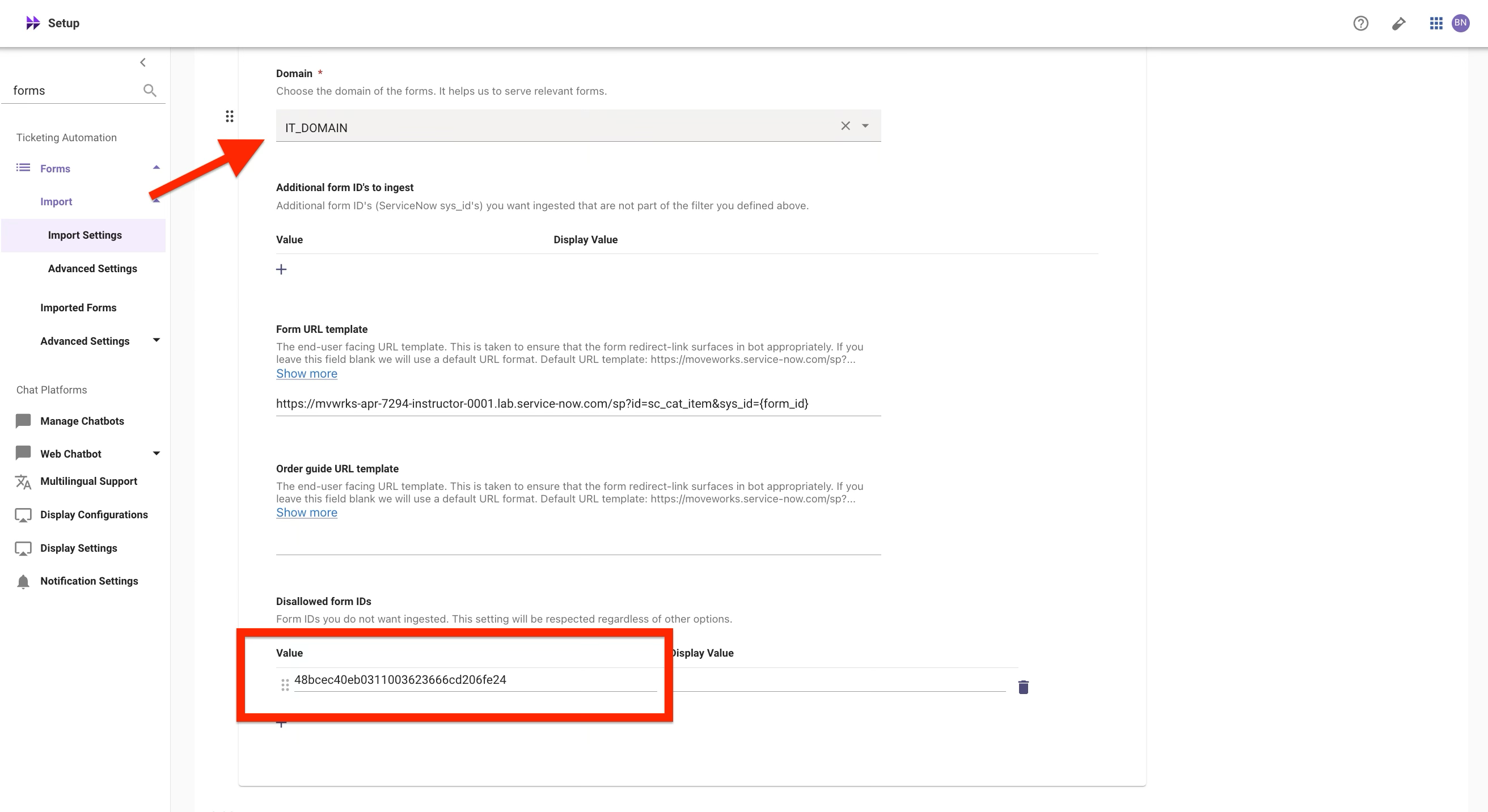
-
Click Save, then advance through the rest of the wizard and Confirm Ingestion. You’ll see the same Summary dialog from §1.1; give the change a fresh title and summary.
-
After the next ingestion cycle, Item Designer Category Request will no longer surface in
Forms > Ingested Forms.
1.5: Advanced filtering with a custom query (reference)
This section is reference-only, not a lab step. You don’t need to apply anything here. Read it to understand what Advanced mode unlocks, then move on.
Instead of the Default filter, you can switch to an Advanced filter with a custom ServiceNow encoded query. The setting lives in the same per-domain block on the wizard’s Step 3 (Select Form Catalogs) that you used in §1.4. Toggling Advanced mode exposes a Filter type dropdown per domain; switching it to Advanced filter opens an encoded-query field.
The two queries below reproduce the same catalog scoping you already set up in Basic mode in §1.1 (IT pulls from Technical + Service catalogs; HR pulls from the Human Resources catalog). Writing the scoping out as an explicit query produces the same form count as Basic mode, because Basic mode internally generates an equivalent active=true^sc_catalogsIN<sys_ids> query.
IT domain (Technical Catalog + Service Catalog):
HR domain (Human Resources Catalog):
The power of Advanced mode is everything you can layer on top of that base. Once you’re writing the query yourself, you can narrow further on any field ServiceNow exposes: a specific category (category.titleINHardware,Software,Access), a specific class (sys_class_nameINsc_cat_item,sc_cat_item_producer to exclude order guides), recency (sys_updated_on>=javascript:gs.daysAgoStart(180)), categorization presence (categoryISNOTEMPTY), or any combination. The encoded-query syntax matches what you’d build visually in a ServiceNow list filter, so the easiest workflow is: build the filter on sc_cat_item.list in ServiceNow, right-click the breadcrumb to Copy query, then paste here.
The wizard’s Step 5 (Review Samples) preview does not reflect your Advanced filter. The preview is hardcoded to the baseline active=true^sc_catalogsIN<ids> query and ignores any extra clauses you add (category, class, date, etc.). Those clauses are only applied at actual ingestion. So Step 5’s count is a useful upper bound, but if you’ve narrowed beyond catalog membership, expect the post-ingestion count to be lower than what the preview shows.
✅ 2: Verification & Next Steps
- Multi-domain ingestion working:
- Human Resources Catalog checked in the existing
snowsource config (no Error 13008) - Domain
HRselected for that row - HR URL template set to
/esc?id=sc_cat_item&sys_id={form_id}on Step 4 - Step 5: Review Samples shows approximately 182 forms (vs. ~119 from Lab 4a IT-only)
- Summary dialog completed with Config Title and Change Summary
- Both IT and HR forms appear in
Forms > Ingested Formsafter the next ingestion cycle
- Human Resources Catalog checked in the existing
- Override demo (Report a Defect):
- Report a Defect shows as Fillable after the override rule is applied
- Typing
"report a defect"in the AI Assistant starts conversational form filling - Submitting the form creates a new record at
rm_defect.listin ServiceNow
- Exclusion demo (Item Designer Category Request):
- Item Designer Category Request no longer appears in
Forms > Ingested Forms
- Item Designer Category Request no longer appears in
Next: Lab #5 — Ticketing (Core) — wire up the ticket-filing path that makes the forms from Labs #4a/#4b actually submittable through Moveworks.
💡 3: Reflecting on This Configuration
Through this lab, you’ve learned the following:
- How to add a second domain (HR) to an existing forms ingestion source config, and why Moveworks rejects a second source config for the same integration with Error 13008
- That stock ServiceNow HRSD record producers don’t expose a requester variable (they rely on
hr_ServicesUtil.createCaseFromProducer, a session-based anti-pattern), so in-chat submission needs ServiceNow-side fixes - How to read fillability errors and distinguish Requires override from Blocking severity
- How to apply a fillability override with a DSL rule to unlock a record producer that’s safe to fill in chat
- When override genuinely won’t help, and how to exclude the form via Disallowed form IDs
- How to use Advanced filter for custom form selection
⚙️ 4: Configuration Details
Use the tables below to fill in the required fields accurately.
HR Catalog (added to the existing snow source config in Basic mode)
Fillability Override Example (Report a Defect, from §1.3)
The setting below lives at Forms > Advanced Settings > Plugin Settings. (§1.4 and §1.5 settings live in the ingestion wizard’s Advanced mode instead.)
Exclusion Example (Item Designer Category Request, from §1.4)
Disallowed form IDs lives on Forms > Import > Import Settings, inside the per-domain block. Item Designer Category Request is in the IT/Service Catalog, so the entry goes under the IT domain block.
Forms Ingestion Settings Reference
All fields below live on the Select Form Catalogs wizard step in Advanced mode. The Scope column shows whether the field is per-domain (inside a ServiceNow related configurations block) or integration-level (shared across all domains under the same integration).