
Lab #4a: Basic Forms
Lab #4a: Basic Forms
Overview
- Learning Objectives: Configure forms ingestion for an IT service catalog, set up mirrored permissions and permission rules for forms, verify ingested forms appear correctly in Moveworks, and test conversational form filling through the AI Assistant
- Estimated Time: 20 minutes
- Prerequisites:
- Pre-Req: Update Sets complete (user criteria permissions installed)
- Lab 0 complete (ServiceNow training instance set up)
- Lab 1 complete (
snowconnector configured and tested) - Lab 2 complete (user identity and service account configured)
- Two IT service catalogs in your ServiceNow training instance (provided by instructor): Service Catalog and Technical Catalog
🛠️ 1: Walkthrough
1.1: Configure IT Service Catalog Ingestion
- Navigate to
Forms > Import > Import Settingsin Moveworks Setup - Click
New Ingestion - Select Connector: Choose your
snowconnector
Note: This must be the same connector you configured in Lab 1. If you followed the instructions exactly, it should be named snow.
- Name of the ingestion: Enter a descriptive name for this ingestion configuration — for example,
servicenow_forms_IT
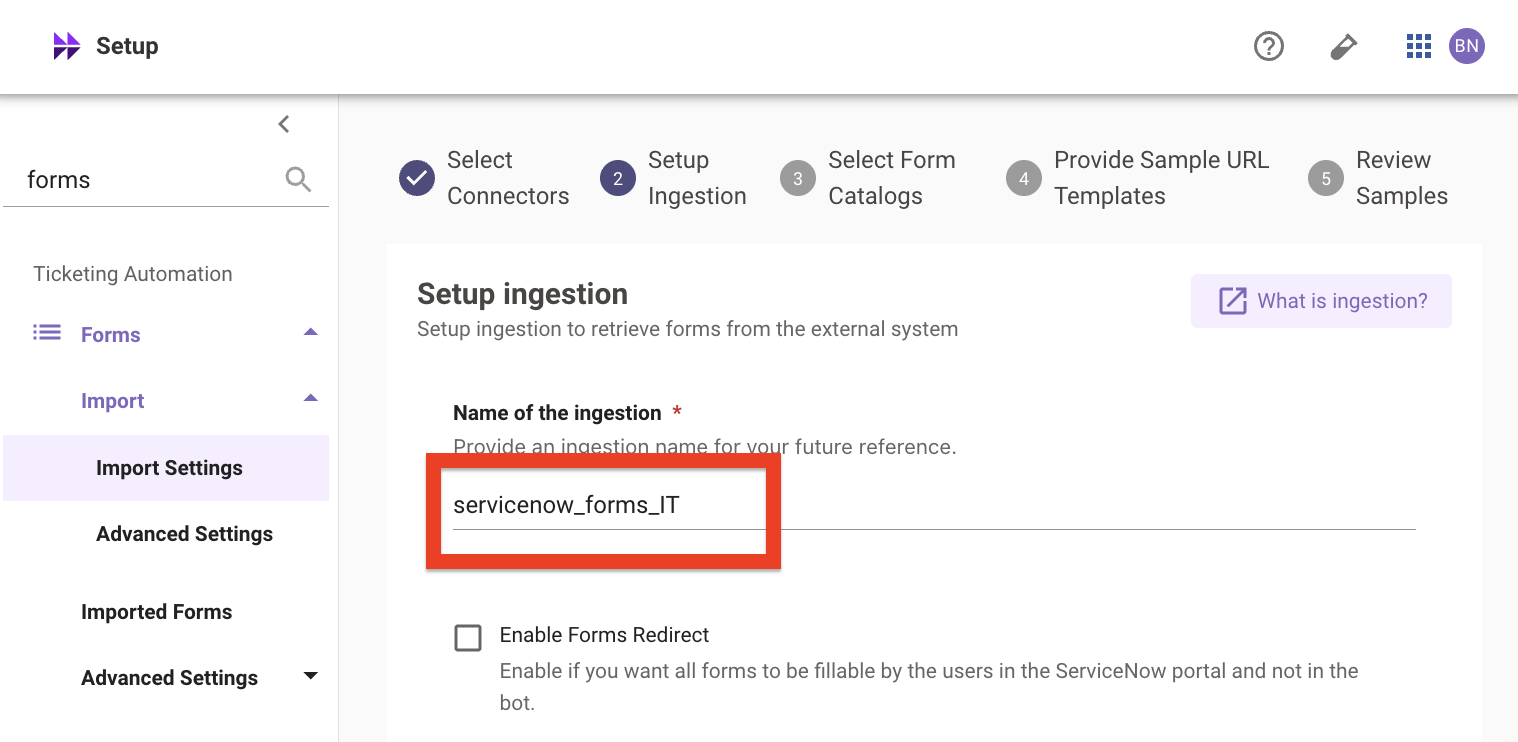
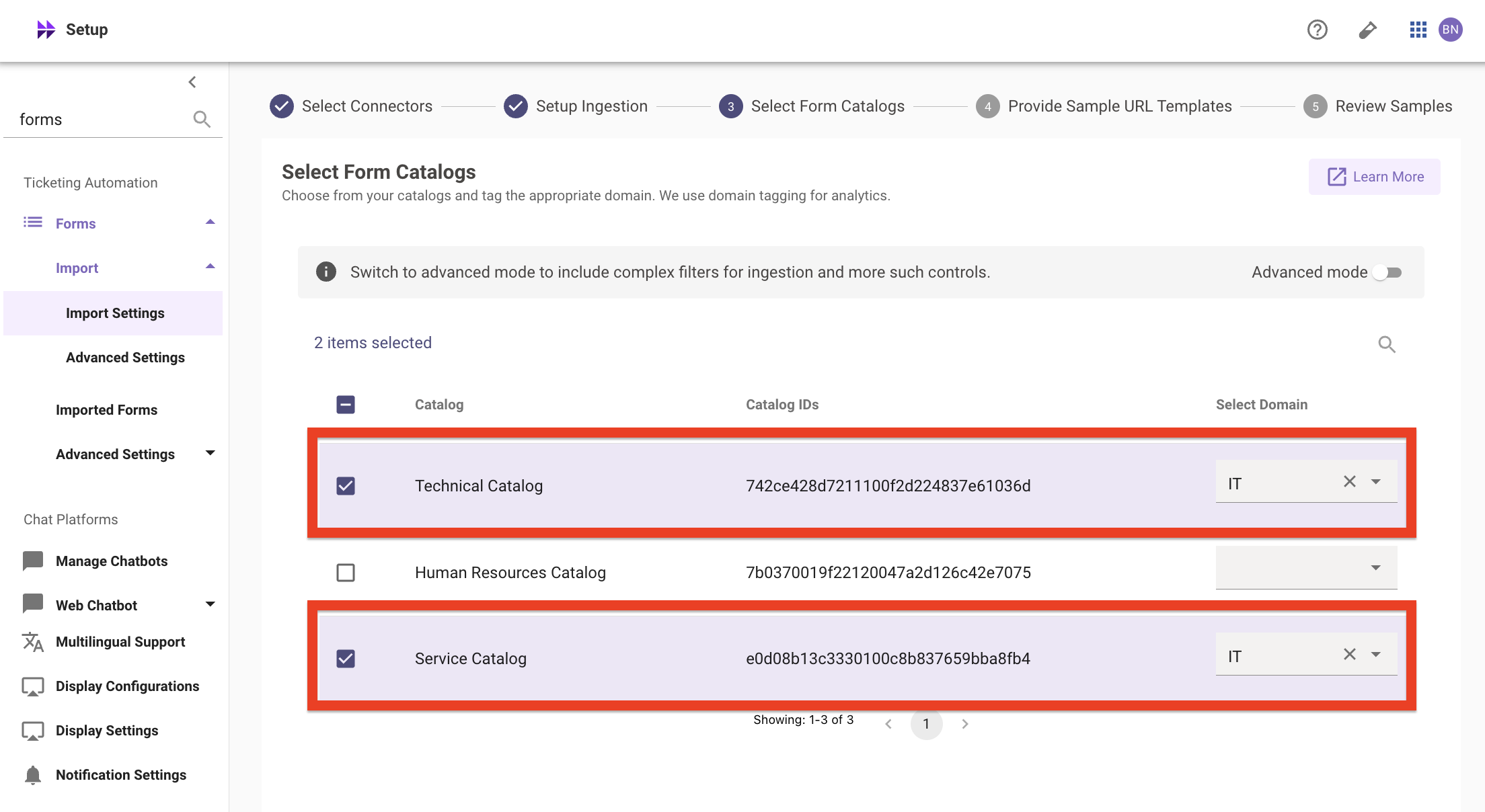
- Select Form Catalogs: Select the two IT catalogs and assign each one the
ITdomain. Check the box next to each catalog and set its Select Domain dropdown toIT:
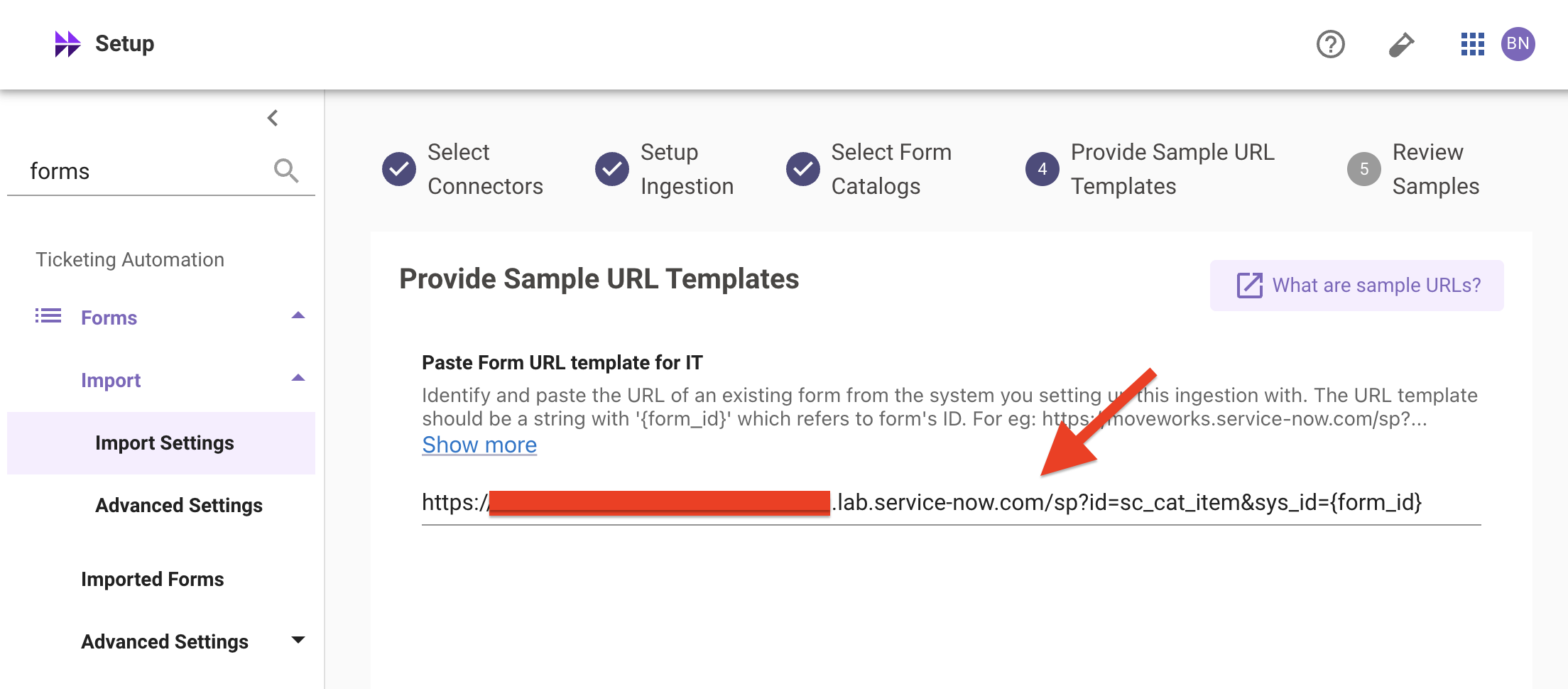
- Provide Sample URL Templates: Enter a form URL template from your ServiceNow training instance. The URL template must include
{form_id}which refers to the form’s ID. Use the following format:
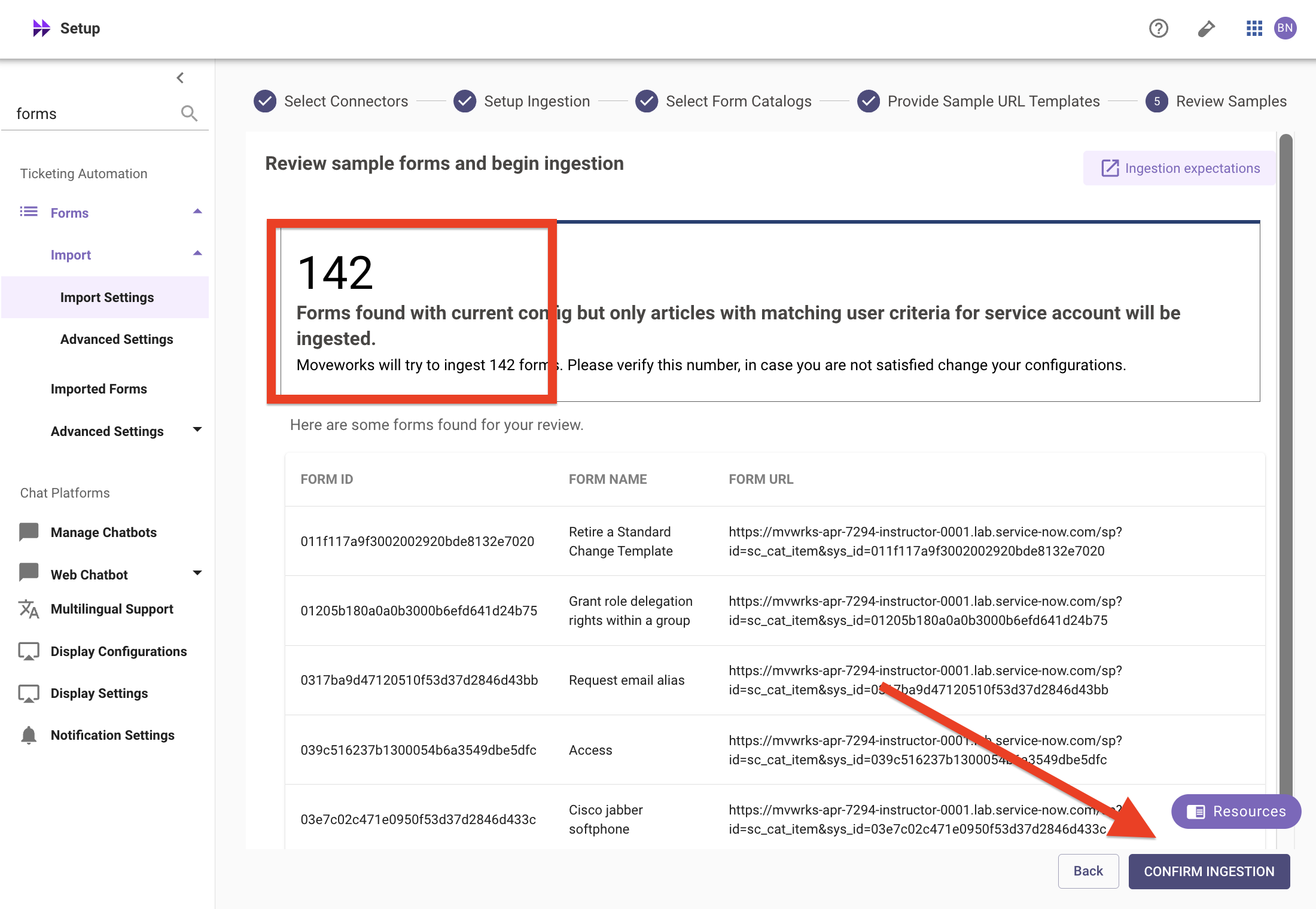
- Review Samples: Moveworks will display a preview of the forms it found from your selected catalogs. Verify that forms are populating in this view — the count should be greater than zero. The exact number will vary depending on your training instance, but you should expect to see forms from both the Technical Catalog and Service Catalog.
If no forms appear in the review, go back and verify the previous wizard steps:
- Your
snowconnector is valid and connected (configured in Lab 1) - Both the Technical Catalog and Service Catalog are checked with the domain set to
IT - The sample URL template includes
{form_id}and uses your correct instance name
Once the forms load successfully, click Confirm Ingestion in the bottom right.
1.2: Configure Form Permissions
If you completed Lab 3: Enterprise Search, this page should already be partially configured with the snow connector selected. If you have not completed Lab 3, stop here and complete it first — the Mirror Permissions configuration is a shared prerequisite for both Enterprise Search and Forms.
-
Navigate to
Resource Permissions > Mirror Permissionsin Moveworks Setup. You should see thesnowconnector already selected from Lab 3. -
Confirm the following checkboxes are selected:
- Fetch Form Access Controls — ingests user criteria for catalog items (required for forms)
- Fetch Knowledge Base Access Controls — ingests user criteria for knowledge articles (configured in Lab 3)
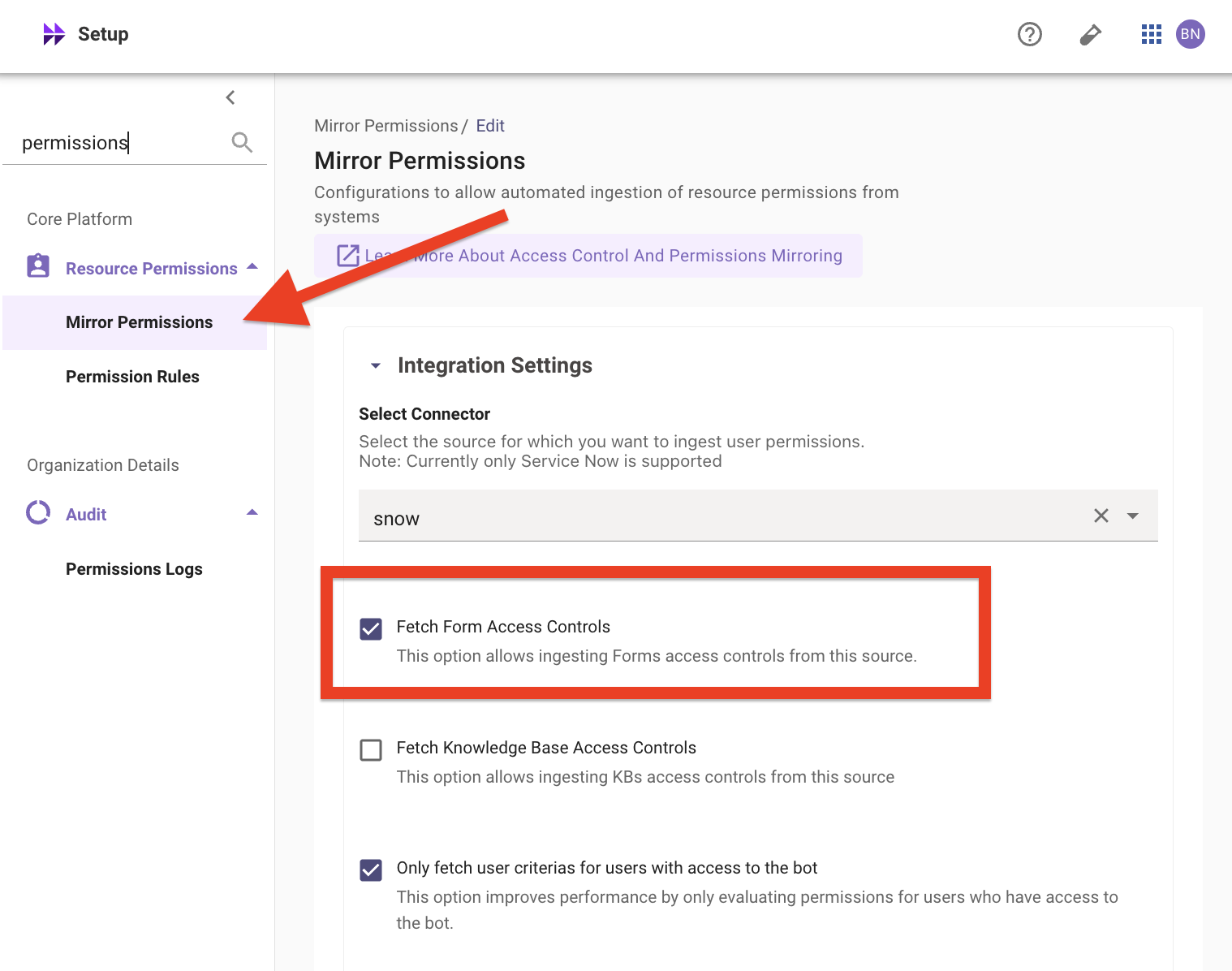
- Click Save if you made any changes.
Note: Without Fetch Form Access Controls and Evaluate User Criteria enabled, form ingestion will not run. Permissions must be configured before Moveworks can index your catalog items.
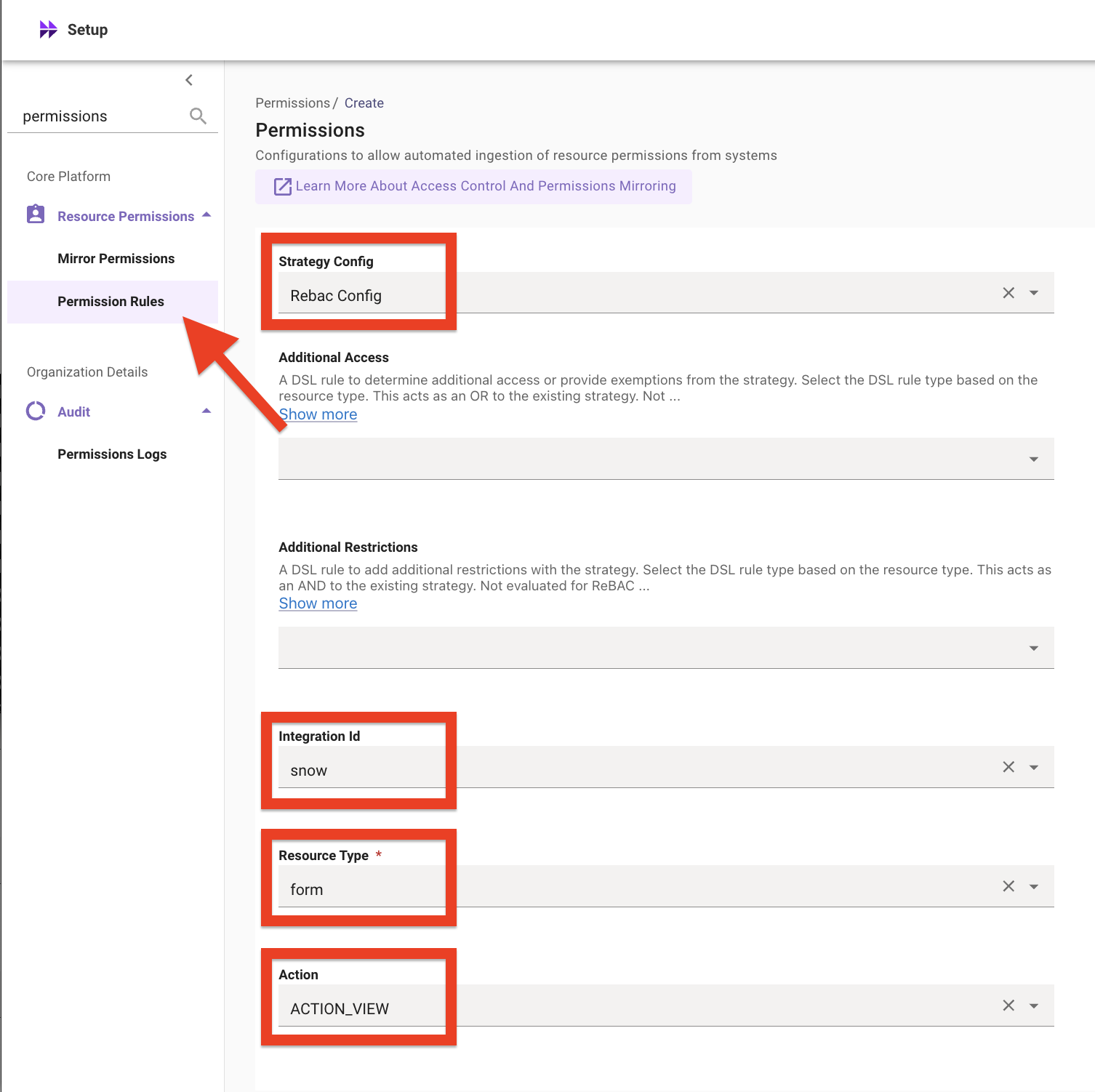
- Navigate to the Permission Rules page under
Resource Permissions. Add a new permission rule with the following values:
Leave all other fields blank.
Note: The Integration ID must match the connector you selected in the previous steps. If you followed the instructions exactly, this should be snow.
Key Concept: While Mirror Permissions is specific to ServiceNow, Permission Rules apply across all integrated systems to maintain a consistent security posture. This rule tells Moveworks to use ReBAC to evaluate who can view forms from your ServiceNow connector.
Form ingestion and indexing must complete before proceeding. After saving your permissions configuration, Moveworks will begin ingesting forms and their access controls. This process must finish before forms will appear in Ingested Forms or the AI Assistant. Refer to the Moveworks Ingestion Schedule documentation for expected timelines.
1.3: Enable the Forms Plugin
While waiting for ingestion to complete, enable the Forms plugin so the AI Assistant can surface forms to users.
- Navigate to
AI Assistant > Plugin Managementin Moveworks Setup - Locate the Forms plugin and ensure it is set to TRUE
Note: Plugin Management controls all built-in plugin capabilities for the AI Assistant. Each plugin accepts a DSL rule to define which users have access. For this lab, leave the DSL rule empty to grant access to all users.
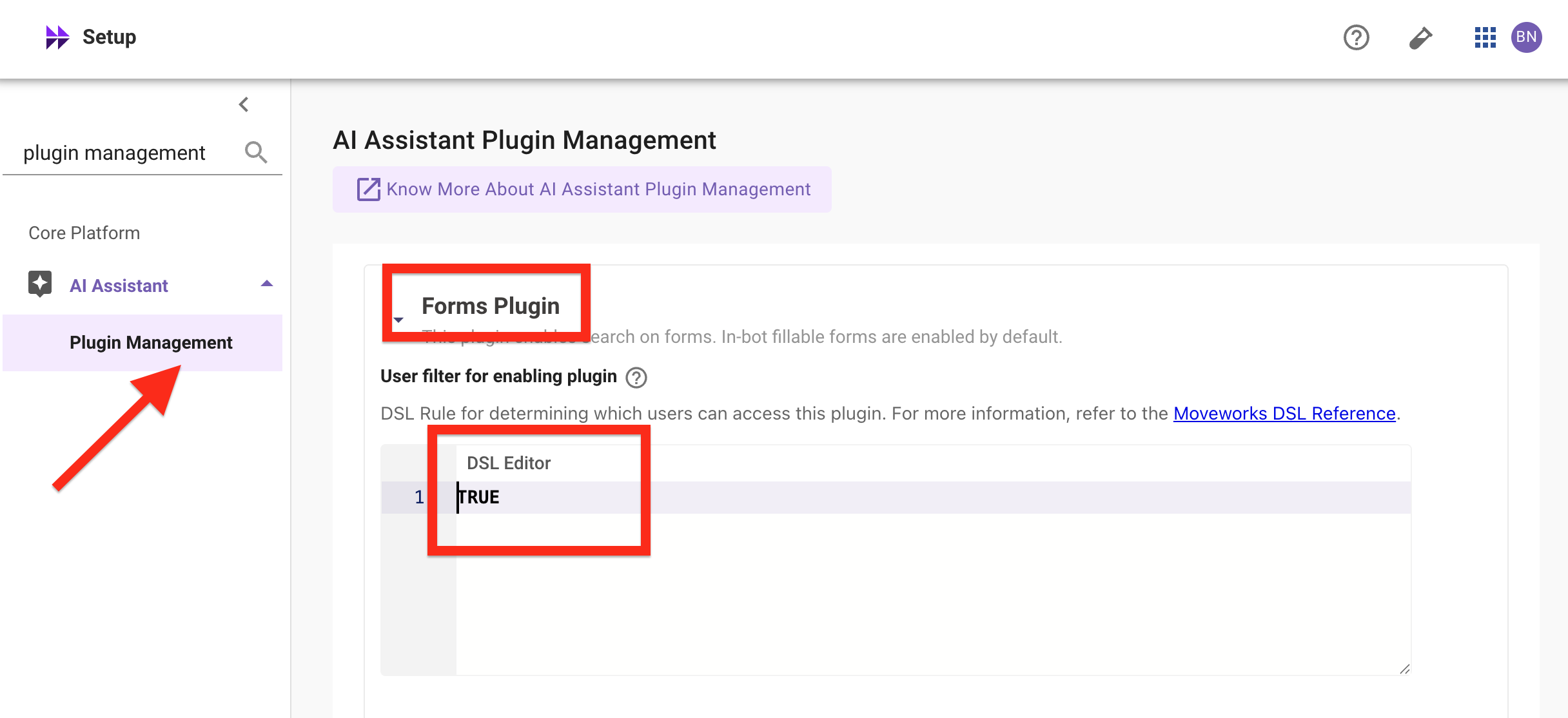
This step is required for forms to work in the AI Assistant. Even after enabling the plugin, ingestion and indexing must still complete before forms will appear. Do not proceed to verification until ingestion has finished.
✅ 2: Verification & Next Steps
- Ingested Forms Check: Navigate to
Forms > Import > Imported Formsin Moveworks Setup. After ingestion completes, you should see:- Total forms imported — the number of forms ingested from both catalogs (e.g., 119)
- Fillable forms count — how many of those forms are fillable in-chat (e.g., 94 / 119)
- Last Import / Next Import — the timestamps showing when the most recent ingestion ran and when the next one is scheduled
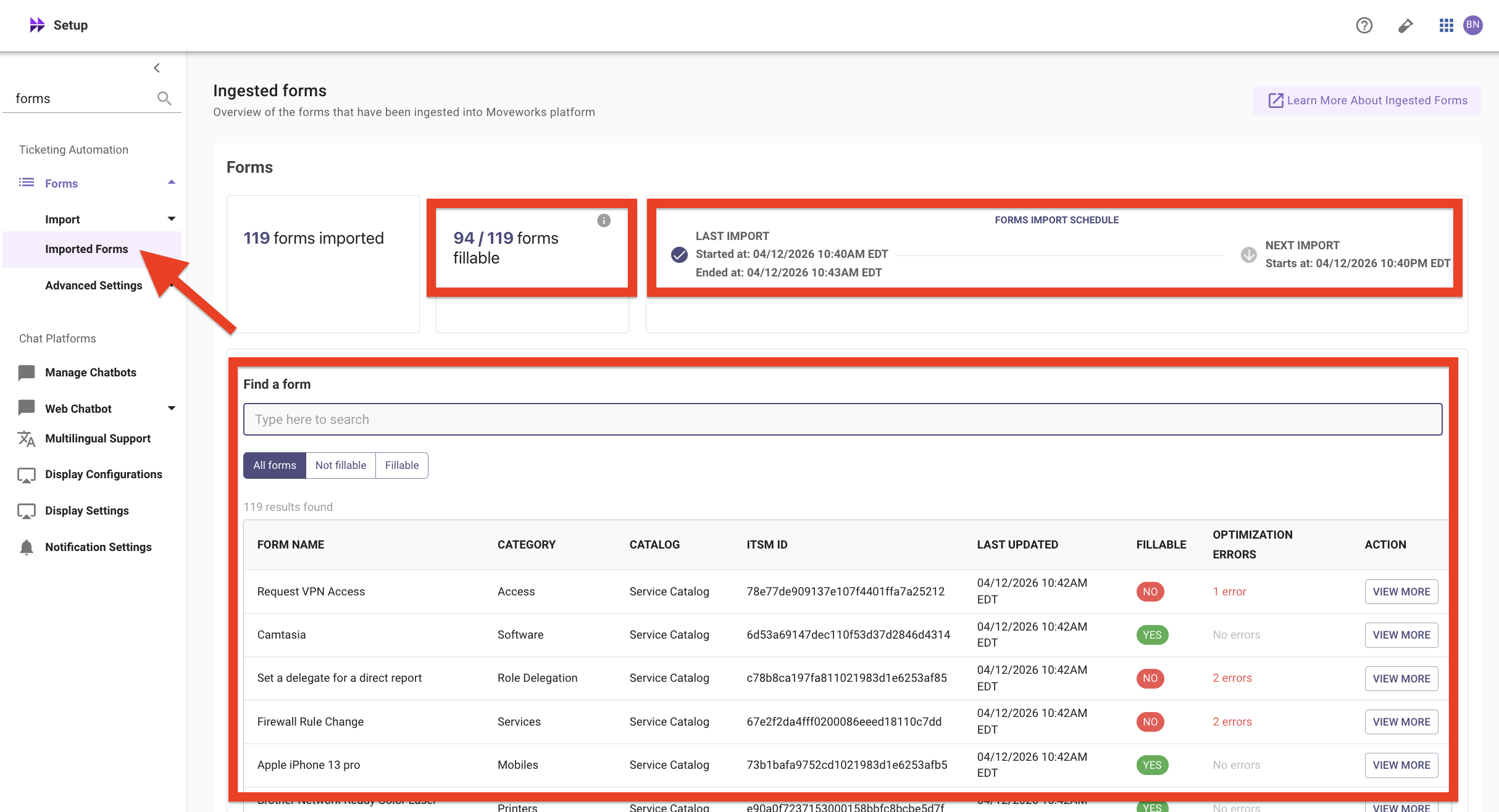
The forms list should include entries from both the Service Catalog and Technical Catalog across many categories. Here are some examples — your full list will be larger:
- Check Fillability: Search for Standard Laptop in the search bar — verify it shows as fillable with no optimization errors.
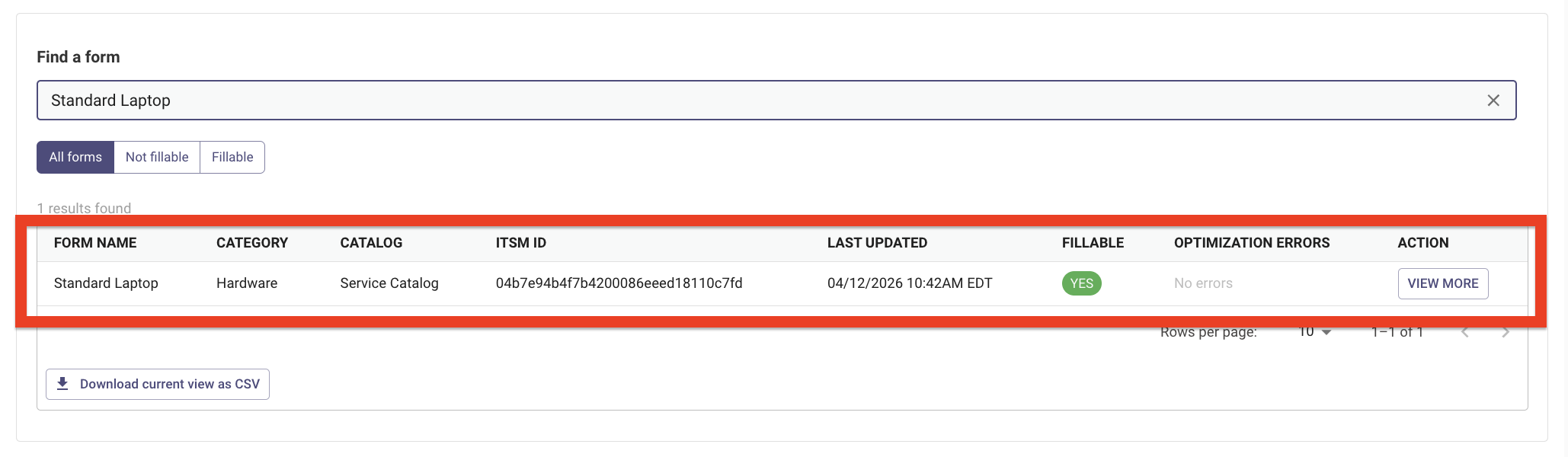
Note: If forms are not appearing, check that your connector is valid (Lab 1), the catalogs were selected correctly, and Fetch Form Access Controls is enabled in Mirror Permissions.
- AI Assistant Check: Open the Moveworks AI Assistant in your browser and type
"I need a standard laptop"— Moveworks should surface the “Standard Laptop” form. That’s the expected outcome here: form finding is working. Form filling and submission won’t complete yet — you’ll wire those up by configuring ticketing in Lab 5, which explains the split in its “Revisiting Lab 4a” section.
Next:
- If you want hands-on practice with advanced forms configuration (multi-domain HR catalog, fillability overrides, exclusion rules), continue to Lab #4b — Advanced Forms (Optional).
- Otherwise, jump to Lab #5 — Ticketing (Core) to wire up the ticket-filing path that makes the forms from Lab #4a actually submittable.
💡 3: Reflecting on This Configuration
Through this lab, you’ve learned the following:
- How to configure forms ingestion using catalog sys_ids
- How to ingest from multiple catalogs (Service Catalog and Technical Catalog) in a single domain
- How to configure mirrored permissions to ingest form access controls from ServiceNow
- How permission rules (ReBAC) ensure the AI Assistant respects source system user criteria
- How to verify ingested forms in Ingested Forms and test them through the Moveworks AI Assistant
- That some forms are fillable in-chat while others are not
Something to think about: You can now search for and find forms in the AI Assistant — but can you actually submit a fillable form end-to-end? Try it. If not, what might be missing?
When you’re ready to dive deeper, Lab 4b covers advanced forms configuration — including HR catalogs, record producers, and fillability overrides. We’ll open up Lab 4b after Webinar 3, where we’ll walk through ticketing and concierge together. Stay tuned!
⚙️ 4: Configuration Details
Use the table below to fill in the required fields accurately.