
Launch Permissions
Launch Audience
Launch rules define who can use a published plugin. You can base rules on:
- User roles, such as full-time employees
- Departments, such as HR or engineering
- Conditions, such as weekdays only
For example, you can limit a plugin to one department or exclude contractors.
Tip: Test with a small group before rolling out broadly.
How It Works
When you launch a plugin, choose one of two modes.
1. List Mode (Simple Access Control)
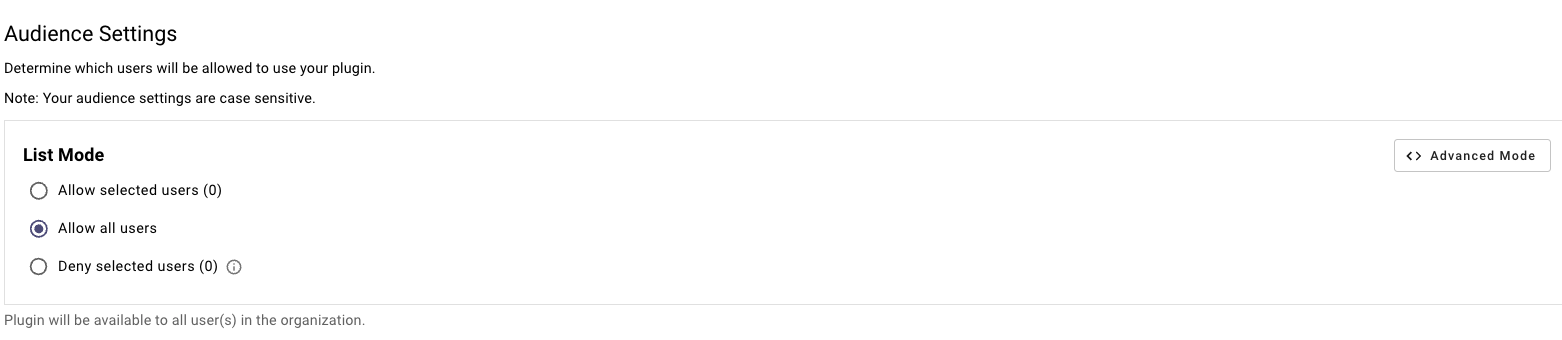
Use List Mode for simple email-based access.
- Allow selected users: enter the email addresses that should have access, separated by commas. Example:
jane.doe@example.com, john.smith@example.com. - Allow all users: give everyone in your organization access.
- Deny selected users: enter the email addresses to block. Everyone else will have access.
- Launch to no one: switch to Advanced Mode and enter
False.
2. Advanced Mode (Custom DSL Rules)
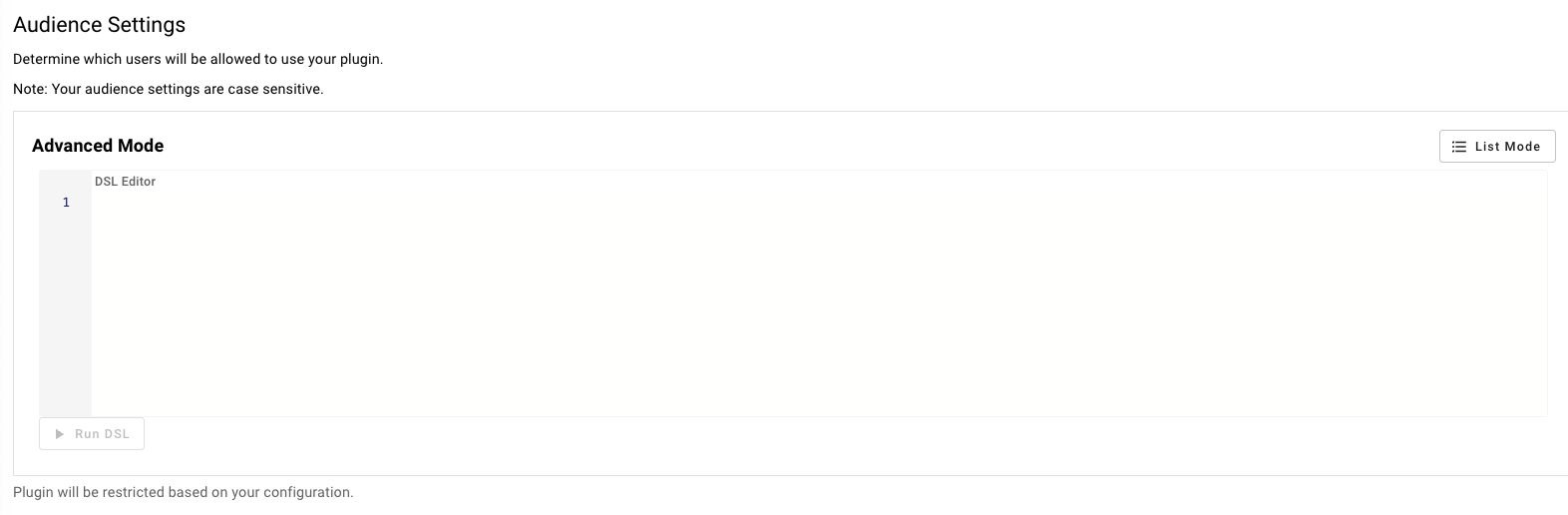
Use Advanced Mode for rules based on user attributes, such as department, location, or role. Advanced Mode uses Moveworks DSL.
- Allow only HR staff in New York:
user.department == "HR" AND user.location == "New York" - Allow only managers:
user.role == "manager"
See the User Attribute Reference for available fields.
Data Settings
Data settings control logging and analytics for the plugin.
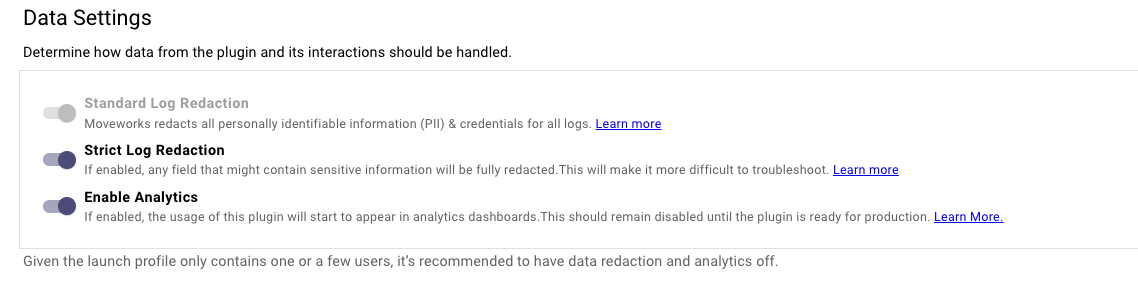
Choose from three options:
- Standard Log Redaction (always on): redacts personally identifiable information (PII) and credentials from logs.
- Strict Log Redaction: redacts more potentially sensitive data. Logs may be less useful for debugging.
- Enable Analytics: tracks plugin usage in Moveworks analytics dashboards. Keep this off during testing, then turn it on for production.
Analytics
When you build and test a new plugin, keep analytics off so testing does not affect production analytics.
For classic plugins, analytics appear on the Agent Studio Analytics dashboard only when analytics are enabled.
Plugins built with the Agentic Automation Engine appear in Assistant Insights.
Data Redaction Policy
Set the log redaction policy for your plugin. See our log redaction documentation for details.
Launch Configuration Troubleshooting
Error Code: 13120
There are validation errors in the email allow list. Make sure each email is formatted properly and that there are no duplicates.
Check each email in the list.
- For small email lists (< 20), use
Ctrl+ForCmd+Fto search for each email. - For larger lists (> 20), paste the emails into Google Sheets or Excel and remove duplicates.
Duplicate Emails
Check for repeated email addresses.
Invalid Email Format
Look for malformed email addresses:
- Missing an @domain, such as
@moveworks.ai - Using the wrong domain, such as
@moveworks.cominstead of@moveworks.ai
Configuration Saves, But Plugin Does Not Trigger
Make sure your identity configuration matches your configured values. Data is case sensitive.