
Roles and Permissions
Agent Studio uses two permission axes: editing and runtime. The UI bundles common combinations into four roles, so you can grant access in one step.
This page covers the roles and the permissions behind them.
This page covers per-asset roles, which control access to individual assets and folders. Workspace roles, such as Agent Studio Admin and Agent Studio Developer, control org-wide Agent Studio access. The per-asset Developer role and the workspace Agent Studio Developer role are not the same thing. For workspace roles, see Manage roles and permissions for Moveworks applications.
The Four Roles
When you grant access to an asset or folder, choose one of four roles.
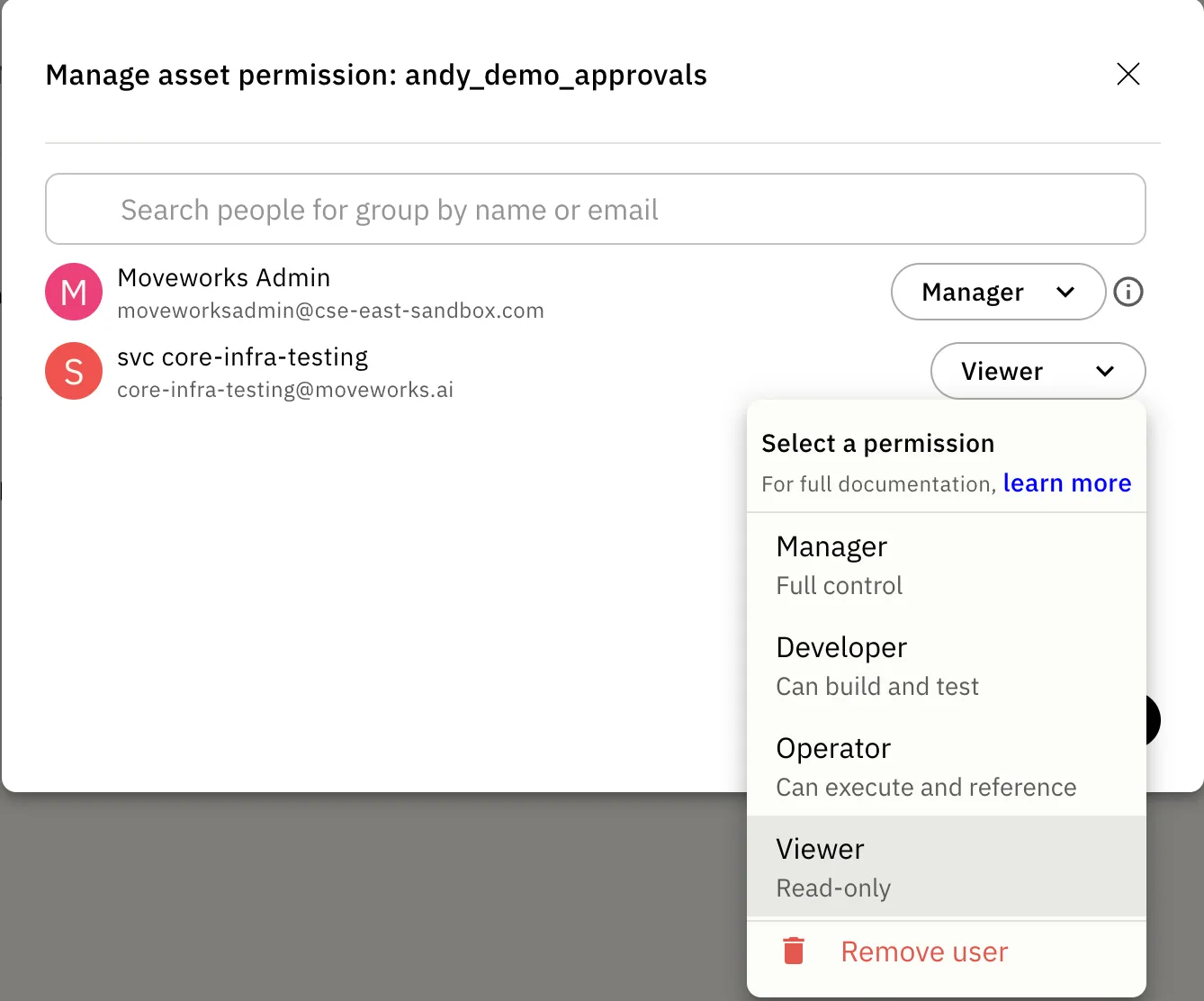
The Two Permission Axes
Each role maps to editing access, runtime access, or both.
Editing Axis (Authorship)
The editing axis controls who can read and change an asset’s configuration and logic. Each level includes the levels below it:
View < Edit < Manage
- View: see the asset’s definition and metadata.
- Edit: modify the asset’s configuration and logic, publish it, and move it between folders.
- Manage: everything in Edit, plus delete the asset and change who can access it.
Runtime Axis (Execution)
The runtime axis is a single permission:
- Use: run the asset, test it, view its execution logs, and reference it from another asset.
Use controls both build-time selection and runtime execution. Without it, you cannot pick the asset in a dropdown, run it, or test anything that would execute it.
Why the Axes Are Independent
Editing and runtime answer different questions. Having one does not imply the other.
For example, a developer can have Edit on a Workday HTTP action. They can read and change the action’s logic, but they cannot run it unless they also have Use on the action and the underlying Workday connector.
Teams can let more developers build while limiting execution to the right people.
Use decides whether a developer can run or test an asset while building. It does not control which employees can use a published plugin. For that, use End-User Access Control.
How Roles Map to Axes
Permission Matrix
The table below shows what each role can do on a single asset.
Logs and analytics follow the Use permission. If you can execute an asset, you can see its execution data. Every user also needs a workspace-level Agent Studio role before per-asset permissions apply.
What a Manager Can Do That a Developer Can’t
Both roles can edit, publish, run, and reference an asset. Only a Manager can govern the asset itself:
- Delete the asset.
- Change its access and sharing.
To grant someone access to an asset, you need Manager on that asset. An admin can also grant access.