
File Slots
The File slot type enables plugins to receive file attachments from users. It is resolved only when the user interacts with the dedicated “Upload file” button in the assistant interface.
Where You Can Use File Slots
Pass a resolved File object to one of two action types:
You cannot use a File slot in a Python action. To work with an uploaded file, use an HTTP action to send it to an API or an LLM action to read its contents.
File Object Structure
When a an attachment is added to the File slot, it generates this object structure:
Supported file extensions (case-insensitive)
(case-insensitive)
.png, .jpg, .jpeg, .pdf, .txt, .csv, .docx, .xlsx, .xlsm, .xls, .xltx, .xltm
Callout: Only these extensions are allowed as ticket attachments. Attempts to upload unsupported types will fail validation.
Upload Interface
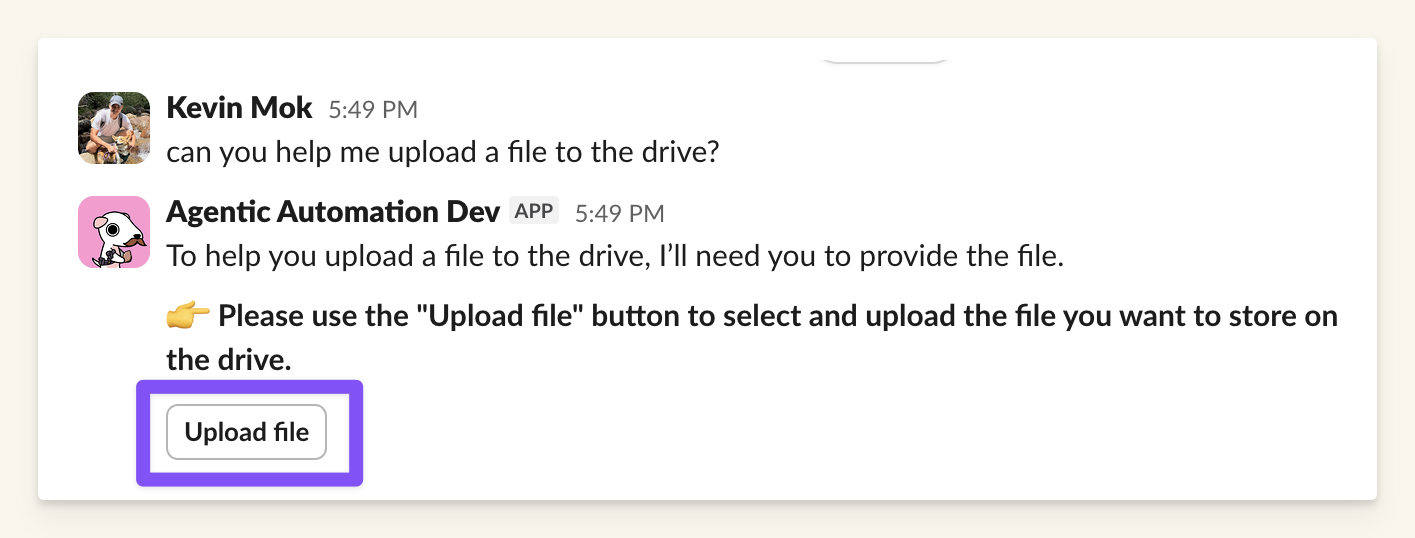
Users must use the “Upload file” button.
Single vs. Multiple Files
A File slot resolves to exactly one file. To accept several files in a single slot, set the slot’s data type to a list by checking “Data type is expected to be a list” when you create or edit the slot. This makes the slot a List[File].
The “Upload file” pop-up blocks attaching more than one file when the slot type is File. Set the slot to List[File] to enable multi-file selection.
Limitations
Workarounds
Use Case: Avoid Local File Download
Problem:
You do not want users to download files to their machine. Instead, you want users to paste a link (e.g., from Google Drive, OneDrive, or internal file server) directly into the assistant.
Limitation:
The platform cannot download files from external URLs on behalf of the user.
Solution:
Use a string slot named file_link instead of File.
Customer API responsibility:
Your API will need to handle the file download from the link passed by the user.
- Download file from
file_url - Validate content/type
- Process as needed
This bypasses local upload entirely. No file is stored or transmitted through the assistant.