
DSL and Mapper Playground [New]
DSL and Mapper Playground [New]
This page replaces the previous DSL & Mapper Playground documentation. The playground is now built directly into Moveworks Setup — no API key or external tooling is required.
Overview
The DSL Playground is an interactive tool in Moveworks Setup for testing Moveworks DSL expressions and Moveworks Data Mappers (Bender) against a sample payload. Use it to validate rules and mappings before applying them in launch rules, plugin configurations, connectors, or anywhere else Moveworks configuration languages are used.
With the playground you can:
- Evaluate a DSL expression or a Bender data mapper against any JSON payload and see the result instantly.
- Load realistic sample payloads (User, Ticket, Catalog Item, Group, and skill contexts) with one click.
- Build DSL rules visually with the Rule Builder, or describe a rule in plain English and let AI generate it with Generate Rule.
- Browse a built-in, searchable Function Reference for both DSL and Mapper functions without leaving the page.
Accessing the Playground
- Open Moveworks Setup.
- In the navigation, go to Troubleshooting & Tools.
- Select DSL Playground.
Interface at a Glance
The playground is split into three areas (the top/bottom split is resizable):
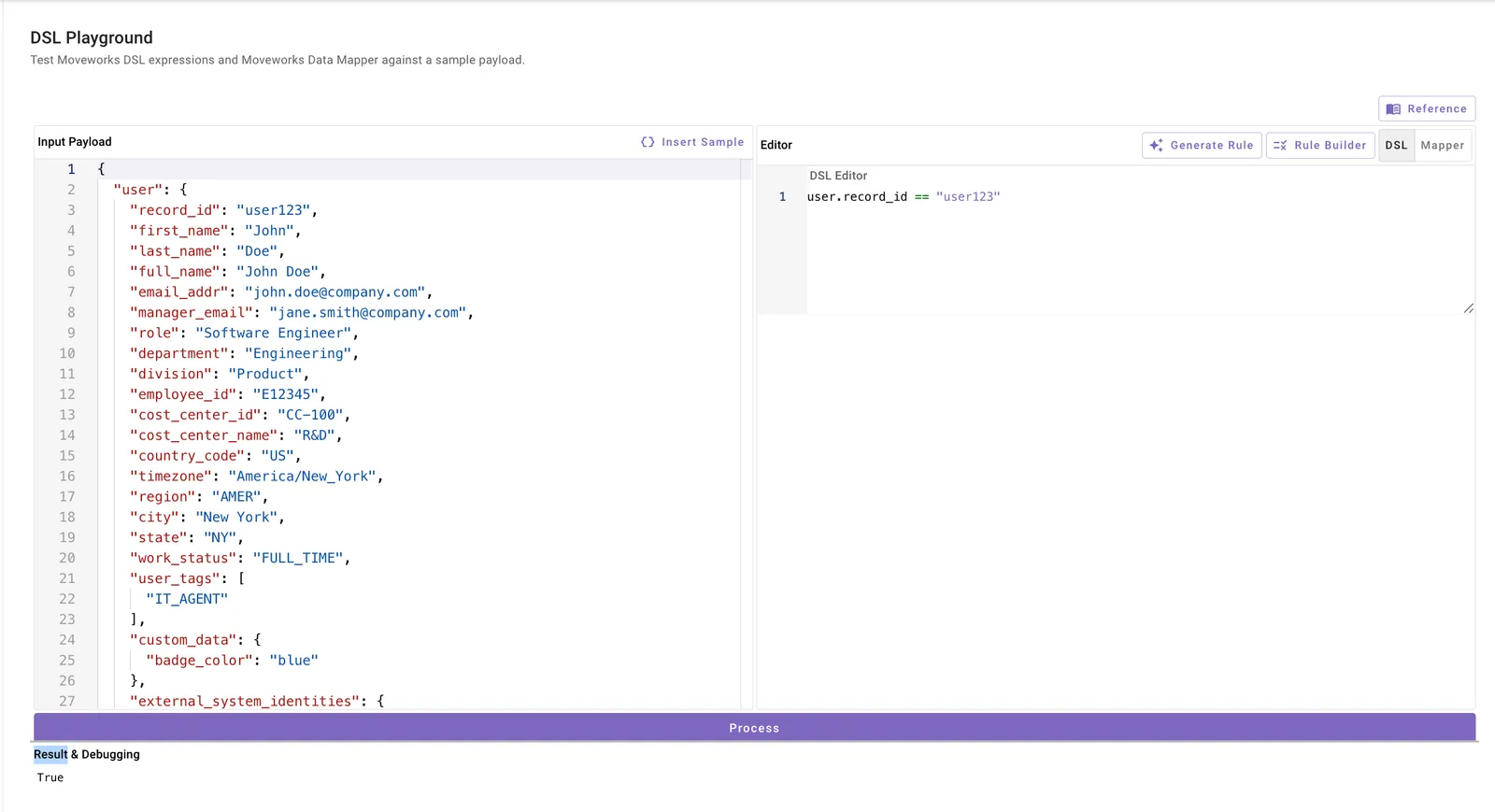
A Reference button on the top-right header opens the built-in Function Reference drawer.

How To Use
Step 1: Provide an Input Payload
Every evaluation runs against the JSON in the Input Payload panel. You can:
- Paste your own JSON — for example, a real payload from an API response or a connector.
- Load a sample — click Insert sample to choose from built-in objects:
- Core: User, Ticket, Catalog Item, Group
- Skill Context: System Context, Concierge Context, Access DL Context
If you’ve edited the payload, the playground asks for confirmation before replacing it with a sample.
Tip: The DSL editor’s autocomplete is payload-aware — it suggests field paths from your Input Payload. Keep the payload valid JSON to get suggestions.
Step 2: Write Your Expression
Use the toggle at the top right of the Editor panel to pick a mode:
DSL mode
Write a single Moveworks DSL expression, for example:
The DSL editor provides syntax highlighting, inline validation, and autocomplete based on your Input Payload.
Mapper mode
Write a Bender data mapper in YAML or JSON, for example:
Or a full mapping structure:
Switching modes keeps both your expression and your Input Payload intact.
Step 3: Process and Review Results
Click Process. The Result & Debugging panel shows:
- Success: the evaluated result, formatted for readability.
- Debugging details: when available, additional context appears below the result.
- Errors: the full error message in red, so you can pinpoint syntax issues or fields that don’t resolve.
Iterate freely — adjust the payload or expression and click Process again.
Example
Goal: verify a launch-rule-style condition against a sample user.
-
Click Insert sample → Core → User.
-
In DSL mode, enter:
-
Click Process.
-
The Result panel shows
trueorfalsebased on the sample user’s fields. Edit the payload’sdepartmentvalue and re-run to see the result change.
Building Rules Faster (DSL Mode)
Generate Rule (AI)
Click Generate Rule and describe the rule in plain English — for example:
department is Engineering and priority is P1 or P2
AI generates the DSL expression and inserts it into your editor.
Rule Builder
Click Rule Builder to construct a rule visually without writing DSL by hand:
- Pick the Data to check (autocomplete suggests paths from your payload, e.g.
ticket.status). - Choose an Operator.
- Enter a Value. Value handling is smart: numbers,
true/false/nullstay raw; other text is quoted; lists accept comma-separated values or a list literal like["a", "b"]. - Click Add condition to chain more conditions with AND/OR.
- Review the live Preview, then click Insert into editor. If the editor already has content, you can choose how to combine the new rule with it (AND/OR).
If a data path isn’t present in your current Input Payload, the builder flags it with a warning — the rule may not resolve at runtime.
FAQ
- Do I need an API key?
- No. Unlike the previous playground, the in-product DSL Playground requires no API key or credentials — it uses your existing Moveworks Setup session.
- Can I test both DSL and Data Mappers?
- Yes. Use the DSL / Mapper toggle in the Editor panel. Generate Rule and Rule Builder are available in DSL mode only.
- Why doesn’t autocomplete suggest my fields?
- Autocomplete reads field paths from the Input Payload. Make sure the payload is valid JSON.
- Is my work saved?
- No. The playground does not currently save evaluation history or expressions — copy anything you want to keep into your configuration.
Function Reference
Click Reference in the header to open a searchable, in-product catalog of functions. Toggle between DSL and Mapper, and search by function name, signature, description, or example.
DSL categories: Stream Operators, String Analysis, String Formatting, String Manipulation, Datetime Manipulation, Type Casting, Approximation Comparators — including functions like MAP, FILTER, ANY, ALL, MATCH, LOWERCASE, CONCAT, SPLIT, PARSE_TIME, FORMAT_TIME, TEXT, INTEGER, PARSE_JSON, and more.
Mapper categories: Field-Level, Structural, List Manipulation, Branching, String Manipulation — including OBJECT, ARRAY, FLATTEN, MERGE, MAP, SORT, COALESCE, FILTER, CONDITIONAL, LOOKUP, CONCAT, RENDER, STRIP_HTML, and more.
Each entry shows the function’s description, signature, and a copyable example. Footer links open the full language references in the Moveworks documentation: